Introdução

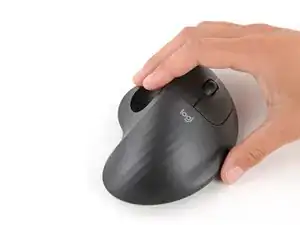
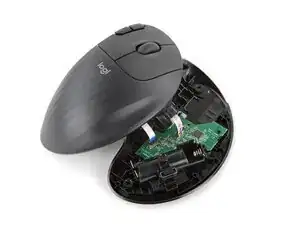
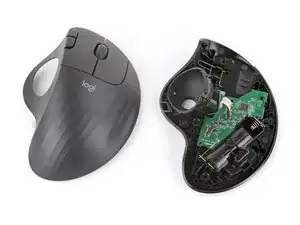
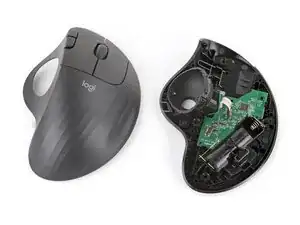
Follow this guide to open your Logitech Ergo M575S wireless mouse.

Opening your mouse gives you access to clean its internals, troubleshoot mechanical problems, or replace a part.

Note: Opening the mouse requires removing the feet. While it’s possible to cleanly remove the feet, you may need replacements if one gets damaged.

  1. LODb4WManFMWXRqy
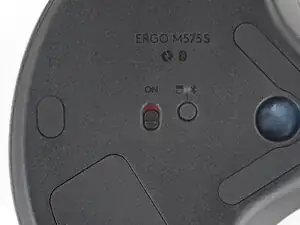
    • Before starting, flip the power switch on the bottom of your mouse down, so it's in the OFF position.

  2. LFSiJBpcjd2lDHAI
    LFSiJBpcjd2lDHAI
    TQcCRjuojlH1LCHO
    lHm2MYvPJHDTA3Ho
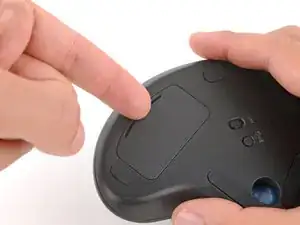
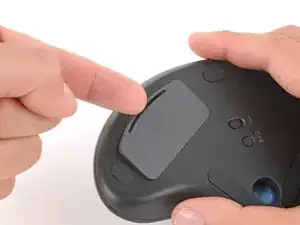
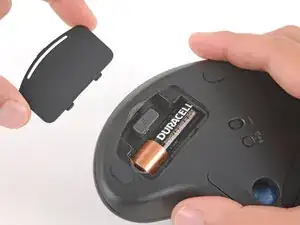
    • Push the battery cover's center tab in and up to remove the cover.

  3. KUQlXlRnIagVuNpI
    KUQlXlRnIagVuNpI
    rDNgaGL3J2PvMdhE
    CdYqJYouURafLilP
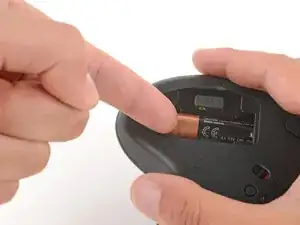
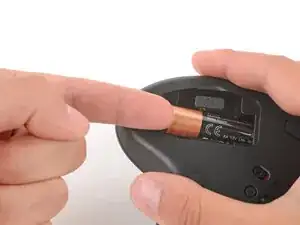
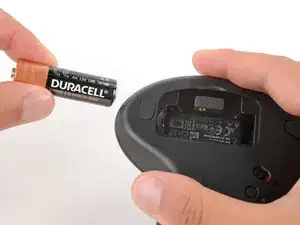
    • Use your fingers to lift the end of the battery and slide it out of its recess.

    • During reassembly, check the sticker in the recess to ensure you insert the battery in the proper orientation.

  4. 1cNoamMQtG3jiwNA
    1cNoamMQtG3jiwNA
    GUFfaiGjrHRpBxBh
    UvWZMFynZqwKkuOJ
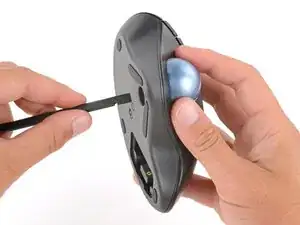
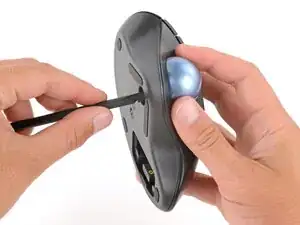
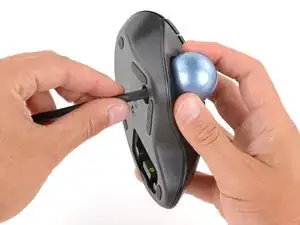
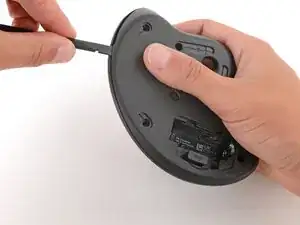
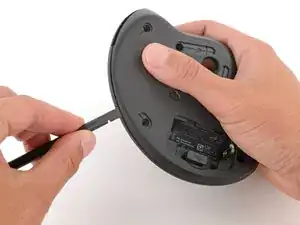
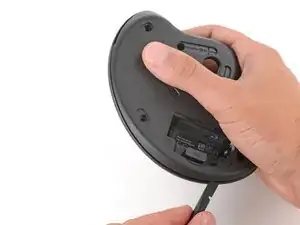
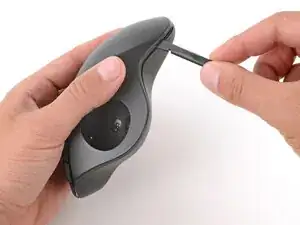
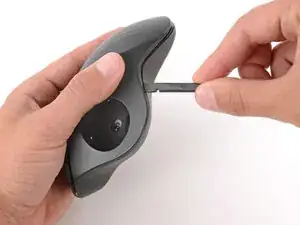
    • Insert a spudger into the trackball hole on the bottom of the mouse and push the trackball out of its recess.

  5. kXOGEU3jNUSwYhru
    kXOGEU3jNUSwYhru
    iRC4W3V3pnTCiEMC
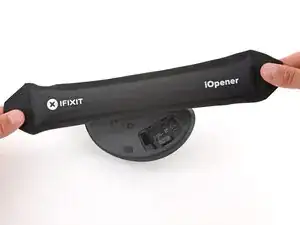
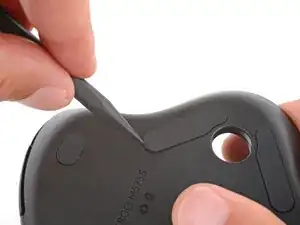
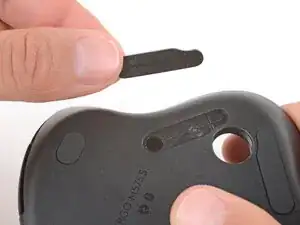
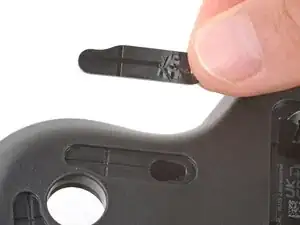
    • The mouse feet cover screws and must be removed to open the mouse.

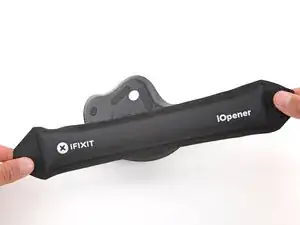
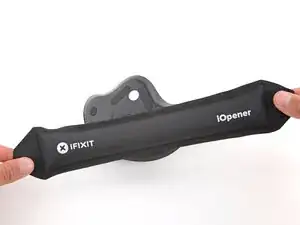
    • Heat an iOpener and lay it on the mouse feet for one minute to soften the adhesive securing the feet.

    • Alternatively, you can use a hair dryer on the Low heat setting to soften the adhesive.

    • If you're using a hair dryer, only heat the feet a few seconds at a time or you may warp the plastic shell.

  6. B6BPsxbOSyKxCuyt
    B6BPsxbOSyKxCuyt
    LALeevCVvTGWqByc
    WFiqqgWXPlxRhTWq
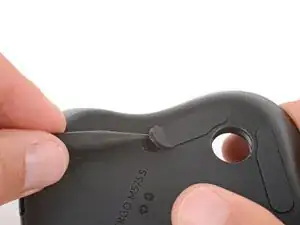
    • If you're reusing the feet, be careful not to damage them during removal.

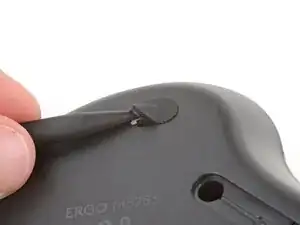
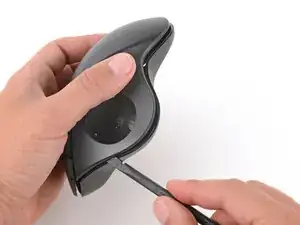
    • Slide the point of a spudger under the end of one of the feet and lift until you can grip it with your fingers.

    • Use your fingers to peel up and remove the mouse foot.

    • If the foot separated from its adhesive, use tweezers to remove any bits from the recess. You'll need to replace any feet that separate from their adhesive.

  7. phlKBL2oDSNKWQoI
    phlKBL2oDSNKWQoI
    GmN5sUsnPGKsbCYp
    RBCLXRvuDnpyFkM1
    • Repeat the process to remove the four remaining feet.

    • If the feet feel stuck, apply more heat and try again.

  8. mGSHMLGtGGA3QKBH
    mGSHMLGtGGA3QKBH
    VEqCqJCuFofNCAhg
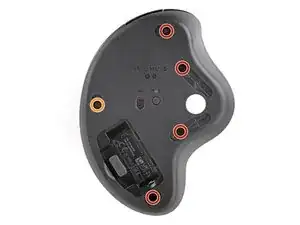
    • Use a Phillips screwdriver to remove the five screws securing the two halves of the mouse together:

    • Four 7.8 mm‑long screws

    • One 7.6 mm‑long screw

  9. cMFfTqmpJCBF6QQ6
    cMFfTqmpJCBF6QQ6
    rbJixRJeJaJDkUom
    pNBV4HTLeU6IogTR
    • Insert the flat end of a spudger between the two halves of the mouse, near the front.

    • Slide the spudger towards the back of the mouse and gently pry to release the clips securing the two halves.

  10. XibukW6lmjr2VISl
    XibukW6lmjr2VISl
    IhqZyfdHqlhhAMBF
    hFU5AdlUNSOM2pjg
    • Repeat the process to separate the other side of the mouse.

    • Don't try to fully separate the two halves yet—a ribbon cable still connects them.

  11. gwpdJV4Qrp1FT2JZ
    gwpdJV4Qrp1FT2JZ
    KQdmrdHTbWhuCmFY
    f6PYPGlwpnPXpNTV
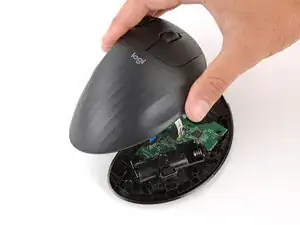
    • Gently lift the top half and place it to the left of the mouse so you can access the internals.

  12. Gg65ZvFE421aYIvb
    Gg65ZvFE421aYIvb
    62YicFUylAeFONZs
    V5FTMB3LwZGEUvYj
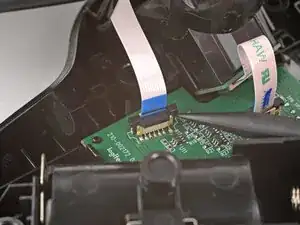
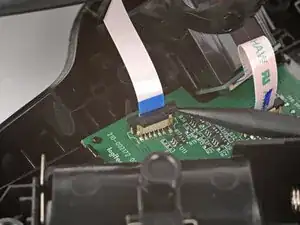
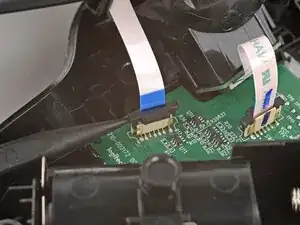
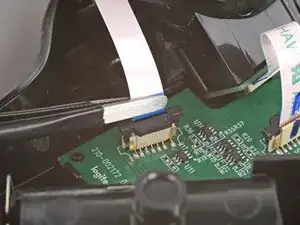
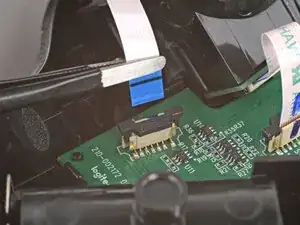
    • Use the point of a spudger to gently push up on alternating sides of the interconnect cable locking tab until it clicks into its unlocked position.

    • You should feel the latch pop into the unlocked position. Don't push too far, or the latch may come completely off the connector.

  13. YT2wwpqNX6UYuG2O
    YT2wwpqNX6UYuG2O
    XGc2ZflJuXRubunG
    • Slide the cable straight up and out of its socket.

  14. poT2LakfmPPjq2VQ
    • Remove the top half of the mouse from the bottom half.

Conclusão

To reassemble your device, follow these instructions in reverse order.

Repair didn’t go as planned? Try some basic troubleshooting, or ask our Answers community for help.

Reuse or Recycle—Never put discarded electronic parts in household waste. Visit Logitech Recycling to find your nearest recycling points, including the option to mail back old devices to Logitech for free if there’s no convenient solution in your area. You can also take your e-waste to any R2 or e-Stewards certified recycler. And don’t let good working parts or repaired devices die a slow death in your sock drawer—pass them along to someone who can use them.

Share your experience—Leave a comment here or send your feedback directly to Logitech at repair@logitech.com to help shape future repair guides and product design.

Spencer Day

Membro desde: 14/09/22

165254 Reputação

0 comentários