Introdução
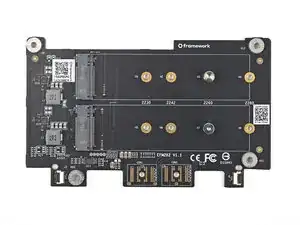
Use this guide to install the Dual M.2 Adapter in your Framework Laptop 16. This guide also shows how to install SSDs into the Adapter.
Note: installing the Dual M.2 Adapter requires the Graphics Module Interposer, which is optionally bundled with the adapter.
Make sure your BIOS is up to date with the latest version before installing the adapter.
Ferramentas


-
-
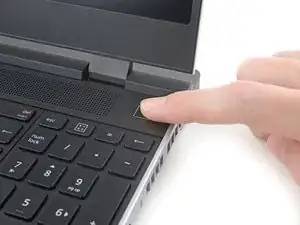
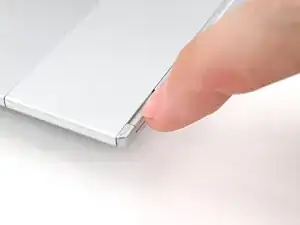
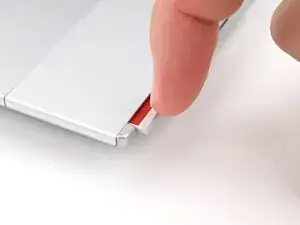
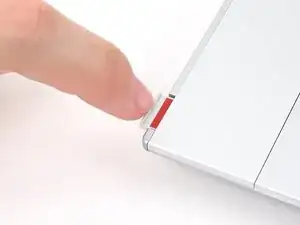
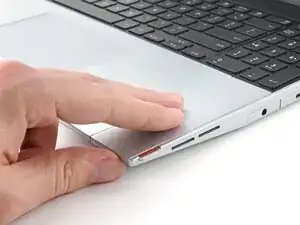
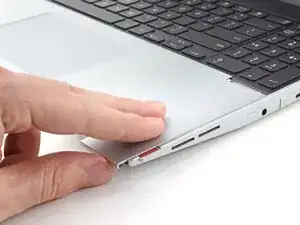
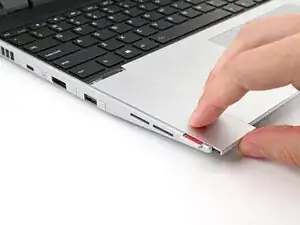
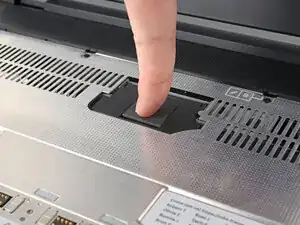
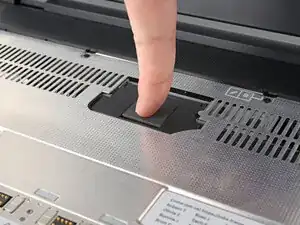
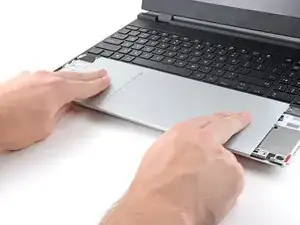
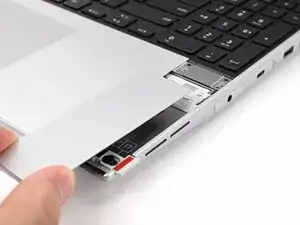
Use your fingers to slide the Touchpad Spacer toward the bottom edge of the laptop and unclip it.
-
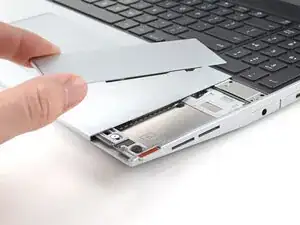
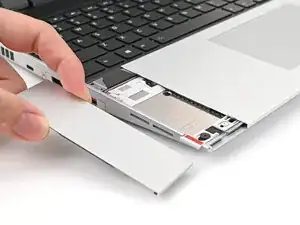
Lift the Touchpad Spacer off the laptop and remove it.
-
-
-
Use your fingers to slide the Touchpad Module toward the bottom edge of the laptop and disconnect it.
-
Lift the Touchpad Module and remove it.
-
-
-
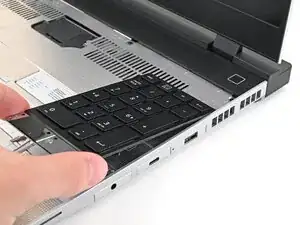
Grip the two pull tabs along the bottom of the keyboard and lift until its magnets release.
-
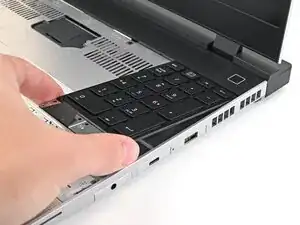
Remove the keyboard.
-
-
-
Grip the pull tab at the bottom of the Input Module and lift until its magnets release.
-
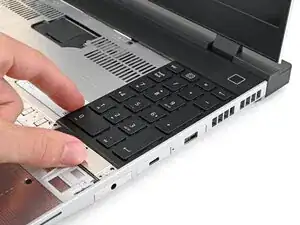
Remove the Input Module.
-
Repeat for any remaining Input Modules.
-
-
-
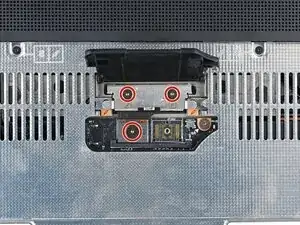
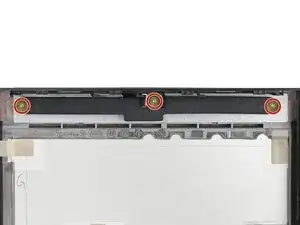
Use your Framework Screwdriver to loosen the three captive T5 Torx screws securing the interposer.
-
-
-
Use your Framework Screwdriver to loosen the two captive T5 Torx screws securing the Expansion Bay Shell.
-
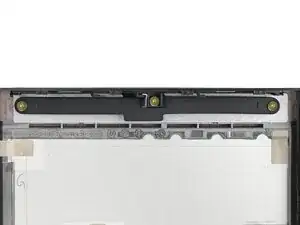
Close the interposer door before continuing.
-
-
-
Close your laptop and flip it over.
-
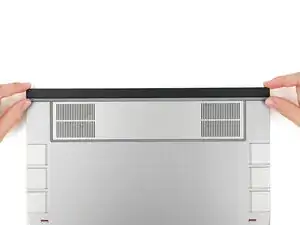
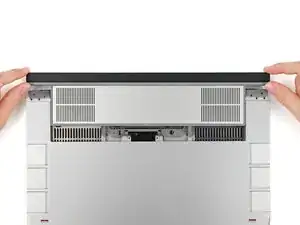
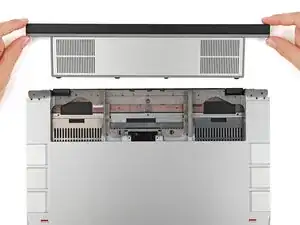
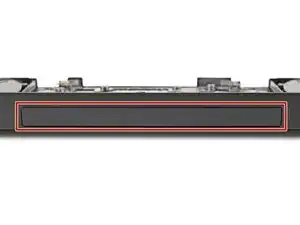
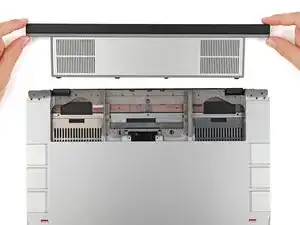
Slide the Expansion Bay Shell out of the laptop and remove it.
-
-
-
Use the flat end of your Framework Screwdriver, or a clean fingernail, to lift up and release the locking tab on one of the fan ZIF connectors.
-
-
-
Use your fingers to grip the brown pull tab and slide the fan cable straight out of its socket.
-
-
-
Use your Framework Screwdriver to remove the two 3.6 mm‑long screws securing the Expansion Bay Shell Fan Board.
-
-
-
Use your fingers to lift the board straight off its alignment pegs on Expansion Bay Shell and remove it.
-
-
-
Use your Framework Screwdriver to remove the three 3.6 mm‑long screws securing the rubber spacer.
-
-
-
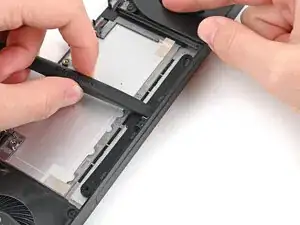
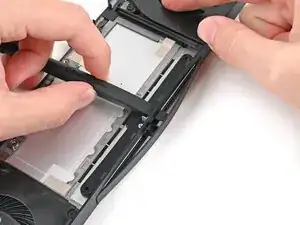
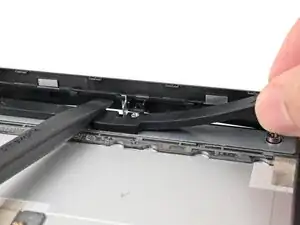
While holding the Expansion Bay Shell down, use the flat end of your Framework Screwdriver to push the plastic strip near the rubber spacer outwards.
-
-
-
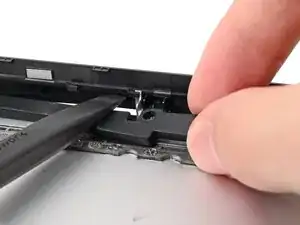
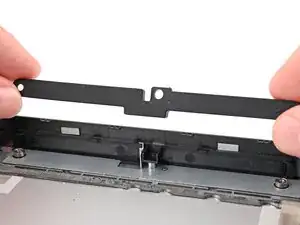
While keeping the plastic strip bent, lift the rubber spacer out of its screw posts and remove it.
-
-
-
Congratulations on completing disassembly! The remaining steps will show how to reassemble your Framework Laptop.
-
-
-
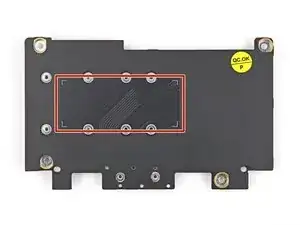
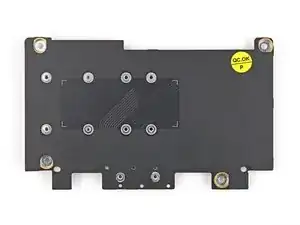
Flip over your Dual M.2 Adapter and locate the marked section where you'll place the 1.75 mm thermal pad.
-
-
-
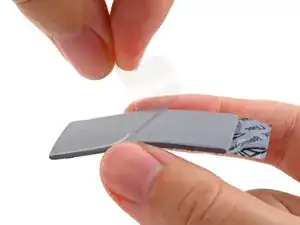
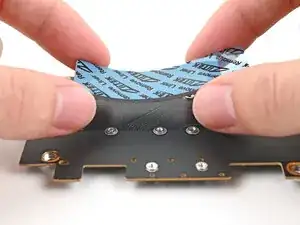
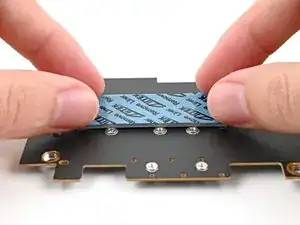
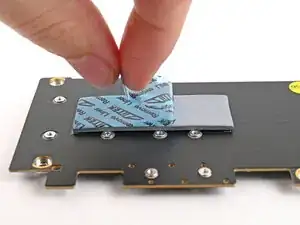
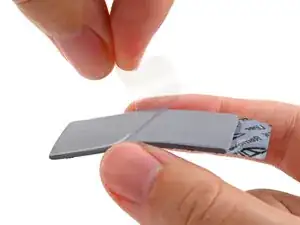
Remove the clear liner from the thermal pad labeled 1.75 mm to expose one side of it.
-
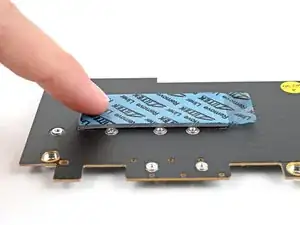
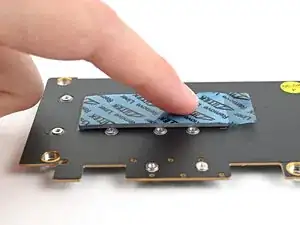
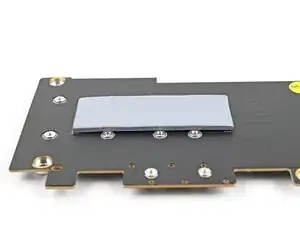
Place the thermal pad over its spot on the back of the adapter.
-
-
-
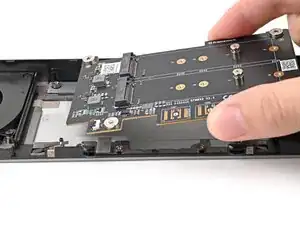
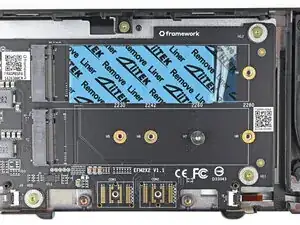
Flip over the adapter and place it into its spot in the Expansion Bay Shell, making sure it slots into its alignment pegs.
-
Before continuing, make sure the fan cables aren't trapped under the adapter.
-
-
-
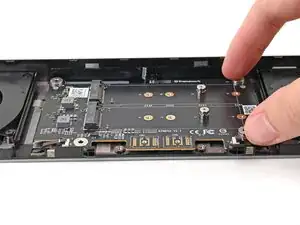
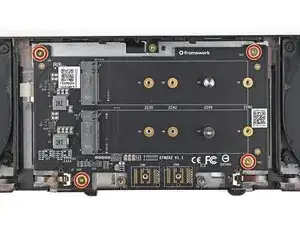
Use your Framework Screwdriver to partially install the four 3.6 mm‑long screws securing the Dual M.2 Adapter—only screw them in a few turns.
-
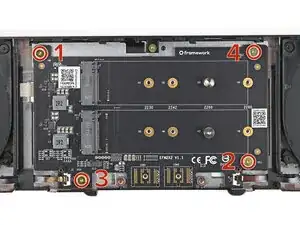
Tighten the four screws in an "X" pattern starting with the top left screw.
-
-
-
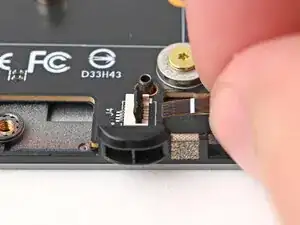
Use your fingers to grip the brown pull tab and slide the right fan cable straight into its socket.
-
Use the flat end of your Framework Screwdriver, or a clean fingernail, to press down the locking tab on the right fan ZIF connector.
-
-
-
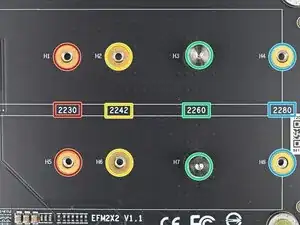
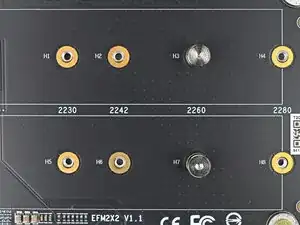
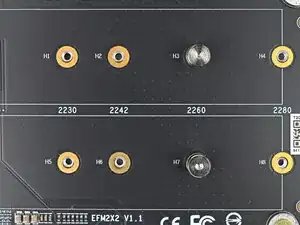
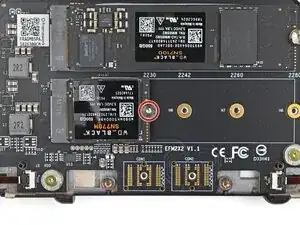
Refer to the markings on the adapter to figure out where your SSD will go:
-
2230 SSDs → H1 or H5
-
2242 SSDs → H2 or H6
-
2260 SSDs → H3 or H7
-
2280 SSDs → H4 or H8
-
-
-
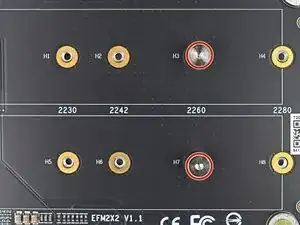
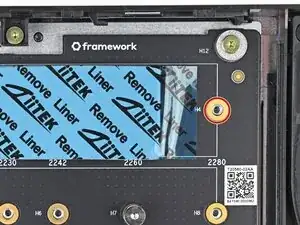
Use your Framework Screwdriver to remove one or both of the 6.7 mm‑long T5 Torx SSD screws, depending on how many SSDs you're installing.
-
-
-
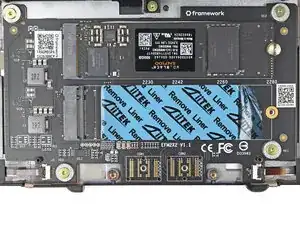
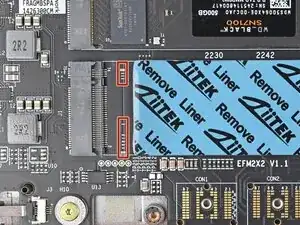
If you're installing a single‑sided SSD (chips on only one side), grab the 2.25 mm thermal pad.
-
If you're installing a double‑sided SSD (chips on both sides), grab the 1.25 mm thermal pad.
-
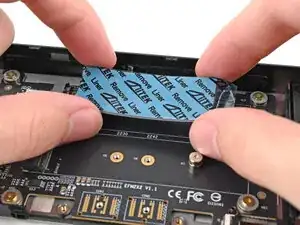
Without removing any liners, place the thermal pad over the slot where you want to install your SSD.
-
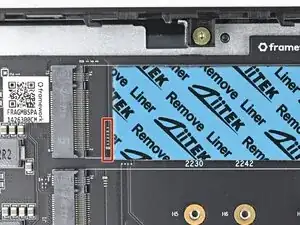
Orient the thermal pad so it sits between the small components next to the SSD's socket and the screw hole—including the gold ring around it.
-
When you're confident in how your thermal pad should be oriented, remove it and continue to the next step.
-
-
-
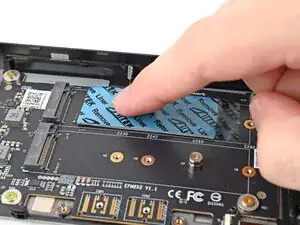
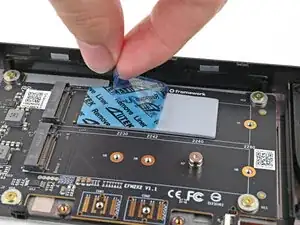
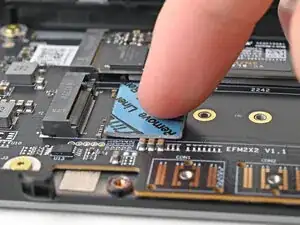
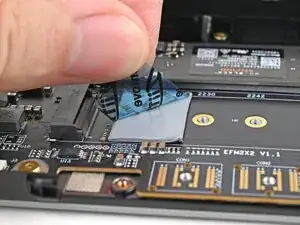
Remove the clear liner from the thermal pad to expose one side of it.
-
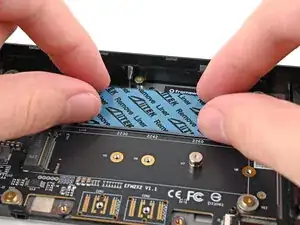
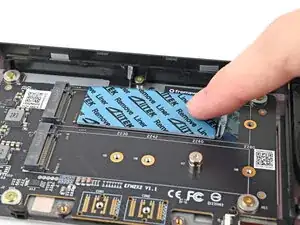
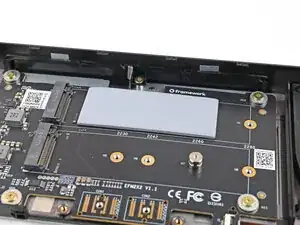
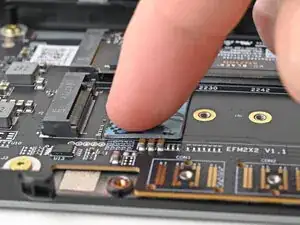
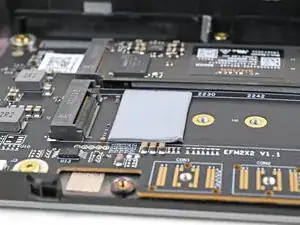
Place the thermal pad over its spot on the adapter.
-
-
-
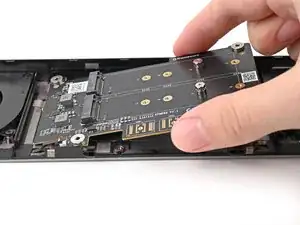
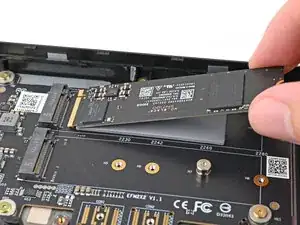
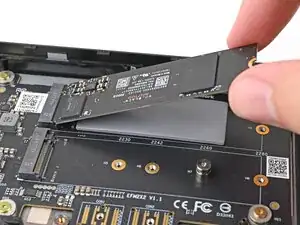
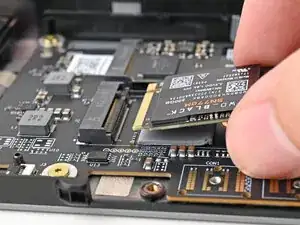
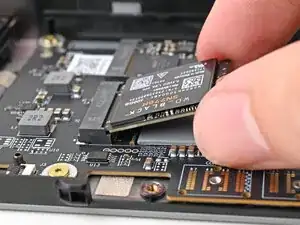
Insert the SSD into the socket at a shallow angle. The gold contacts should mostly be covered by the socket.
-
-
-
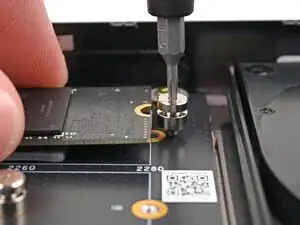
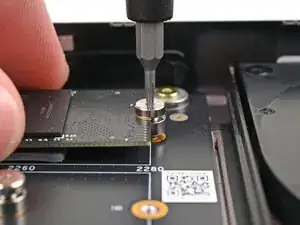
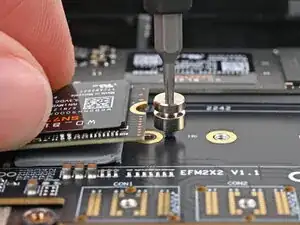
While lightly pressing the SSD into the thermal pad, guide the gap in the SSD screw into the notch on back of the SSD
-
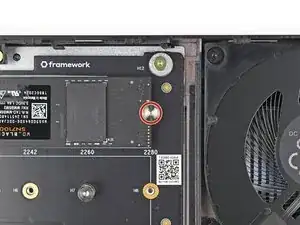
Use your Framework Screwdriver to install the 6.7 mm‑long screw securing the SSD.
-
-
-
If you're installing a single‑sided SSD (chips on only one side), grab the 2.25 mm thermal pad.
-
If you're installing a double‑sided SSD (chips on both sides), grab the 1.25 mm thermal pad.
-
Without removing any liners, place the thermal pad over the slot where you want to install your SSD.
-
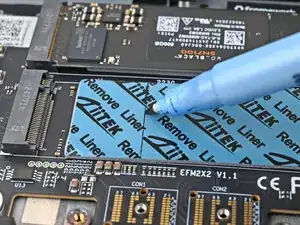
Orient the thermal pad so it sits near the small components next to the SSD's socket.
-
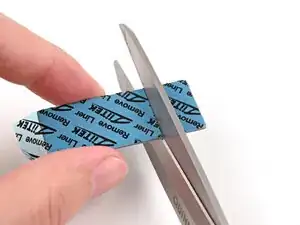
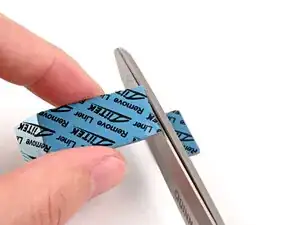
Use a marker to indicate where you need to cut the thermal pad so it fits between the socket and your SSD's screw hole—including the gold ring around it.
-
When you're confident in how your thermal pad should be oriented, remove it and continue to the next step.
-
-
-
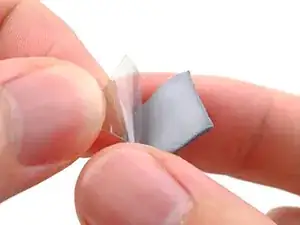
Remove the clear liner from the thermal pad to expose one side of it.
-
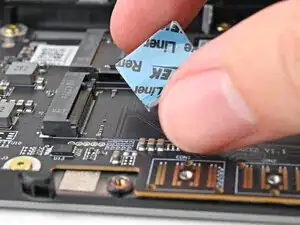
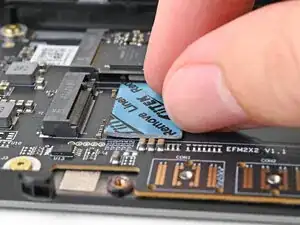
Place the thermal pad over its spot on the adapter.
-
-
-
Insert the SSD into the socket at a shallow angle. The gold contacts should mostly be covered by the socket.
-
-
-
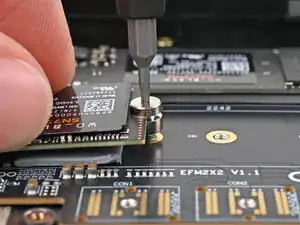
While lightly pressing the SSD into the thermal pad, guide the gap in the SSD screw into the notch on back of the SSD
-
Use your Framework Screwdriver to install the 6.7 mm‑long screw securing the SSD.
-
-
-
Flip over the laptop and open it.
-
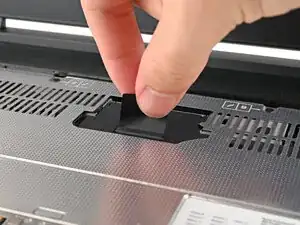
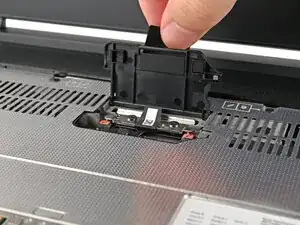
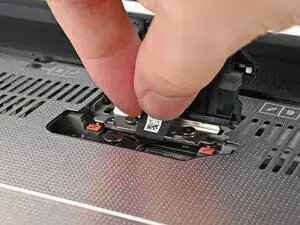
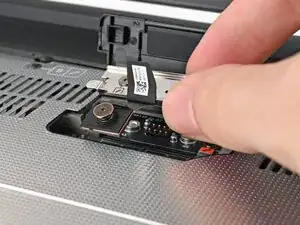
Lift the interposer door by its black pull tab and let it rest upright.
-
-
-
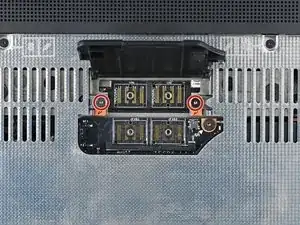
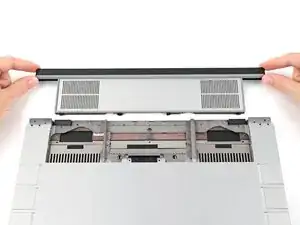
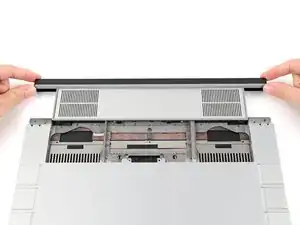
Use your Framework Screwdriver to tighten the two captive T5 Torx screws securing the Expansion Bay Shell.
-
-
-
Use your Framework Screwdriver to tighten the three captive T5 Torx screws securing the interposer.
-
Close the interposer door.
-
-
-
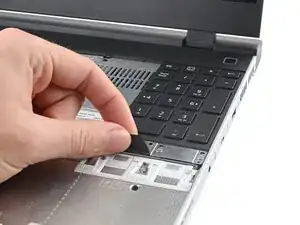
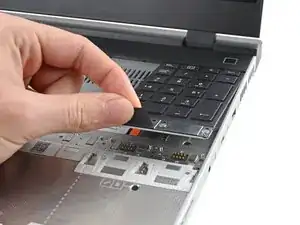
Align the top edge of the Input Module with the top edge of the laptop.
-
Lay the Input Module on the laptop and let the magnets pull the keyboard into place
-
Repeat for any remaining Input Modules.
-
-
-
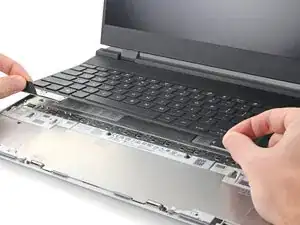
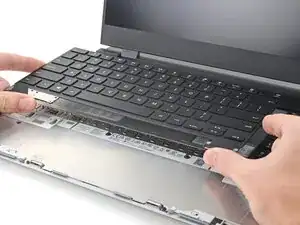
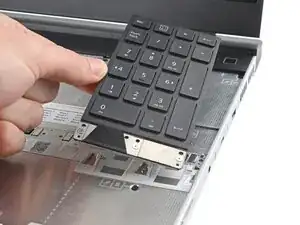
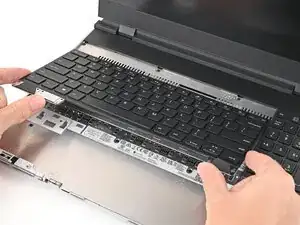
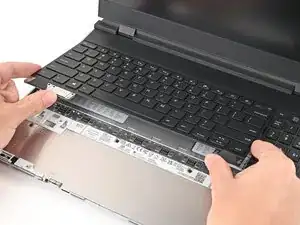
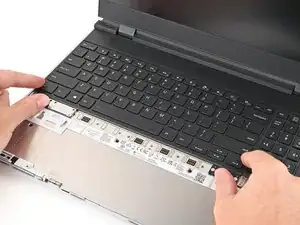
Align the top edge of the keyboard with the top edge of the laptop.
-
Lay the keyboard on the laptop and let the magnets pull the keyboard into place
-
-
-
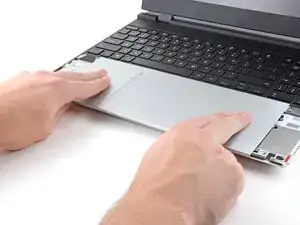
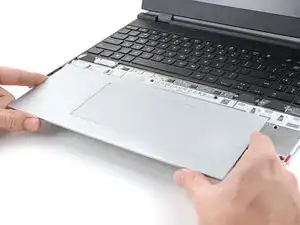
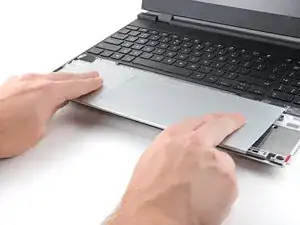
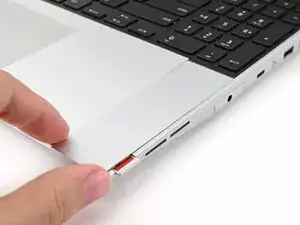
Place the Touchpad Spacer over its spot on the laptop with the bottom edge overhanging slightly.
-
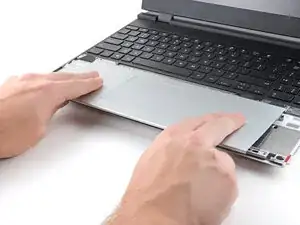
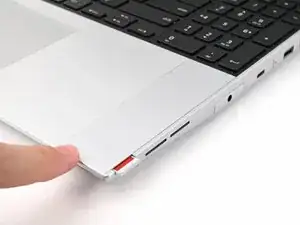
Slide the Touchpad Spacer towards the top of the laptop to secure it.
-
Repeat the same procedure for the other Touchpad Spacer.
-


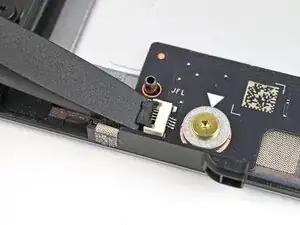
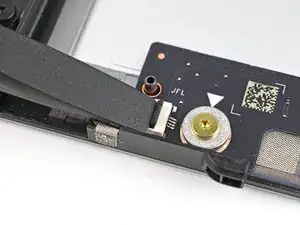
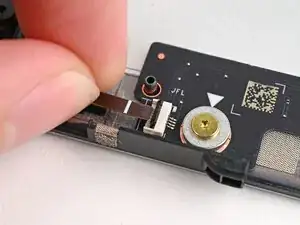
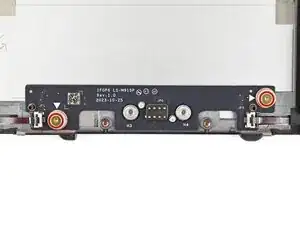
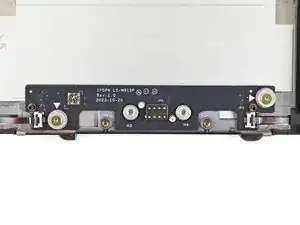
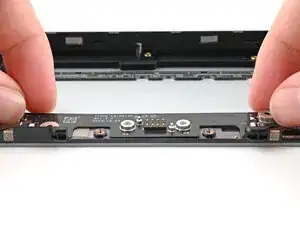
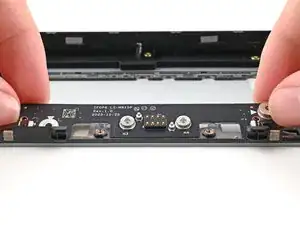
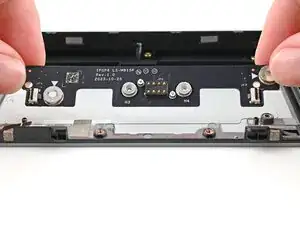
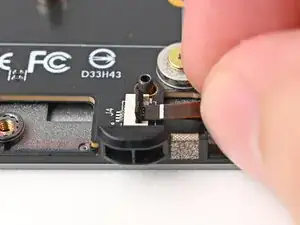
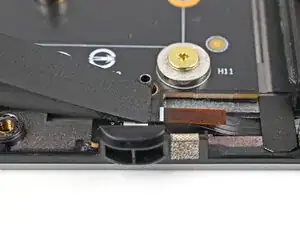
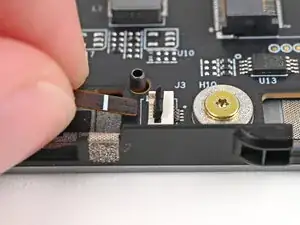
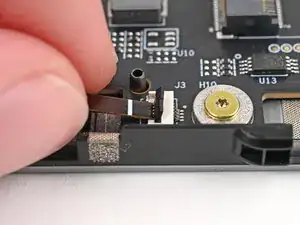
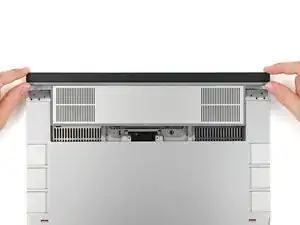
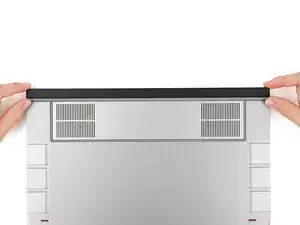
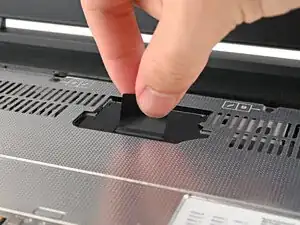
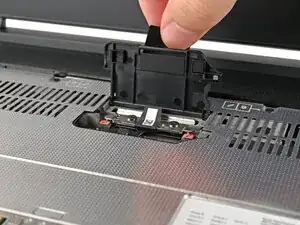
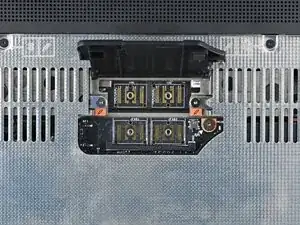
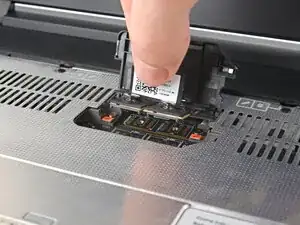
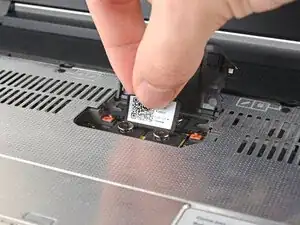
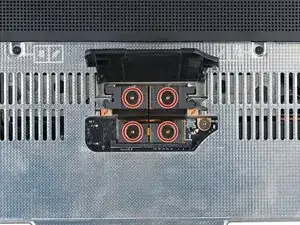
You finished fixing your Framework Laptop!
Take your e-waste to an R2 or e-Stewards certified recycler.
If you need help, contact Framework support.
