Introdução

This guide shows how to install and remove Expansion Cards for your Framework Desktop.

The Expansion Cards are hot-swappable. You can install and remove them without turning off your desktop.

For information on Expansion Card compatibility, click here.

  1. BskSEKDdsueKUvTL
    BskSEKDdsueKUvTL
    x3JVMDZjtU3oAMdg
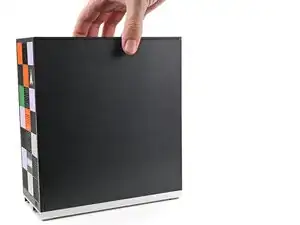
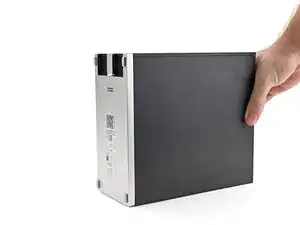
    • Rotate the Desktop so its rear rests on your work surface.

    • If your Desktop is plugged in, consider powering down and unplugging it so the rear sits flat. Otherwise, you'll need to support it with one hand at an angle while you work.

  2. eMCI4XHAToaiPXwn
    eMCI4XHAToaiPXwn
    hCXePMwA1i4uqxMV
    Q5UWdsjot2tFRRkU
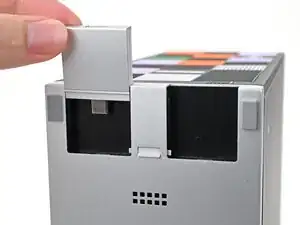
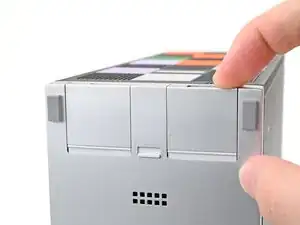
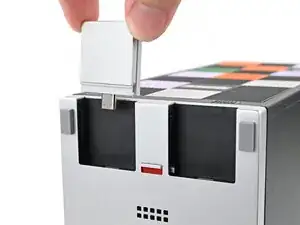
    • The next two steps show how to install an Expansion Card.

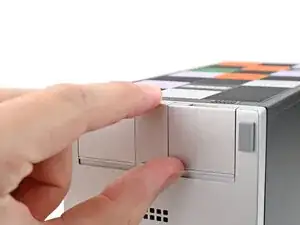
    • Slide an Expansion Card into an Expansion Card slot.

    • You don't need to unlock the latch to install the Expansion Cards—only when you want to remove them.

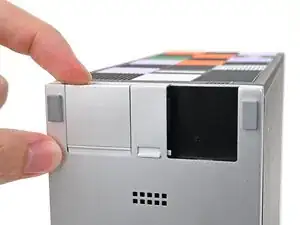
    • The Expansion Cards should click into place, and the front edge should be flush with the silver base.

  3. jxykNfSeYfAIyp11
    jxykNfSeYfAIyp11
    bHnl2CTIM2OAJO6j
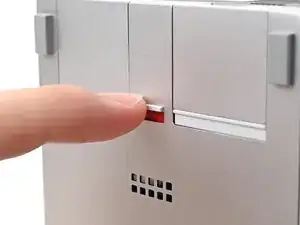
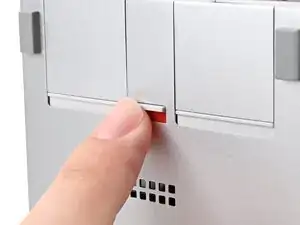
    • If there's a red bar showing under the Expansion Card latch, use your finger to flip the latch and lock the Expansion Card into its slot.

    • Locking the Expansion Card slots helps keep the cards in place when you unplug cables from them.

  4. YSfUFL2luULyBgus
    YSfUFL2luULyBgus
    QEHiUdB2cKWcnHPo
    • The next two steps show how to remove an Expansion Card.

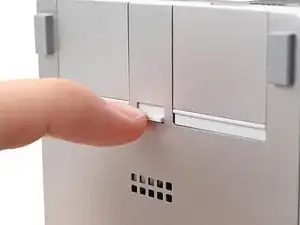
    • Use your finger to flip the Expansion Card latch into the unlocked position.

    • The latch displays a red bar when it's unlocked.

  5. nAdvKftK4o1ZrpCM
    nAdvKftK4o1ZrpCM
    DFaWAFsDc6bJPsqx
    aFXXnbRffSEl4vlV
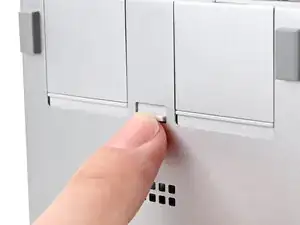
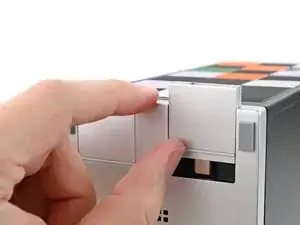
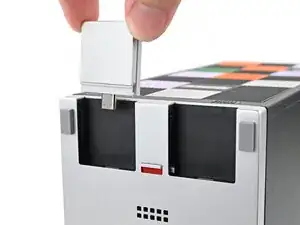
    • Push up on the lip of the Expansion Card with your fingers.

    • Pull the Expansion Card out of its slot and remove it.

Conclusão

If you need help, contact Framework support.

Alex Diaz-Kokaisl

Membro desde: 16/01/22

227430 Reputação

0 comentários