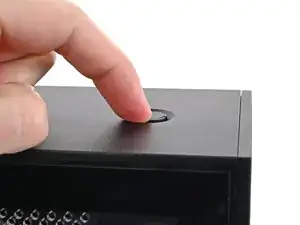
Introdução

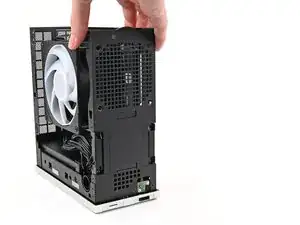
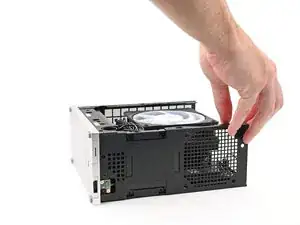
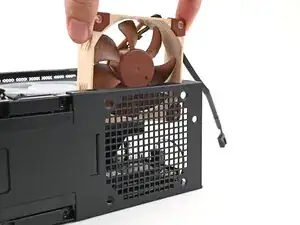
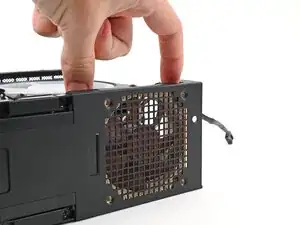
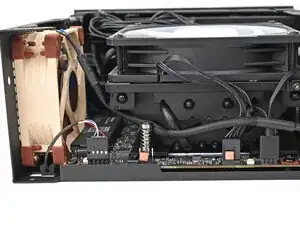
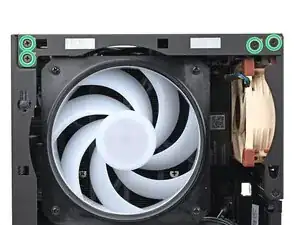
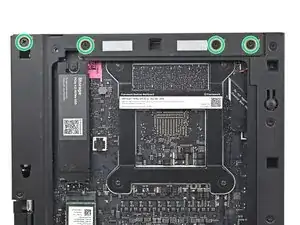
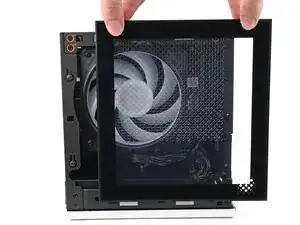
Follow this guide to install a secondary 80mm fan in your Framework Desktop.

The Framework Desktop supports a 80mm fan with a standard 4-pin connector. For detailed fan requirements, click here.

The guide shows installing a Noctua NF-A8 80mm fan. If installing a different fan, mileage may vary.

This fan is completely optional. In thermal simulations, Framework saw that there wasn't a significant difference having the 80mm fan vs not.

  1. DjDhorNOQwh3ZGMT
    DjDhorNOQwh3ZGMT
    kjwZlai1KO5WDWSF
    TqEBZOhj5ATriECX
    • Before you begin repairs, shut down your desktop from the operating system and unplug it.

    • Wait one minute before continuing to allow your Desktop to fully power down.

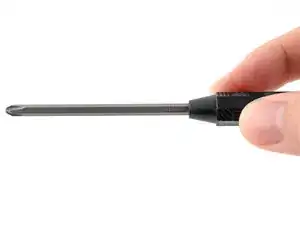
    • Make sure your Framework Desktop Screwdriver has the Phillips #2 bit (labeled as PH2) facing outwards. If it's not, pull the bit out and flip it.

  2. bCnmRpDo2L1muYA5
    bCnmRpDo2L1muYA5
    PkjmE66QFWiGyJPD
    rXfwXpgdDlUm4VSA
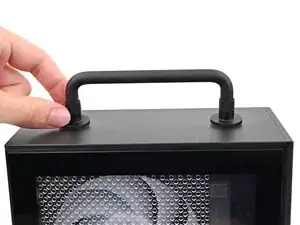
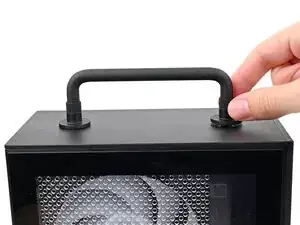
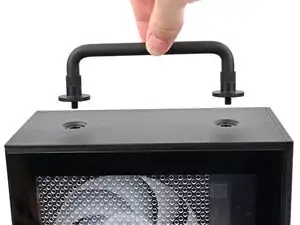
    • If you installed the Handle on your Desktop, follow this step. Otherwise, skip it.

    • Rotate the Handle's screw threads counterclockwise on both sides until it comes free.

    • Remove the Handle.

  3. 25uSW5yTweC4DhJH
    25uSW5yTweC4DhJH
    NLSHNAcGIfXySxVC
    uIxWPNWJJEnVnIum
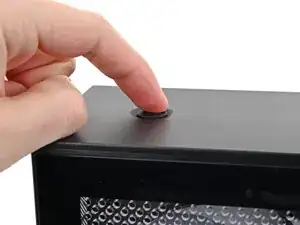
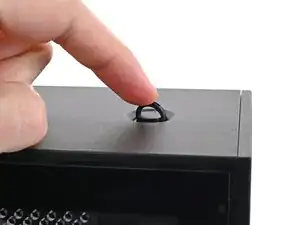
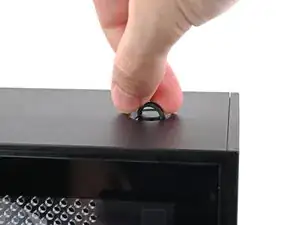
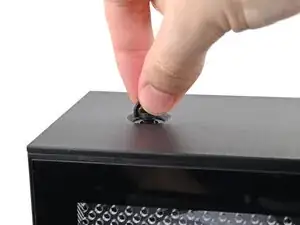
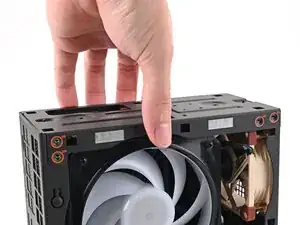
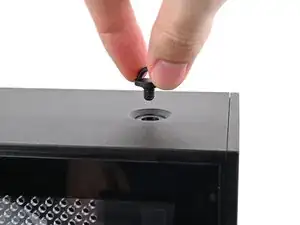
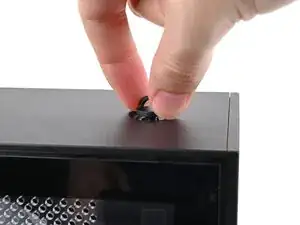
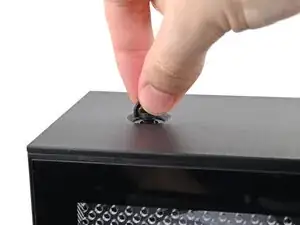
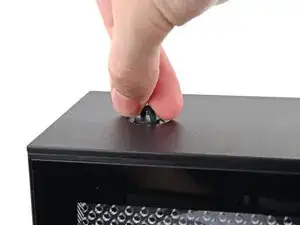
    • Use your finger to lift up the two D-rings on the Top Panel screws.

  4. BeKqSvRJr2nX2qFK
    BeKqSvRJr2nX2qFK
    odGLjCiIdEQeE2bh
    IDSwwb3LHUUaXukA
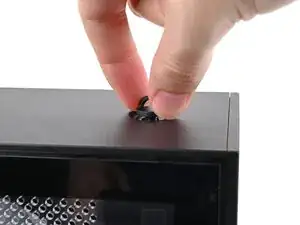
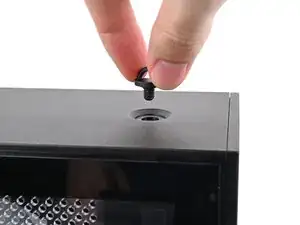
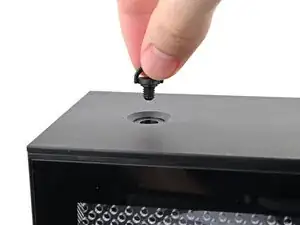
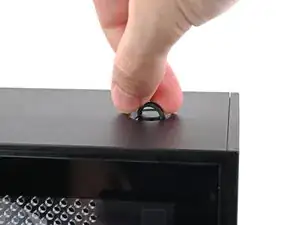
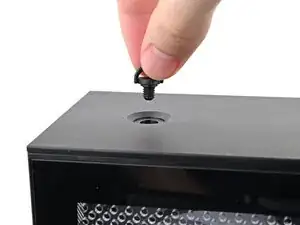
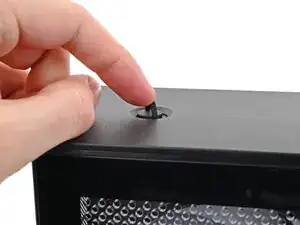
    • Use your fingers to twist the screw counter-clockwise and loosen it.

    • Remove the Top Panel screw.

  5. 4RopBQ6BtjnY1WrK
    4RopBQ6BtjnY1WrK
    ktjYiQLsGJUndqrb
    J4lBDyCSGfYoWxD4
    • Repeat the same procedure for the other Top Panel screw.

  6. jTMMgoIeaomUVn3V
    jTMMgoIeaomUVn3V
    k25EnLrWVNWIYJKF
    l1bqihYbxPsKZm41
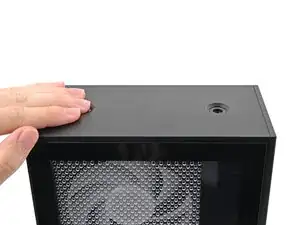
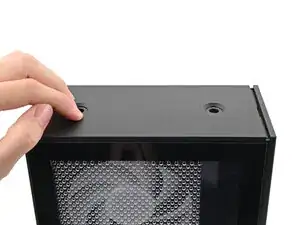
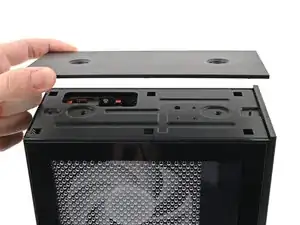
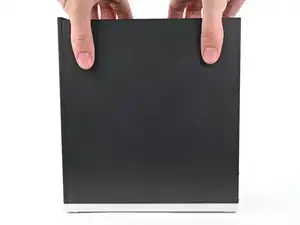
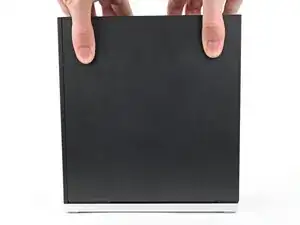
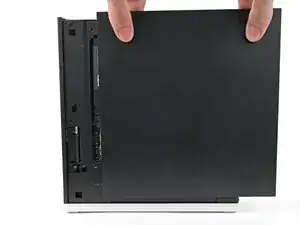
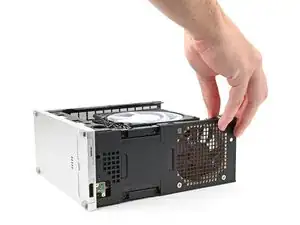
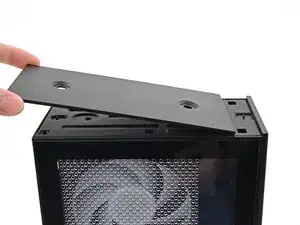
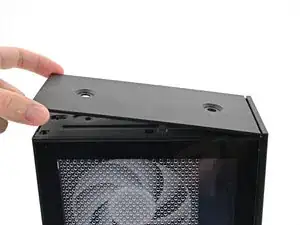
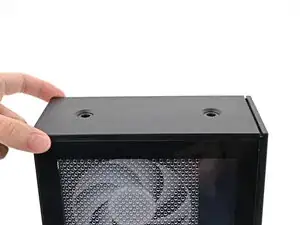
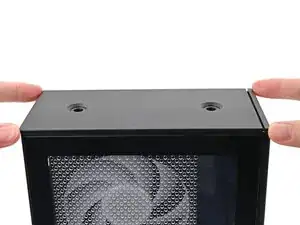
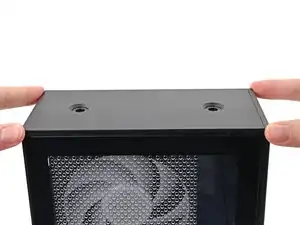
    • Slide the Top Panel towards the rear of the computer to release the clips securing it to the chassis.

    • If you're having a hard time gripping the Top Panel, use the screw holes to get a better handhold.

    • Lift the Top Panel off the chassis and remove it.

  7. NSrsaflwRNqga3mA
    NSrsaflwRNqga3mA
    QcOXbW2RKngaQUJC
    fq1SRuBLbRKA2H2t
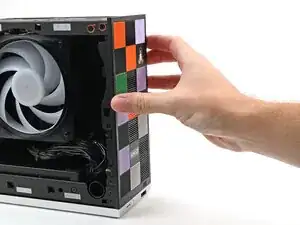
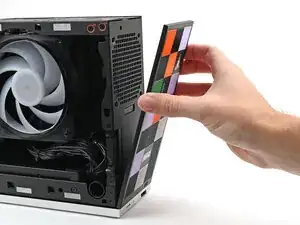
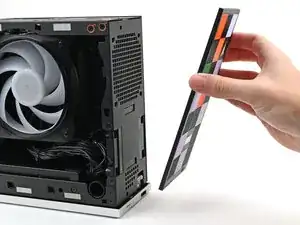
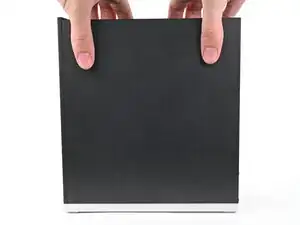
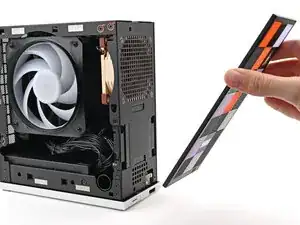
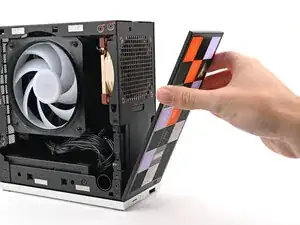
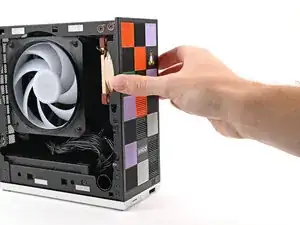
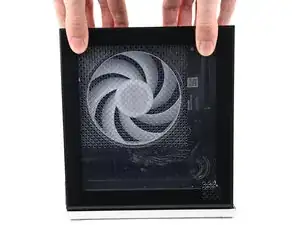
    • Use your fingers to pull the Front Panel off the magnets securing it to the chassis.

  8. TLV3JaRI33ykAoaT
    TLV3JaRI33ykAoaT
    VbMhMDK2tEeMUIIl
    IITCBhUna4RSf2mx
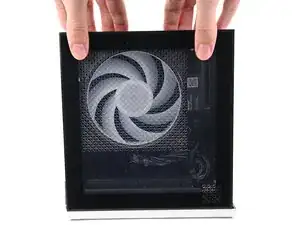
    • Use your fingers to grip the top of the Right Panel and slide it upward to release its clips.

    • Remove the Right Panel.

  9. ONgVSb21VTIky51X
    ONgVSb21VTIky51X
    FoksVVTwDLNndrxX
    vQNfmqifdRWdNXU6
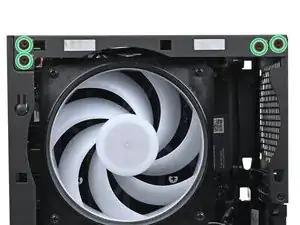
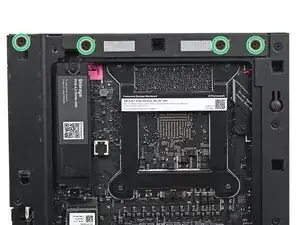
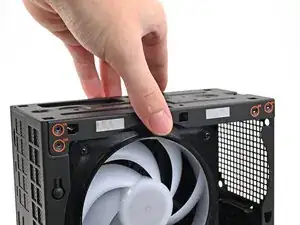
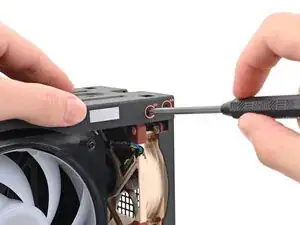
    • While holding the Desktop steady, use your Framework Desktop Screwdriver to remove the eight 4.0 mm‑long Phillips screws securing the top plate.

  10. PLDQpChXbZOeDK4b
    PLDQpChXbZOeDK4b
    ZpjgxdmUKKEl6ykl
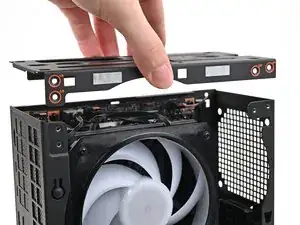
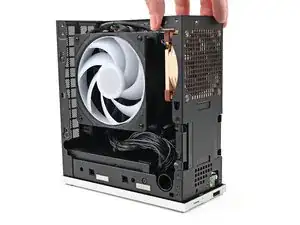
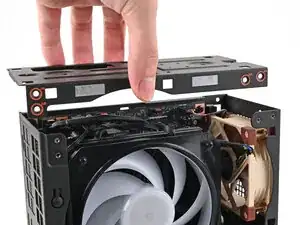
    • Lift the top plate off the Desktop and remove it.

  11. tjFimToq4ENMqIUh
    tjFimToq4ENMqIUh
    GJIqOji3D2DBNiA1
    • Lay the right side of the Desktop on your work surface so the Mainboard is facing upward.

  12. MMSYi2w5bThi1CaC
    MMSYi2w5bThi1CaC
    l5gnPBrLFLaZQUhV
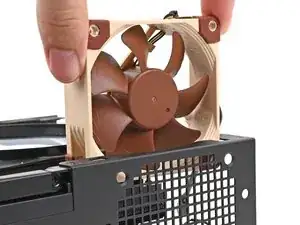
    • Orient the fan so its label is facing away from the chassis fan grille and the cable is pointing up.

    • If your fan has an arrow indicating airflow direction, make sure it's pointed towards the heatsink.

    • If you're using a different fan, orient it such that the fan is blowing into the Desktop, not away.

    • Insert the fan into the chassis and along the front plate, making sure that the screw holes in the chassis and the fan are aligned.

    Hi, I've read Noctua's opinion on how the air would flow and they say they measured with getting the air out of the desktop: "yielded slightly lower temperatures, but at the expense of extra noise emission", yet you say to flow inwards. Also what I wonder and I'm 100% sure is that the front magnetic panel with/without the tiles yield totally different results. Can you please elaborate a little on how to use the fan to get the temps down? And also maybe it would be a nice idea to open-source the front magnetic panel for 3D printing so we can print one that does not restrict the air flow holes in the chasis. I don't mind so much about the estetics but I want to keep my power button :).
    Context: I live in Greece and for me cooling is esential on all my electronics so I would like to improve my freshly new Desktop with the best cooling possible.
    Thank you very much and keep the great projects comming!

    Cristi Domsa -
    I was wondering the same thing about the fan placement direction. Overall, I think air pushing in from the front would be better, so it brings a bit of airflow over the SSD too, and the hot air can leave at the back of the case, where there is a bigger exhaust opening.

    And I'm sure about the front plate too, that it affects airflow. There are already 3D printed versions available. See "Forgework" on X. They made a vent-style front plate designed for airflow, so you cannot put tiles on that one. I actually suggested they create a design where the top 3 rows are vents optimized for airflow and the bottom 4 are left for the tiles. Hope they will make it.

    Peter -
    Pushing inside the air was my fisrt thought also but then you create a lot of positive presure inside and I don't think it's so beneficial as the case needs to be very well designed so that all that air goes out to the back... also the down holes on the front are important as I think about it :).
    Forgework basically printed a 3x7 tile as I can see, so the venting optimization is not there as the front panel itself restricts the air. The front panel is opensourced by Framework here https://github.com/FrameworkComputer/Fra... . Found the magnets (neodyum 5x5x1 or 6x4x1 should be more than enough) but still searching for the button sollution. The tiles files are here: https://www.printables.com/model/1397765... . So basically only the button remains to be found :)).

    Cristi Domsa -

    Definitelly the case naturally flows much more hot air from the front holes after 2 days of hardcore using...

    Cristi Domsa -

  13. afVP3ZRCPmf4FHaY
    afVP3ZRCPmf4FHaY
    hAUlRwu61S4WV5ED
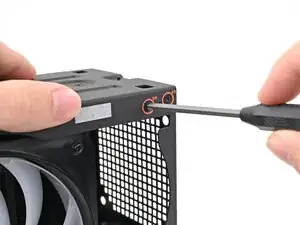
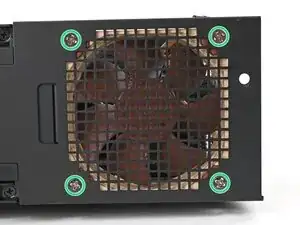
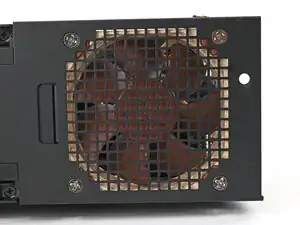
    • Use your Framework Desktop Screwdriver to install the four screws securing the secondary fan.

    • Most fans of this type use self-tapping screws that will carve threads into your fan's screw holes. This is normal and necessary for the fan to be secured.

  14. IwMELLXqVssDJKvr
    IwMELLXqVssDJKvr
    RtBqsyqSIgkMiF43
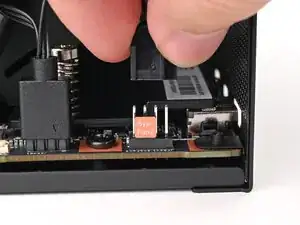
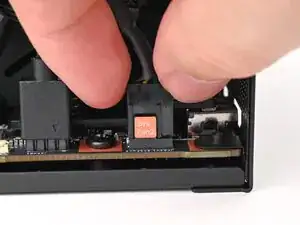
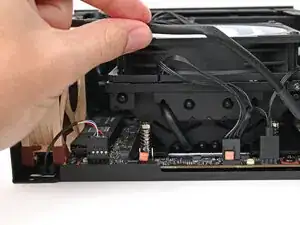
    • Orient the fan cable so its two vertical lines are facing you.

    • Slide the fan cable over the four-pronged connector labeled "Sys Fan 2," making sure the orange label slots between the vertical lines.

    • You can also connect the cable into the "Sys Fan 1" slot depending on the cable's length and orientation.

  15. J6HXIPrGCSiymETs
    J6HXIPrGCSiymETs
    cmCKaSHxc5CrtmMt
    R3DhQdXEEvSWkLFK
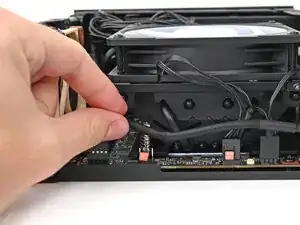
    • Move the fan cable underneath the heat sink and tuck it behind the silver screw post.

  16. JsHK2BcmkDu3vKlm
    JsHK2BcmkDu3vKlm
    23wAyDPDj6bZGvHG
    • Rotate the Desktop so it sits upright on your work surface.

  17. jcKtgFEWX64ZEZET
    jcKtgFEWX64ZEZET
    j1EmD4ySpPQM1D1v
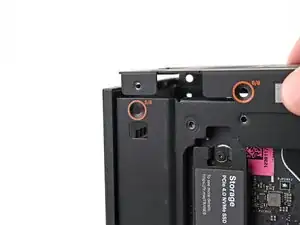
    • Place the top plate on top of the Desktop, making sure it slots into the chassis so the orange circles are visible.

  18. JPwiLrtrHs3cMmar
    JPwiLrtrHs3cMmar
    vYYNQPAQnpnvfaQq
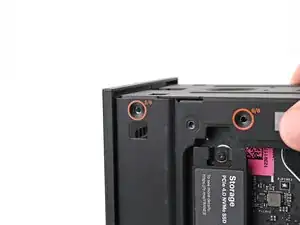
    • Make sure the matching screw hole on the top plate labeled "5/8" is slotted on the inside of the Chassis so that the orange circle is visible.

  19. HBIcOUHOqFIdXuE6
    HBIcOUHOqFIdXuE6
    UeBNtMdRDaVvCdWu
    n1b5RDFSNapCZPV1
    • While holding the Desktop steady, use your Framework Desktop Screwdriver to install the eight 4.0 mm‑long Phillips screws securing the top plate.

  20. 5CvfbHBbytBTXiyS
    5CvfbHBbytBTXiyS
    nRaRHTwIVWIge6a6
    6RMIeGQuwFkFeGb5
    • Slide the Right Panel onto the right edge of the chassis, from top to bottom, and press it flat to ensure its clips are slotted into place.

    • There should be a small gap between the bottom of the Right Panel and the silver base.

    • Push the Right Panel towards the base of the computer to engage the clips.

  21. bhLEF2kD4it6RUK1
    bhLEF2kD4it6RUK1
    tpnaRUvNSwrDg4Bj
    HqKIIxmeesXZIg3T
    • Lay the bottom of the Front Panel on the small, protruding lip in the silver base to align its tabs.

    • Press the Front Panel flat to the chassis and let it align to the magnets.

  22. 1Zc4NtteMXiZIQbv
    1Zc4NtteMXiZIQbv
    aFL2eLyuvetDdORq
    eph2hPM6BWihxbVf
    • Slide the Left Panel onto the left edge of the chassis and press it flat to ensure its clips are slotted into place.

    • There should be a small gap between the bottom of the Left Panel and the silver base.

    • Push the Left Panel towards the base of the computer to close the gap and engage the clips.

  23. KdyYsO3RnTvRjWbp
    KdyYsO3RnTvRjWbp
    SFZURSZBtqjUJv6s
    XZw5dtytb6t3FDua
    • Orient the Top Panel so its arrow is pointing towards the rear of the computer.

    • While holding the Top Panel at a slight downward angle, slide it across the top of the chassis (from rear to front) until you feel its clips catch.

    • There should be a small gap between the Top Panel and the front of the Desktop.

    • Lay the Top Panel flat on the chassis to align the remaining clips.

  24. MSupW65iRaNBOiQ6
    MSupW65iRaNBOiQ6
    4XVKINMUSJopHejl
    • While securing the computer with one hand, use the other hand to slide the Top Panel towards the front of the computer to close the gap and engage the clips.

  25. OUxlhV4v1kwSGJNC
    OUxlhV4v1kwSGJNC
    Qt2MJGWrqnOGOMvd
    fvRfPXxvmbBAIIUY
    • Insert the top panel screw into its hole and twist clockwise until it feels snug.

  26. pJjPDowEfVQAqm2s
    pJjPDowEfVQAqm2s
    5xcmu3qbponmvq25
    OFgOA1RIbENJtjpy
    • Repeat the same procedure for the other top panel screw.

  27. ngfN1Cu1OMqZiBbp
    ngfN1Cu1OMqZiBbp
    quZRZhrC2Z61q1F5
    faZxF3UK6TDO4SUF
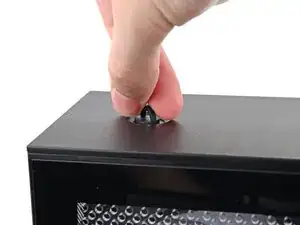
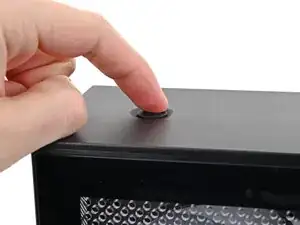
    • Use your finger to close the two D-rings on the top panel screws.

Conclusão

If you need help, contact Framework support.

Alex Diaz-Kokaisl

Membro desde: 16/01/22

227430 Reputação

Um comentário

Can I add an ARGB 80mm fan?

Or do I need an ARGB 1-to-2 splitter cable? (considering I have the 120mm ARGB CM fan on the CPU)

Would that work like that? Thanks!

Peter -