Introdução

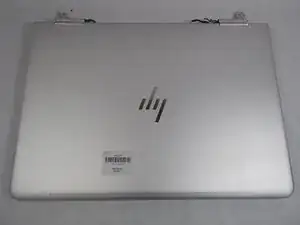
If your HP Spectre x360 13-ac023dx laptop starts getting hot for long periods of time, abruptly shuts down on its own, and you hear its fan constantly working at full speed, you most likely are experiencing troubles with its cooling fan which requires replacement.


A functional cooling fan allows air to flow in your laptop to keep its internal components cool and from overheating. When your laptop overheats, it can physically damage your components. This may cause your laptop to stop working entirely. If you notice your laptop overheating frequently, use this guide to replace its cooling fan.

To avoid injury, make sure your device is turned off and cooled down before you begin.

  1. 1MhkVSDsny3TRWKG
    1MhkVSDsny3TRWKG
    eRH63AJPBF1ptHMb
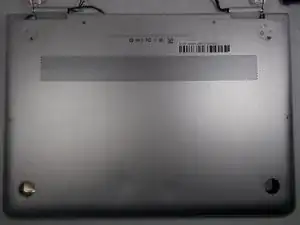
    • Flip the laptop over so the model sticker faces the ceiling.

  2. JupkD6Zp6H3oNlbi
    JupkD6Zp6H3oNlbi
    T41fwcLomOIKvMQ1
    RGJjuJhSoQWBIdke
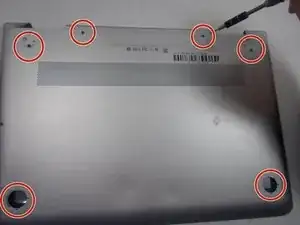
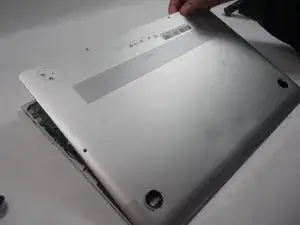
    • Use a Torx #5 screwdriver to remove the six 3.5 mm screws holding the back cover to the laptop.

    Was eine dämliche Konstruktion, Schrauben unter Füßen zu verstecken!!!

    Dirk S. -

    You do not need to remove the bottom ones closer to the trackpad since there are no screws under there.

    To remove the top ones by the hinge they are glued in so you need to pry under them with a pick.

    When pulling out the panel pull from the side closer to the hinge or you risk breaking the plastic on the panel where the hinge is. I think it just keeps out dust but need to be careful when removing it.

    Hamza Syed -

    Die Angaben zu den Schrauben sind nicht korrekt. Es müssen 6 Torx-Schrauben gelöst werden. Diese befinden sich aber nicht under den Füßen, sondern sind alle ohne weitere Schritte sichtbar und zugänglich (Die Markierungen im Foto sind nicht korrekt platziert). Zusätzlich befinden sich zwei Philips-Schrauben unter den Füßen an der Gelenkseite. Die Füße erst mit einem Föhn vorsichtig erwärmen und dann mit einem Öffnungswerkzeug abhebeln.

    Robert -

  3. qLEJDnAKgHKcl5jJ
    qLEJDnAKgHKcl5jJ
    xJPapt5LQDGWUPoW
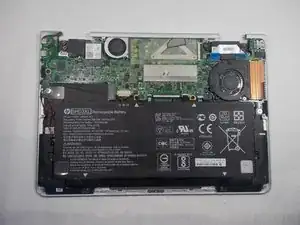
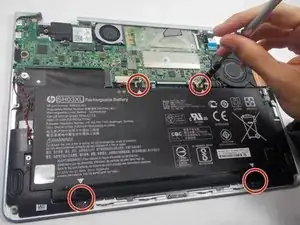
    • Use the Phillips #000 screwdriver to remove the four 3.5 mm screws holding the battery.

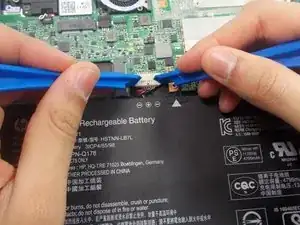
    • After removing the screws, detach the battery wire from the mother board with the iFixit opening tool.

    • Then, carefully lift the battery off with the iFixit opening tool.

    Need to provide a direction in step #1 about removing the rubber pads and accessing the two screws at the bottom.

    David McCurry -

    Second that. What's the best way to remove the feet?

    Oskar Petersons -

  4. CuOFilPwAUnsUovL
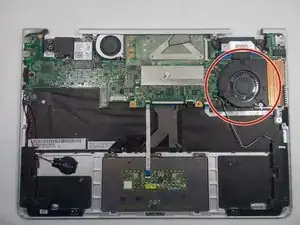
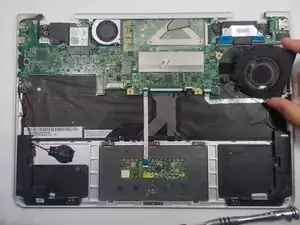
    • Locate the Cooling Fan in the device.

  5. XTFvZymTe23coGTk
    XTFvZymTe23coGTk
    E1KBXjKcOlY3XwZ5
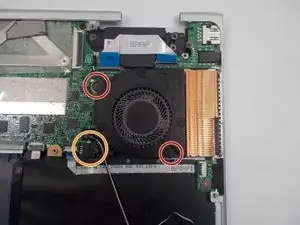
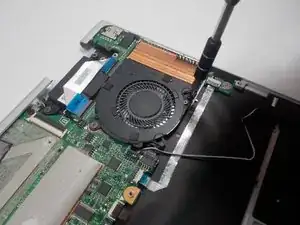
    • Use the Phillips #000 screwdriver to remove the 3mm screws holding the fan in place.

    • Remove the wires connecting to the motherboard, using the iFixit opening tool.

    • The iFixit Opening Tool is not required, but recommended

  6. hXPu4NVtnuUFKIHU
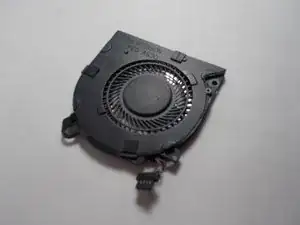
    • Remove the Cooling Fan.

Conclusão

To reassemble your device, follow these instructions in reverse order.

Jonathan

Membro desde: 21/10/19

498 Reputação

0 comentários