Introdução
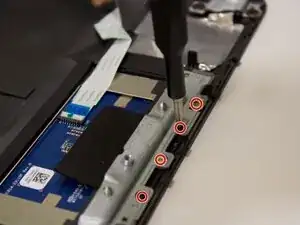
In this step-by-step guide, you will be able to replace your HP ProBook x360's trackpad. Following this guide will help you avoid replacing your entire device. The time estimate ranges between 20-60 minutes. The tools are listed under the guide details.


-
-
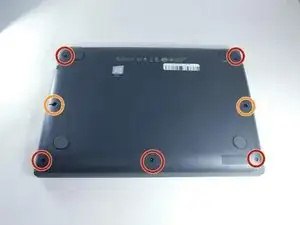
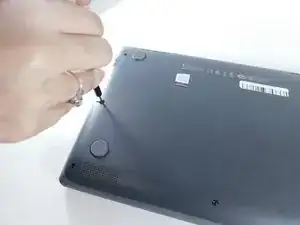
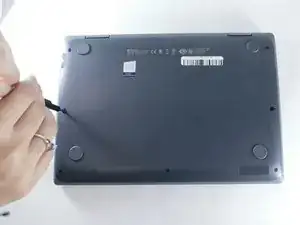
Remove the 4.1 mm screws with a T5 Torx screwdriver.
-
Remove the 4.1 mm screws using a JIS #0 screwdriver.
-
-
-
Lift the keyboard assembly to expose two ribbon cables.
-
Lift the two plastic tabs that hold the cables in place on the motherboard
-
Slide the ribbon cables out of each connector.
-
-
-
Pull back the electrical tape.
-
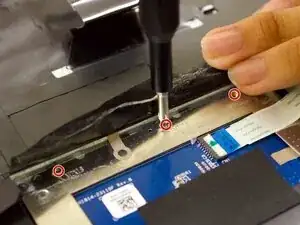
Use a Phillips #1 screwdriver to remove the three screws securing the trackpad.
-
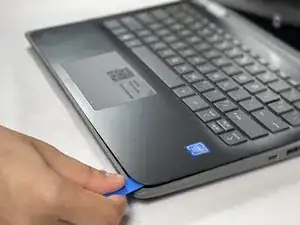
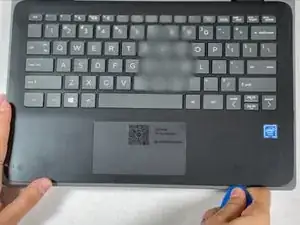
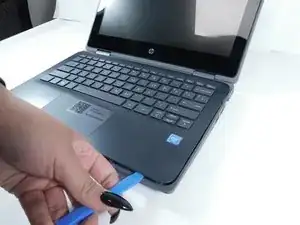
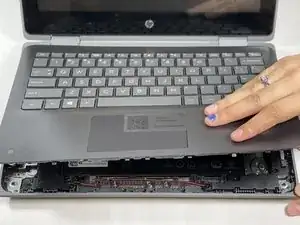
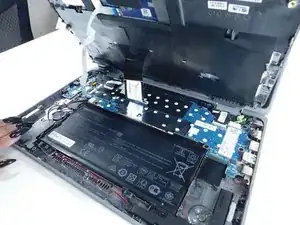
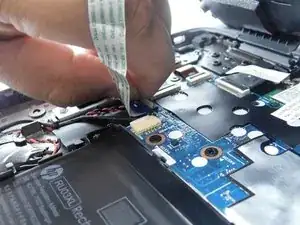
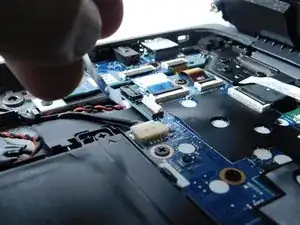
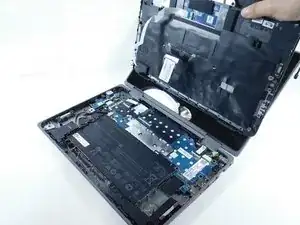
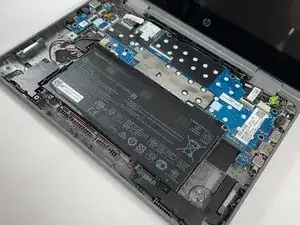
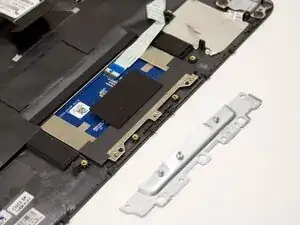
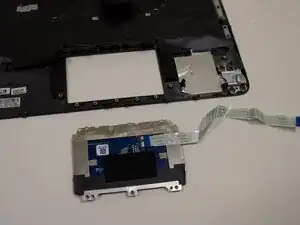
To reassemble your device, follow the above steps in reverse order.
Take your e-waste to an R2 or e-Stewards certified recycler.
Repair didn’t go as planned? Try some basic troubleshooting or ask our Answers community for help.