Introdução
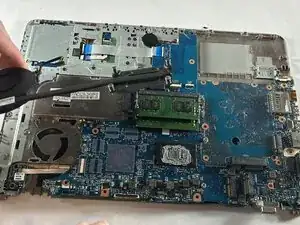
This guide details the process for replacing the fan and heat sink in your HP ProBook 640 G3, which is a necessary repair if your laptop is overheating, making loud or grinding noises, or shutting down randomly. A broken or failing fan can lead to prolonged overheating, risking permanent damage to internal components like the CPU and motherboard. This replacement is also indicated if you receive a "System Fan (90B) Error" message upon boot-up.
The repair is rated as Moderate difficulty and is estimated to take 15–25 minutes. Before beginning, observe the critical safety caution: ensure the device is completely powered down and disconnected from all charging sources.
This guide requires several preliminary steps, including the removal of the battery, memory, and Wi-Fi card, making screw organization especially important. The tools you will need are a Phillips #00 Screwdriver, Plastic prying tools, an Opening Pick, and Tweezers.


-
-
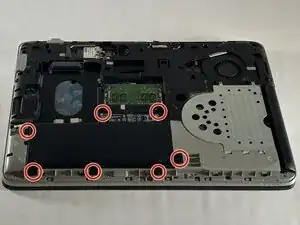
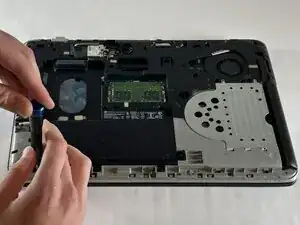
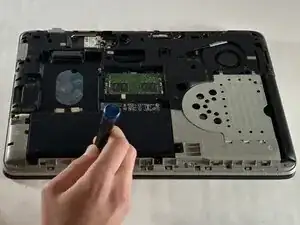
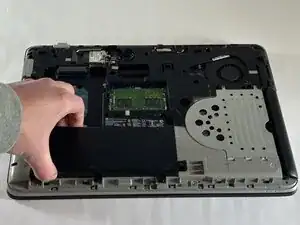
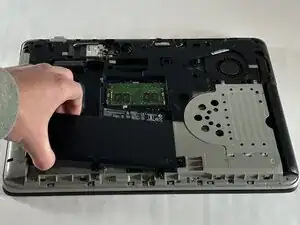
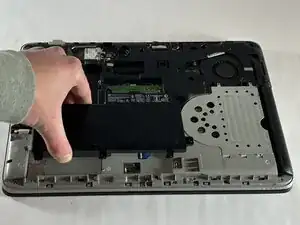
Use a Phillips screwdriver to loosen the seven 6 mm-long captive screws securing the battery.
-
-
-
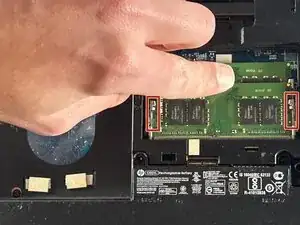
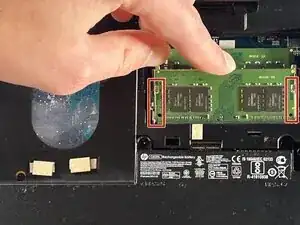
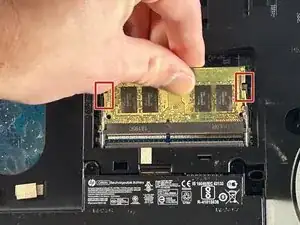
Two clips secure each RAM module in place, one on each side. Using your fingers, spread the clips away from the RAM module.
-
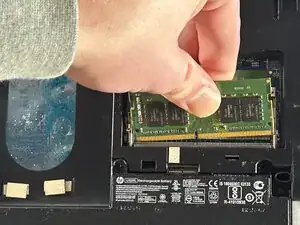
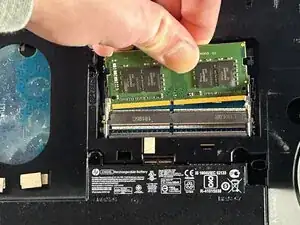
Gently remove the memory from its housing by pulling it out and up.
-
-
-
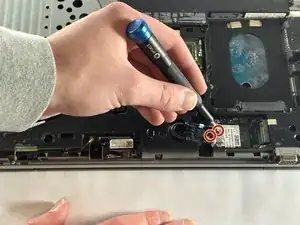
Use a Phillips screwdriver to remove the two 6 mm-long screws on the metal piece holding down the Wi-Fi card. One screw will be on top, and the other will be just next to the wires holding it in.
-
Carefully remove the little metal piece from where it was resting.
-
-
-
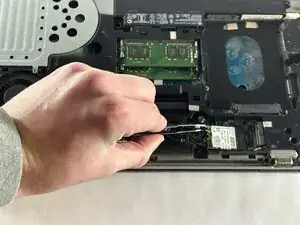
The only thing holding the Wi-Fi card will be two small wires. These can easily be taken off by the use of your hands or helpful tweezers.
-
Gently remove the card by pulling it out of its slot.
-
-
-
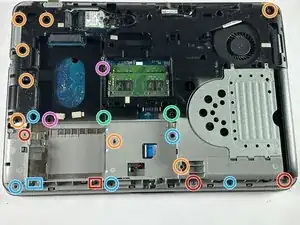
There are 22 total screws that hold down the base of the laptop. These vary between flat head Phillips and Torx head screws.
-
Remove the 2 M2.0x6
-
Remove the 8 M2.5x6 screws
-
Remove the 6 M2.0x3
-
The two screws here are M2.5x3 and M2.0x3. In the case of our device, these screws were like the battery screws, as in they did not need to be removed to continue. This could be the case with your device but if not, feel free to remove them.
-
These screws will be smaller than M2.0x3, consider sizes such as M2.0x2, M2.0x1.5, M2.0x1 and possibly smaller.
-
-
-
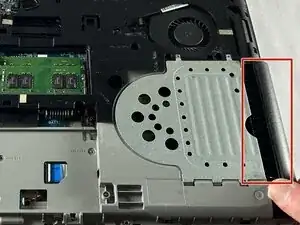
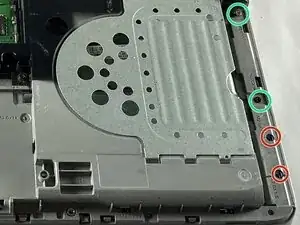
Locate the row of four screws along the edge of the optical drive bay (the empty slot where the DVD drive was).
-
Remove the two screws on the left (closer to the hinge/connectors). These are typically M2.0 x 3mm.
-
Remove the two screws on the right (closer to the front corner). These are typically smaller, M2.0 x 1.5mm.
-
-
-
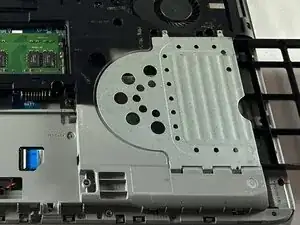
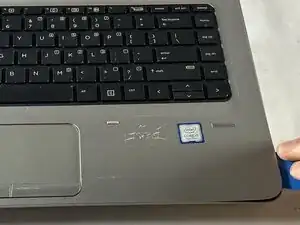
Insert your opening pick into the seam between the top palm rest assembly (where the keyboard is) and the bottom case.
-
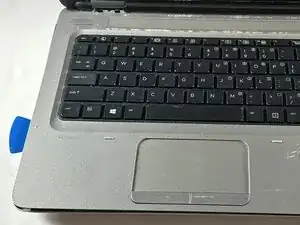
Slide the pick along the front and side edges to release the internal plastic clips securing the top cover.
-
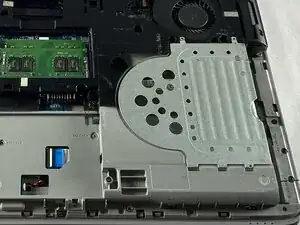
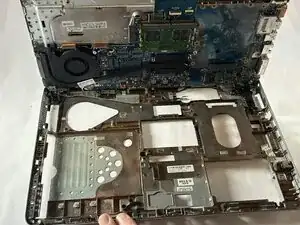
Once the clips are disengaged, gently lift the keyboard compartment away to reveal the motherboard components underneath.
-
-
-
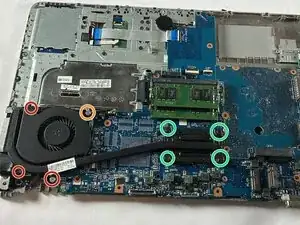
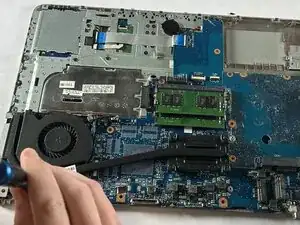
Use the Phillips head screwdriver to loosen the M2.5x1.5 screws.
-
Use the Phillips head screwdriver to loosen the M2.5x3 screw.
-
Loosen the M2.5x3.5 screws with the Phillips head screwdriver
-
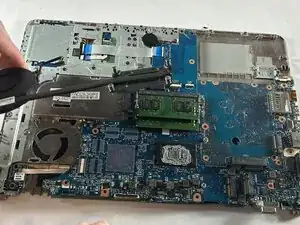
Carefully detach the cooling fan and its connection from the device.
-
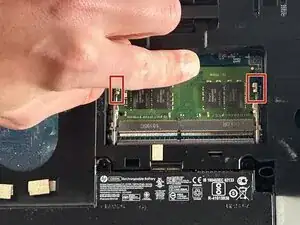
To reassemble your device, follow the above steps in reverse order.
Take your e-waste to an R2 or e-Stewards certified recycler.
Repair didn’t go as planned? Try some basic troubleshooting or ask our Answers community for help.