Introdução
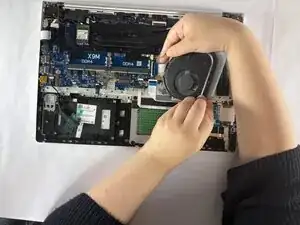
This guide will walk you through replacing the cooling fan in the HP ProBook 455 G7 (Model: 7JN02AV). The cooling fan prevents the CPU and GPU from overheating during intensive tasks.
You may need this repair if your laptop becomes very hot, makes loud fan noises, or shuts down due to thermal protection. Refer to the “Overheating Issues” section of the Troubleshooting Page for more details.
Before beginning, ensure the laptop is powered off, unplugged, and cooled down.
Avoid touching the internal heatsink surfaces, and be careful not to bend the fan cables.
Ferramentas


-
-
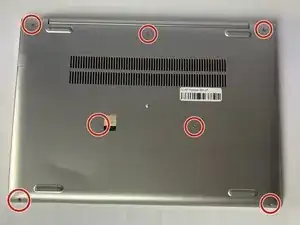
Flip the laptop over so the lower case is facing up.
-
Use a Phillips #1 screwdriver to remove the seven 8 mm-long screws securing the lower case.
-
-
-
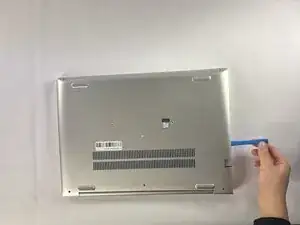
Insert an opening tool into the seam between the lower case and chassis.
-
Pry around the entire perimeter until the lower case fully releases.
-
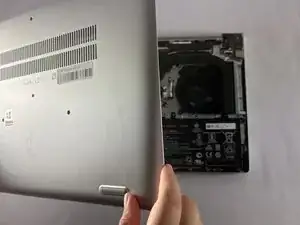
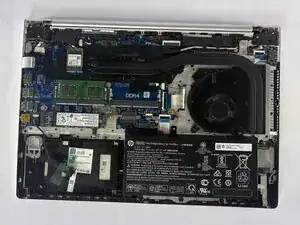
Lift and remove the lower case.
-
-
-
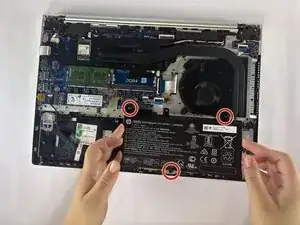
Use a Phillips #1 screwdriver to remove the three 4 mm-long screws securing the battery.
-
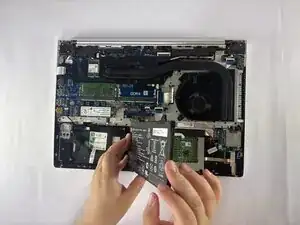
Carefully lift the battery and remove it from the laptop.
-
-
-
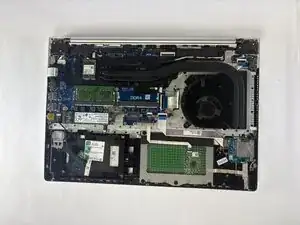
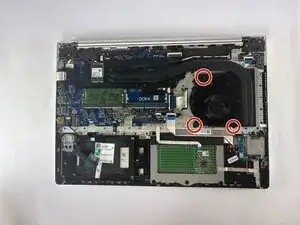
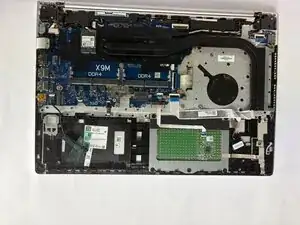
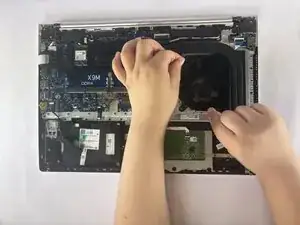
Gently unplug the fan power cable from the motherboard connector using tweezers or your fingers.
-
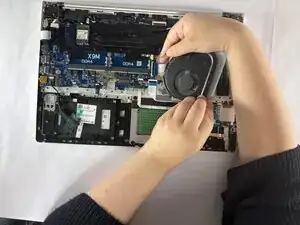
Lift the fan up and out to remove it.
-
To reassemble your device, follow the above steps in reverse order.
Take your e-waste to an R2 or e-Stewards certified recycler.
Repair didn’t go as planned? Try some basic troubleshooting or ask our Answers community for help.