Introdução
If you want to change the thermal paste (cooling paste) on an HP laptop with model code TPN-C125, it is possible and often helps reduce overheating and improve CPU cooling. The code TPN-C125 is a chassis/model series used in some HP Pavilion / HP 250 / HP 15 laptops.
Below is a simple guide.
What Thermal Paste Does
Thermal paste sits between the CPU and the heatsink. It helps transfer heat from the processor to the cooling fan and heatsink so the laptop stays cool.
You usually change it if:
- Laptop overheats
- Fan runs loudly
- Laptop slows down due to heat
- Paste is 3–5 years old
Tools Needed
- Small Phillips screwdriver
- Thermal paste (example: Arctic MX-4, Cooler Master, etc.)
- Isopropyl alcohol (90%+)
- Cotton buds / microfiber cloth
- Plastic pry tool (optional)
Steps to Change Thermal Paste (TPN-C125)
1. Power Off
- Shut down laptop
- Remove charger
- Remove battery (if removable)
2. Open the Back Cover
- Remove all screws from the bottom panel.
- Carefully pry open the back cover.
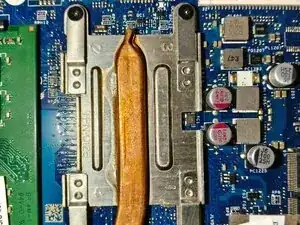
3. Remove Cooling System
- Locate the fan + copper heatsink.
- Unscrew the heatsink screws on the CPU.
- Disconnect the fan cable.
4. Clean Old Thermal Paste
- Use alcohol and cloth to clean:
- CPU surface
- Heatsink copper plate
5. Apply New Thermal Paste
- Put a small pea-sized drop on the CPU.
6. Reinstall Heatsink
- Place heatsink back
- Tighten screws in cross pattern
- Reconnect fan cable
7. Close Laptop
- Put back cover and screws
- Turn laptop on
Conclusão
To reassemble your device, follow these instructions in reverse order.

0 comentários