Introdução
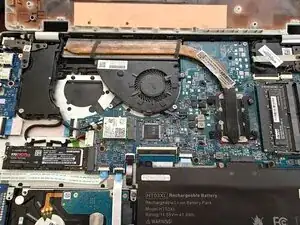
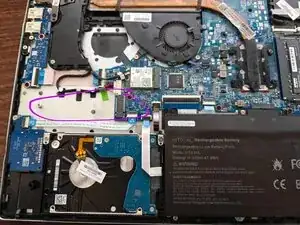
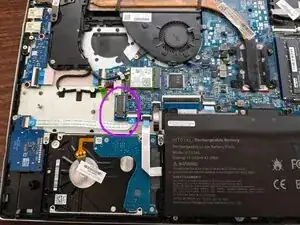
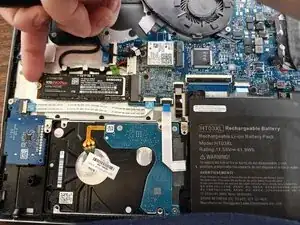
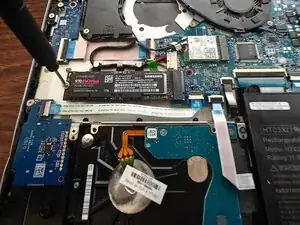
Want to add a way faster storage option than the HDD the laptop comes with? You're in luck- it's super easy!
Ferramentas

Peças

-
-
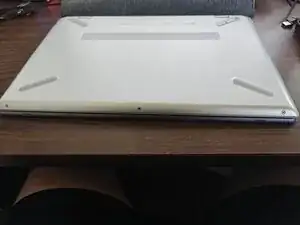
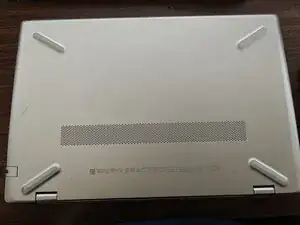
First thing you'll do is flip it over, remove any SD cards, USBs, and remove your case if you have one.
-
-
-
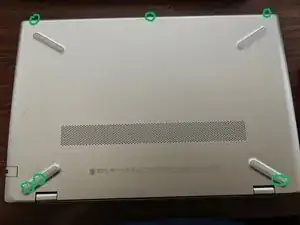
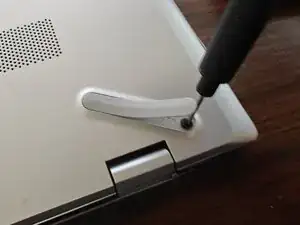
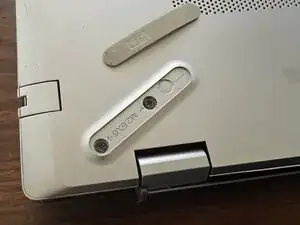
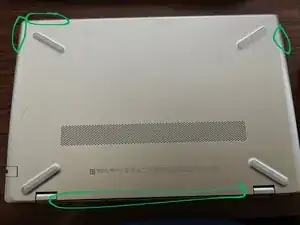
There will be about 6 screws you'll need to remove.
-
You will have to at least partially remove the rubber feet to access 3 of the screws.
-
The screws are really tiny, so I recommend putting them in a Tupperware or Ziploc if you don't have a magnetic screw tray.
-
-
-
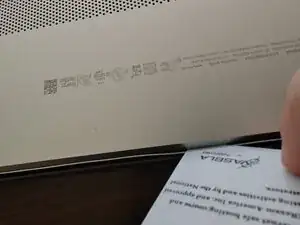
You'll use a credit card, ID card, or pry tool to separate the bottom of the laptop from the rest of it. Make sure it's plastic, not metal.
-
You might want to use multiple to hold sections open as you work your way around.
-
-
-
Snap the lid back on
-
Put the lid screws back in
-
Stick the sticky rubber feetsies back on
-
Plug back in any SD cards, USBs, and put your case back on if you have one
-
If you want to make your NVME your new boot drive, you'll need a different, more difficult guide. Otherwise, you're set!
