Introdução
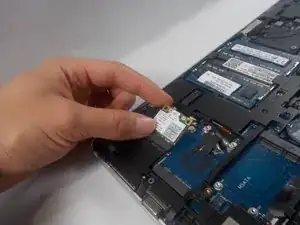
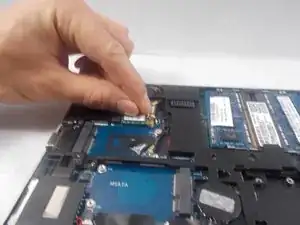
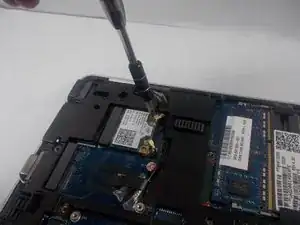
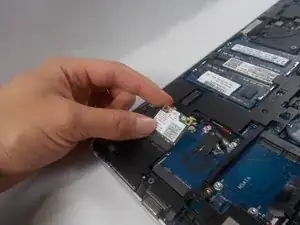
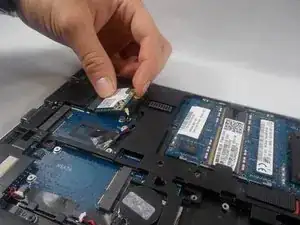
This guide will walk you through the process of replacing the Wi-Fi card in your EliteBook Folio 9470m. Replacing the card should resolve the issues with connectivity and can even benefit the overall performance of your network.
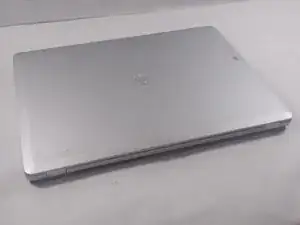
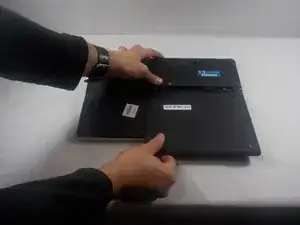
Before you begin, ensure your laptop is powered off and disconnected from all power sources, including the charger, to avoid electrical hazards.
Be sure to handle the Wi-Fi card by its edges and avoid touching the gold connectors to keep it in optimal condition.
Ferramentas


-
-
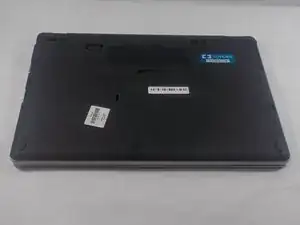
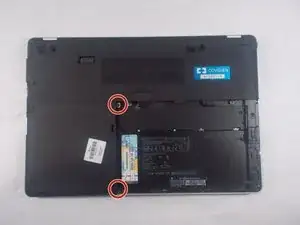
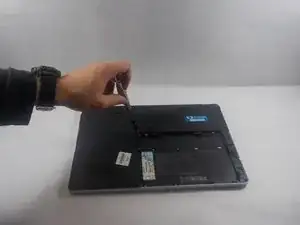
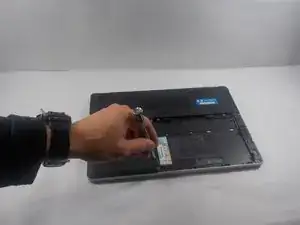
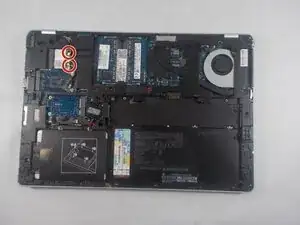
Using a Phillips #0 screwdriver, carefully unscrew the two screws that secure the hard drive plate.
-
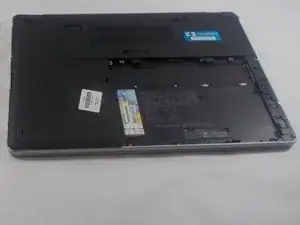
Once the screws are removed, gently lift and set aside the hard drive plate to access the components beneath it.
-
-
-
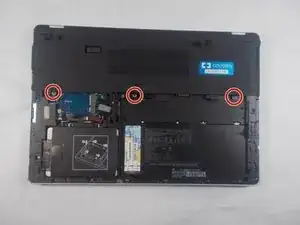
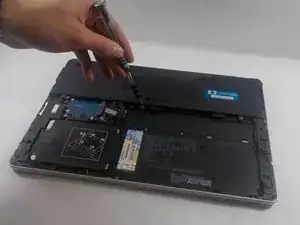
Using a Phillips #0 screwdriver, carefully remove the three screws securing the back plate.
-
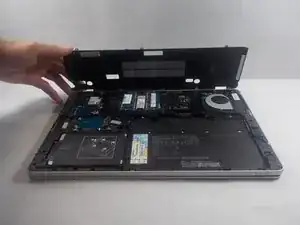
Once the screws are removed, gently lift the back plate and slide it out to detach it from the laptop.
-
To reassemble your device, follow these instructions in reverse order. Take your e-waste to an R2 or e-Stewards certified recycler.