Introdução
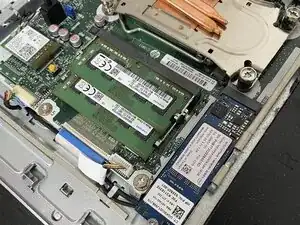
This guide is meant to show you how to replace/upgrade the RAM.
Ferramentas

-
-
Place the computer down on a flat surface with the screen facing down.
-
Push the locking mechanism up, then pull up from the middle of the stand and keep rotating towards the top of the computer, about halfway; pull up, and it should come loose.
-
-
-
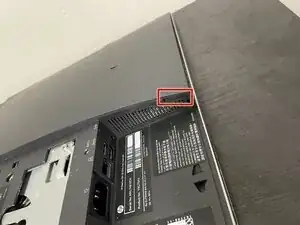
Push up on the little inserts until you hear a popping sound on both sides.
-
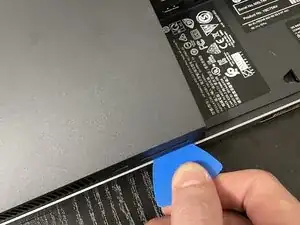
Use one of the opening picks to slowly and carefully pry up and move around the side of the computer. You will hear clicking sounds as you do so.
-
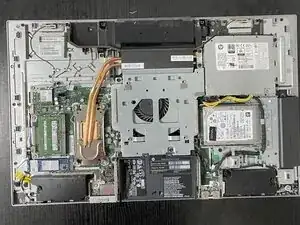
Once all the sides of the back plate have lifted up, you can then pull up and remove it.
-
-
-
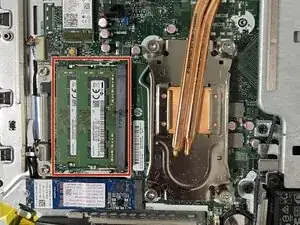
Locate the ram bay to the left of the optical drive.
-
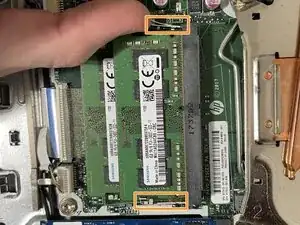
Remove the locks that hold in each ram dimm in place by pushing outwards on them and up.
-
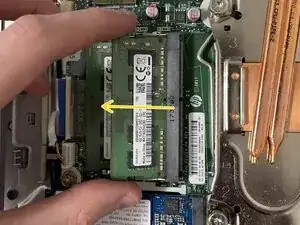
Slowly wiggle and lift the ram module at the angle that it pops up at.
-
-
-
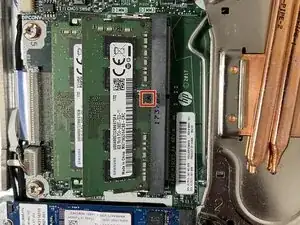
To install your new ram, place your ram module into the ram slot at the same angle we took it out of. It should easily slide into place if at the right angle.
-
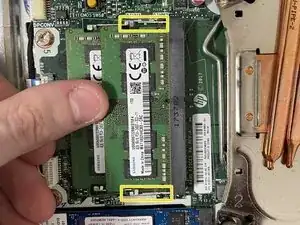
Then slowly press the ram module down until both locks on each side click into place.
-
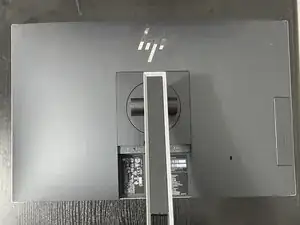
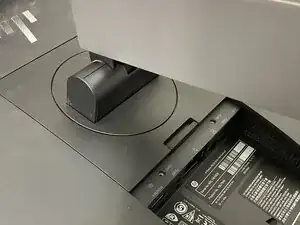
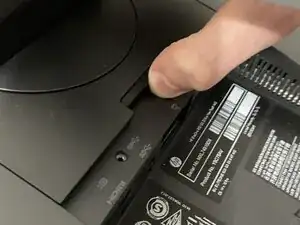
To reassemble your device, put the back plate back on and gently press on each side until you hear a click. Some sides might need a little bit more pressure than the rest (But still not very much), specifically the side with the optical drive.