Introdução
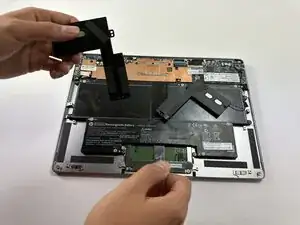
This guide covers the replacement of the speakers in the HP EliteBook Folio G1.
The speakers allow the laptop to produce sound for media playback, notifications, and calls. If you hear distortion, no audio output, or uneven sound between speakers, the internal speakers may be damaged and require replacement.
Following this guide will help you safely and effectively replace the speakers to restore clear and balanced audio output.


-
-
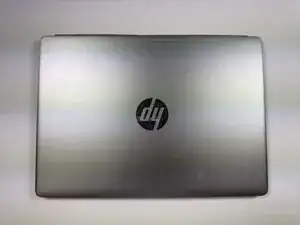
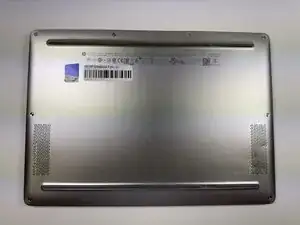
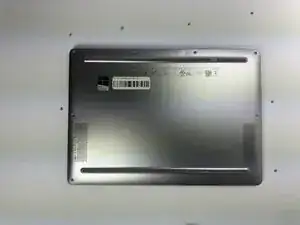
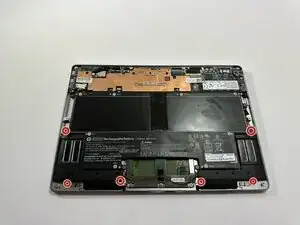
Turn the laptop upside down so the bottom panel is facing up.
-
Position the device so the QR code and text details are readable and facing you.
-
-
-
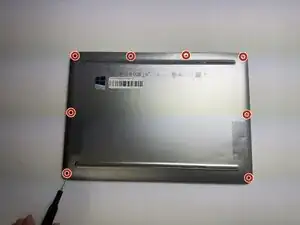
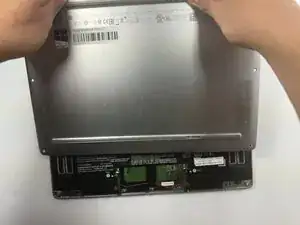
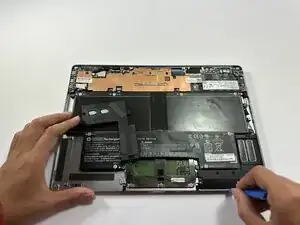
Insert a plastic opening tool or spudger into the seam between the bottom cover and the chassis.
-
Gently pry around the edges to release the retaining clips.
-
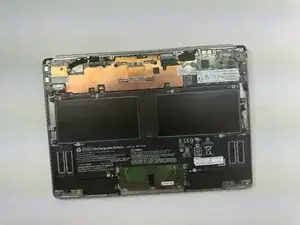
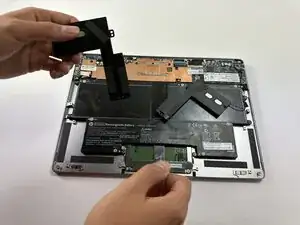
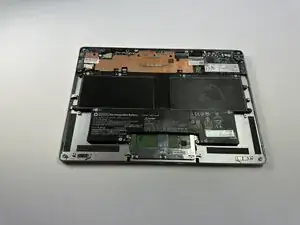
Carefully lift the back cover up and away from the laptop.
-
-
-
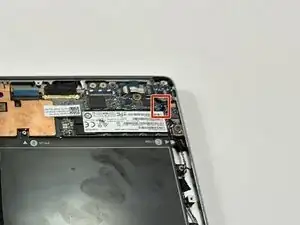
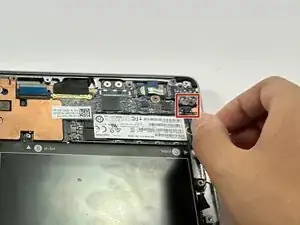
Locate the speaker cable connecting to the motherboard on the top right and carefully pull down to remove.
-
To reassemble your device, follow these instructions in reverse order.