Introdução
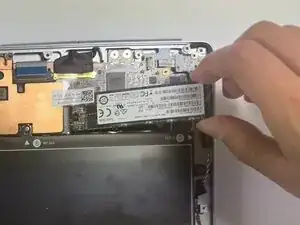
This guide covers the replacement of the solid state drive (SSD) in the HP EliteBook Folio G1.
The SSD stores your operating system, applications, and files, allowing for fast boot times and data access. If you experience frequent crashes, slow performance, or drive detection errors, the SSD may be failing and require replacement.
Following this guide will help you safely and effectively replace the SSD to restore fast, reliable storage performance.


-
-
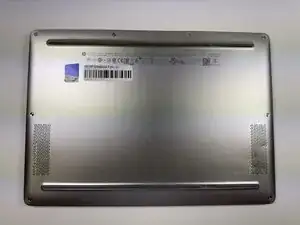
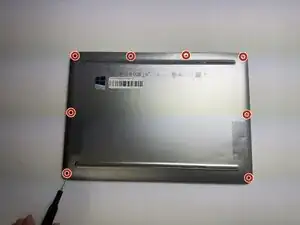
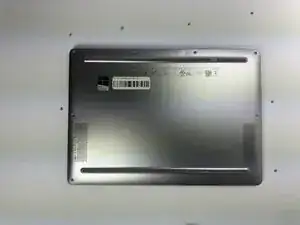
Turn the laptop upside down so the bottom panel is facing up.
-
Position the device so the QR code and text details are readable and facing you.
-
-
-
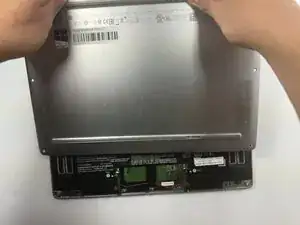
Insert a plastic opening tool or spudger into the seam between the bottom cover and the chassis.
-
Gently pry around the edges to release the retaining clips.
-
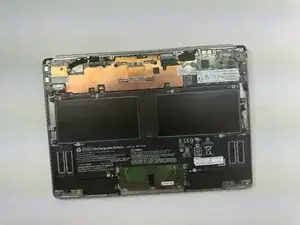
Carefully lift the back cover up and away from the laptop.
-
-
-
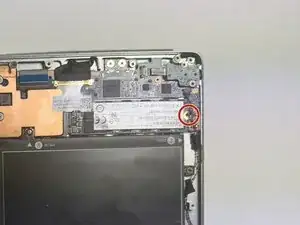
Using a Phillips #0 screwdriver, remove the one 3.0 mm screw securing the solid state drive.
-
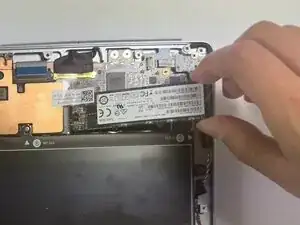
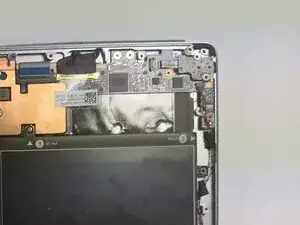
To reassemble your device, follow these instructions in reverse order.