Introdução

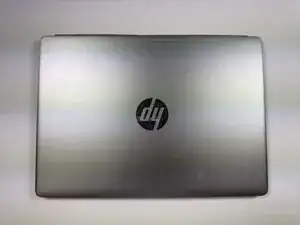
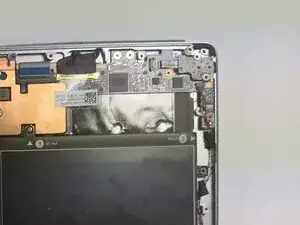
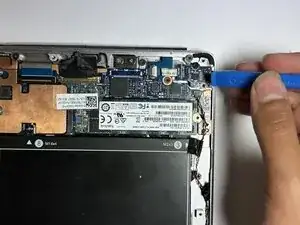
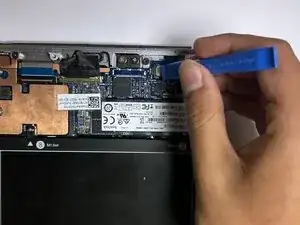
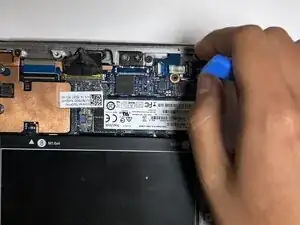
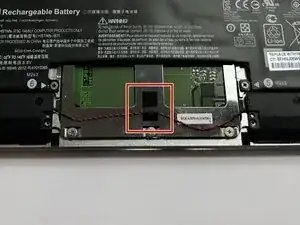
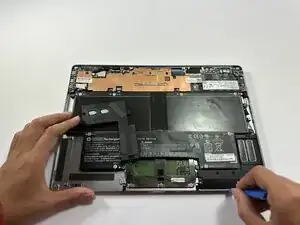
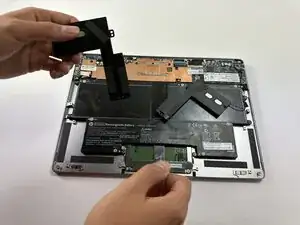
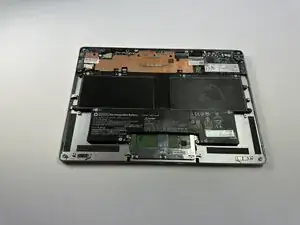
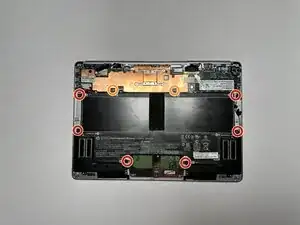
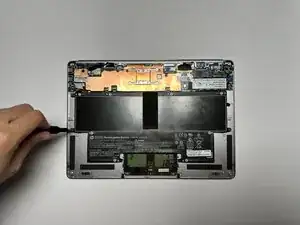
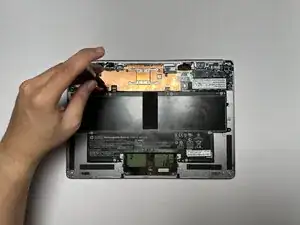
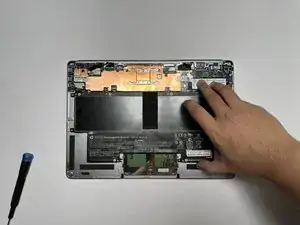
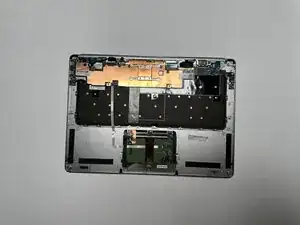
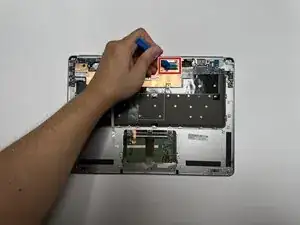
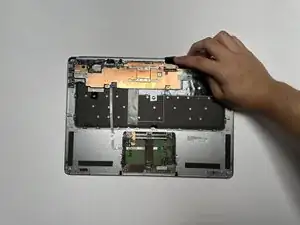
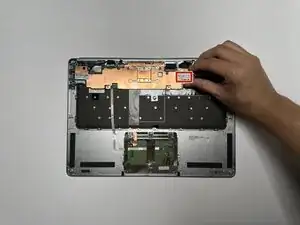
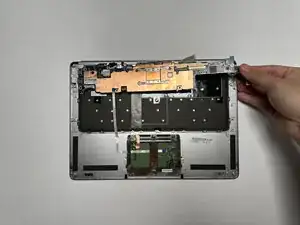
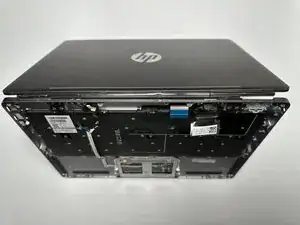
This guide covers the replacement of the display on the HP EliteBook Folio G1.

The display provides the visual output for your laptop, showing all on-screen content. If your screen is cracked, flickering, discolored, or not displaying any image, the display assembly may be defective and require replacement.

Refer to this troubleshooting page before replacing the display to verify that a replacement is required.

Following this guide will help you safely and effectively replace the display to restore clear and reliable visual performance.

  1. oZUr6qTGVmlfcUts
    • Shut down the laptop completely and close the lid.

  2. jCbNleJCwT5Q6RUR
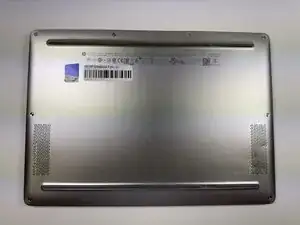
    • Turn the laptop upside down so the bottom panel is facing up.

    • Position the device so the QR code and text details are readable and facing you.

  3. FkNkn3CMvGWWHBV4
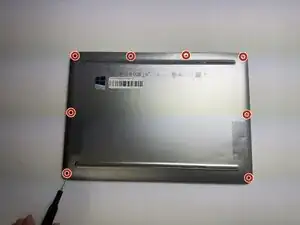
    • Remove the eight 3.0 mm screws securing the back case using a T5 Torx screwdriver.

  4. cUYgEuMHtMaTP6fT
    cUYgEuMHtMaTP6fT
    bq513K35LZyMLm2m
    QBUH1KrpUiL6lrTE
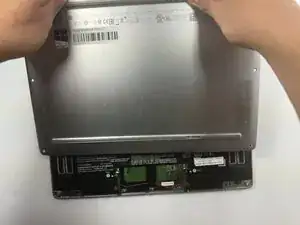
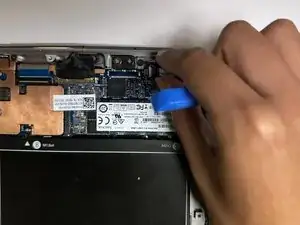
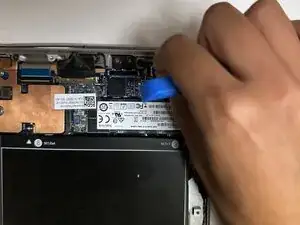
    • Insert a plastic opening tool or spudger into the seam between the bottom cover and the chassis.

    • Gently pry around the edges to release the retaining clips.

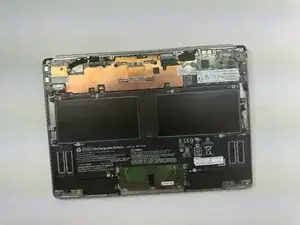
    • Carefully lift the back cover up and away from the laptop.

  5. thqdViPBlIY2W6iq
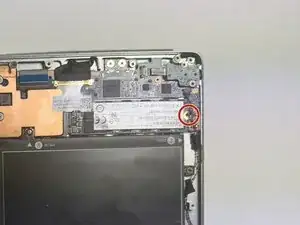
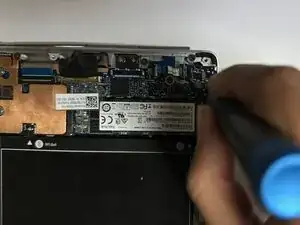
    • Using a Phillips #0 screwdriver, remove the one 3.0 mm screw securing the solid state drive.

  6. RGneYJrC1YCypH2w
    RGneYJrC1YCypH2w
    4xsICdMdlHEu3yb3
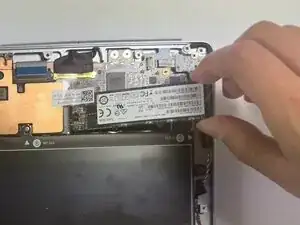
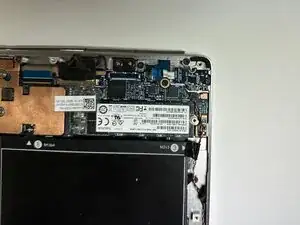
    • Carefully lift the storage drive and slide it to the right to remove it.

  7. qFpNalkJCO3YrDGD
    qFpNalkJCO3YrDGD
    slHQbFF5Og1rcTyT
    rs6tOu1cq4RJaYJI
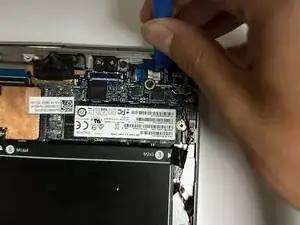
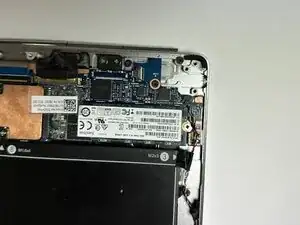
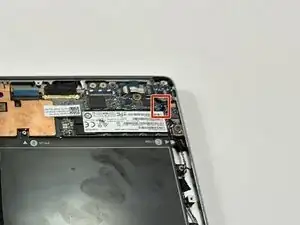
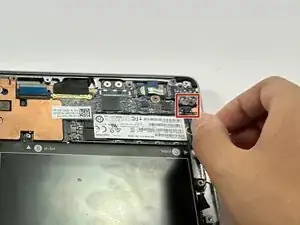
    • Use an opening tool or your fingernail to carefully lift the small locking flap on the audio board cable connector.

  8. PnjnkNfOqFAlkjfw
    PnjnkNfOqFAlkjfw
    Jg31PaJmMAkcrkMY
    wuokqVySZrAP1eiC
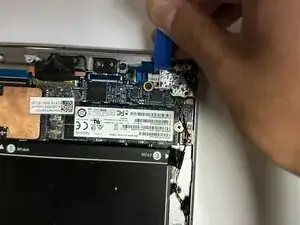
    • Gently pull the ribbon cable straight out of the connector to disconnect the audio board from the motherboard.

  9. nsIxHt2WqcqnFHQI
    nsIxHt2WqcqnFHQI
    CbcbKGZJo5vUfnuS
    ZjkWUJBvilbd2Uxg
    • Using a Phillips #00 screwdriver, remove the two 3.0 mm screws securing the audio board to the chassis.

  10. HC4f4qF1kZEZDm6P
    HC4f4qF1kZEZDm6P
    1F33VXqyZNbn54UZ
    2YyNNtys1QxEroYL
    • Avoid bending or twisting the board, as it and the connectors are fragile.

    • Use a opening tool to gently lift the audio board straight upward from its seated position.

  11. 12inpTOdtxmnSdGK
    12inpTOdtxmnSdGK
    EVdhoWOvS5SIMQVI
    • The cable is extremely fragile. Handle it carefully to avoid damage.

    • Locate the speaker cable connecting to the motherboard on the top right and carefully pull down to remove.

  12. drnNoQULByaV4XCP
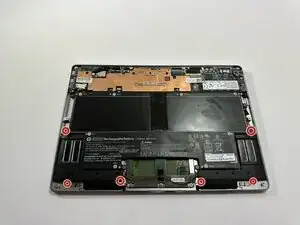
    • Using a Phillips #00 screwdriver, remove the six 3.0 mm screws securing the speakers.

  13. Fad2gBY5aOcRoHPf
    • Detach the tape that holds the cables from the battery and touchpad.

  14. dCcO6rXwNOnCGxVn
    dCcO6rXwNOnCGxVn
    cBBOmD6PrY3pWifj
    XlMxBLWZiVdaFOyo
    • Insert an opening tool under the speaker and gently lift it out of its slot.

  15. HPTNCPfmYiNCHvBO
    HPTNCPfmYiNCHvBO
    JaKUkGA5DGHWjIkN
    wEeFDveXoAYRVhvR
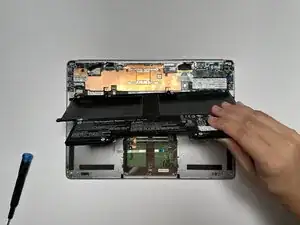
    • Remove the six 3.0 mm screws securing the battery using a Phillips #0 screwdriver.

    • Remove the two 3.0 mm screws securing the battery using a JIS #000 screwdriver.

  16. aHRMwPSaIAPkAukV
    aHRMwPSaIAPkAukV
    lEALJEEOYuRmtZvB
    E6GOA6NmJISO6DkR
    • Be careful to not puncture the battery during the process.

    • After removing the screws, pry and lift the battery out.

  17. f2TBiTDfyYCmWOAq
    f2TBiTDfyYCmWOAq
    kVkrjNJMFxlqITnS
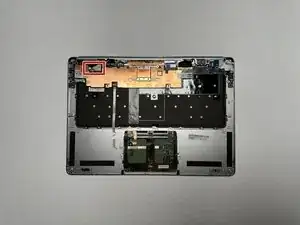
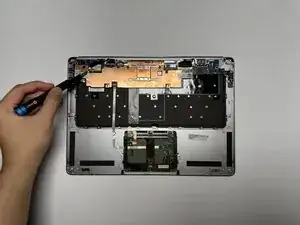
    • Disconnect the Wi-Fi antenna cable.

  18. vwYHecyyJFtAuEBc
    vwYHecyyJFtAuEBc
    XP6RohKTC1RCC1lX
    m1aMlbwNRT6HrDo6
    • Disconnect the display cable.

  19. olo2hk6oQNkKHnfT
    olo2hk6oQNkKHnfT
    5FbTCPWGquH2wDeF
    • Disconnect the keyboard cable.

  20. STstLRgx2IslZNcl
    STstLRgx2IslZNcl
    TMlSHKilvOnxeNxG
    • It is important to be careful in the disconnecting of ribbon cables. Gently use the prying tool if need be.

    • Disconnect the webcam cable.

  21. xm3TyqQace66wmr4
    xm3TyqQace66wmr4
    Ey6xytWuOLCEVbmA
    AgwrAtpLjRySKG6E
    • Grab and peel this sticker upwards and off; this is the touchpad cable.

  22. wMAsAOWR4ulrncu2
    wMAsAOWR4ulrncu2
    YiYhBWPVg3SlTNAg
    MM1SNT2tgvbtsXjs
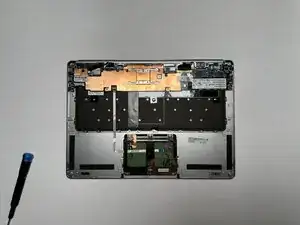
    • Lift the motherboard out of the laptop.

  23. tCkAdhrXKRWwcXVF
    tCkAdhrXKRWwcXVF
    JCZNEJV5HsF1LBdw
    mRyAclmcJiBWyZoZ
    • Remove the eight 3.0 mm Phillips #0 screws securing the hinge to the back chassis.

  24. PpKXPZWAlH2klP1k
    PpKXPZWAlH2klP1k
    AXStJMXGprVjTXHG
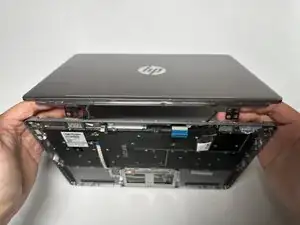
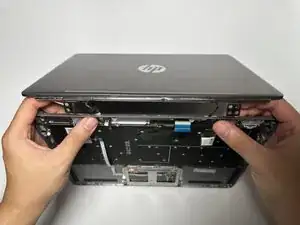
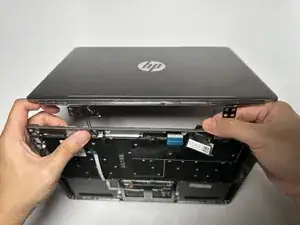
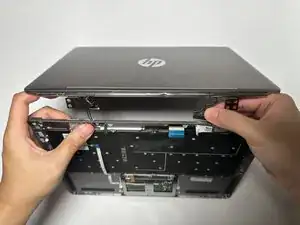
    • Flip the laptop so the bottom is facing up.

    • Gently lift and separate the screen assembly from the keyboard/base, taking care not to strain any cables.

  25. SmEl3UVeIEFOsJRD
    SmEl3UVeIEFOsJRD
    URCobFmRWnEfsSL5
    EMfXUXbp5bSOpYXP
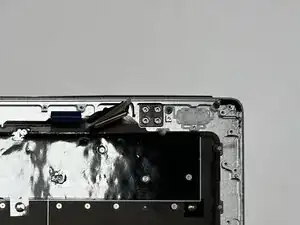
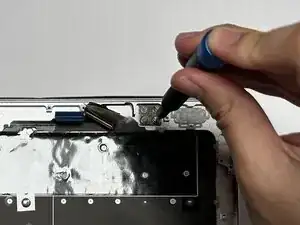
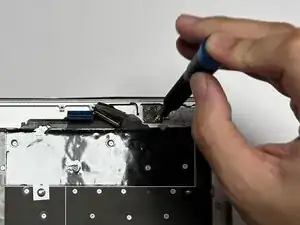
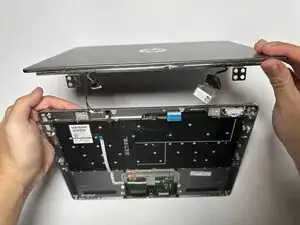
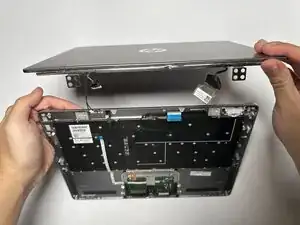
    • Unplug any remaining wires still attached.

    • Guide the detached wires through the slots in the bottom piece to fully separate the two sections.

  26. xuTLIRkeUGPQbeqW
    xuTLIRkeUGPQbeqW
    vNFq2JQkpQywmqVP
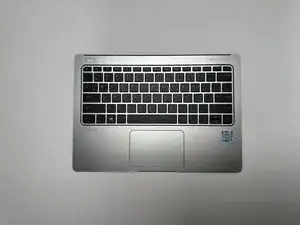
    • Separate the top and bottom sections of the device.

Conclusão

To reassemble your device, follow these instructions in reverse order.

Mateya Elez

Membro desde: 09/09/25

305 Reputação

0 comentários