Introdução
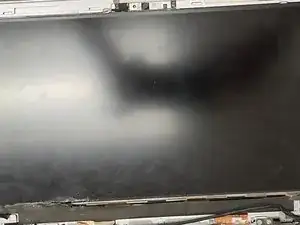
Is your HP EliteBook Folio 1020 G1 screen not turning on, or the display is shattered? If so, here is a guide to fix the problem by replacing the faulty display.
Before taking any part of the computer apart, please remember to power down your computer and unplug the power cable from any power source. Failure to do so could harm yourself or the computer, so these precautions must be taken. Also, when replacing a screen display, there is a chance that the glass could shatter. Please take precautions for the glass.
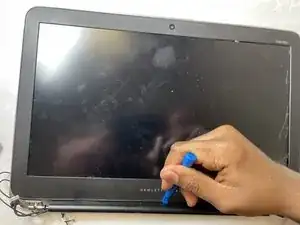
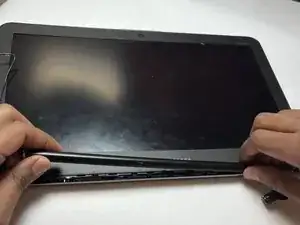
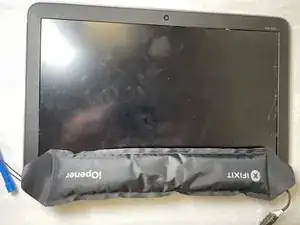
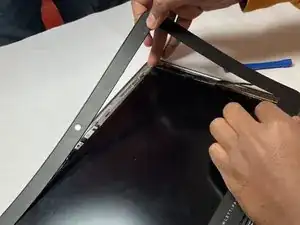
In order to remove the bezel from the display, the iOpener tool is used. To learn how to use the iOpener, follow the instructions here: iOpener Instructions.


-
-
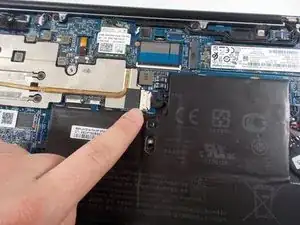
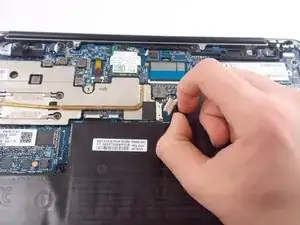
Gently pull and free the battery's bundled cable connector that leads from the battery to the motherboard.
-
-
-
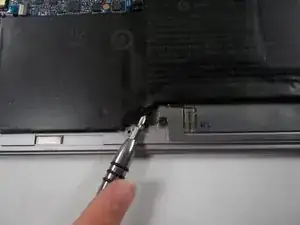
Use a Phillips #1 screwdriver to unscrew and remove the six 4 mm screws that secure the battery.
-
-
-
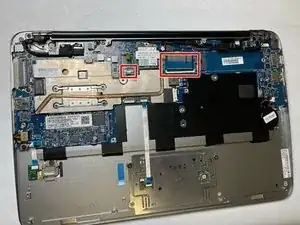
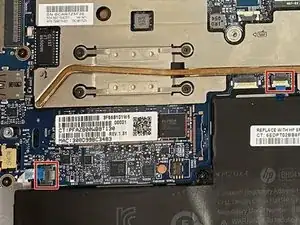
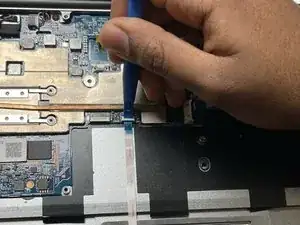
Disconnect the keyboard connections from the motherboard.
-
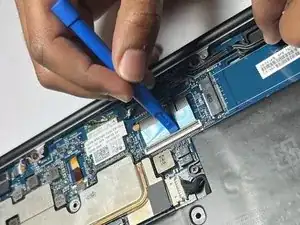
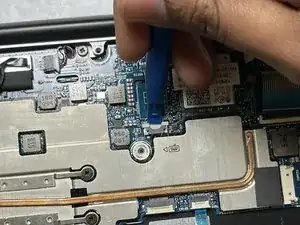
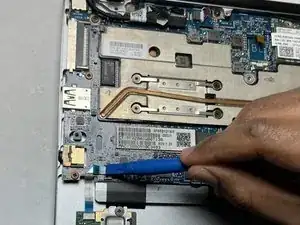
Disconnect by lifting the underside of the white tabs with a spudger.
-
-
-
Gently pull on the black pull tab on the top of the connector.
-
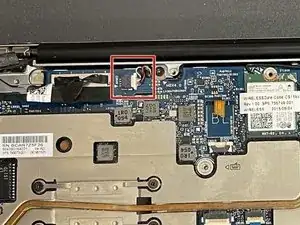
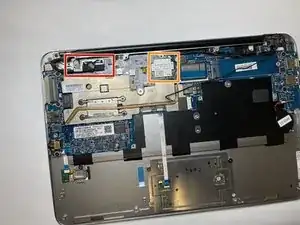
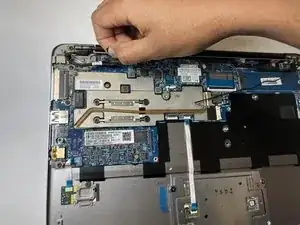
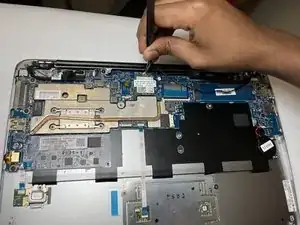
Remove both wires going to the top of the Wi-Fi card using the tweezers.
-
-
-
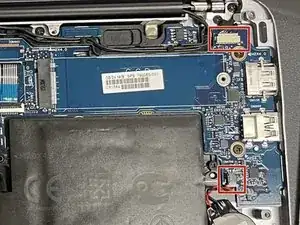
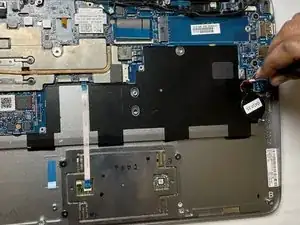
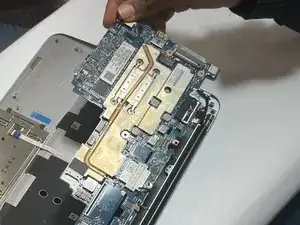
Lift the now disconnected motherboard from the side shown in image 1.
-
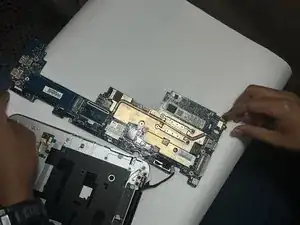
The disconnected motherboard (aside from the port removed in step 12) is shown in image 2.
-
-
-
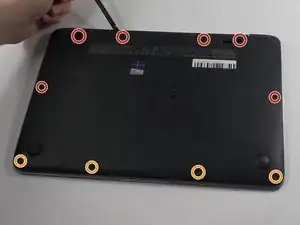
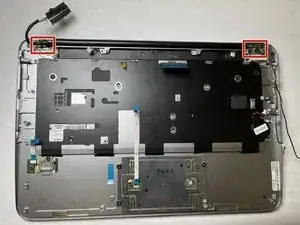
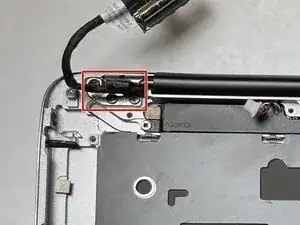
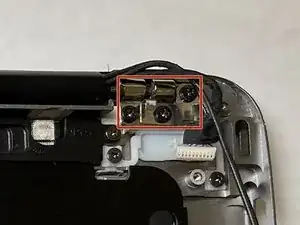
To release the display frame from the lower frame, remove:
-
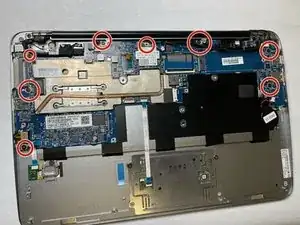
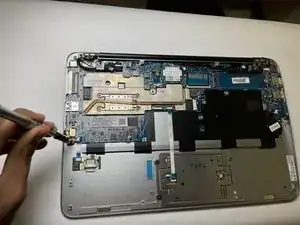
Six 4.1 mm screws using Phillips #0.
-
-
-
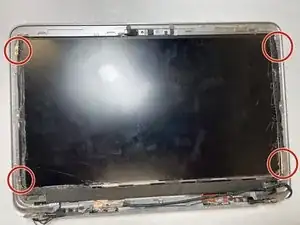
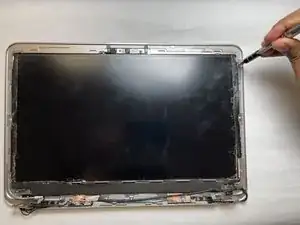
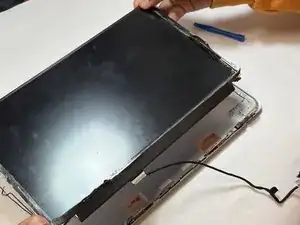
Once the screen is separated from the bottom frame, use a plastic opening tool to remove the bottom trim from the screen.
-
To reassemble your device, follow these instructions in reverse order.