Introdução
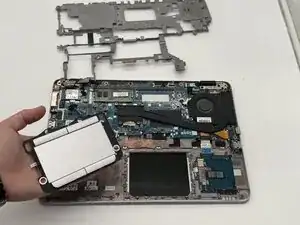
If your HP EliteBook 840 G4’s trackpad isn’t clicking, moving the cursor, or is acting erratically, then the issue could be with the trackpad module or its internal connection.
The trackpad is responsible for translating your finger movements into input, and if its ribbon cable becomes loose or the board is damaged, the device won’t respond properly.
A good way to test this is to remove the bottom cover, check the trackpad ribbon cable, and reseat it firmly.
If it still doesn't work, you may need to replace the trackpad entirely. Use this guide to inspect or replace the trackpad.
Recycle any damaged parts at an electronic waste facility.
Ferramentas


-
-
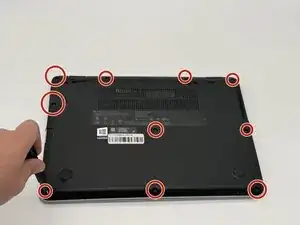
Remove the ten 2 mm screws securing the back panel using a Phillips #0 screwdriver.
-
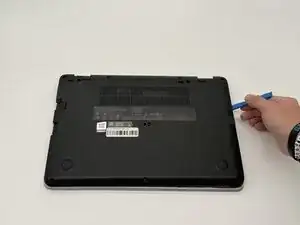
Pry open the sides using an opening tool until you hear clicks.
-
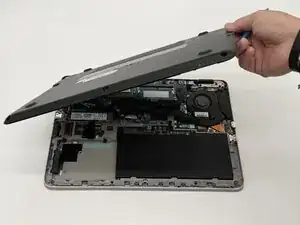
Pop off the back panel and place it to the side.
-
-
-
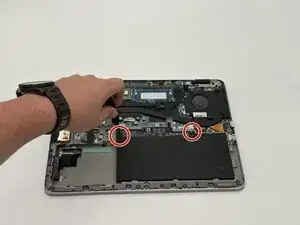
Remove the two 2 mm screws from the battery using a Phillips #0 screwdriver.
-
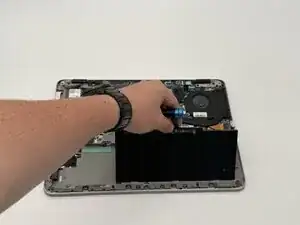
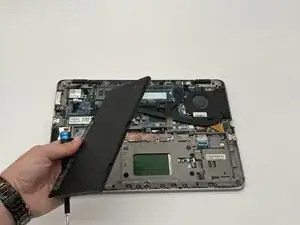
Pull up the tab on the battery to remove it from the device.
-
-
-
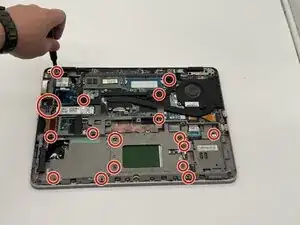
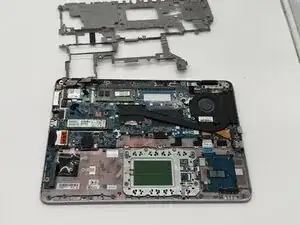
Remove the 17 4 mm screws from the midframe using a Phillips 0 screwdriver.
-
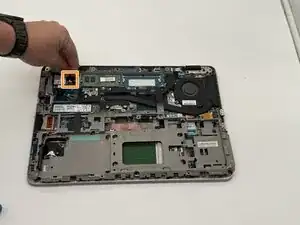
Disconnect the two wires from the Wi-Fi card.
-
Flip up the midframe.
-
-
-
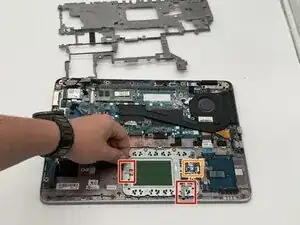
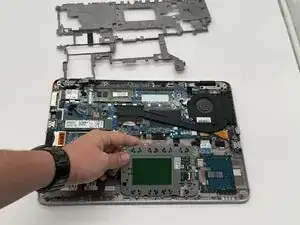
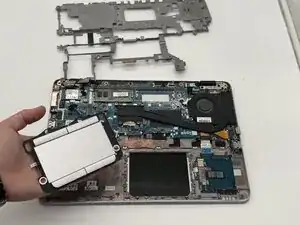
Pick up the far side of the trackpad and slide it up and out away from you to disconnect it.
-
To reassemble your device, follow these instructions in reverse order.