Introdução
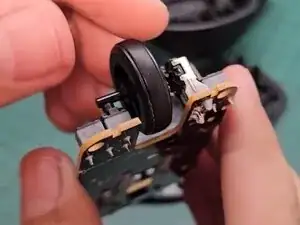
If the scroll wheel on your HP 280 Silent Wireless Mouse is not working properly, replacing it can restore functionality. This guide provides step-by-step instructions to disassemble the mouse, remove the old scroll wheel, and install a new one.
Note: If the mouse still does not work after replacing the scroll wheel, the issue may be related to the scroll encoder or a problem with the circuit board. In such cases, further diagnosis or professional repair may be necessary.
Before you begin the repair, make sure that the mouse is turned off.
Ferramentas


-
-
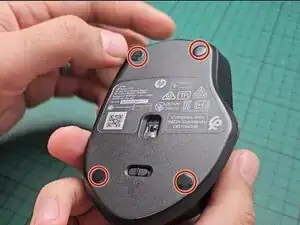
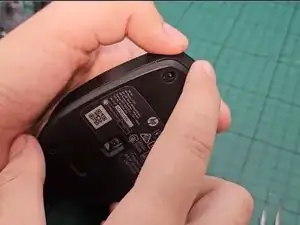
Flip the mouse so the bottom is facing up.
-
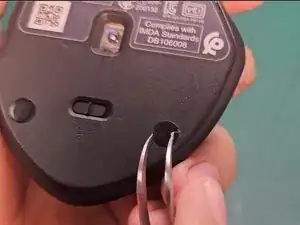
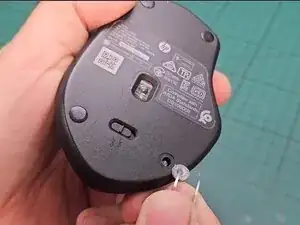
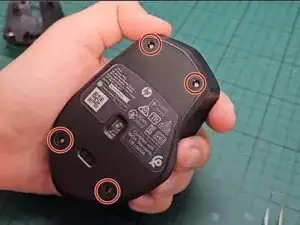
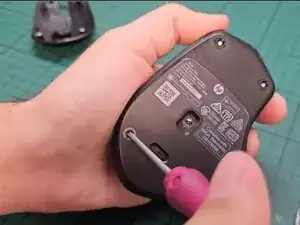
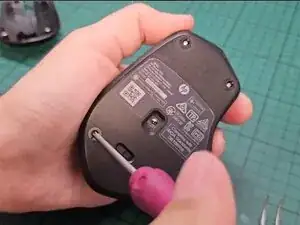
Use tweezers to gently remove the rubber pads, revealing the screws underneath.
-
-
-
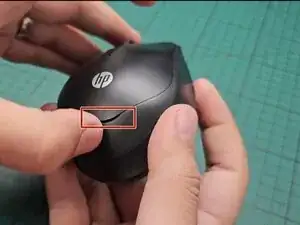
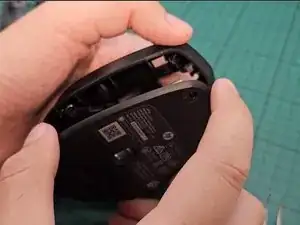
Use a spudger to release the clips along the perimeter between the top and bottom casing of the mouse.
-
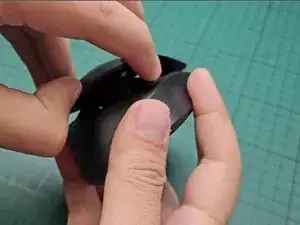
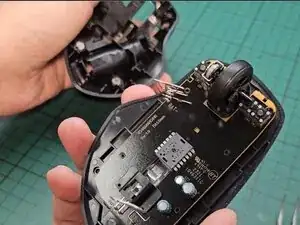
Separate the top and bottom halves of the mouse.
-
-
-
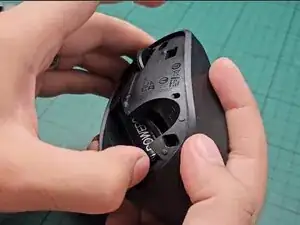
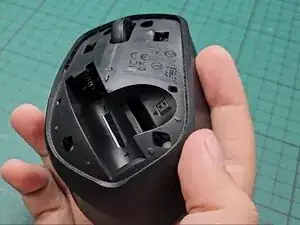
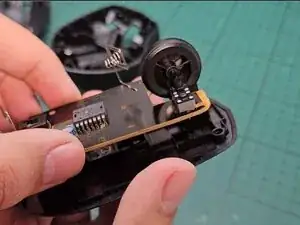
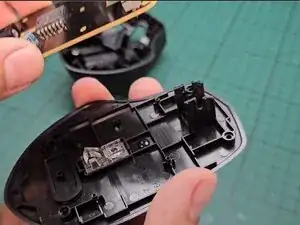
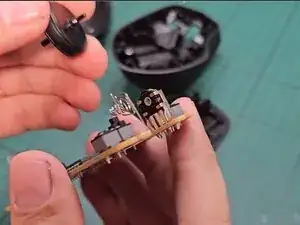
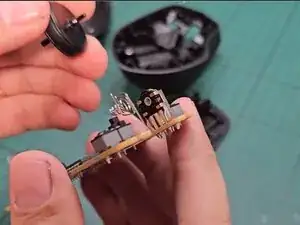
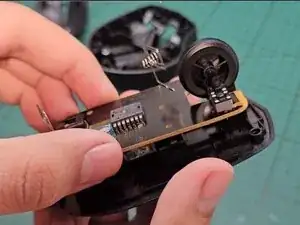
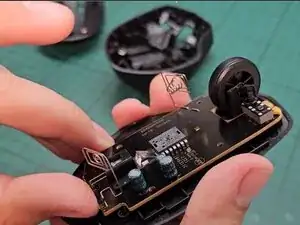
Gently detach the circuit board from its housing, ensuring you do not bend or damage any components.
-
-
-
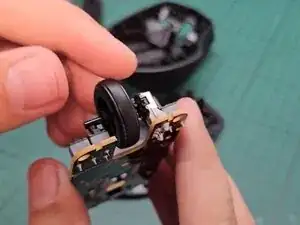
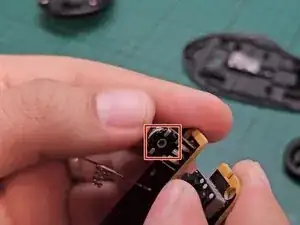
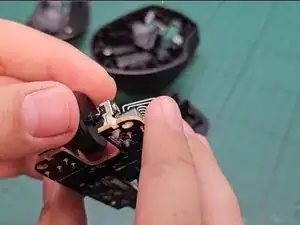
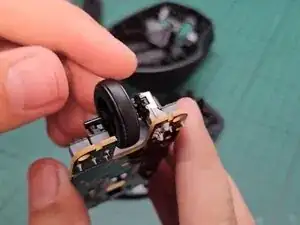
Slide the hexagonal side into the slot of the scroll encoder, and press the scroll wheel into place.
-
-
-
After placing the scroll wheel, verify that it rotates smoothly and that the scroll encoder is also rotating to detect movement correctly.
-
-
-
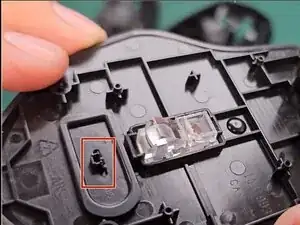
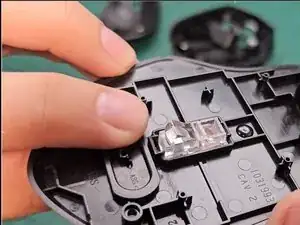
Carefully place the circuit board back into the housing, ensuring it is in the correct position and is not inverted.
-
-
-
Carefully snap the top and bottom halves back together.
-
Replace the four 3 mm Phillips #0 screws.
-
Reattach the rubber pads to their original positions.
-
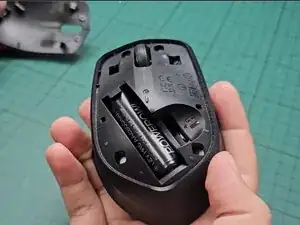
Put the battery back into the battery compartment.
-
Replacing the scroll wheel on the HP 280 Wireless Mouse is a quick and effective fix to restore smooth scrolling. With proper maintenance, you can extend the lifespan of your mouse and keep it functioning like new. Take your e-waste to an R2 or e-Stewards certified recycler.
