Introdução
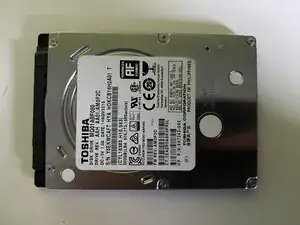
Because this laptop comes with HDD, it's recommended to upgrade it to SSD.


-
-
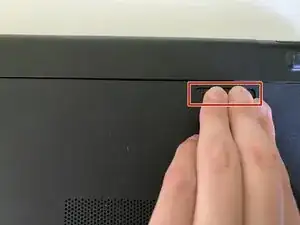
Put the laptop upside down and remove the battery by pulling the right latch outward.
-
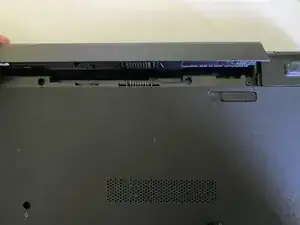
Raise the battery upwards.
-
-
-
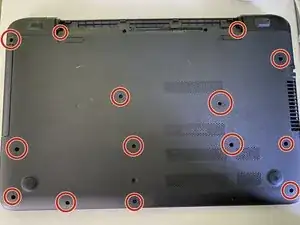
Remove the circled screws with a Phillips #0 screwdriver.
-
Note that only circled points include a screw. There aren't screw in all holes.
-
-
-
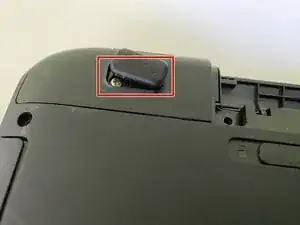
Remove the paw with iFixit Opening Picks.
-
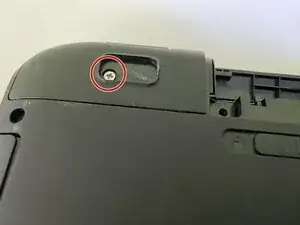
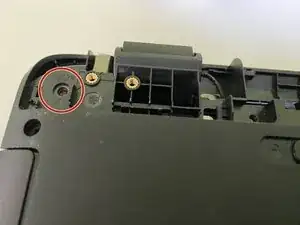
Remove the screw with a Phillips #0 screwdriver.
-
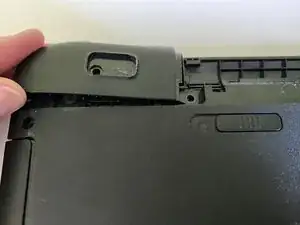
Do the same operation to the right corner.
-
-
-
Remove the corner piece with iFixit Opening Picks.
-
Remove the screw as shown in the picture.
-
Do the same operation to the right corner.
-
-
-
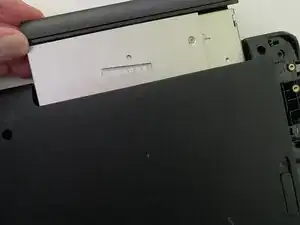
Pull the optical disk drive (ODD) out with fingers.
-
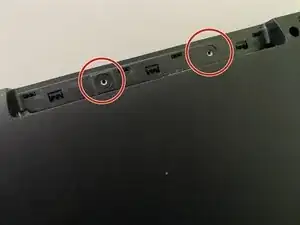
Remove the screws as shown in the picture.
-
-
-
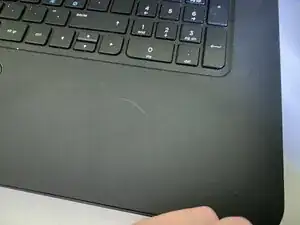
Remove the keyboard/touchpad tile with iFixit Opening Picks and fingers.
-
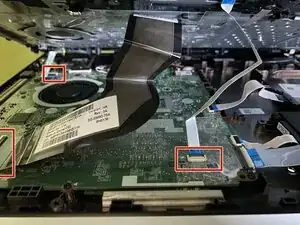
Remove the cabels as shown in the picture from the motherboard.
-
Now you can start the replacement or cleaning operation.
-
-
-
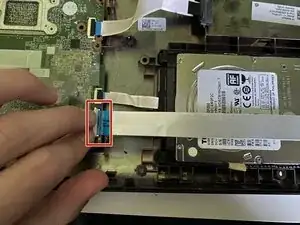
Turn the cable's tip upwards and put the cable out of the way.
-
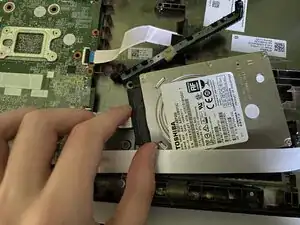
Remove the buttresses from both sides of the hard drive.
-
-
-
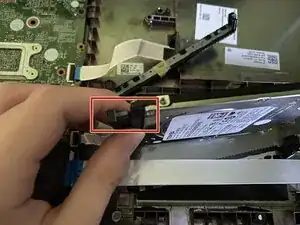
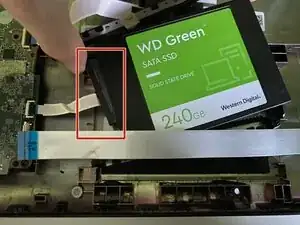
Remove the SATA cable from the old hard drive.
-
Plug the SATA cable to the new hard drive.
-
Put all of the removed pieces and screws back and reassembly the laptop.
-
This is good guide for you if you are planning to upgrading a SSD on this laptop.