Introdução
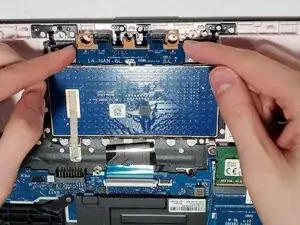
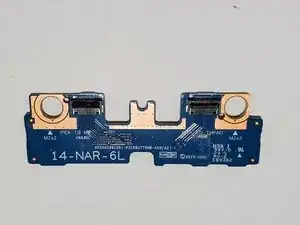
The touchpad buttons are the two buttons that allow you to simulate a mouse click. It gives the user the ability to select items and activate buttons. Without the touchpad buttons, you wouldn't be able to select objects with your touchpad, and that makes the computer unusable.
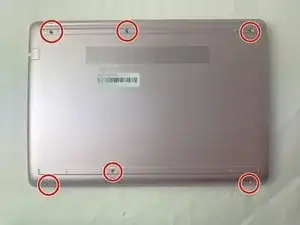
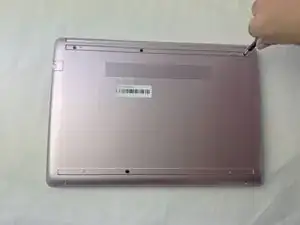
The guide will show you how to safely take out the touchboard cover to begin the process of replacing the touchpad button board. You will need an opening pick and the Phillips #1 screwdriver.


-
-
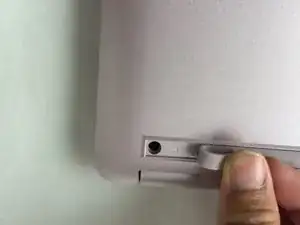
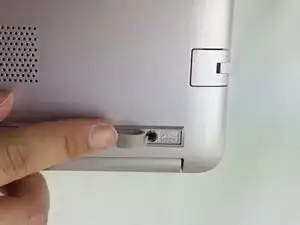
Use a spudger to pry under the end of the screw cover.
-
When the edge is lifted up, use your fingers to pull the rest of the strip off.
-
-
-
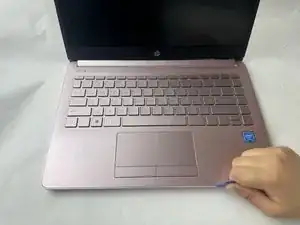
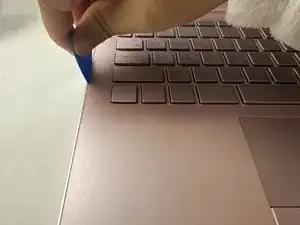
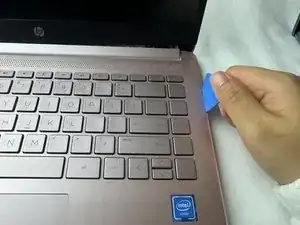
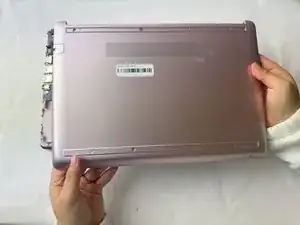
Use a pick or opening tool to pry along the edges of the back cover from the keyboard side of the laptop.
-
-
-
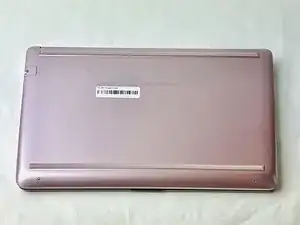
Place your opened laptop on a flat surface.
-
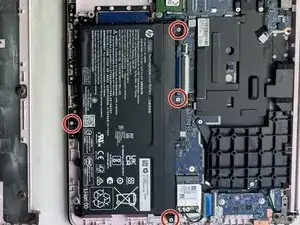
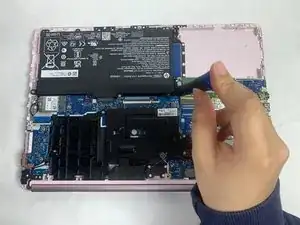
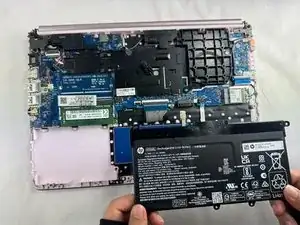
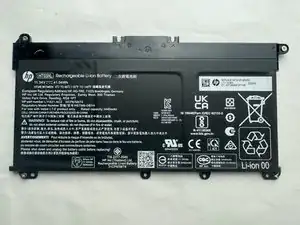
Use a Phillips #1 screwdriver to remove the four Phillips 3.0 mm screws securing the battery.
-
-
-
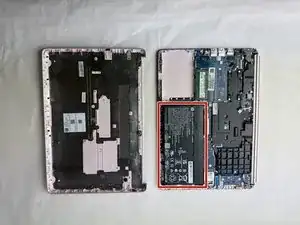
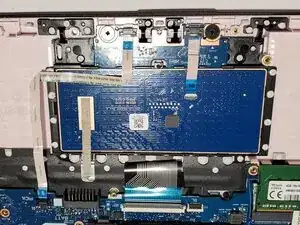
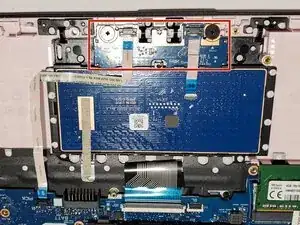
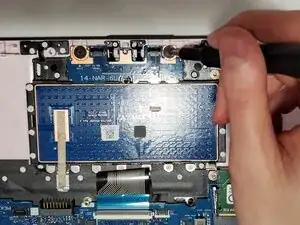
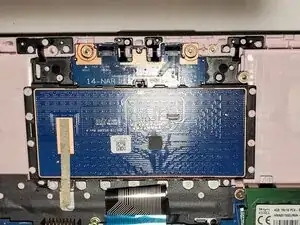
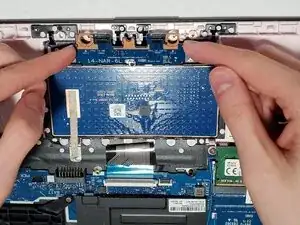
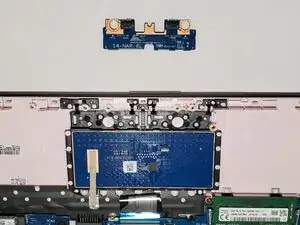
The touchpad button board is near the top of the case, directly under where the battery was.
-
-
-
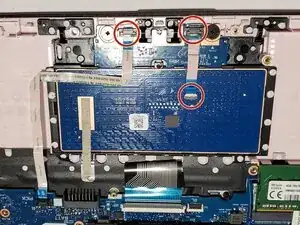
Flip up the three black locking flaps.
-
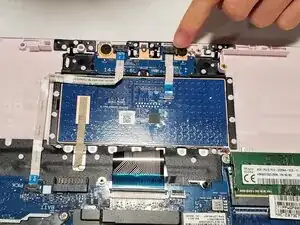
Disconnect the two white ribbon cables with blue ends.
-
-
-
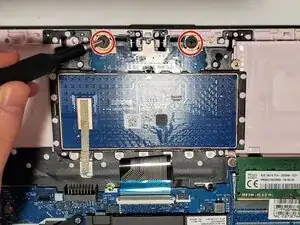
Use a Phillips #1 screwdriver to remove the two black 2 mm pancake screws securing the touchpad button board.
-
To reassemble your device, follow the above steps in reverse order.
Take your e-waste to an R2 or e-Stewards certified recycler.
Repair didn’t go as planned? Try some basic troubleshooting or ask our Answers community for help.
