Introdução

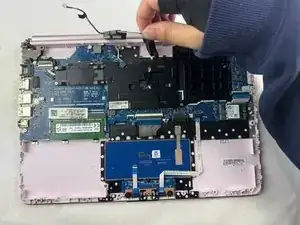
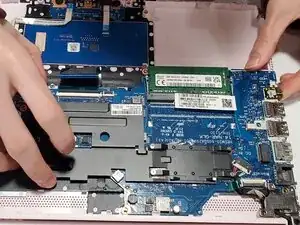
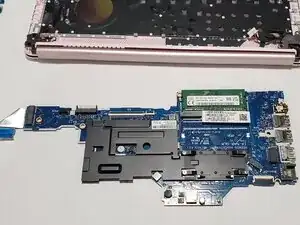
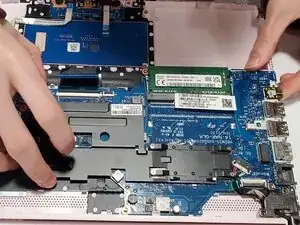
If your laptop does not turn on, fails to display properly, or completely freezes, and the battery, AC adapter, and RAM card has already been determined to work properly, then the issue is likely due to a failure on the motherboard, whether it be the CPU or GPU which are soldered on, RAM sockets, I/O controller, PCH, PMIC, or one of the many other systems on the motherboard.

You will need to purchase a N12724-601 motherboard if you decide to replace it, and only used components are available for sale. The N12724-601 is the motherboard used in all HP 14-CF series laptops. Keep in mind that the motherboard is the most expensive component of the laptop to replace, and a used N12724-601 usually costs at least half the price of the whole laptop.

Before you begin this replacement guide, power off the laptop and remove any cable or device plugged into the ports, including the charging port.

  1. YsHNTVITYDQnVgCV
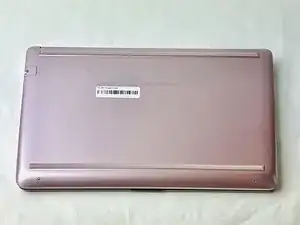
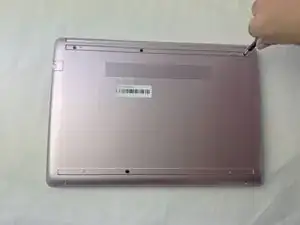
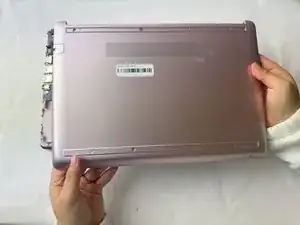
    • Before you begin, shut down your laptop and disconnect all cables.

    • Turn the laptop over so the bottom case is facing up.

  2. f6YQQiKqyPlv3fAZ
    f6YQQiKqyPlv3fAZ
    oW6dmtoxKtpeMH16
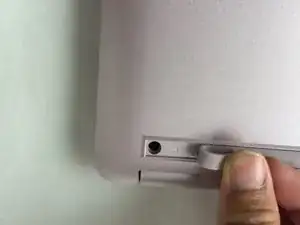
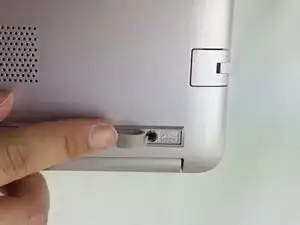
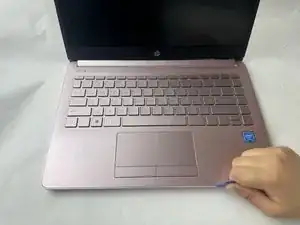
    • Use a spudger to pry under the end of the screw cover.

    • When the edge is lifted up, use your fingers to pull the rest of the strip off.

    • Try to keep the strip intact so you can replace it at reassembly.

  3. hMQB5YLBPn1AxbLf
    hMQB5YLBPn1AxbLf
    HfbDJySgDEPsbtRb
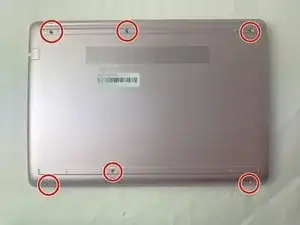
    • Use a Phillips #1 screwdriver to remove six 6 mm screws from the back case.

  4. WOljLO2kx4DD2pIj
    WOljLO2kx4DD2pIj
    6CK23nBhibQJrQLT
    PX2u6nyVO1uRNT4K
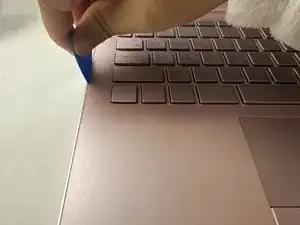
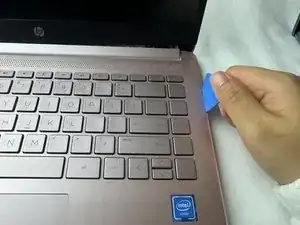
    • Use a pick or opening tool to pry along the edges of the back cover from the keyboard side of the laptop.

    • Be careful as the case edges are sharp.

  5. XqK4eUpx2urwWc3r
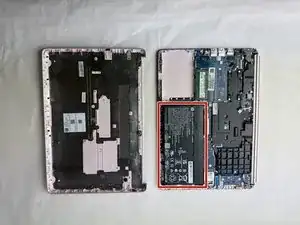
    • Lift the back cover off the laptop.

  6. CYNKSqv6IYK3F3TO
    CYNKSqv6IYK3F3TO
    VfgOUCZKBKWQ5fwL
    uQtVHtNuiJtSDLuB
    • Place your opened laptop on a flat surface.

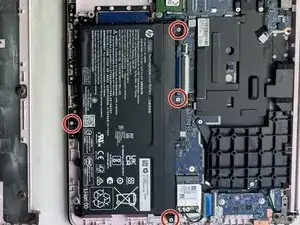
    • Use a Phillips #1 screwdriver to remove the four Phillips 3.0 mm screws securing the battery.

  7. KkWRfRm5DZSrB4bt
    KkWRfRm5DZSrB4bt
    cKenGMQeKpxLxYDd
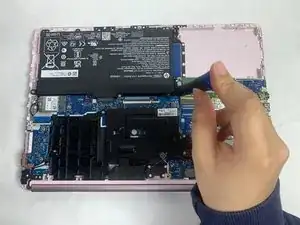
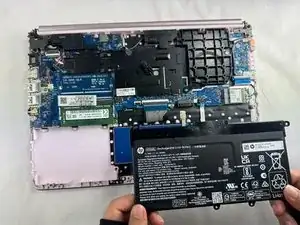
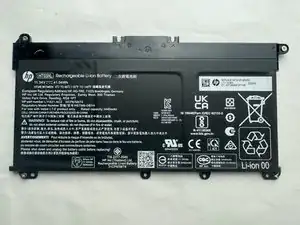
    • Slide the battery out from the connector on the motherboard.

  8. bTqktwkV4rEbDZsh
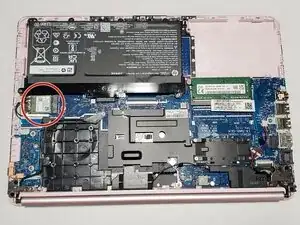
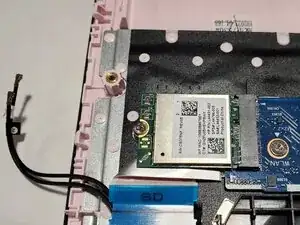
    • For reference, the Wi-Fi card is near the middle left of the image.

  9. ng4OMukspQXihhkh
    ng4OMukspQXihhkh
    epPMd4YpNmC2jVXt
    3iPVFurPfQbu1GHM
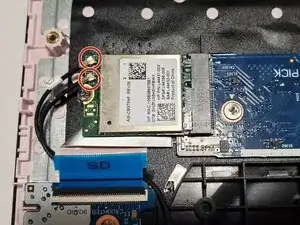
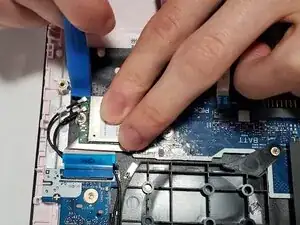
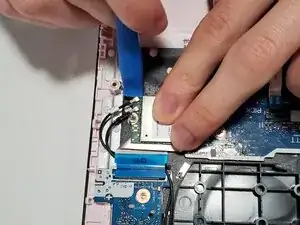
    • Use an opening tool to pry up and disconnect the two Wi-Fi card coaxial cable connectors.

    • The wire with the white tab attached should connect to spot number 1 on the Wi-Fi card. The wire with the black tab attached should connect to spot number 2.

  10. 4jJaWKmIYNiZ1Mla
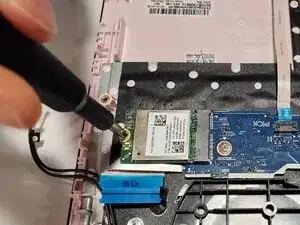
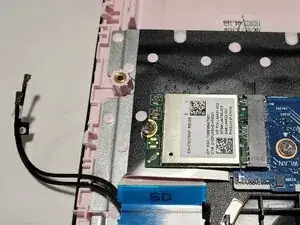
    • Remove the 3 mm-long screw securing the Wi-Fi card with a Phillips #1 screwdriver.

  11. 2gWnnXIFrvHGoLti
    2gWnnXIFrvHGoLti
    Kbyq2TundoTfviJF
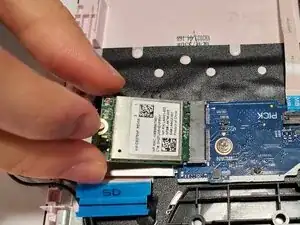
    • Pull the Wi-Fi card out of its socket.

  12. d5BLhLTJ2rNCxeA3
    d5BLhLTJ2rNCxeA3
    bn1r5LQOS12ZS2at
    RRdcDOUd4pvOdLbk
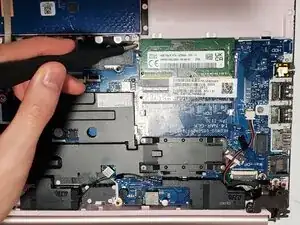
    • Use your fingers or tweezers to pull out the speaker cable from the slide connector socket on the motherboard.

    • Don't pull on the wires as it may damage the connector or cable.

    • If that doesn't work, use the point of a spudger to push on alternating sides of the connector to "walk" it out of its socket.

    • It may take a lot of alternating before the connector comes out.

    • To reconnect the cable, align the connector and use a spudger or clean fingernail to push it fully into the socket.

    • Don't push on the cables themselves, or you may damage the connector.

  13. KJ4Jr2QOABUrksHV
    KJ4Jr2QOABUrksHV
    4cFAOvkAEbODoAG6
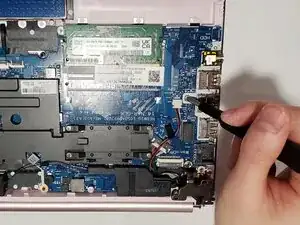
    • Remove the tape holding the cables to the motherboard.

  14. EGpCrLkUgxXYK6OP
    EGpCrLkUgxXYK6OP
    KlVCiXHYjqpv3Jad
    ZIW2grv1kdE1C1hf
    • Remove the speakers.

    • A loose plastic piece may or may not fall out during this step, but you can press it back in place between the speaker and the motherboard.

  15. G6YWFNS3GB1yyAhB
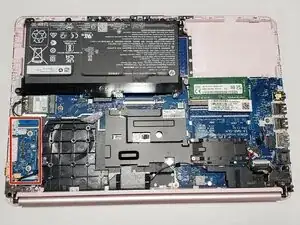
    • For reference, the daughterboard is near the bottom left of the image.

  16. nOYIlBNMDuWg5bGu
    nOYIlBNMDuWg5bGu
    ZJPcExNgeu6hRHLt
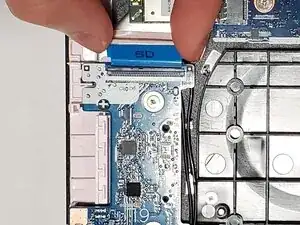
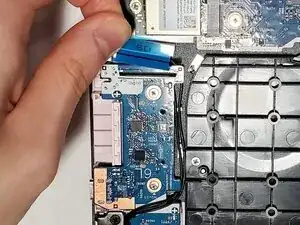
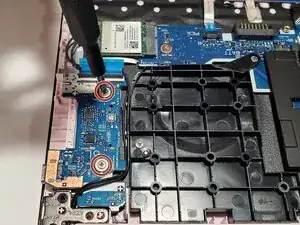
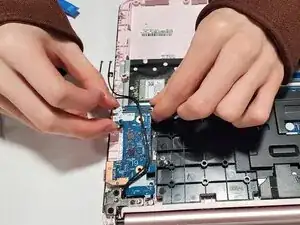
    • Flip up the black locking flap securing the ribbon cable to the daughterboard.

    • Disconnect the ribbon cable.

  17. yipReKBhrrslG3DJ
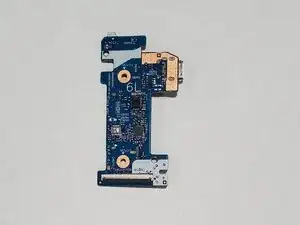
    • Remove the two 2 mm wide sliver screws securing the daughterboard with a Phillips #1 screwdriver.

  18. kZeHRqIyGkaNGR4G
    kZeHRqIyGkaNGR4G
    cSrhv5aVHjMONRqO
    • Use an opening tool to pry up and disconnect the two Wi-Fi card coaxial cable connectors.

    • The wire with the white tab attached should connect to spot number 1 on the Wi-Fi card. The wire with the black tab attached should connect to spot number 2.

  19. wrE3hSQU62lHCo66
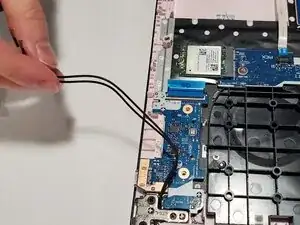
    • Unseat the Wi-Fi card cables from beneath the daughterboard.

  20. e4GmTkef4pXvOESP
    e4GmTkef4pXvOESP
    uBYbRhZPWB3wZ4VB
    • Remove the daughterboard by lifting it upwards, then sliding it out towards the touchpad.

  21. dGhnDELAYNuIeqE5
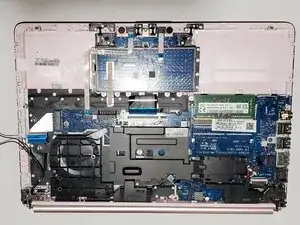
    • For reference, this is what it should look the Wi-Fi card, battery, speakers, and daughterboard are removed.

  22. WpApaCKalWnJAnDN
    WpApaCKalWnJAnDN
    BLFsJis3sAD243PZ
    • Remove the 3 mm-long screw near label named "BATJ" with a Phillips #1 screwdriver.

    • Remove the 3 mm-long screw near the label named "WLAN" with a Phillips #1 screwdriver.

  23. kdoJUsxbBMtGBkAx
    kdoJUsxbBMtGBkAx
    gNdZCFCN55dIMaCq
    5sMsf2iPH3eR1xs1
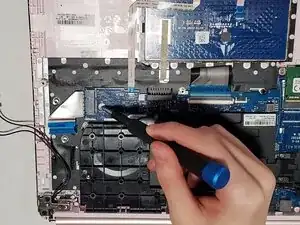
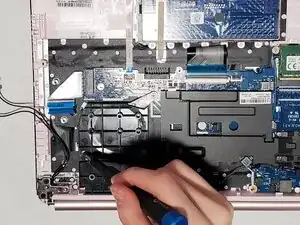
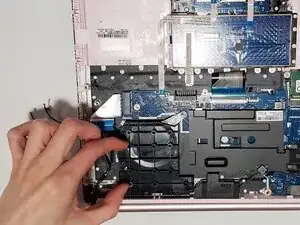
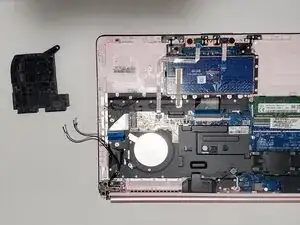
    • Remove the remaining 3 mm-long screw on top of the large piece of black plastic labelled "A-1" with a Phillips #1 screwdriver.

    • Remove the large piece of black plastic.

  24. GmAdqWxlCKxOFFwL
    GmAdqWxlCKxOFFwL
    KlS2AaloWNOHOKdg
    dA5GqK3DcPZJhsof
    • Remove the two 6.5 mm-long black screws with a Phillips #1 screwdriver.

    • Remove the one 3 mm-long screw on the metal hinge with a Phillips #1 screwdriver.

  25. EBj22kPAKvgoaGim
    • Bend the hinge upwards with your fingers or, if easier, with a plastic opening tool.

  26. Mgy1wwZno6EsGlwS
    Mgy1wwZno6EsGlwS
    dmsTN5WGSZiDwNkQ
    GByP1E1baBFCCQsZ
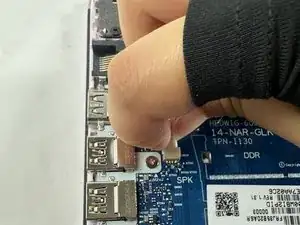
    • Remove the wide 2 mm-long screw next to the RAM module with a Phillips #1 screwdriver.

    • Remove the 3 mm-long screw next to the label named "SPK" with a Phillips #1 screwdriver.

    • Remove the 3 mm-long screw next to the label named "HHD" with a Phillips #1 screwdriver.

  27. jKmxFPRFHki6lSMx
    jKmxFPRFHki6lSMx
    MfusUknVBQyM1bJO
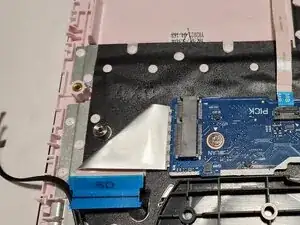
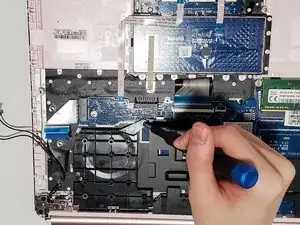
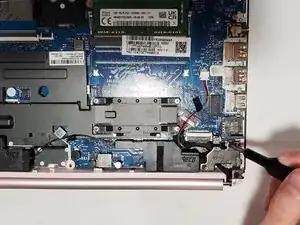
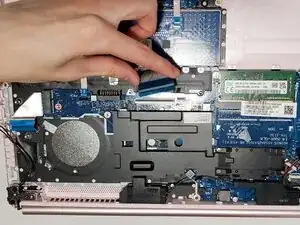
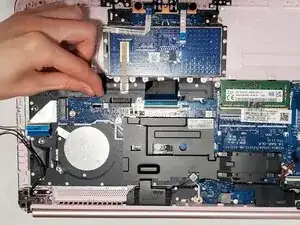
    • Flip up the two black locking flaps near the touchpad, one wide and one thin.

    • Disconnect the two ribbon cables with blue ends.

  28. kaodLFKnsdAcSepC
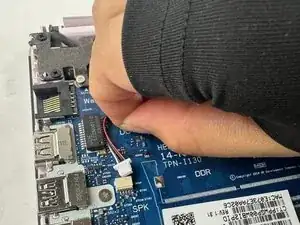
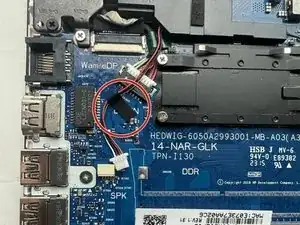
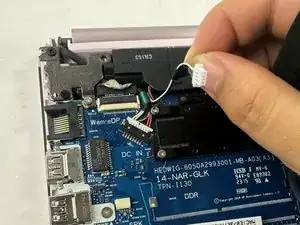
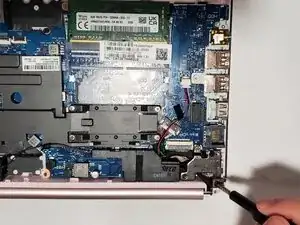
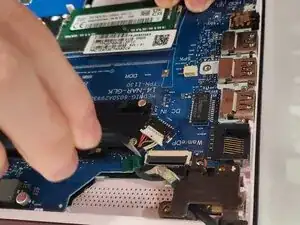
    • Remove the wire next to the label named "Wam/eDP".

    • If needed, use tweezers to pull the wire away, but only after the wire is disconnected.

  29. PMVrcRavxqLtaCDA
    PMVrcRavxqLtaCDA
    jC11Z5HEIBaJM6H2
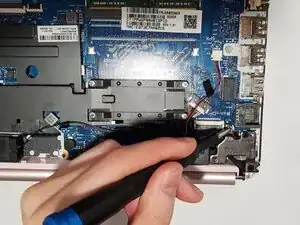
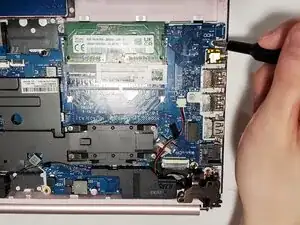
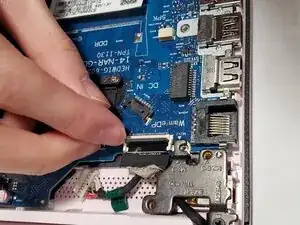
    • Flip up the locking flap securing the display connector.

    • Disconnect the display connector.

  30. 2SRNngE2wAsQnWil
    2SRNngE2wAsQnWil
    oT4kI1JEr6UBZihc
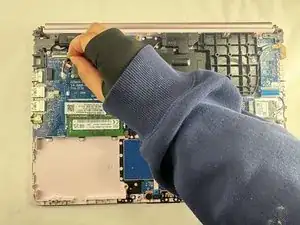
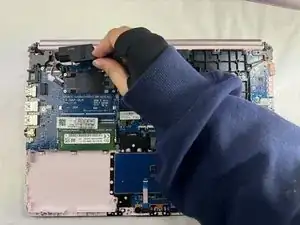
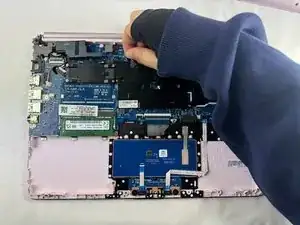
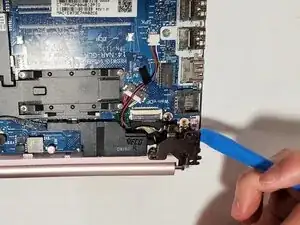
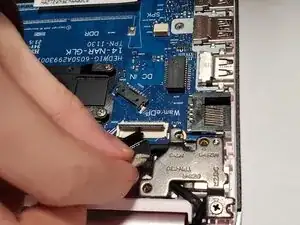
    • Slide the motherboard up and outwards toward the touchpad.

Conclusão

To reassemble your device, follow the above steps in reverse order.
Take your e-waste to an R2 or e-Stewards certified recycler.
Repair didn’t go as planned? Try some basic troubleshooting or ask our Answers community for help.

Alexander Kusuma-Nguyen

Membro desde: 19/10/25

544 Reputação

0 comentários