Introdução

This repair guide was authored by a member of the iFixit community and hasn’t been endorsed by Google. Learn more about our repair guides here.

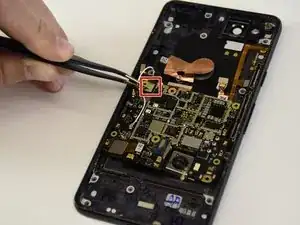
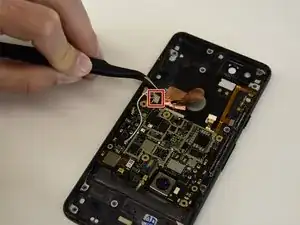
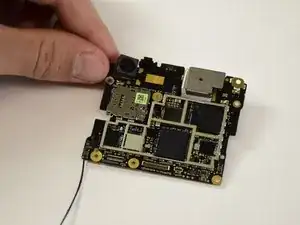
Use this guide to remove or replace the motherboard in a Google Pixel 2.

Some guide images will show the phone with the battery removed. You do not need to remove the battery for this procedure.

  1. wAO2rliBKNjRPNFp
    wAO2rliBKNjRPNFp
    sOF3jgMKtXwTw3QE
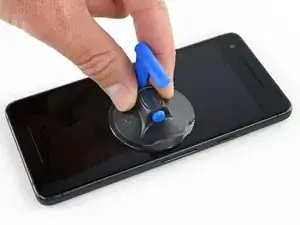
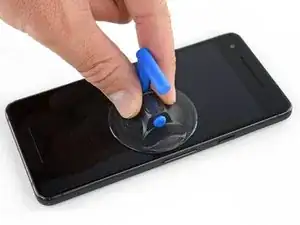
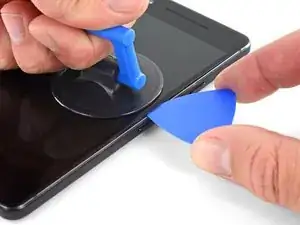
    • If your display glass is cracked, keep further breakage contained and prevent bodily harm during your repair by taping the glass. This also makes a smooth surface allowing the suction cup to bond.

    • Apply a suction cup as close to the volume button edge of the phone as you can while avoiding the curved edge.

    • The suction cup will not make a good seal on the curved portion of the glass.

  2. avTQkVCTMJZevgJY
    avTQkVCTMJZevgJY
    dJrwweYej11ijuYM
    txYtFqoGDv4UxBDE
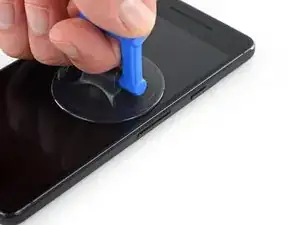
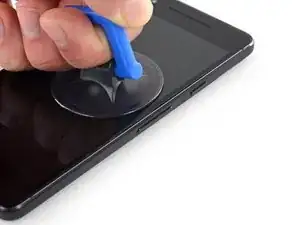
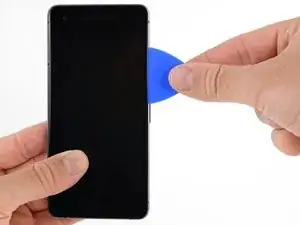
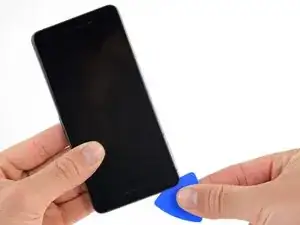
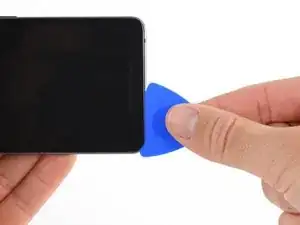
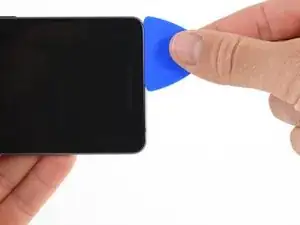
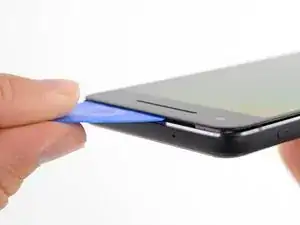
    • Pull up on the suction cup with firm, constant pressure and insert an opening pick between the front panel and rear case.

    • Do not insert the pick deeper than 1.5 mm, or you risk damaging the OLED panel.

    • This requires a significant amount of force and patience. If you have trouble, rock the suction cup and screen to weaken the adhesive, or apply heat with an iOpener, heat gun, or hair dryer.

    • The display panel is fragile. If you plan to re-use your display, take care to insert your tool only as far as necessary to separate the adhesive. Inserting the tool any further can damage the OLED panel under the glass.

  3. RSYXSBeeSGreK1tU
    RSYXSBeeSGreK1tU
    rJRrccJKxCssQRxL
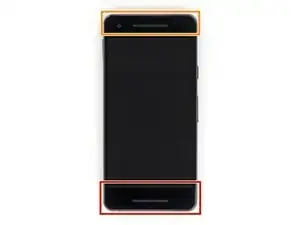
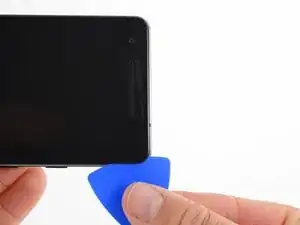
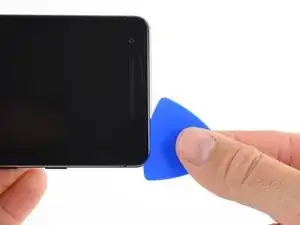
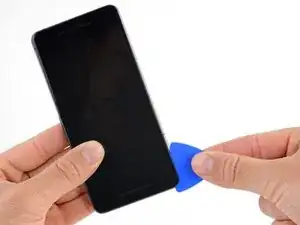
    • In the following steps, extra caution is required in certain areas to avoid damage to the phone:

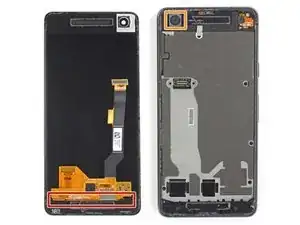
    • Do not insert the pick more than 9 mm into the bottom edge of the phone. If the pick contacts the folded portion of the OLED panel it can damage the display.

    • Only make very shallow cuts in the upper left corner, prying deeply can damage the front-facing camera.

    • Inserting an opening tool deeper than 1.5 mm into the sides of the device, or 9 mm into the top and bottom can permanently damage the display.

  4. EMmUoacoYJBggeoq
    EMmUoacoYJBggeoq
    aNShcRN3lT1gILvU
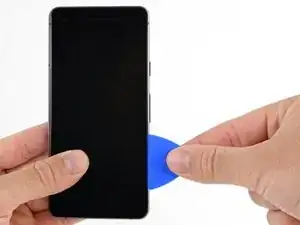
    • In the following steps, use the flat of the opening pick, rather than a corner, to cut here. This will help prevent inserting the pick too deeply.

    • Slide the opening pick up the right side of the phone to separate the display adhesive.

    • Take extra care with the side bezels, which are only 1.5 mm deep.

  5. 2ZereWB1RyT1fDqM
    2ZereWB1RyT1fDqM
    QheOxYBPND2qTmEW
    ABqclJOsvBrYbSRi
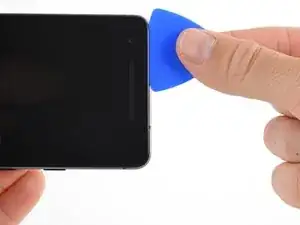
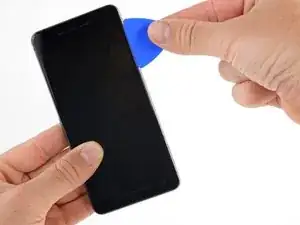
    • Slide the opening pick around the upper-right corner and along the top edge of the phone.

    • There's a mesh covering the earpiece speaker on the top edge of the screen. If you don’t have a replacement mesh, take care not to damage or lose this component.

  6. CSIHJiCWeWNvyTYT
    CSIHJiCWeWNvyTYT
    6nflAeiavcU2ayr4
    WjQhcowbgPGBLQPx
    • Slide the pick around the upper-left corner of the phone and down the left edge of the phone.

  7. tO5kFjHUNBjm4AsA
    tO5kFjHUNBjm4AsA
    WJIBfKgTsge5j4Yi
    FSAYTUP5IIkJH4Mo
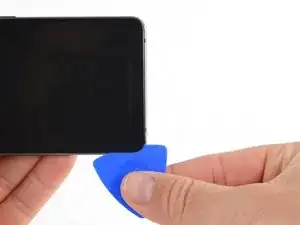
    • Slide the pick around the bottom-left corner and along the bottom of the phone. Keep pick at a slight angle away from the screen to avoid damage to the OLED corners.

    • Take extra care not to insert the opening pick more than 9 mm to avoid damaging the OLED panel.

  8. JqE263rlSCiGMMPx
    JqE263rlSCiGMMPx
    ybiQ4Z6SU44i4TXK
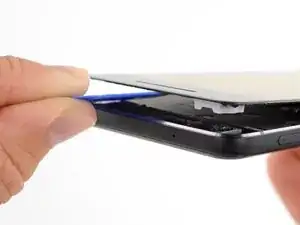
    • Reinsert the pick at the top edge of the phone and gently pry up the display.

    • If the display doesn't readily lift, do some extra prying to separate the last of the adhesive. The adhesive near the upper speaker is thicker than other places.

    • Don't try to fully separate the display yet, as a fragile ribbon cable still connects it to the phone's motherboard.

  9. AWBi6gyoZBNSFCVg
    AWBi6gyoZBNSFCVg
    2YNgAiW26hAJxtF2
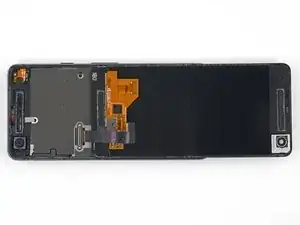
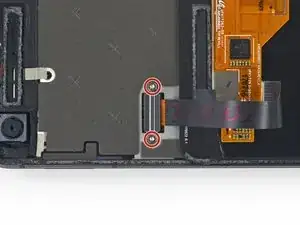
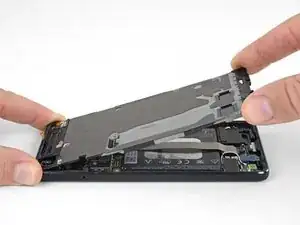
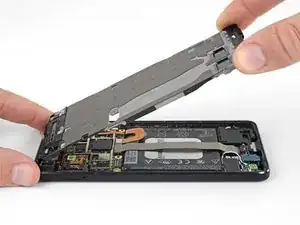
    • Carefully lay the display down on top of the rear case as shown, making sure not to crease or tear the display ribbon cable.

    • Remove the two 4.0 mm T5 Torx screws securing the display cable bracket.

    • Throughout this repair, keep track of each screw and make sure it goes back exactly where it came from.

  10. HuntXSUMrTQOPvUT
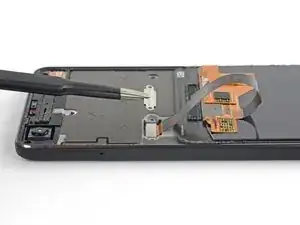
    • Remove the display cable bracket.

  11. htMtx16FFYrRZWZB
    htMtx16FFYrRZWZB
    nbBnajSgXNRgYwgn
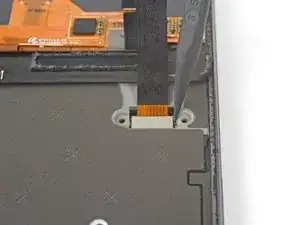
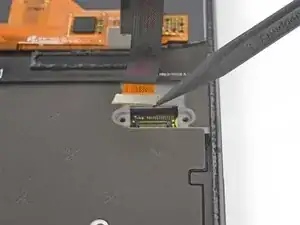
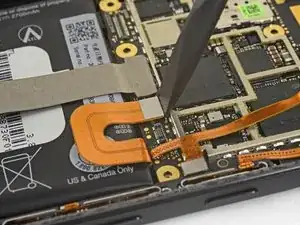
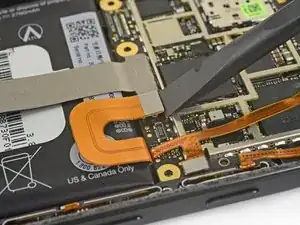
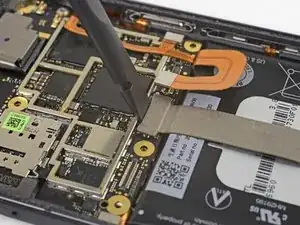
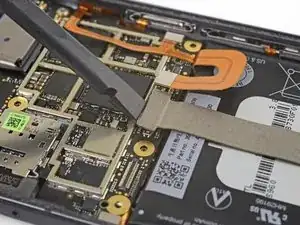
    • Use the point of a spudger to lift the display cable connector up and out of its socket on the motherboard.

    • Avoid touching the motherboard with the tip of your spudger. The components surrounding the socket are fragile.

    • To re-attach press connectors like this one, carefully align and press down on one side until it clicks into place, then repeat on the other side. Do not press down on the middle. If the connector is misaligned, the pins can bend, causing permanent damage.

    • If any part of your screen doesn't respond to touch after your repair re-seat this connector, making sure it clicks fully into place and that there's no dust or other obstruction in the socket.

    • During reassembly, pause here and replace the adhesive around the edges of the display.

  12. EZUdI4BmuOMhSJui
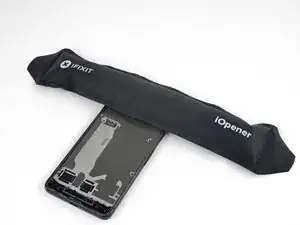
    • Apply a heated iOpener to the proximity sensor on the top edge of the midframe for two minutes to soften its adhesive.

  13. HbJNOR1kLALZjcTd
    HbJNOR1kLALZjcTd
    SrRrbyQwXyPacWk4
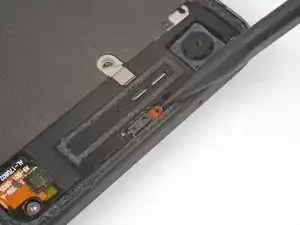
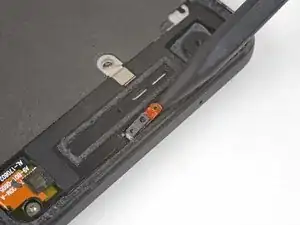
    • Slide the point of a spudger under the proximity sensor cable, starting from the side closest to the front-facing camera.

    • Gently lift the edge of the sensor cable until the sensor is perpendicular to the midframe.

  14. DF6iCcXDep2Shj2C
    • Peel back the small piece of tape covering the screw below the earpiece speaker. Peel back any tape covering other screws as well.

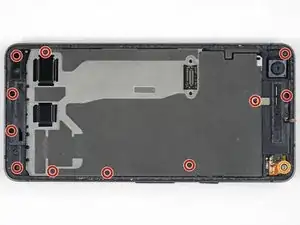
    • Remove the following screws securing the midframe:

    • Eleven 3.7 mm Phillips screws

    • One 4 mm T5 Torx screw

    • Throughout this repair, keep track of each screw and make sure it goes back exactly where it came from.

  15. HEw3eLh2pEVebIL6
    HEw3eLh2pEVebIL6
    LCQWWIipK2OVjkmP
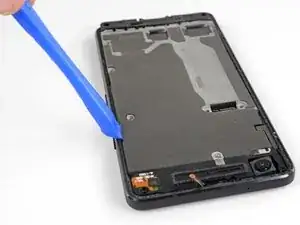
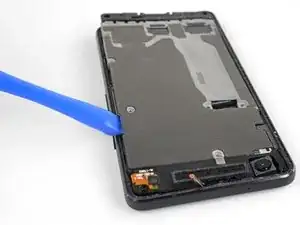
    • Insert an opening tool into the notch in the midframe near the hold button.

    • Pry the midframe up enough to create a gap between it and the phone case. The midframe cannot yet be completely removed.

  16. OS6IR34P416u1kUn
    OS6IR34P416u1kUn
    bZXWgUSBDVDpCf1y
    qvUYTFk3VKDRNlOb
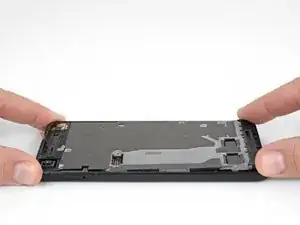
    • Lift the midframe up starting from the bottom edge.

    • When the midframe starts to make about a 45° with the rest of the phone, lift the midframe straight up and away from the phone.

    • As you lift the midfame, carefully guide the proximity sensor through the small slot in the midframe.

  17. ARK3wcDKuwSV4Y4b
    ARK3wcDKuwSV4Y4b
    tV1ItBGOoAQhwkQH
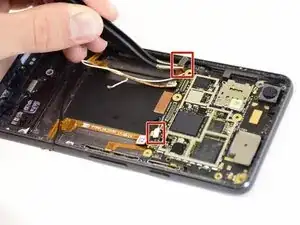
    • Use the flat end of a spudger to disconnect the battery connector.

  18. NgdQt3tN66QiiXfb
    NgdQt3tN66QiiXfb
    ENo3DwSJWFPSL3VZ
    • use the flat end of a spudger to disconnect the charging assembly connector from the motherboard.

  19. 5RiqdWFJynIS1M66
    5RiqdWFJynIS1M66
    FUJsB226AXt3dDPA
    vUirQFZMbb4ON5JW
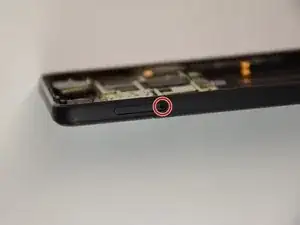
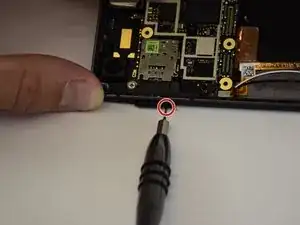
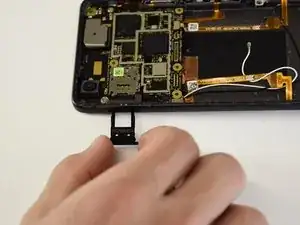
    • Insert a paperclip or SIM eject tool into the small hole on the left side of the phone and push until the SIM card tray pops out.

    • Remove the SIM card tray.

  20. 2IOMbCOwbpgyKEGx
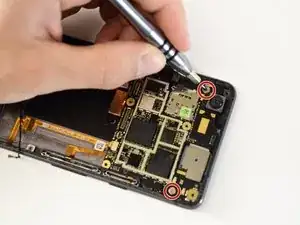
    • Remove the two 2.5 mm PH00 screws.

  21. SVI6dPl4iqJNkhbQ
    SVI6dPl4iqJNkhbQ
    oXQtSGsTSAJdauMw
    hAFKVqxHmkGmRHGQ
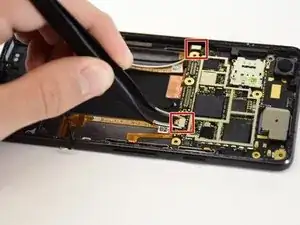
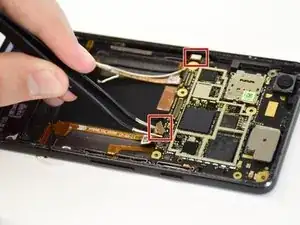
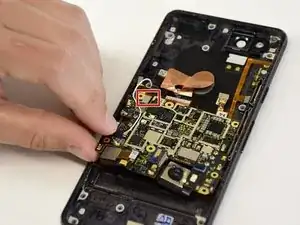
    • Disconnect two connectors at the bottom edge of the motherboard.

  22. 6QI66KgTwYvpRyX6
    6QI66KgTwYvpRyX6
    nrSyadRTjBVyyabH
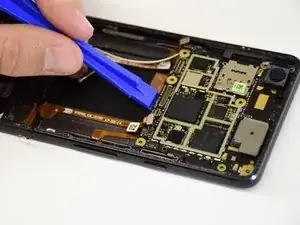
    • Pry up the motherboard using a plastic opening tool.

    • Remove the motherboard.

  23. mQrChCWVsBJBx3M1
    mQrChCWVsBJBx3M1
    3YHyBnLj3QhdpWB6
    1XNUOn2nQAWdLmJg
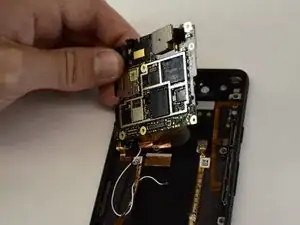
    • Flip the motherboard over.

    • Disconnect the fingerprint sensor cable.

    • The motherboard is now completely detached from the phone.

Conclusão

Compare your new replacement part to the original part—you may need to transfer remaining components or remove adhesive backings from the new part before installing.

To reassemble your device, follow the above steps in reverse order.

Take your e-waste to an R2 or e-Stewards certified recycler.

Repair didn’t go as planned? Check out our Answers community for troubleshooting help.

Nick Lyon

Membro desde: 24/01/18

1173 Reputação

Um comentário

Rotated screen too far while removing it seems and the screen no longer turns on. Can't seem to get any signs of light/ sound out if the phone.

No way to shut down the phone without the screen either? So can't continue the repair until phone battery dies again.

Matthew Higgins -