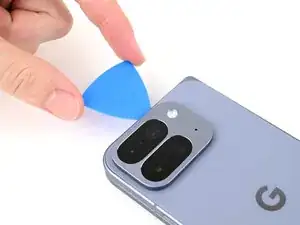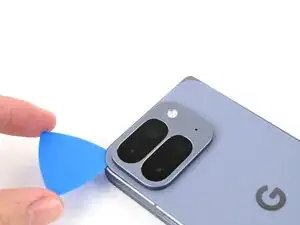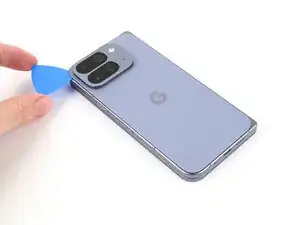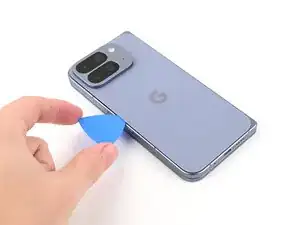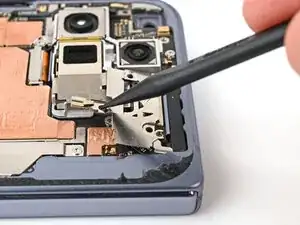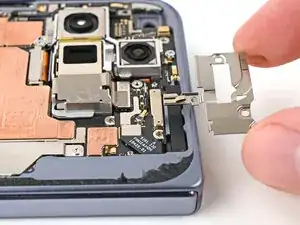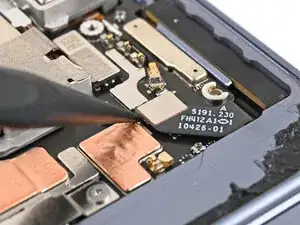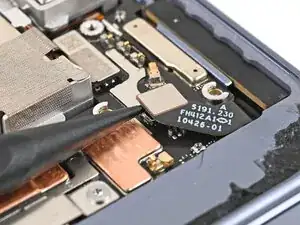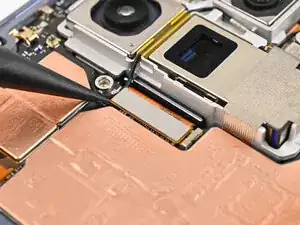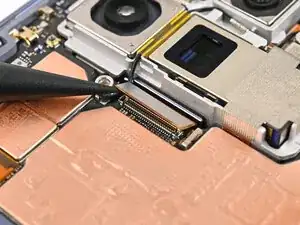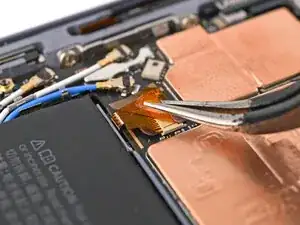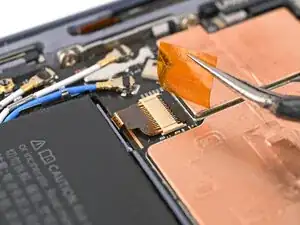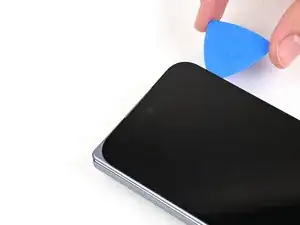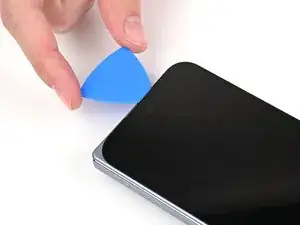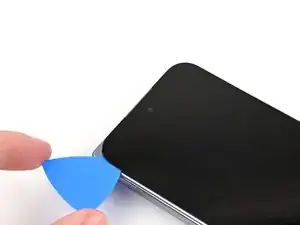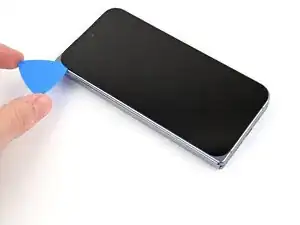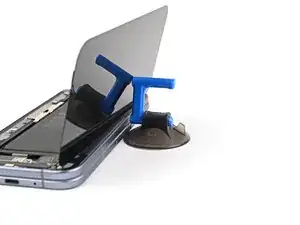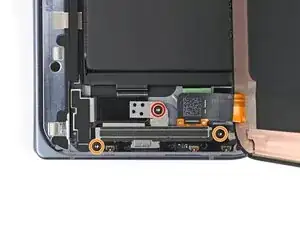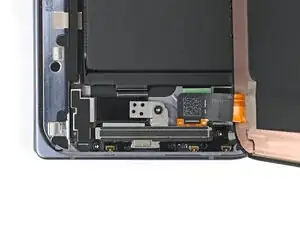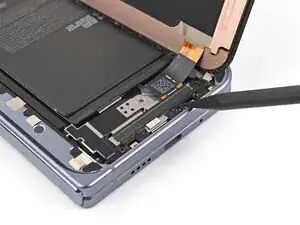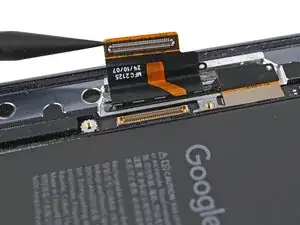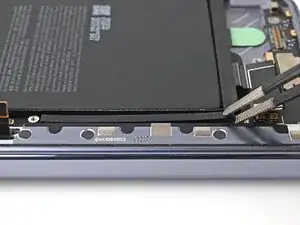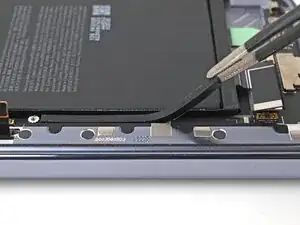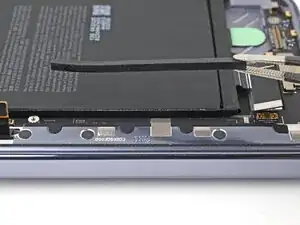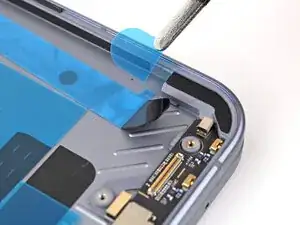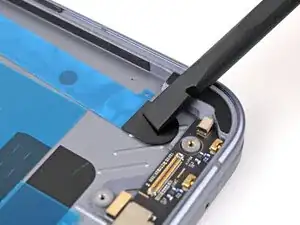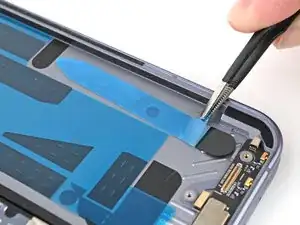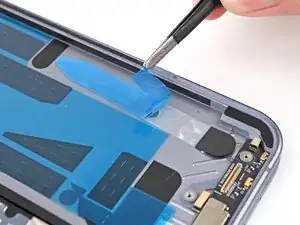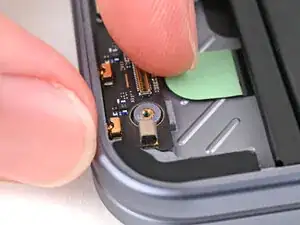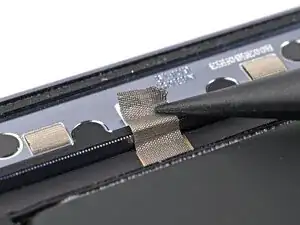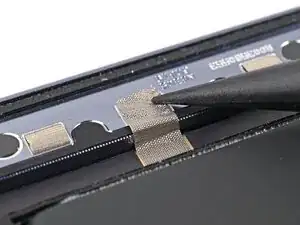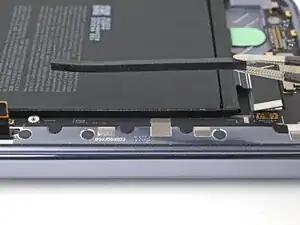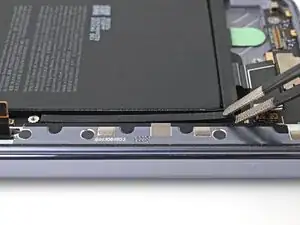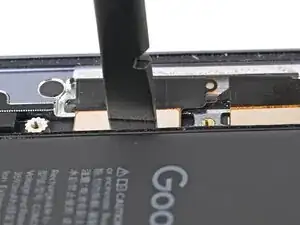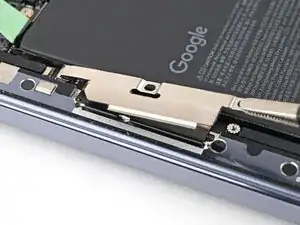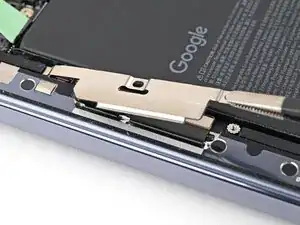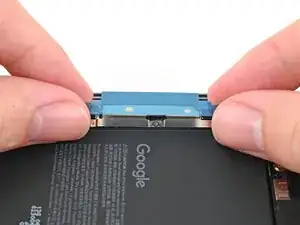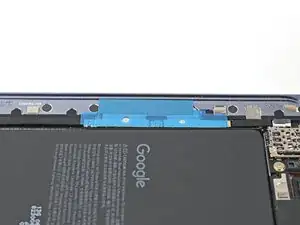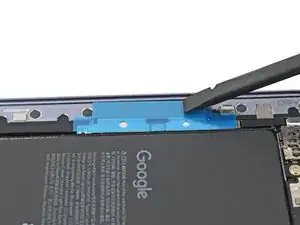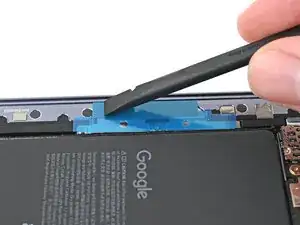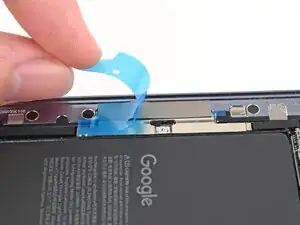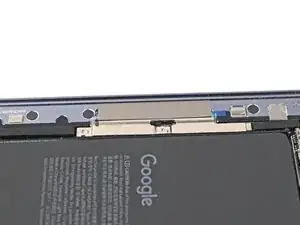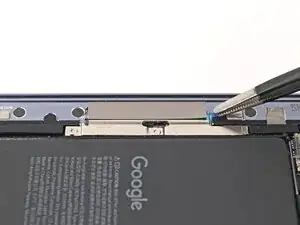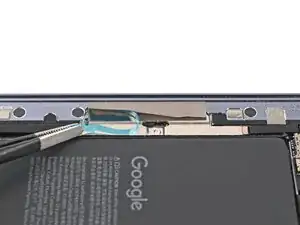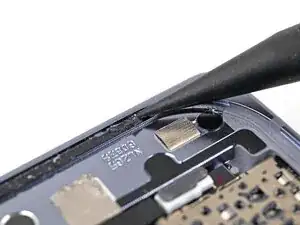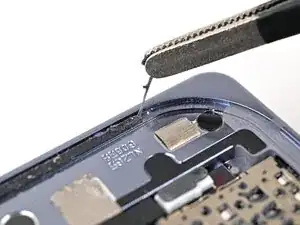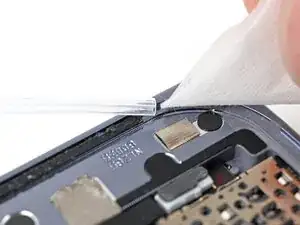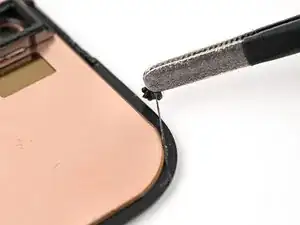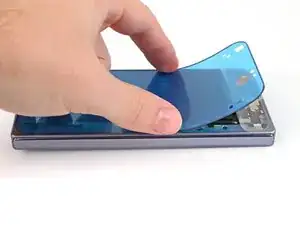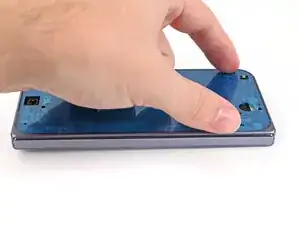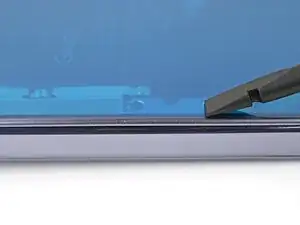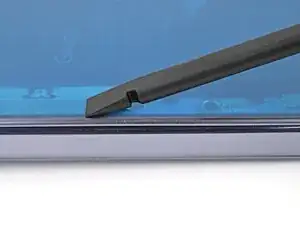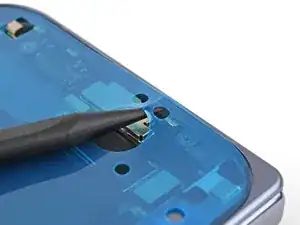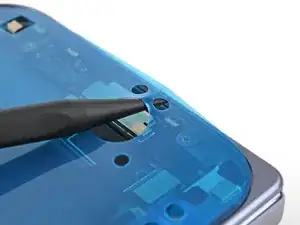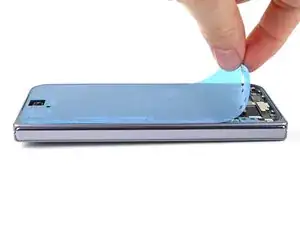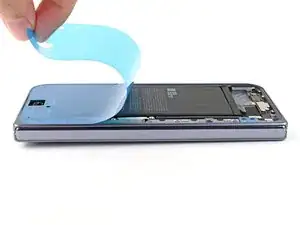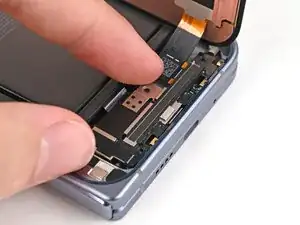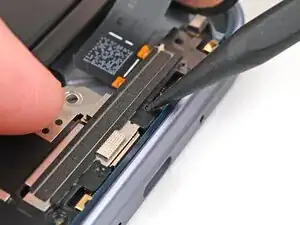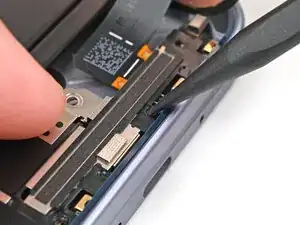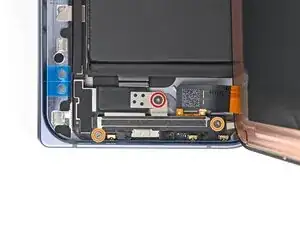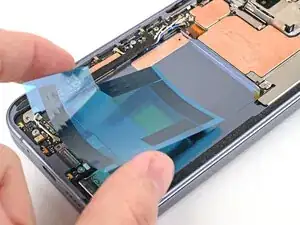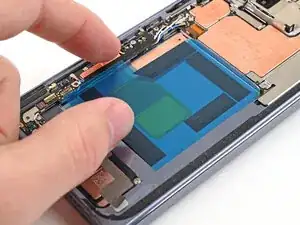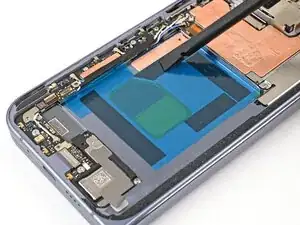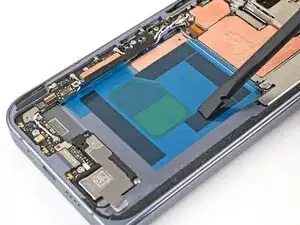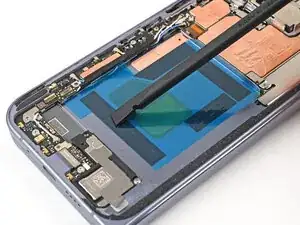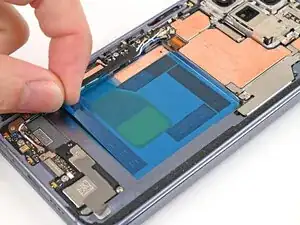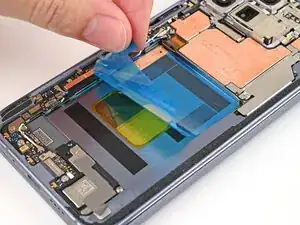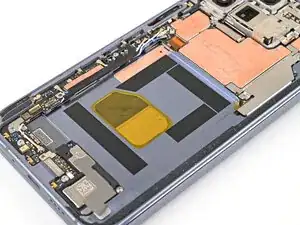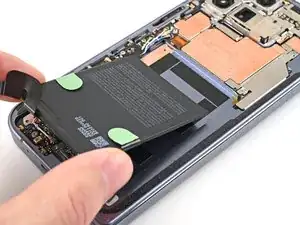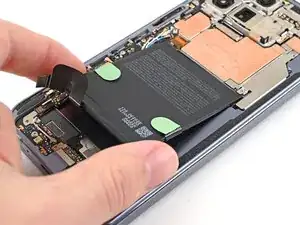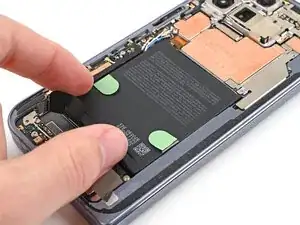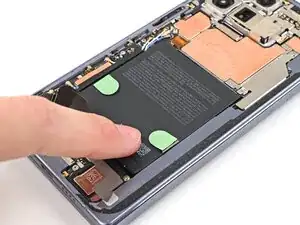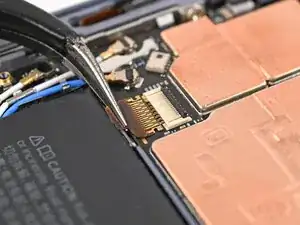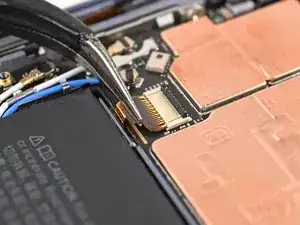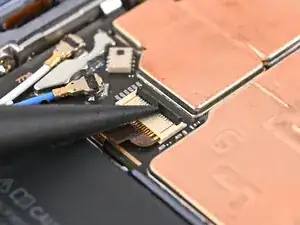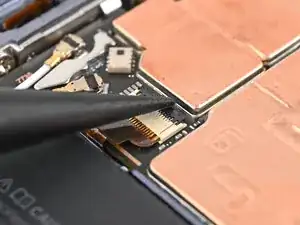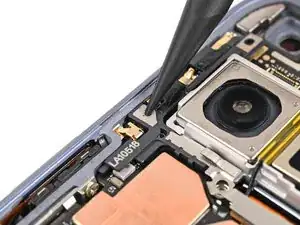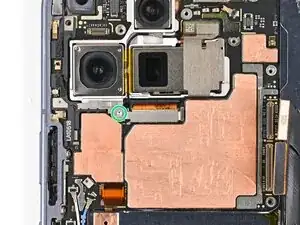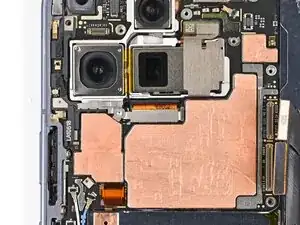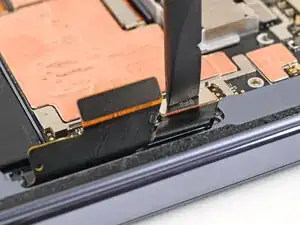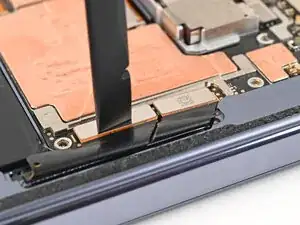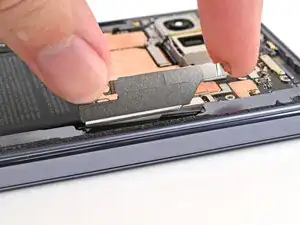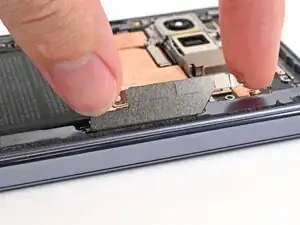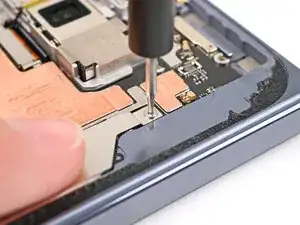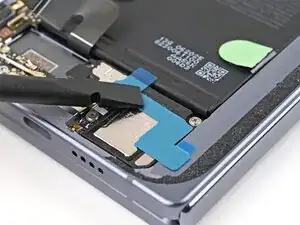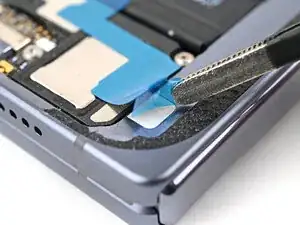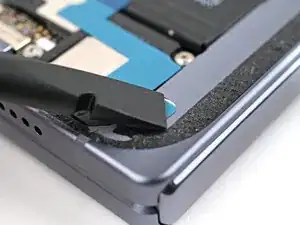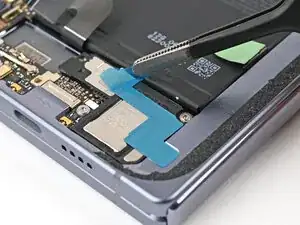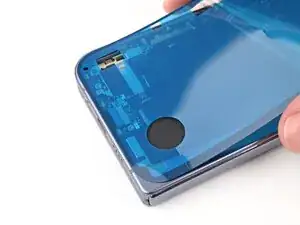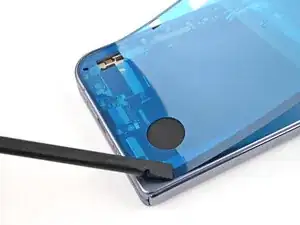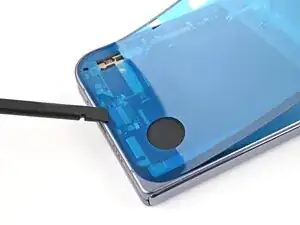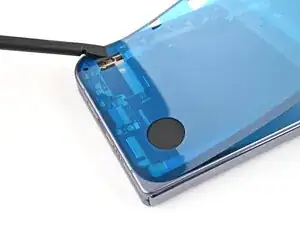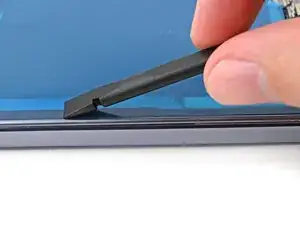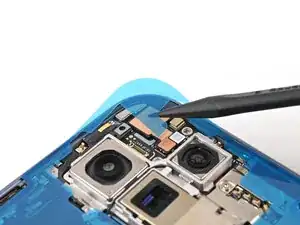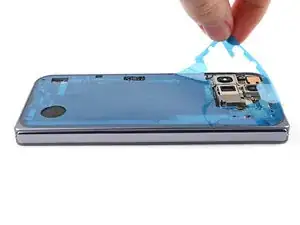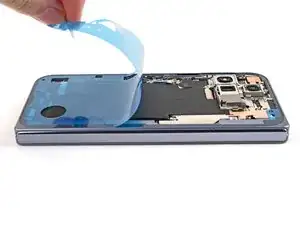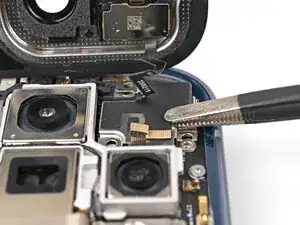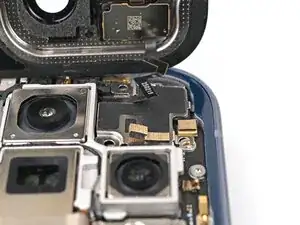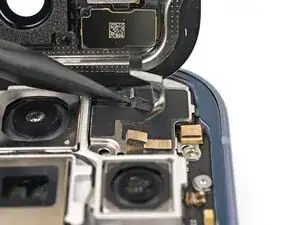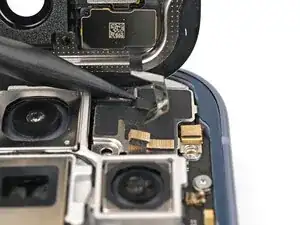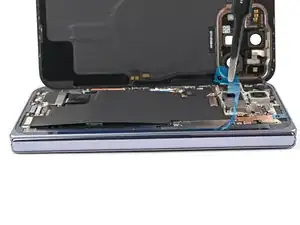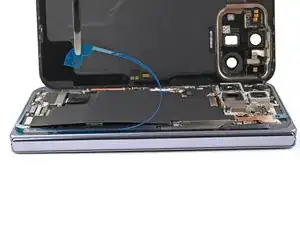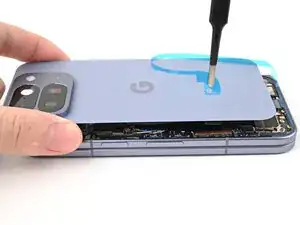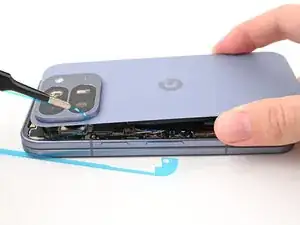
Introdução

This repair guide was authored by the iFixit staff and hasn’t been endorsed by Google. Learn more about our repair guides here.

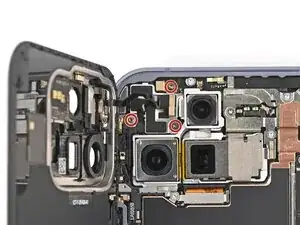
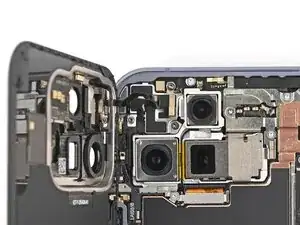
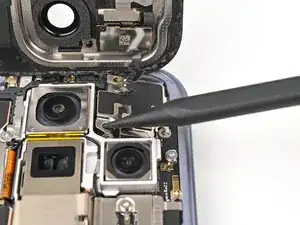
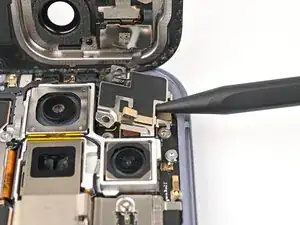
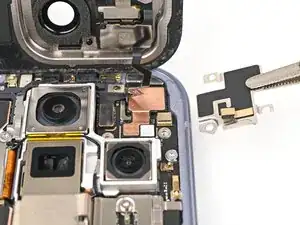
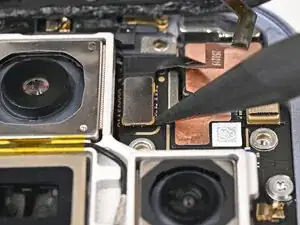
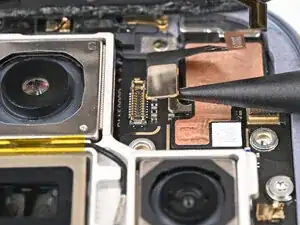
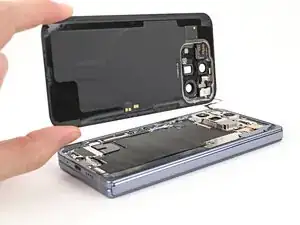
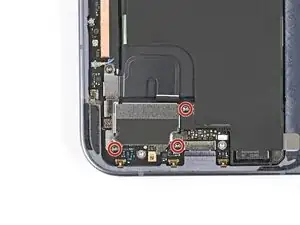
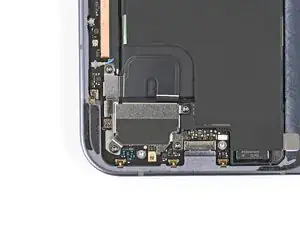
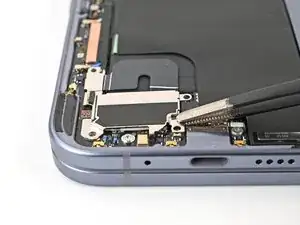
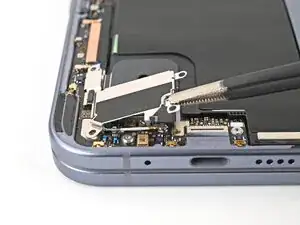
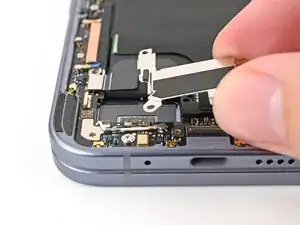
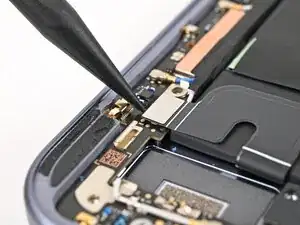
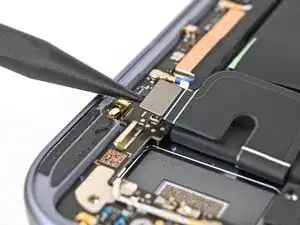
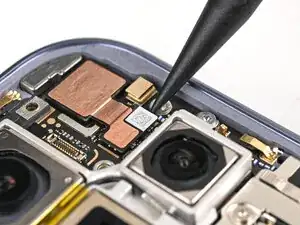
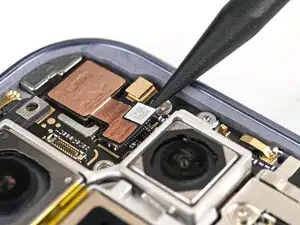
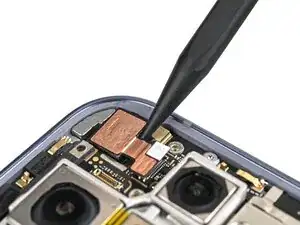
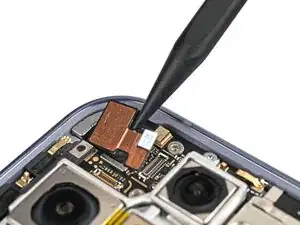
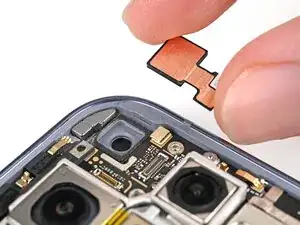
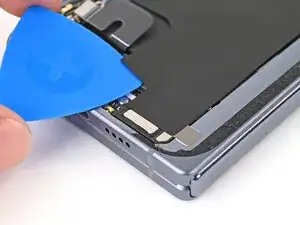
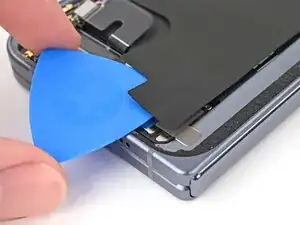
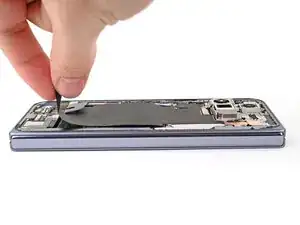
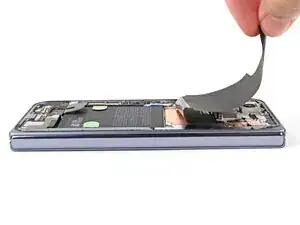
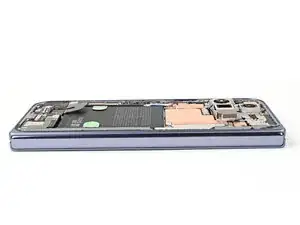
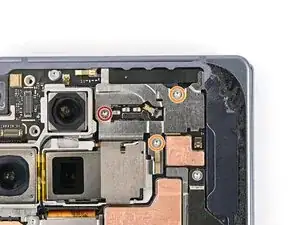
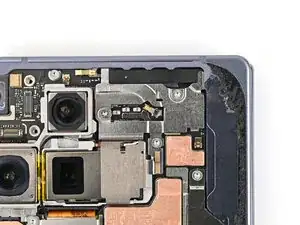
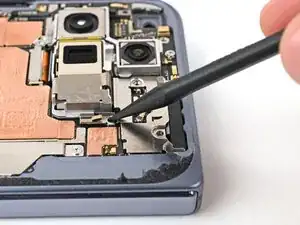
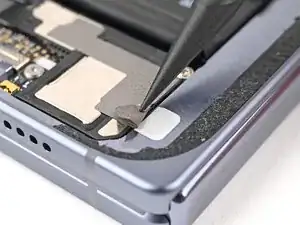
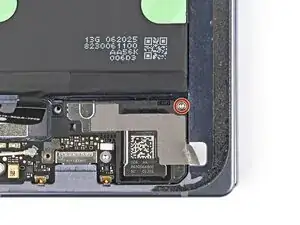
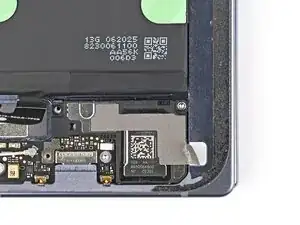
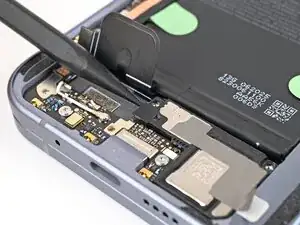
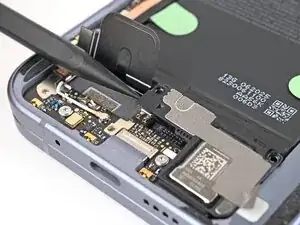
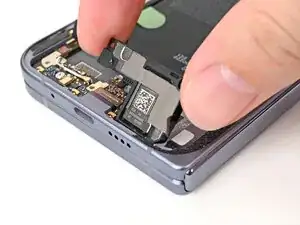
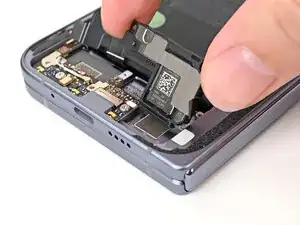
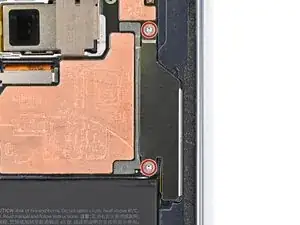
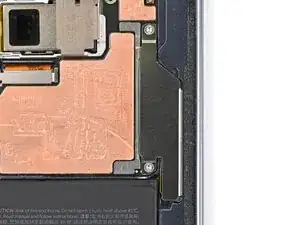
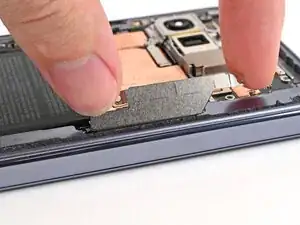
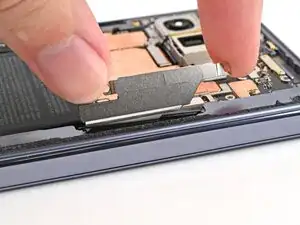
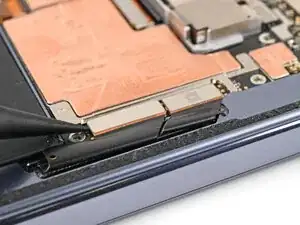
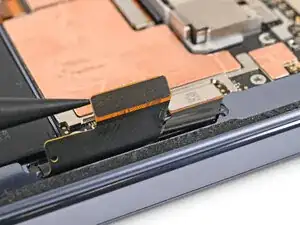
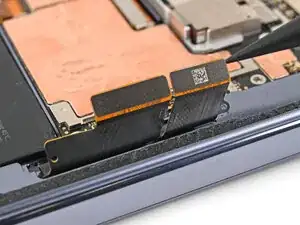
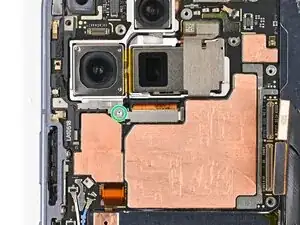
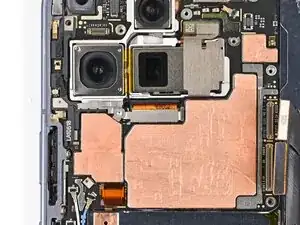
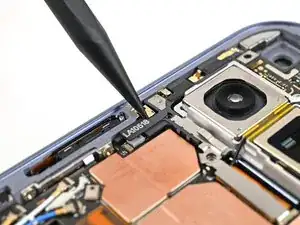
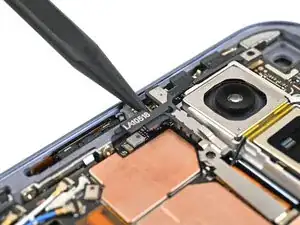
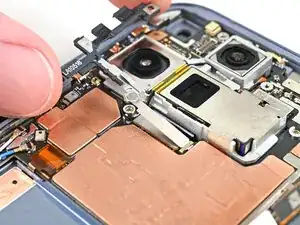
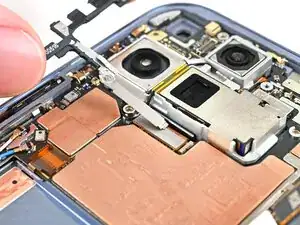
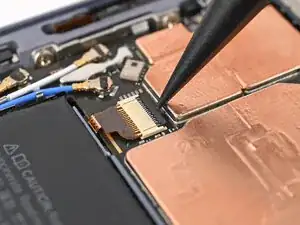
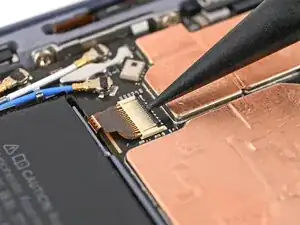
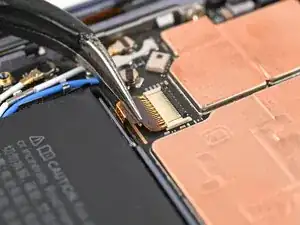
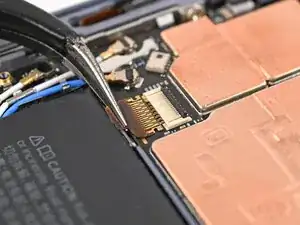
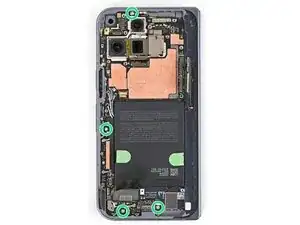
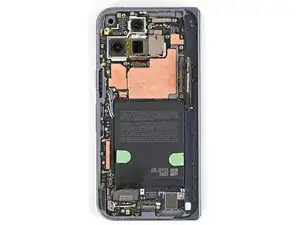
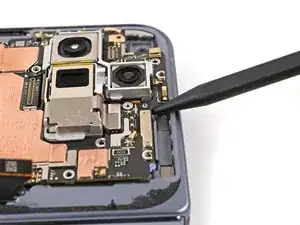
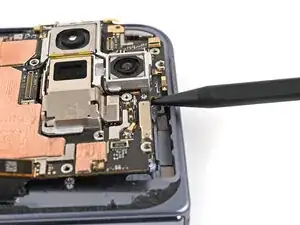
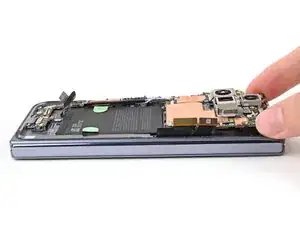
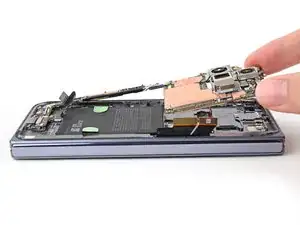
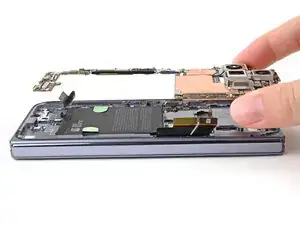
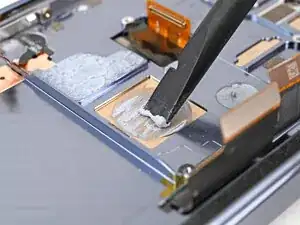
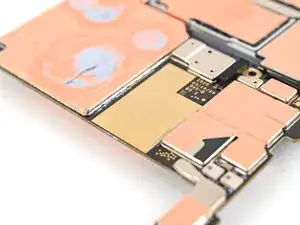
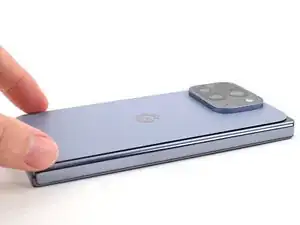
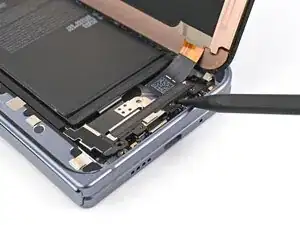
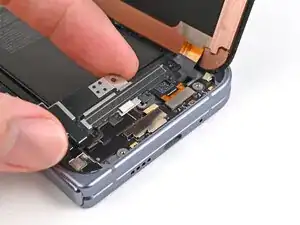
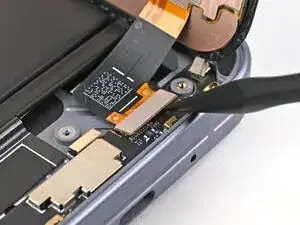
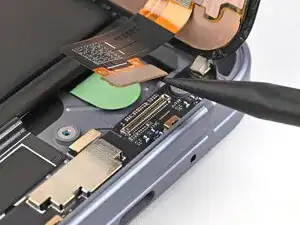
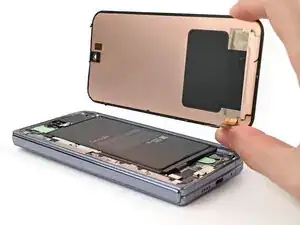
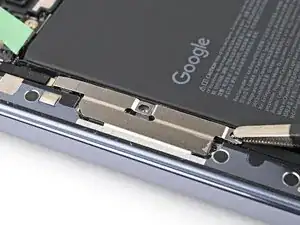
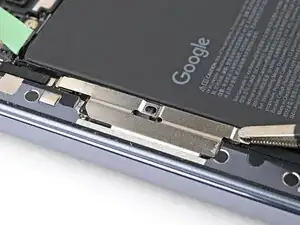
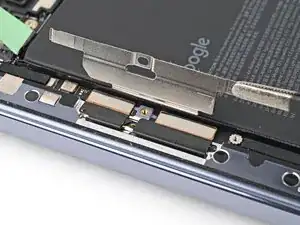
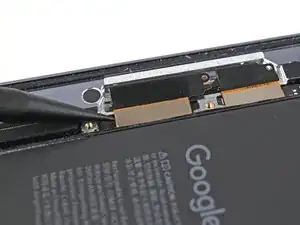
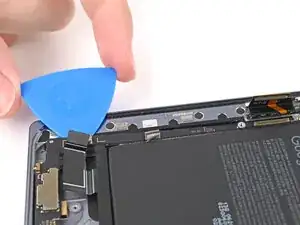
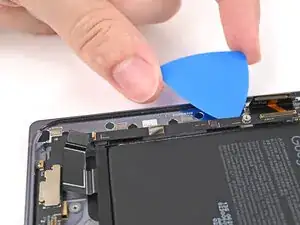
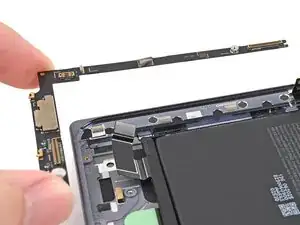
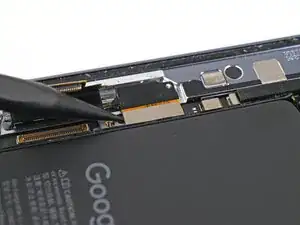
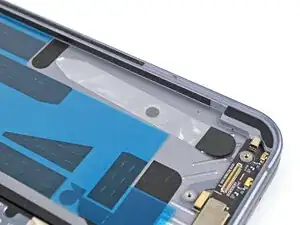
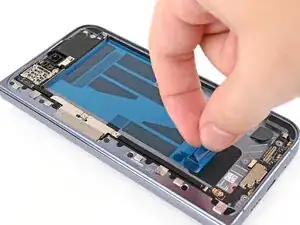
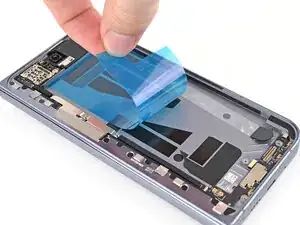
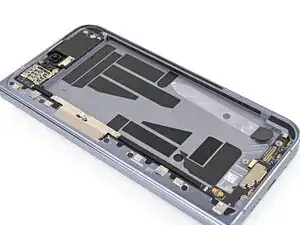
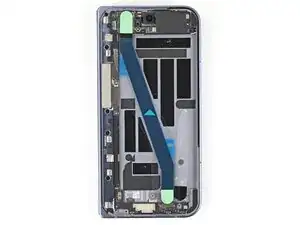
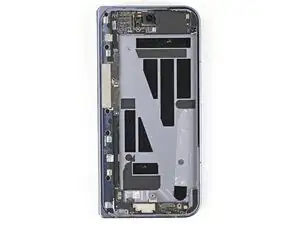
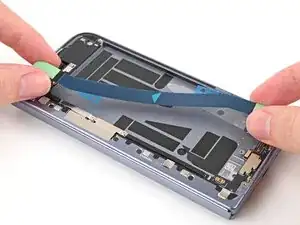
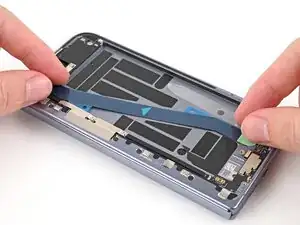
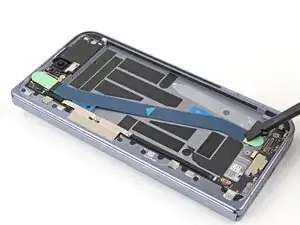
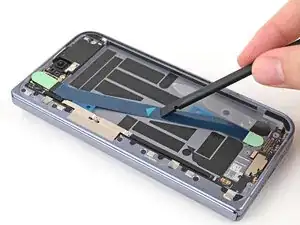
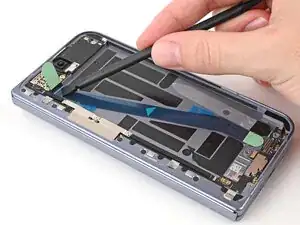
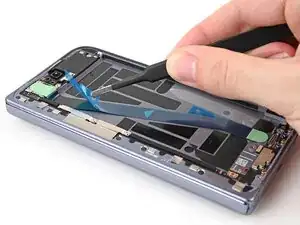
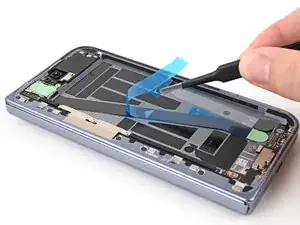
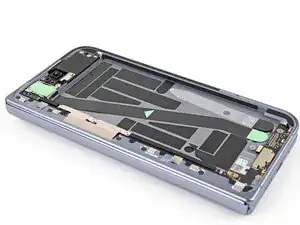
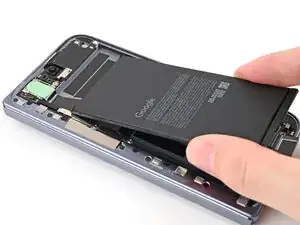
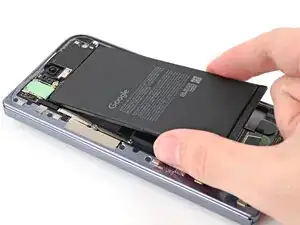
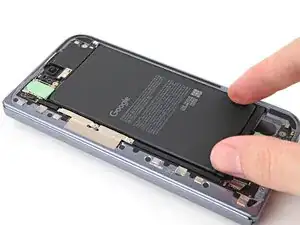
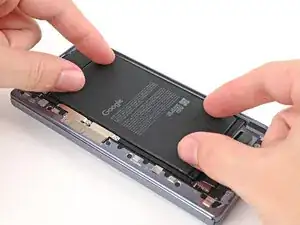
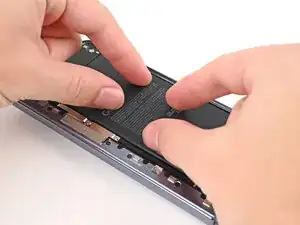
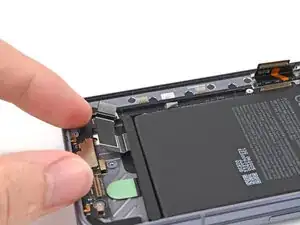
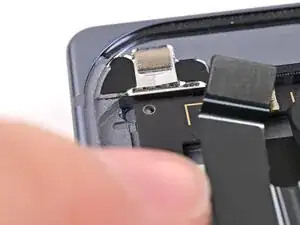
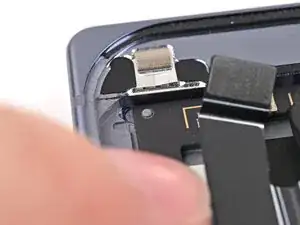
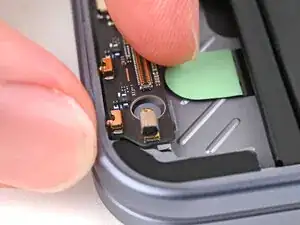
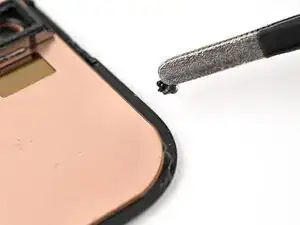
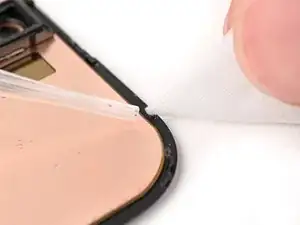
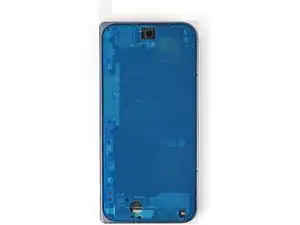
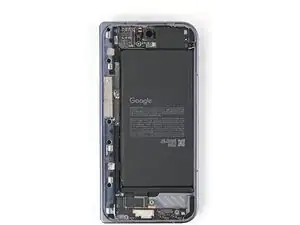
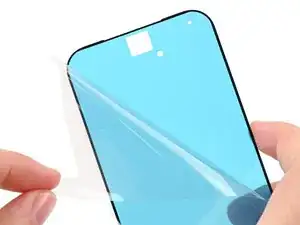
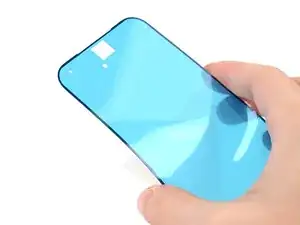
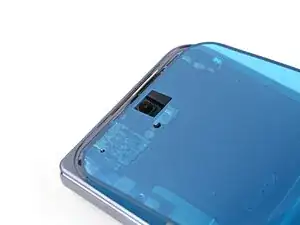
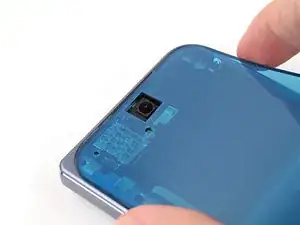
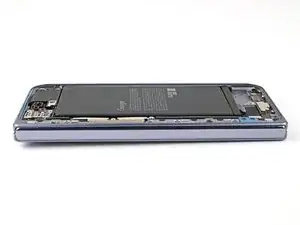
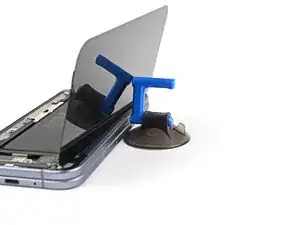
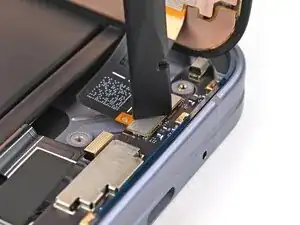
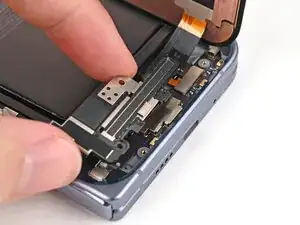
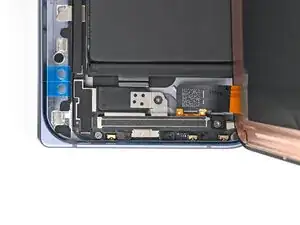
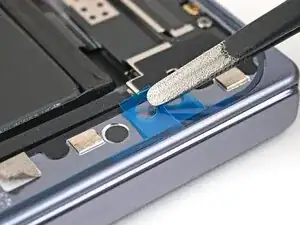
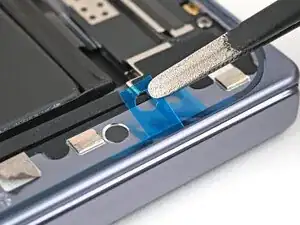
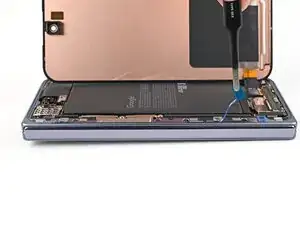
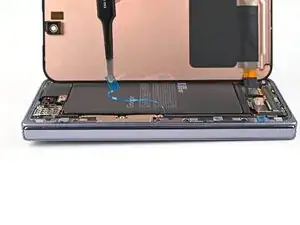
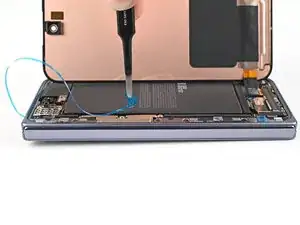
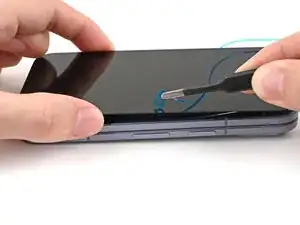
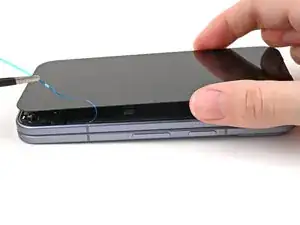
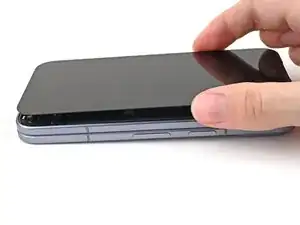
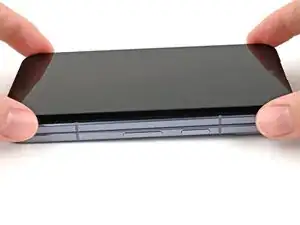
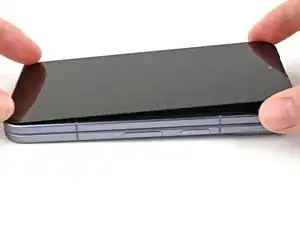
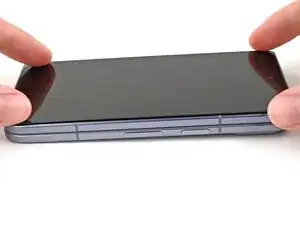
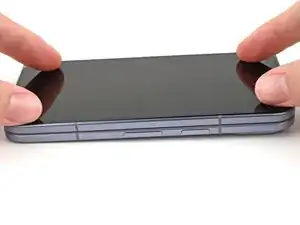
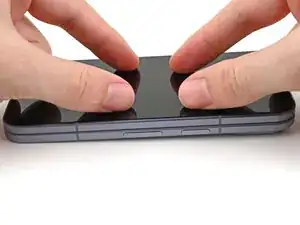
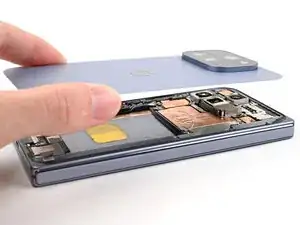
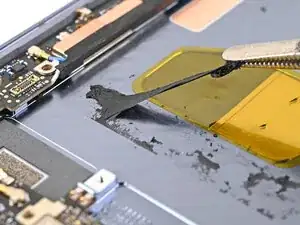
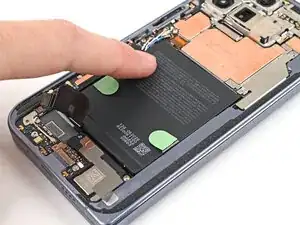
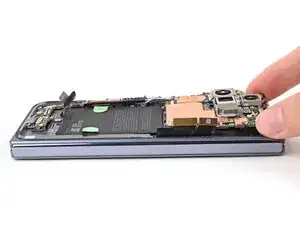
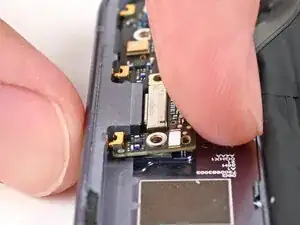
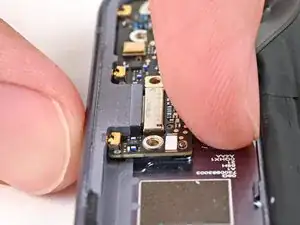
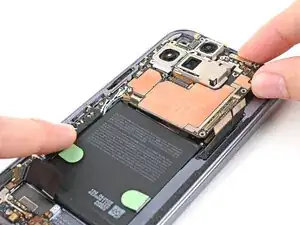
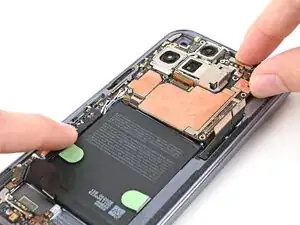
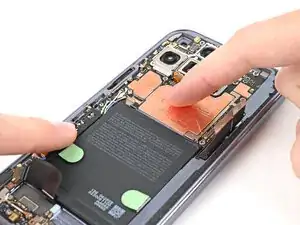
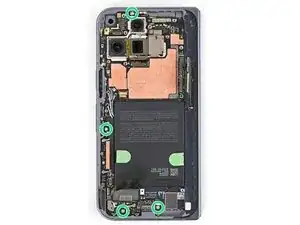
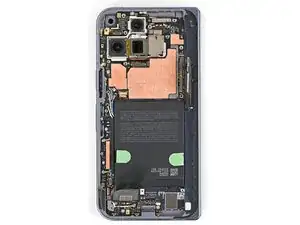
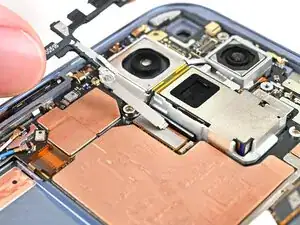
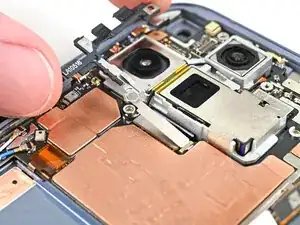
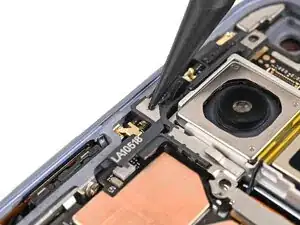
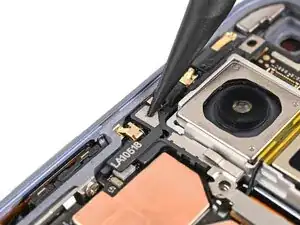
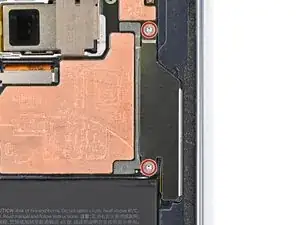
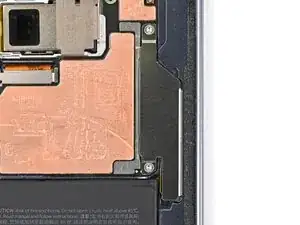
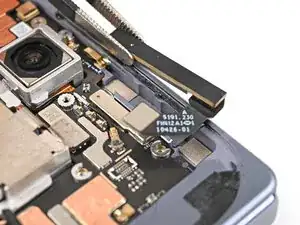
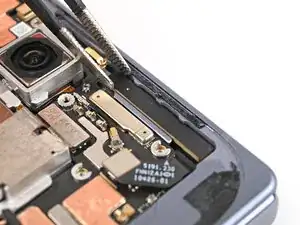
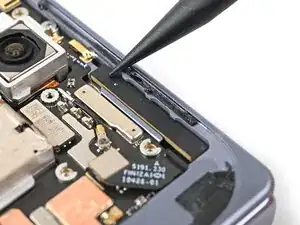
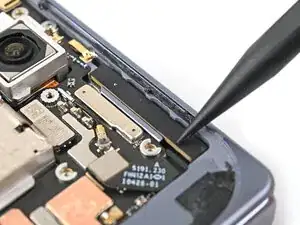
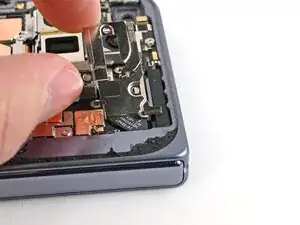
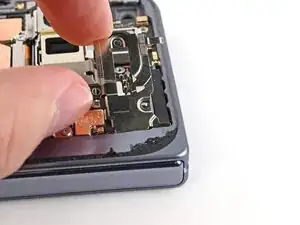
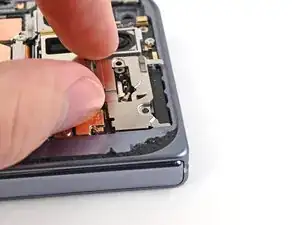
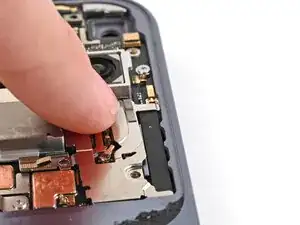
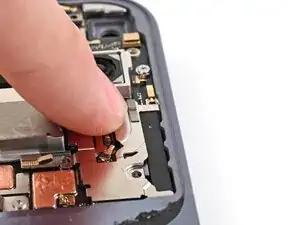
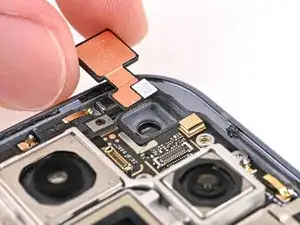
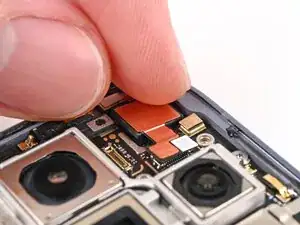
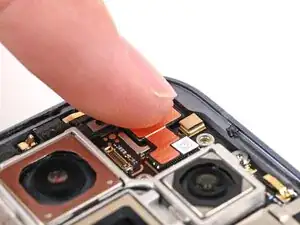
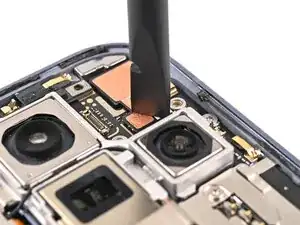
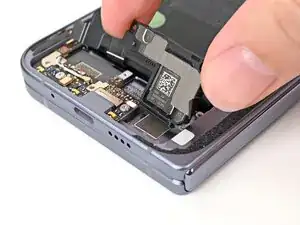
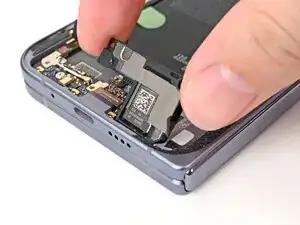
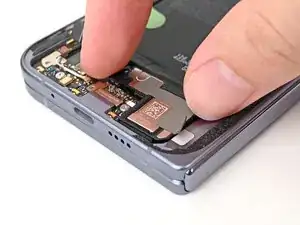
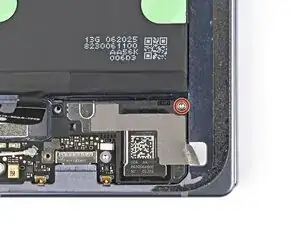
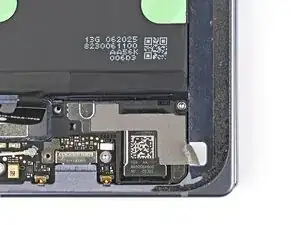
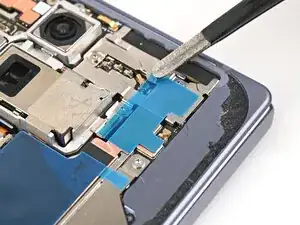
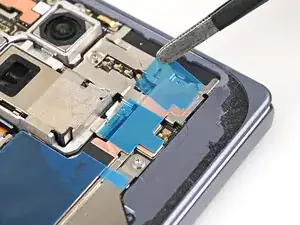
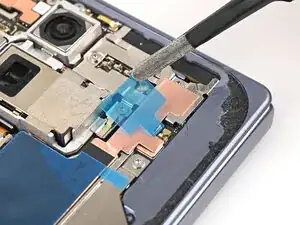
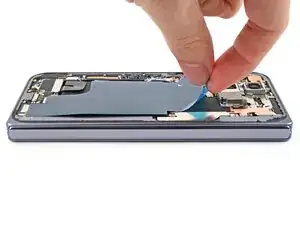
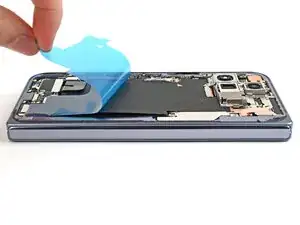
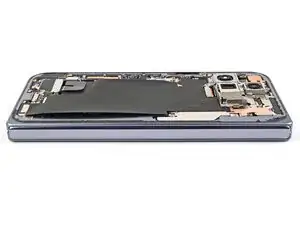
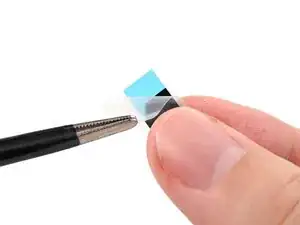
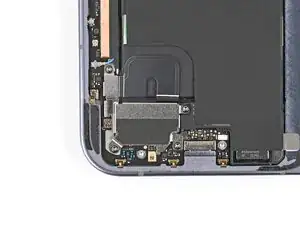
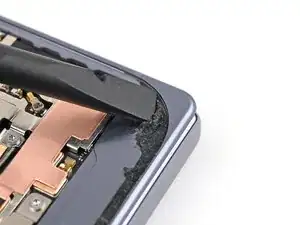
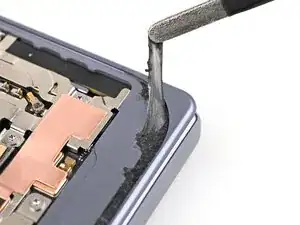
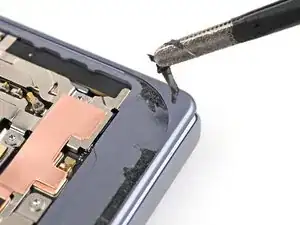
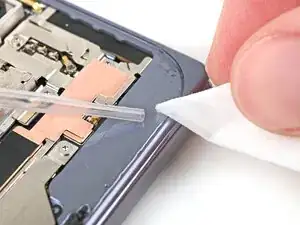
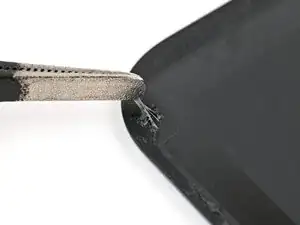
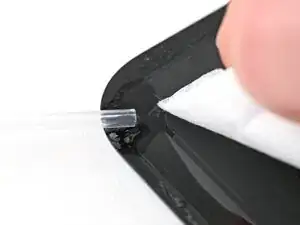
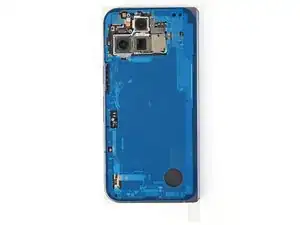
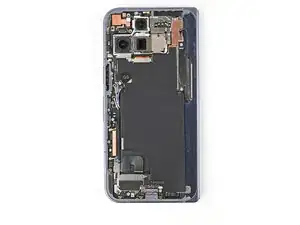
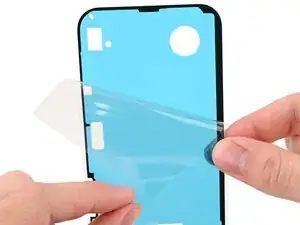
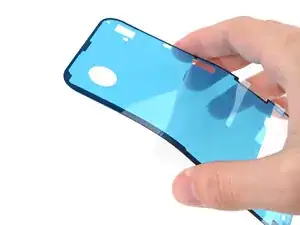
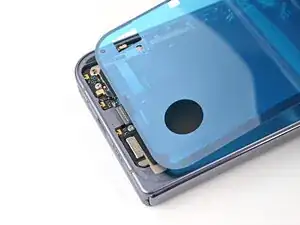
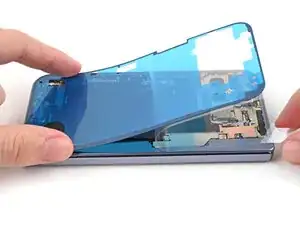
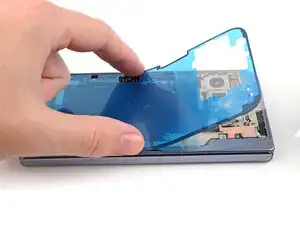
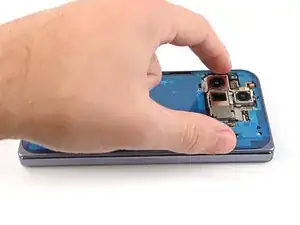
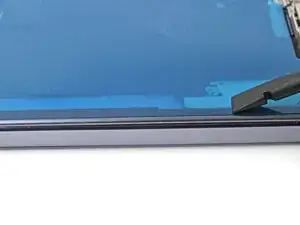
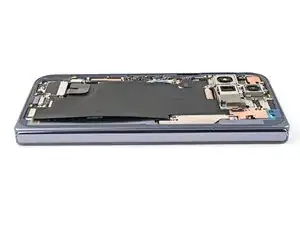
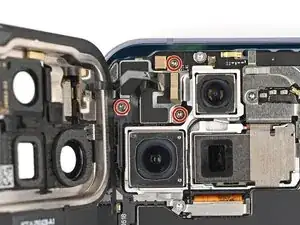
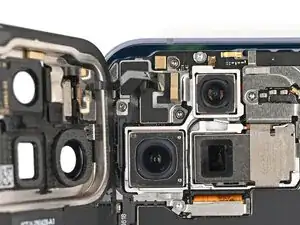
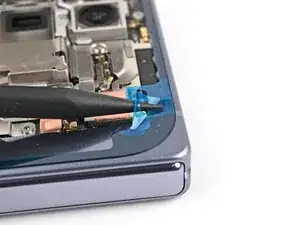
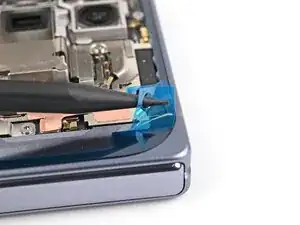
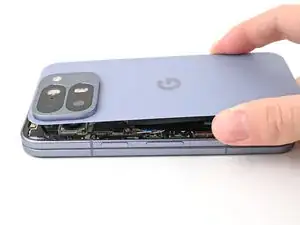
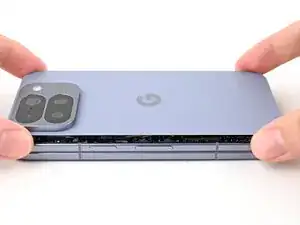
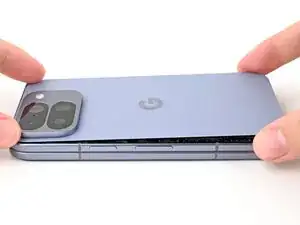
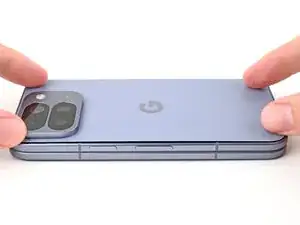
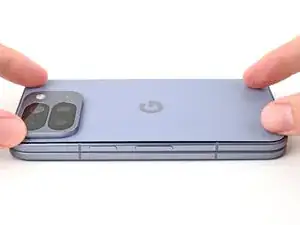
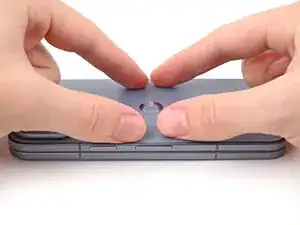
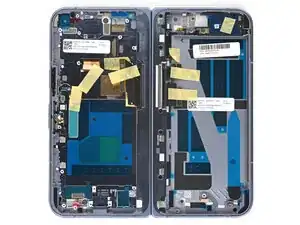
Use this guide to replace the inner screen assembly in your Google Pixel 10 Pro Fold.

The replacement inner screen assembly comes with the inner screen pre-installed into the frame. Replacing the inner screen requires transferring all of the internals to the new frame.

The inner screen assembly doesn't come with batteries. Do not transfer your old batteries; you'll need to source your own.

Some photos in this guide may contain slight visual discrepancies, but they won't affect the procedure.

  1. QipHvYljYDhPJrkH
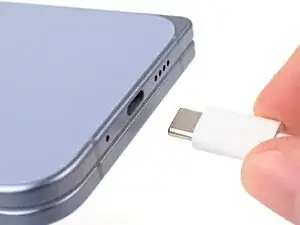
    • Let your phone's battery drain below 25% before starting this repair. A charged lithium‑ion battery may catch fire if damaged.

    • Unplug all cables from your phone and completely power it down.

  2. oLQaIT4WVlTeFgkw
    oLQaIT4WVlTeFgkw
    XaHKwLwvrq2GsXmI
    w1WcPR14G3FMxxiS
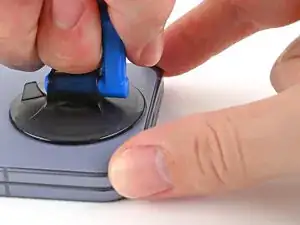
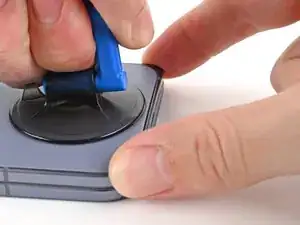
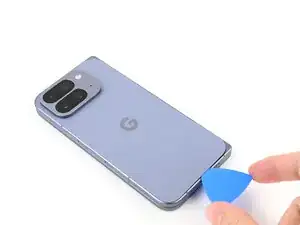
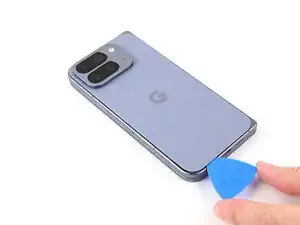
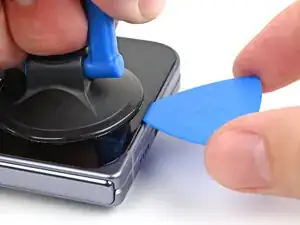
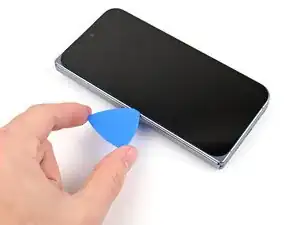
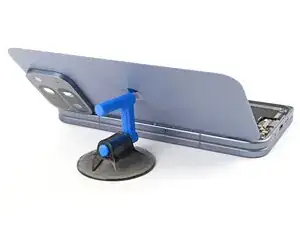
    • Apply a suction cup to the back cover, as close to the center of the bottom edge as possible.

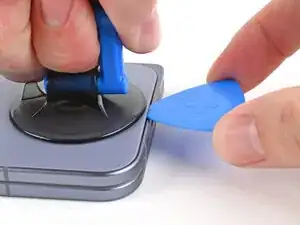
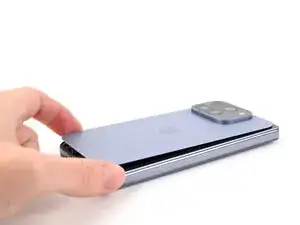
    • While securing the phone with one hand, pull up on the suction cup with strong, steady force to create a gap between the back cover and the frame.

    • Insert an opening pick into the gap.

    • If your back cover is badly cracked, covering it with a layer of clear packing tape may allow the suction cup to adhere. Alternatively, very strong tape may be used instead of the suction cup. If all else fails, you can superglue the suction cup to the broken back cover.

  3. parBUNVugVMe1D5r
    parBUNVugVMe1D5r
    oKb34OxbhDpBhAkZ
    Gnnane2VwKHtbVlv
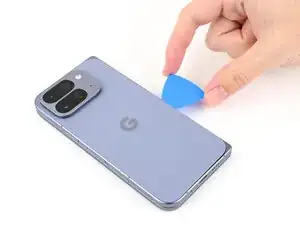
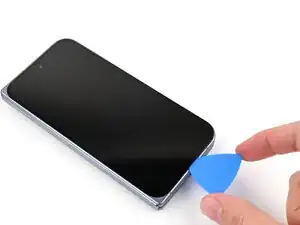
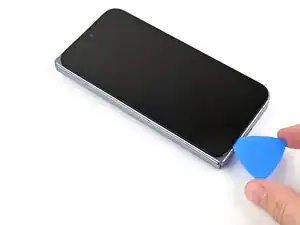
    • The adhesive along the right edge of the back cover is thicker than the rest. You'll need to insert your opening pick at a minimum of 4 mm to separate the adhesive.

    • Remove the suction handle from the back cover.

    • Slide the opening pick around the bottom right corner and up the right edge of the back cover to separate the adhesive.

  4. WZaK2yNa2jygLGDt
    WZaK2yNa2jygLGDt
    4T1vNHsVYDwhu6av
    rnqMipJS4WsmMDRh
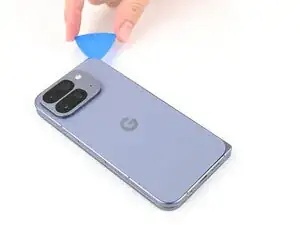
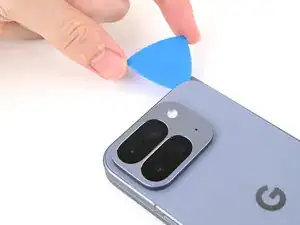
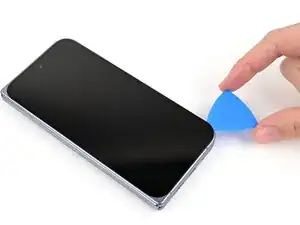
    • During the next two steps, don't insert your opening pick deeper than 3 mm to prevent damaging the metal springs around the frame.

    • Optionally, you can measure and mark your opening pick at 3 mm to help you visualize the length.

    • Continue sliding the pick around the top right corner and across the top edge of the back cover.

  5. 3onM4LUiQPUgSSmK
    3onM4LUiQPUgSSmK
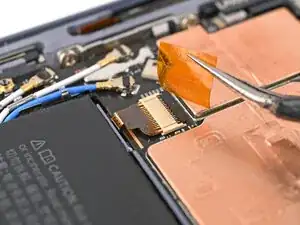
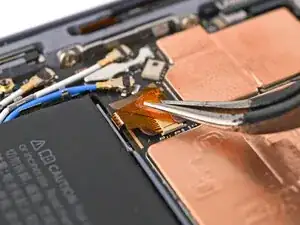
    gItqLExkfOhqbCCC
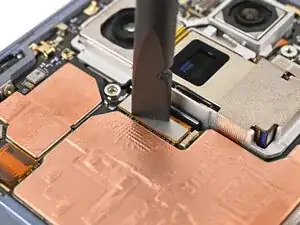
    XVSMgm4uEfDKs336
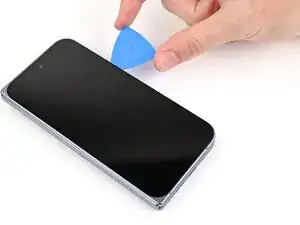
    • Slide your pick down the left edge and around the bottom left corner to separate the remaining adhesive.

  6. gXhkZFEgEQHkBKGw
    gXhkZFEgEQHkBKGw
    VvcYaS5OBKXqesUZ
    nG4OYpYelyOYGIFF
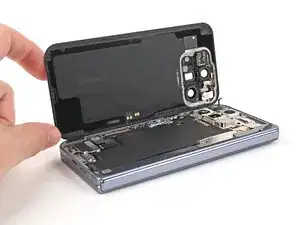
    • Don't fully remove the back cover yet, as it's still connected to the phone by a cable.

    • At this point, the back cover should be free from the frame. If there's still resistance around the edges, use an opening pick to separate any remaining adhesive.

    • Lift the right edge of the back cover and swing it over the left edge of the phone.

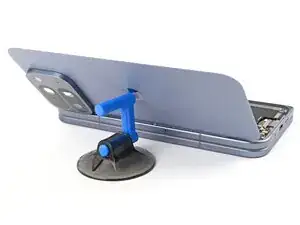
    • Prop up the back cover with your suction handle or a clean, sturdy object, making sure that the cable isn't strained.

  7. asjTT4EiM1NVNOPk
    asjTT4EiM1NVNOPk
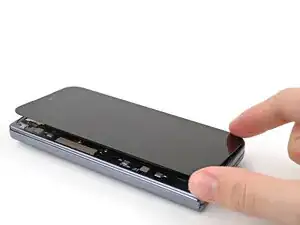
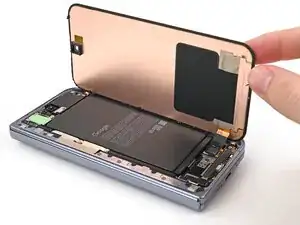
    EIZoYBpcNYBKAh3a
    • Throughout this repair, keep track of each screw and make sure it goes back exactly where it came from.

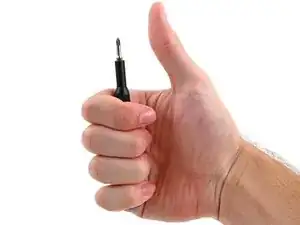
    • While the Pixel 10 Pro Fold uses Torx Plus screws, standard Torx bits also work. Use the same size or one size larger (T3 or T4 Torx bits with 3IP Torx Plus screws) and apply constant, downward force to prevent stripping.

    • Use a Torx Plus 3IP driver to remove the three 3.0 mm‑long screws securing the top bracket.

  8. hXLoqHcqIyuiQwnQ
    hXLoqHcqIyuiQwnQ
    nmixLhNhqyPWZjrk
    sx32S4oR2CnRd4aZ
    • Use the point of a spudger to pry up the top bracket and release its clip from the top edge of the frame.

    • Remove the top bracket.

  9. Z5HWORueTJoUsr4a
    Z5HWORueTJoUsr4a
    ysGIiQXFUO16jxUQ
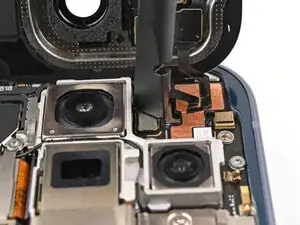
    • When disconnecting press connectors, pry only at the gold outlines on the logic board.

    • Don't insert your spudger anywhere else, as you risk dislodging surface‑mounted components.

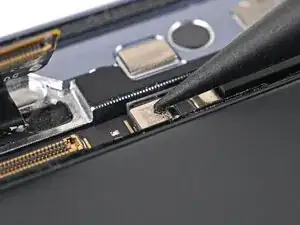
    • Use the point of a spudger to pry up and disconnect the back cover cable.

  10. CmIoREmGyQ2rtPQQ
    • Lift the back cover off the frame and remove it.

  11. nAAIgeRQgbYNpEtl
    nAAIgeRQgbYNpEtl
    FAkfmNitxQIZKTOV
    • Use a Torx Plus 3IP driver to remove the three 3.2 mm‑long screw securing the vibrator.

  12. yjPDOuo1mKn2CaUx
    yjPDOuo1mKn2CaUx
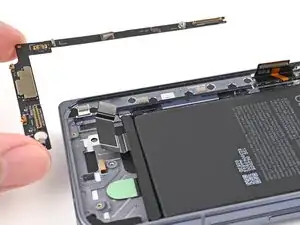
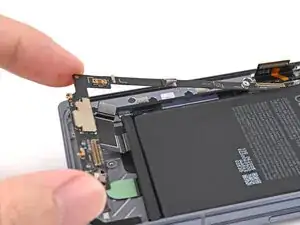
    2WsS2NXbcnrVGseN
    rtYSoklQisyiVbJi
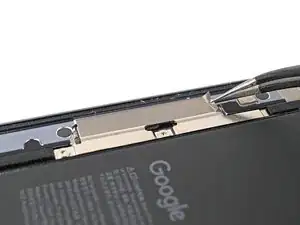
    • Use tweezers, or your fingers, to lift the right edge of the vibrator and pull it towards the right edge of the phone to release its clip.

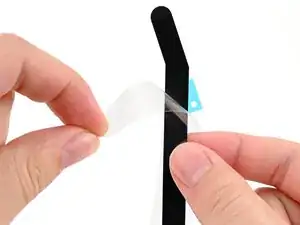
    • Remove the vibrator.

  13. jWJYwWvMlB4NL5NC
    jWJYwWvMlB4NL5NC
    cBMe5K1MjwvfmLjG
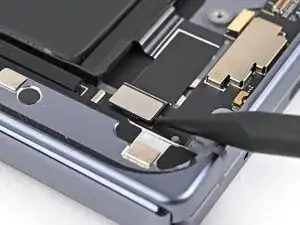
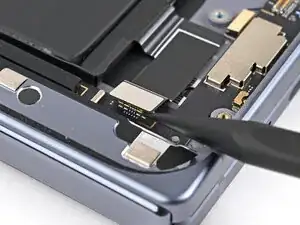
    • Use the point of a spudger to pry up and disconnect the base battery press connector.

  14. LDACfZ5YEvZXMyqT
    LDACfZ5YEvZXMyqT
    wGffHB5Ml3JNeupn
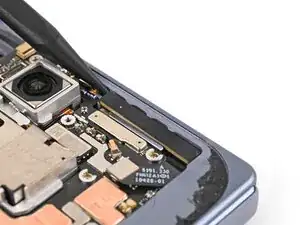
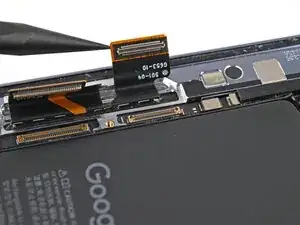
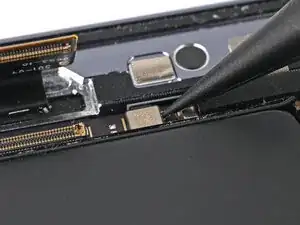
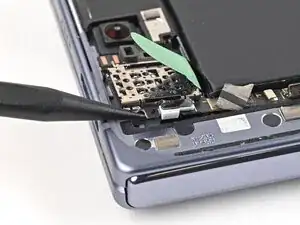
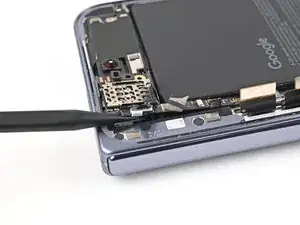
    • Use the point of a spudger to pry up and disconnect the inner front camera press connector.

  15. 5NEKjWPGIIOVATWh
    5NEKjWPGIIOVATWh
    wRi2UWvT13WYMrTc
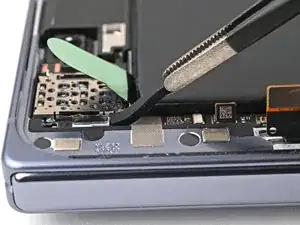
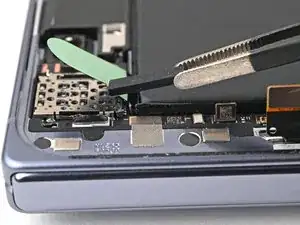
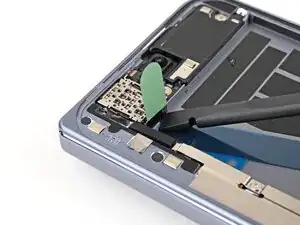
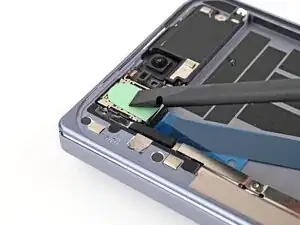
    TJYkqDGkXMZlEpHP
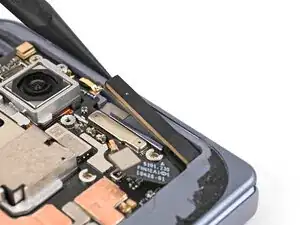
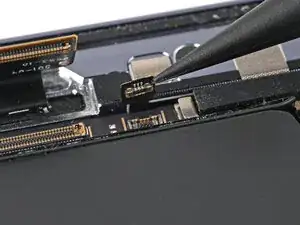
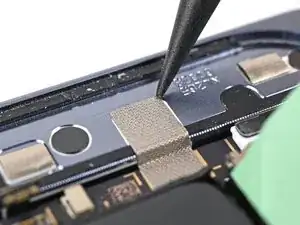
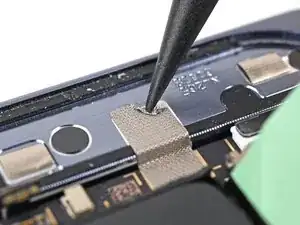
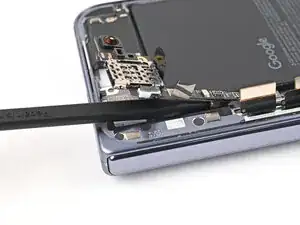
    • Insert the point of a spudger under the inner front camera cable and pry up to separate the adhesive securing the camera.

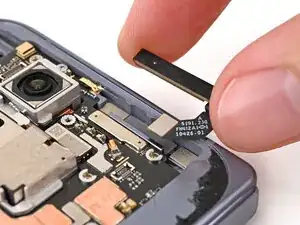
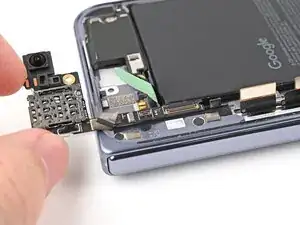
    • Remove the inner front camera.

  16. OGpcoqwqDW4QjRL1
    OGpcoqwqDW4QjRL1
    GRKmTWogof2owAb1
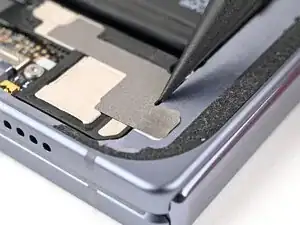
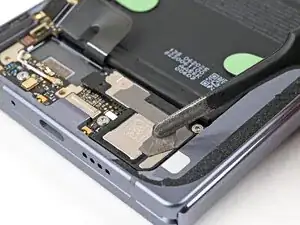
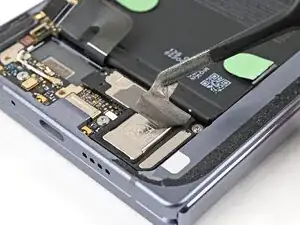
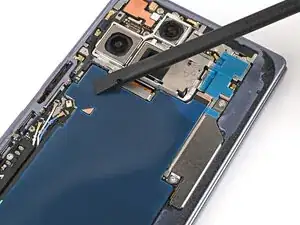
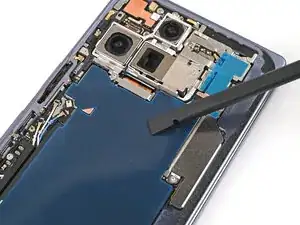
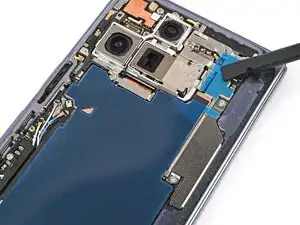
    • Slide an opening pick between the graphite sheet and the bottom speaker to separate the adhesive.

  17. tgTJWrTA4tkuwwQB
    tgTJWrTA4tkuwwQB
    qNY2kopabsa3f4E2
    hlTPhiEfBwTSvLLQ
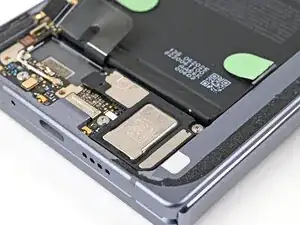
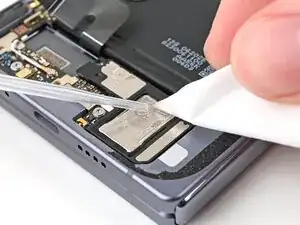
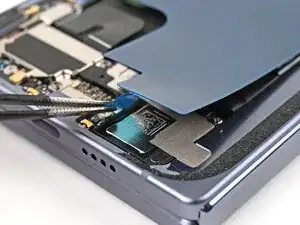
    • Peel the graphite sheet off the logic board to separate the remaining adhesive.

  18. h5XSI6sfJYX2tiZi
    h5XSI6sfJYX2tiZi
    ysFsGVYUVnZjHnbq
    • Use a Torx Plus 3IP driver to remove the three screws securing the antenna bracket:

    • One 1.9 mm‑long screw

    • Two 2.8 mm‑long screws

  19. xasQFU4CwA12TBsM
    xasQFU4CwA12TBsM
    TqugCUVFR2RJaANA
    vKE5RJ1VbwLNTxGU
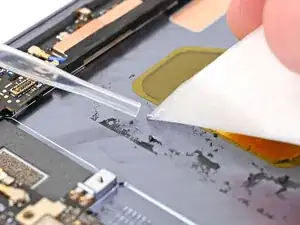
    • Use the point of a spudger to pry up the antenna bracket and release its two clips from the top and right edges of the frame.

  20. 1sboChYrBCQUbLCV
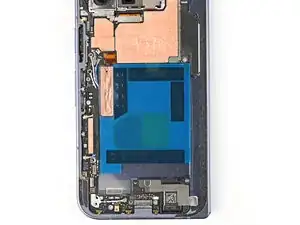
    1sboChYrBCQUbLCV
    2vGjHCtZ3xWMQwKg
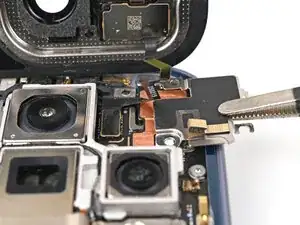
    • Use the point of a spudger to pry up and disconnect the 5G mmWave antenna press connector.

  21. ATJa2pBPj2eXswNl
    ATJa2pBPj2eXswNl
    TTgPKQtiilf6OFgB
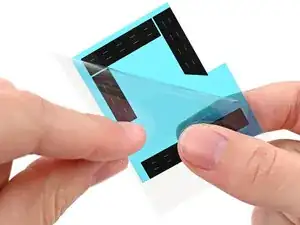
    ANwcX4xvVWrFTGlU
    • Insert the point of a spudger under the left edge of the 5G mmWave antenna.

    • Pry up the antenna to separate its adhesive and remove it.

  22. RSpTX4ef6NUiURos
    RSpTX4ef6NUiURos
    TgBQPkACYmjSC6iB
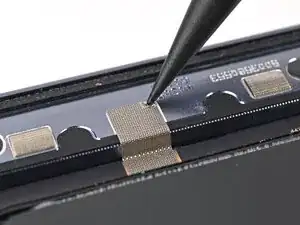
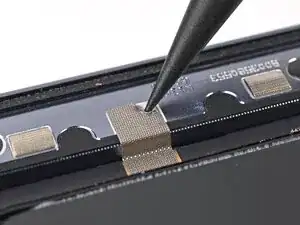
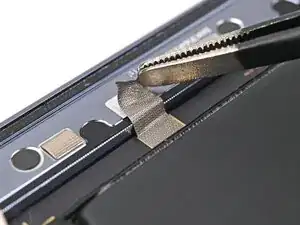
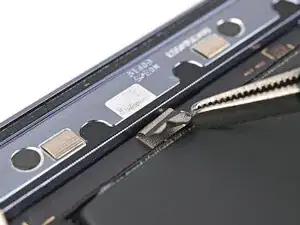
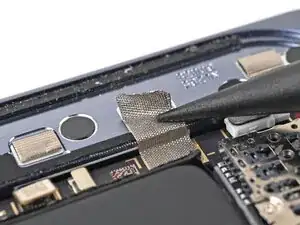
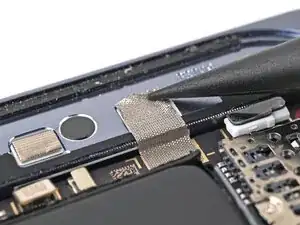
    • Use the point of a spudger to peel the section of conductive fabric connecting the loudspeaker to the frame.

  23. K4qwmo2VdvAAfXGO
    K4qwmo2VdvAAfXGO
    hbOpIQMviH2XFckO
    • Use a Torx Plus 3IP driver to remove the 2.4 mm‑long screw securing the loudspeaker.

  24. BFEM53DHiP3Bbd41
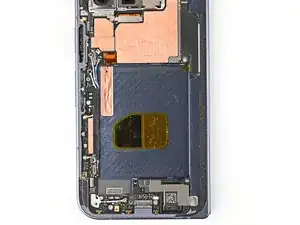
    BFEM53DHiP3Bbd41
    TQYmuFqWtYSGOvWZ
    • Use the point of a spudger to pry up the left edge of the loudspeaker to separate the adhesive securing it to the frame.

  25. afQDBqjPQEBlYlod
    afQDBqjPQEBlYlod
    rnKvqTduprVPVZpq
    • Use your fingers to lift the top edge of the loudspeaker and pull it out of its recess in the frame.

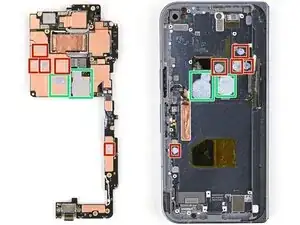
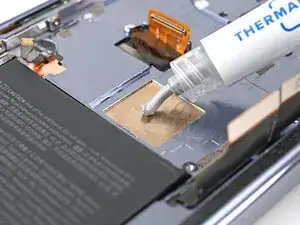
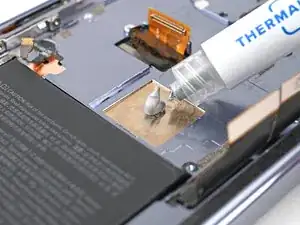
    • Remove the loudspeaker.

  26. YBjDeq1ifowKDuH2
    YBjDeq1ifowKDuH2
    hqDTKYRPsASVBNJB
    • Use a Torx Plus 3IP driver to remove the two 2.8 mm‑long screws securing the interconnect cable bracket.

    • The bracket will sit upright when its screws are removed.

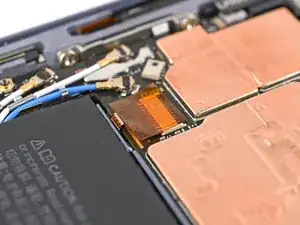
  27. 1NLSqcsTTg6J2KKg
    1NLSqcsTTg6J2KKg
    4pK12lEZ5uRDxwQI
    • Lift the interconnect cable bracket straight up out of its slot in the frame and remove it.

  28. HHAxZpwy3JZIREEV
    HHAxZpwy3JZIREEV
    AVQCJAuiPkBVJqIj
    XlDcWIfRSHUKDnsb
    • Use the point of a spudger to pry up and disconnect the interconnect cable press connectors.

  29. sBA2bHBrkrWAlt1h
    sBA2bHBrkrWAlt1h
    v1yc5xOtA2yTyQ16
    • Use a Torx Plus 3IP driver to remove the 2.8 mm‑long screw securing the inner display connector bracket.

  30. bRVtOoLhk5SVWEcN
    bRVtOoLhk5SVWEcN
    pEbJKIpfo2Bk1poC
    • Use the point of a spudger to pry up the inner screen connector bracket and release its plastic clip from the left edge of the frame.

  31. kVYGr3GvQcOhgJ3F
    kVYGr3GvQcOhgJ3F
    bDLpDpj4BKldQRrQ
    • Pull the inner display connector bracket towards the left edge of the phone to release its metal clip.

  32. BRruPXOXxdyZ1n2H
    BRruPXOXxdyZ1n2H
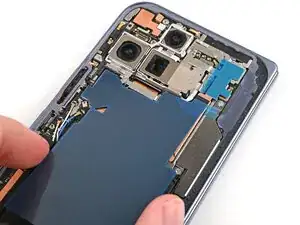
    op21TxE4mbSYGvSa
    • Use the point of a spudger to pry up and disconnect the inner screen press connector.

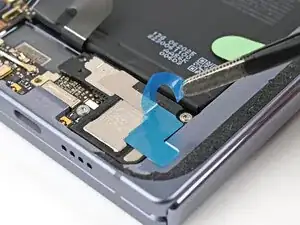
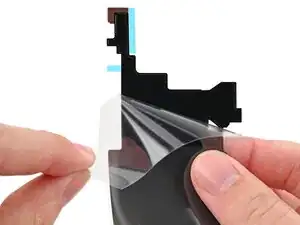
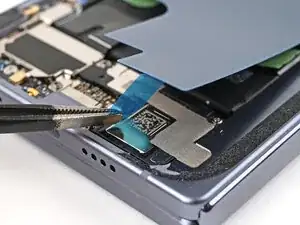
  33. IGrpnmjRPURZjNLJ
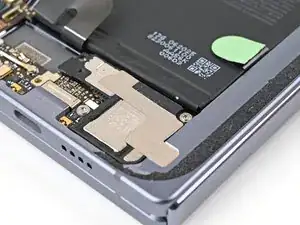
    IGrpnmjRPURZjNLJ
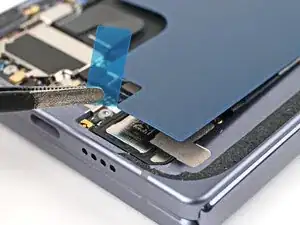
    T1YdvkoboTBP1Yye
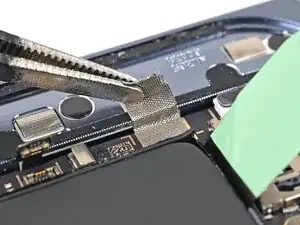
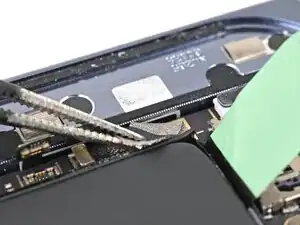
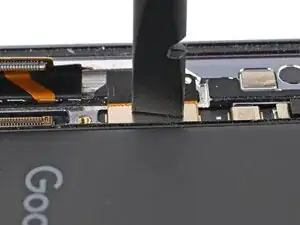
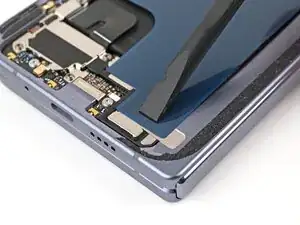
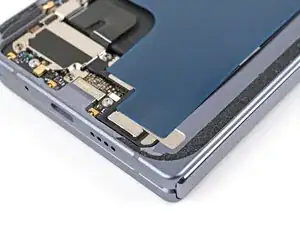
    • Use tweezers, or your fingers, to peel off the yellow tape on the side button cable ZIF connector.

    • Set the tape aside. You'll need it during reassembly.

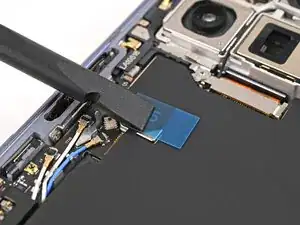
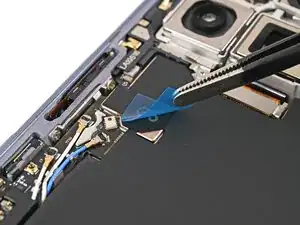
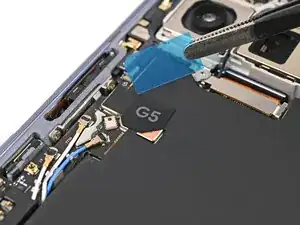
  34. YZkQHyGNRWhMsygq
    YZkQHyGNRWhMsygq
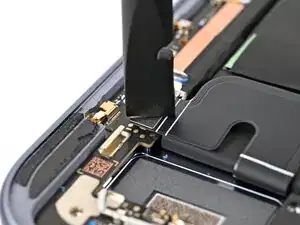
    ZBDceInMHpRG1rme
    • Use the point of a spudger, or your fingernail, to lift the locking tab on the side button cable ZIF connector.

  35. PBqKb3ALo4uCS2RW
    PBqKb3ALo4uCS2RW
    2LThNLJgPRZA1Mf3
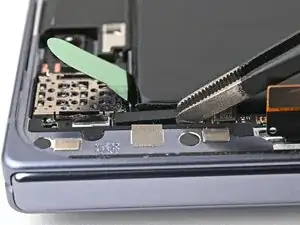
    • Use angled tweezers to pull the side button cable straight out of its slot.

    • Take care not to puncture the battery—it can leak dangerous chemicals and/or catch fire.

  36. 2XMkTTZG6s2SdiEZ
    2XMkTTZG6s2SdiEZ
    t4NFmpBxLMjnw4xo
    • Use a Torx Plus 3IP driver to remove the four 2.8 mm‑long screws securing the logic board.

  37. HkDatMXL4bwBlHJ5
    HkDatMXL4bwBlHJ5
    rP3BqDYWI43sLpWB
    • Insert a spudger under the top edge of the logic board, next to the 5G mmWave antenna cutout.

    • Pry up the logic board enough so you can grip the top edge with your fingers.

    • You might feel some resistance since the logic board is bonded to the frame by thermal paste.

  38. CGXOFsYW5tJfIF1b
    CGXOFsYW5tJfIF1b
    awSXysbWoiPISEUV
    xQgiRsUNXrN1xhjg
    • Lift the top of the logic board slowly until the clips at the bottom edge of the logic board release.

    • Slide the logic board out of the USB-C port cutout and remove it.

  39. AEd5V6O3jVC1BWfY
    AEd5V6O3jVC1BWfY
    RraU23oKEAKoHOmC
    JBCNgTYtlD2531BY
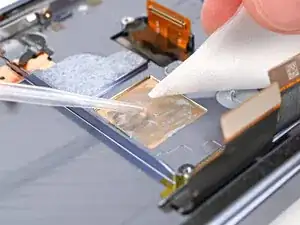
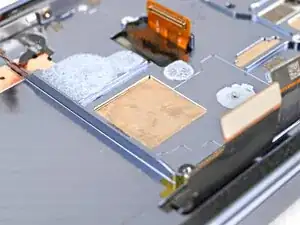
    • Use the flat end of a spudger to scrape off all of the thermal paste from the frame.

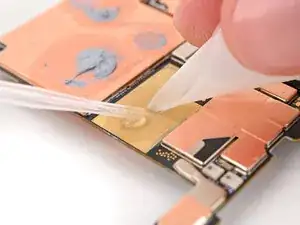
    • Apply isopropyl alcohol (>90%) and use a coffee filter or microfiber cloth to clean any thermal paste residue.

  40. D2eWEr6sivB6jsYo
    D2eWEr6sivB6jsYo
    5cwNQdWCPHLaGVRB
    gpRfi4pyWlyFa1TG
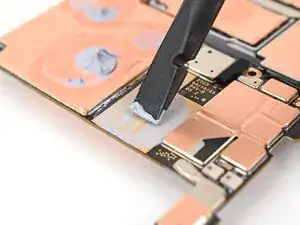
    • Repeat the previous step to remove thermal paste on the back of the logic board.

  41. w4fqC21HHrxfKcYd
    • Place the back cover on the frame to protect the base battery while working on the flipside of the phone.

  42. 2hiknXvQ42lLTKSK
    2hiknXvQ42lLTKSK
    IDUaTyK4WxMe6sXG
    U2dKlBLsuFTTAFXI
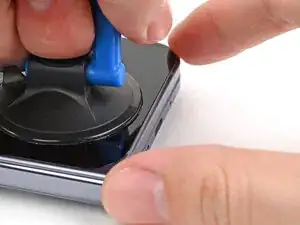
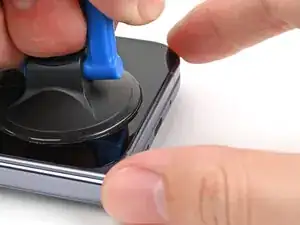
    • Apply a suction cup to the screen, as close to the center of the bottom edge as possible.

    • Pull up on the suction cup with strong, steady force to create a gap between the screen and the frame.

    • Insert an opening pick into the gap.

    • If your screen is badly cracked, covering it with a layer of clear packing tape may allow the suction cup to adhere. Alternatively, very strong tape may be used instead of the suction cup. If all else fails, you can superglue the suction cup to the screen.

  43. XL5Pcuil6vjRPXZl
    XL5Pcuil6vjRPXZl
    aMalsjFMQAQycqog
    hTrHhGBIHaPOsgDx
    • During the next three steps, don't insert your opening pick deeper than 3 mm to prevent damaging internal components.

    • Optionally, you can measure and mark your opening pick at 3 mm to help you visualize the length.

    • Slide the opening pick around the bottom right corner and up the right edge of the screen to separate the adhesive.

  44. O5DpViKqqEhRWf5B
    O5DpViKqqEhRWf5B
    ZKsc4fIsbHTWNfkl
    CAVfClF2Rdsrg4w5
    • Slide the pick around the top right corner and along the top edge of the screen.

  45. C2bSqSB6WocfxCnP
    C2bSqSB6WocfxCnP
    HWEpRJXA3aZCUhwD
    AWOHp2gB4WXckISg
    • Slide your pick down the left edge and around the bottom left corner to separate the remaining adhesive.

  46. Ud5PVipjmJJaZqLc
    Ud5PVipjmJJaZqLc
    UTC3bFB1YvgaQgDo
    ZPKLUYIHQv2rWfjy
    • Don't fully remove the screen yet, as it's still connected to the phone by a cable.

    • At this point, the screen should be free from the frame. If there's still resistance around the edges, use an opening pick to separate any remaining adhesive.

    • Lift the left edge of the screen and swing it over the right edge of the phone, like opening a book.

    • Prop up the screen with your suction handle or a clean, sturdy object.

  47. PNcbWHUiymBGt3VL
    PNcbWHUiymBGt3VL
    wTPedB5KZ1KisBQO
    • Throughout this repair, keep track of each screw and make sure it goes back exactly where it came from.

    • While the Pixel 10 Pro Fold uses Torx Plus screws, standard Torx bits also work. Use the same size or one size larger (T3 or T4 Torx bits with 3IP Torx Plus screws) and apply constant, downward force to prevent stripping.

    • Use a Torx Plus 3IP driver to remove the three screws securing the display cable bracket:

    • One 1.8 mm‑long screw

    • Two 2.5 mm‑long screws

  48. GEIIR3AU4MjtORRE
    GEIIR3AU4MjtORRE
    D3SmiKFFsJAD4eSK
    S3ByIDlNv3TIY3Iq
    • Use the point of a spudger to pry up the display bracket and release its clip from the bottom edge of the frame.

    • Remove the display bracket.

  49. GD1HdHASxRKmtFdW
    GD1HdHASxRKmtFdW
    3XwAnp2m4ewucaMH
    • When disconnecting press connectors, pry only at the gold outlines on the logic board.

    • Don't insert your spudger anywhere else, as you risk dislodging surface‑mounted components.

    • Use the point of a spudger to pry up the display cable press connector.

  50. 5wpQVBEmrItbMNwL
    • Lift the screen off the frame and remove it.

  51. PkeXqTLQA1FcpBPi
    PkeXqTLQA1FcpBPi
    aieSEcInyYSCZnPu
    • Use the point of a spudger to pry up and disconnect the flip battery press connector.

  52. 1SpULugNQBnHUpBq
    1SpULugNQBnHUpBq
    NPIVmZjvmeaIrhtx
    36WjZWGaEBIhPeYt
    • Use tweezers to remove the conductive fabric over the interconnect cable bracket.

  53. 1IJxlnNGIkvUSiaH
    1IJxlnNGIkvUSiaH
    4IRCriTMnJNXEQHI
    • Use a Torx Plus 3IP driver to remove the two 2.8 mm‑long screws securing the interconnect cable bracket.

  54. LltEDLSuuykFM1Qw
    LltEDLSuuykFM1Qw
    SghlMa5FQqVDnaBU
    V3Zc6VgdfMKZgiXy
    • Use tweezers to pull the interconnect cable bracket towards the bottom edge of the phone to release its clip.

    • Lift the bracket straight up out of its slot in the frame and remove it.

  55. KRoXnKjLCO3FUGiy
    KRoXnKjLCO3FUGiy
    jj6RjPPI5sOBPhhV
    • Use the point of a spudger to pry up and disconnect the interconnect cable press connector from the lower board.

  56. IOIV2KOuyRfUYULE
    IOIV2KOuyRfUYULE
    oKwjgIDsAbNSSQIi
    yQkkX2uJQ4aaFXXo
    • Use tweezers to peel off the rubber spacer along the long edge of the lower board.

    • Set the spacer aside. You'll need it during reassembly.

  57. XWInmKKvvFSmc5pu
    XWInmKKvvFSmc5pu
    fDjEdgVCKw5tDuca
    • Use the point of a spudger to peel off the lower board's conductive fabric enough to grip it with tweezers.

  58. hNaj6nnVnKar3XxA
    hNaj6nnVnKar3XxA
    WZChXtxDOHyOInRY
    • Use tweezers to peel the conductive fabric off the left edge of the frame.

  59. PEp42Te2vJObTUct
    PEp42Te2vJObTUct
    n6y61Pvqb5qlfuGg
    • Use the point of a spudger to pry up the bottom right corner of the lower board until it's slightly above the edge of the frame.

  60. HQqGeZVqpOjiOBNj
    HQqGeZVqpOjiOBNj
    iHkXl3qXB6EAanTk
    • Use the point of a spudger to pry up the bottom left corner of the lower board and lift it out of its alignment peg.

  61. JSejSBMCwuyZd3VG
    JSejSBMCwuyZd3VG
    qqX1gFPWw4BLD5JU
    6dFATueMvEAML4xI
    • Slide an opening pick down the long section of the lower board to separate the adhesive securing it to the frame.

    • Remove the lower board.

  62. dSenwFfiIpUxOoFu
    dSenwFfiIpUxOoFu
    QfNke2tDKLFoD6hK
    • Use the point of a spudger to pry up and disconnect the interconnect cable press connector from the upper board.

  63. EIneDZrXihAmaYS4
    EIneDZrXihAmaYS4
    V5JDSm4C3aH5Qi23
    • Use the point of a spudger to pry up and disconnect the antenna press connector from the upper board.

  64. 3aFVlsCPFMGTNUPQ
    3aFVlsCPFMGTNUPQ
    f1CTGfc6cHlxBvoR
    giABmqxDHsdICF3q
    • Use tweezers to peel off the rubber spacer along the long edge of the upper board.

    • Set the spacer aside. You'll need it during reassembly.

  65. SWP5EL35YdH1kel1
    SWP5EL35YdH1kel1
    KAnKf2TmgVKaE13c
    • Use the point of a spudger to peel off the upper board's conductive fabric enough to grip it with tweezers.

  66. D5wtbjH23tpBkKLi
    D5wtbjH23tpBkKLi
    urYiVHmqeY6ENrDV
    • Use tweezers to peel the conductive fabric off the left edge of the frame.

  67. IKuKeHrcgEbHonYT
    IKuKeHrcgEbHonYT
    C5x2KEHyoT4oJITN
    RqJKNOPETWthbmUU
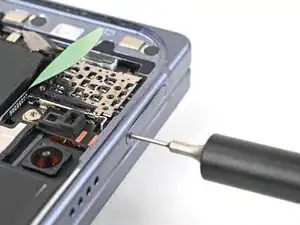
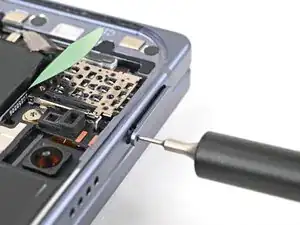
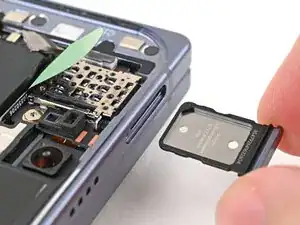
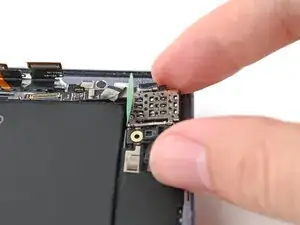
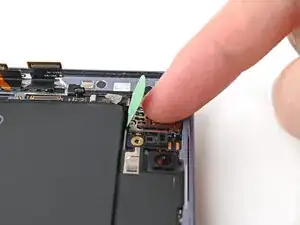
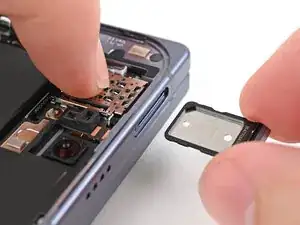
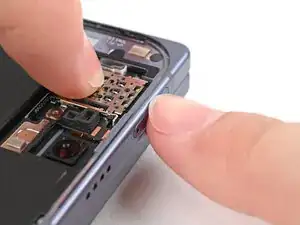
    • Insert a SIM eject tool, bit, or straightened paper clip into the SIM card tray hole and press firmly to eject it.

    • Remove the SIM card tray.

  68. o6Lv45Bg1h5ApVmK
    o6Lv45Bg1h5ApVmK
    ZZOxecFdnk2SFSMC
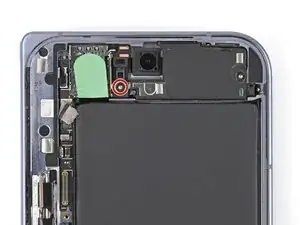
    • Use a Torx Plus 3IP driver to remove the 2.1 mm‑long screw securing the upper board.

  69. 2b3ZQnq2uEXBE2DD
    2b3ZQnq2uEXBE2DD
    ynwJaZUDGD6TGGPi
    • Use the point of a spudger to pry up the upper board and release its plastic clip from the left edge of the frame.

  70. EvYnWn4uBHa1lJsV
    EvYnWn4uBHa1lJsV
    Sxt4mvXYNV3WjZps
    nDcoPFko1seXYQsF
    • Slide the spudger under the length of the upper board to separate the adhesive securing it to the frame.

    • Remove the upper board.

  71. TKLTSglmcxPPQNaW
    • Congratulations on completing disassembly! The remaining steps will show you how to reassemble your device.

  72. 5anXkpuhYEIQZUrk
    5anXkpuhYEIQZUrk
    s5S16qNCKFvgtbRP
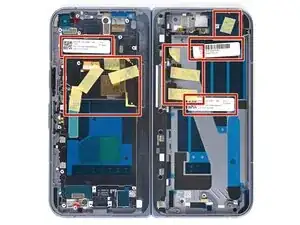
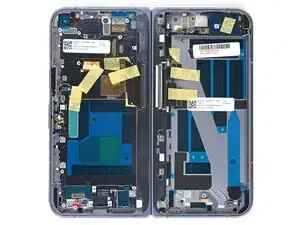
    • Remove any of the white stickers and yellow tape from your replacement inner screen assembly.

  73. W2oyNBGrGOxaMVIr
    W2oyNBGrGOxaMVIr
    hEfSXihm4OJtnlXL
    l2lTqtXMWXMGPPDB
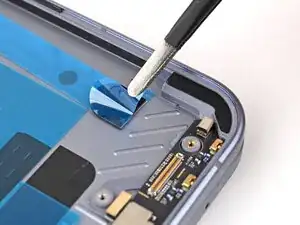
    • Use tweezers to remove the blue liner from the bottom of the black pull tab.

    • Press the pull tab down to adhere it to the frame.

  74. IRmyLbMS1qppfeok
    IRmyLbMS1qppfeok
    ClYTEimGEn3F4aN2
    4PehRQA2RZdqyqLt
    • Use tweezers to remove the blue liner from the secondary flip battery adhesive strip.

  75. HEPmCddoFqipYCWy
    HEPmCddoFqipYCWy
    MUxyXYT1nRN1h5kU
    2DsHyBPQxFKdBNPs
    • Use your fingers, or tweezers, to remove the large blue liner from the main flip battery adhesive strip.

  76. cALk4VVaAABjlcJ3
    cALk4VVaAABjlcJ3
    uiJCBxte2eak4CSe
    • Before removing any liners, check that your flip battery jacket matches the size and shape of the cutout in the frame.

    • The clear liner should face the frame.

  77. XvdSPVtdIC2haroM
    XvdSPVtdIC2haroM
    nEMaBVEEgXoFjDHB
    X5UorvADaYb5NN4p
    • Peel off the flip battery jacket from its clear liner.

    • Align the jacket so it doesn't overlap with the flip battery adhesive.

    • Lay the jacket on the frame.

  78. KKWTjvSUPmOutPdL
    KKWTjvSUPmOutPdL
    f3qokkuYscAKdqtY
    lRScMCQjJxK4HDUp
    • Use the flat end of a spudger, or your fingers, to press down the jacket and adhere it to the frame.

  79. WKCDX5jhNbQXmAXA
    WKCDX5jhNbQXmAXA
    TaajAZthrOujwpHa
    xVR3xsLlN3JDVCuO
    • Use your fingers, or tweezers, to remove the blue liner from the flip battery jacket.

    • At this point, all of the liners should be removed from the battery well. If any liners remain, remove them now.

  80. YPnO12TjsOMVL3Ye
    YPnO12TjsOMVL3Ye
    KUlDGKnZhRyPnjhB
    KtqsLYPKFqc1sXBR
    • Be careful during this step, as it's easy to stick the adhesive in the wrong spot. Take your time and work slowly.

    • Align the top edge of the flip battery with the top edge of the battery well.

    • Lay the battery over the frame.

  81. eFTFEqE2XbNaBlLB
    eFTFEqE2XbNaBlLB
    6EGxggKklpMpRJuK
    • Press down along the perimeter of the flip battery to adhere it to the frame.

    • Let the phone sit for an hour for the adhesive to cure.

  82. SK1VIjdm1C1iZTNB
    SK1VIjdm1C1iZTNB
    FAThB2iD1lEyOsZE
    • Remove any liners covering the upper board adhesive.

    • Place the upper board into its slot in the frame and press it down so it sits flat.

  83. o6Lv45Bg1h5ApVmK
    o6Lv45Bg1h5ApVmK
    ZZOxecFdnk2SFSMC
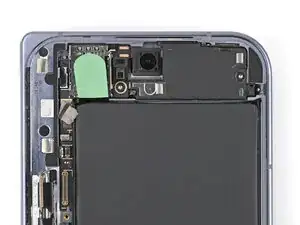
    • Use a Torx Plus 3IP driver to install the 2.1 mm‑long screw securing the upper board.

  84. 3yGGOKURuQauOFUZ
    3yGGOKURuQauOFUZ
    HHt3JWqiqpDPxL5M
    • While holding the upper board in place, reinsert the SIM card tray.

  85. AnRZYFuscGuOXZnH
    AnRZYFuscGuOXZnH
    XxrWx5F3sUNoiAcw
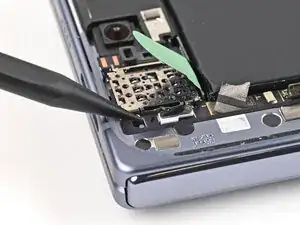
    • Use a spudger to press the green tab near the SIM card tray against the edge of the flip battery well.

    • Slide the spudger across the green tab to smooth out and adhere it against the SIM card tray.

  86. dsUfQ3kPCcjvuKlP
    dsUfQ3kPCcjvuKlP
    2yPZ1LPWagOi1mWN
    • Use the point of a spudger to press the upper board conductive fabric onto the left edge of the frame.

  87. giABmqxDHsdICF3q
    giABmqxDHsdICF3q
    3aFVlsCPFMGTNUPQ
    • Place the rubber spacer onto its spot on the upper board, making sure it sits between its gold outlines on the board.

  88. OajKQAEbyyFCWixq
    • Use the point of a spudger to reconnect the antenna press connector to the upper board.

  89. RWPr6IXsH1cXEoSb
    • Reconnect the interconnect cable press connector to the upper board.

  90. aCrHFDhK1v562ZKY
    aCrHFDhK1v562ZKY
    5ftiiedVoUSAreFE
    xZwCDYhehYYRRGZH
    • Remove any liners covering the lower board adhesive.

    • Place the lower board into its slot on the frame.

  91. AeuWdtmOjJwprMBD
    AeuWdtmOjJwprMBD
    LJHUGwjKgV42idfF
    • Use your finger to press down the bottom left corner of the lower board and slot it into its alignment peg.

  92. xCHkdmuqWkIDvCGB
    xCHkdmuqWkIDvCGB
    5lQrkVJtp1pur1DK
    • Use your fingers to press down the bottom right corner of the lower board to engage its grounding clips and thread it through its screw post.

  93. ZWWBxe6iJKxO1fcS
    ZWWBxe6iJKxO1fcS
    TM1VCEqjXBEYi6Jj
    • Use the point of a spudger to press the lower board conductive fabric onto the left edge of the frame.

  94. NKMMR4L166dPUGBt
    NKMMR4L166dPUGBt
    MSXrunGJEkC6UgOI
    • Place the rubber spacer onto its spot on the lower board, making sure it sits between its gold outlines on the board.

  95. hVWpLiwBTOIVEKQw
    • Reconnect the interconnect cable to the lower board.

  96. mfpHEcIvR4cgj2TD
    mfpHEcIvR4cgj2TD
    pSD1PoFHMdPr5FUt
    • Use tweezers to slide the top of the interconnect cable bracket into its clip.

  97. Mo6mrujAFWKGoUkR
    Mo6mrujAFWKGoUkR
    vZ3GautjWKYijygY
    • While pressing down the bracket, slide it into its slot in the left edge of the frame.

  98. h2GXsVGWGnSeCDmX
    h2GXsVGWGnSeCDmX
    QDkfPF6seACnLUX3
    • Use a Torx Plus 3IP driver to install the two 2.8 mm‑long screws securing the interconnect cable bracket.

  99. SonSnc3PKC5W1CEJ
    SonSnc3PKC5W1CEJ
    uEKsHhqeBGr3Uqck
    • Before removing any liners, check that both of your conductive fabric matches the size and shape of the interconnect cable bracket.

    • The clear liner should face the frame.

  100. NQE5yqWTVXTBHE2l
    • If there's adhesive residue on the interconnect cable bracket, use isopropyl alcohol (>90%) and a lint-free cloth to remove it.

  101. E35DH5OVnBQ3HuLH
    E35DH5OVnBQ3HuLH
    OpAV3seWjC5ogeCe
    MSupMeQmNsxyNrJS
    • Peel off the conductive fabric from its clear liner.

    • Align the fabric with the outer edge of the interconnect cable and the white outline on the frame.

    • Press the fabric to the bracket, making sure it overlaps onto the frame.

  102. pPbyy2LnSXPXJyVt
    pPbyy2LnSXPXJyVt
    CADcylvrtwwseDmY
    • Use the flat end of a spudger, or your fingers, to press down the conductive fabric and adhere it to the frame.

  103. COSnhLghOyOQCTkJ
    COSnhLghOyOQCTkJ
    XSNLUiXHglXwWWJM
    • Remove the large blue liner on top of the conductive fabric.

  104. JcfiuHay4Brro3FN
    JcfiuHay4Brro3FN
    1pIYxIbAwXb1VuXR
    LBYY5tyXMJ5qNXgs
    • Use tweezers to peel off the blue pull tab underneath the lip of the conductive fabric.

  105. JMWZjHxMUqNKAuHY
    JMWZjHxMUqNKAuHY
    6rBLwgaCFoyudM4t
    • Use the flat end of a spudger, or your fingers, to press down the conductive fabric and adhere it to the interconnect cable bracket.

  106. ldChOwSff4hlDQt4
    • Reconnect the flip battery press connector.

  107. 4SbvdXxd2bNOAemF
    4SbvdXxd2bNOAemF
    umicB3qGBEBtjLiO
    oM1CnfFJoJIZp1EF
    • Use a spudger, or your fingers, to remove the old outer screen adhesive on the frame.

    • Use isopropyl alcohol (>90%) and a coffee filter or a microfiber cloth to remove any adhesive residue.

  108. 1ebZaEvIQ4Dc4Q3y
    1ebZaEvIQ4Dc4Q3y
    i6M6NisKnAY1YN6W
    oJOHOd6UQnLm6jjc
    • Repeat the previous step for the adhesive on the outer screen.

  109. WXAhIwKtCAQMhZDN
    WXAhIwKtCAQMhZDN
    mnI23eQmoFfSVQwd
    • Before removing any liners, check if the outer screen adhesive matches the frame.

    • The clear liner should face the frame.

  110. ktySinPfoakCo6a4
    ktySinPfoakCo6a4
    wXbAfefLvjti4cfW
    • Peel away the top half of the new adhesive strip from its clear liner and keep the liner folded before continuing.

  111. m2w1WBvQAeGO1XYR
    m2w1WBvQAeGO1XYR
    inQ2LrjAHYssXDBG
    • Be careful during this step, as it's easy to stick the adhesive in the wrong spot. Take your time and work slowly.

    • Align the top half of the adhesive over the frame, using the corners as reference points.

    • Place the adhesive on the frame.

  112. POM4BtFb4V2nniV1
    POM4BtFb4V2nniV1
    gKTJwpJxl5YsuMA5
    BDykDHOb4w2IdyI3
    • Use the flat end of a spudger, or your fingers, to press down the top edge of the adhesive and adhere it to the frame.

  113. YWCnpjkXUmHDlMLj
    YWCnpjkXUmHDlMLj
    fAhgvXK35aLDNRDy
    HAbZLwZVR2FyBbPu
    • While peeling away the rest of the clear liner, slowly lay the adhesive over the perimeter of the phone.

  114. ejiUYVvM4AAFOEYX
    ejiUYVvM4AAFOEYX
    KHe4IfvbSS5HIHtP
    • Use the flat end of a spudger, or your fingers, to press down the rest of the adhesive and adhere it to the frame.

  115. qkacRNTYwp3rWaKD
    qkacRNTYwp3rWaKD
    XQnlQThokhndQQOx
    • Use the point of a spudger to pry up the segmented tab on the bottom edge of the large blue liner.

  116. iUp3WDTYStPRL3i5
    iUp3WDTYStPRL3i5
    RTO5WYPMKUpoUV3h
    Owofpp1NvPyvkwJ4
    • Lift the tab and peel off the large blue liner to expose the secondary liner.

    • If any of the adhesive starts to peel up with the liner, gently lay it back on the frame and use the flat end of a spudger to secure it to the frame.

  117. mNqXCTagBVOvFtUA
    mNqXCTagBVOvFtUA
    WHE6AVwLCQTiP5Mk
    • Support the screen with your hand or prop it up on something sturdy.

    • Reconnect the outer screen cable press connector.

  118. qUn4KK42BJMQPsY5
    qUn4KK42BJMQPsY5
    uhGEX6RSBiFFILPV
    • Place the display bracket over its spot on the frame.

  119. Wi5FR6XhJROndfWv
    Wi5FR6XhJROndfWv
    CjDwSRlFu6DPBCU2
    • Use the point of a spudger to press down the display bracket and slide its clip under the bottom edge of the frame.

  120. BtqvGUiPJ5Gi2Brd
    BtqvGUiPJ5Gi2Brd
    iJ3KxFDqjRaNMHlq
    • Use a Torx Plus 3IP driver to install the three screws securing the display cable bracket:

    • One 1.8 mm‑long screw

    • Two 2.5 mm‑long screws

  121. eIxPV24BaEONAN1G
    eIxPV24BaEONAN1G
    CAscmRBUsYISWvvZ
    • Use tweezers to grip the pull tab of the secondary liner at the bottom left corner of the phone.

  122. L2XbdUslFPBEfwly
    L2XbdUslFPBEfwly
    FtiCHJRTpwCCqfqm
    4XwZerVTTV61fSjT
    • Peel the liner from the left and top edge of the phone.

  123. j2vpIjXOnWoHOsJP
    j2vpIjXOnWoHOsJP
    JJjZErESbvaZIopF
    IwuKDIuHf1bfUL2A
    • While holding the screen over the frame, peel the liner from the right and bottom edge of the frame and expose the adhesive.

  124. mYfJoJpgPIX5njXC
    mYfJoJpgPIX5njXC
    ovVB5UgWjKEw5ELo
    N2pRPa1HCtBRv2LO
    • Align the outer screen over the frame and press it into place.

  125. YvhHtZ3TQ1EhvHSf
    YvhHtZ3TQ1EhvHSf
    hArwpdBRFcVZMsrA
    • Press along the perimeter of the outer screen to adhere it to the frame.

    • Optionally, you can use a hair dryer or heat gun to lightly heat the edges of the back cover and create a stronger bond.

    • Let the phone sit a few hours for the adhesive to cure.

  126. w4fqC21HHrxfKcYd
    w4fqC21HHrxfKcYd
    SSZBEMxptWRfQBW5
    • Lift the back cover off the frame and remove it.

  127. geLbWkwkC6ScawtW
    geLbWkwkC6ScawtW
    xcCVmKvayQYm2Exy
    • Use tweezers, or your fingers, to remove the old base battery adhesive from the frame.

    • Apply isopropyl alcohol (>90%) and use a coffee filter or microfiber cloth to clean any adhesive residue.

  128. TPWyRoarMYAOH1Aj
    TPWyRoarMYAOH1Aj
    api53JSe1ERP4GS4
    • Before removing any liners, check that your base battery adhesive matches the size and shape of the cutout in the frame.

    • The clear liner should face the frame.

  129. AAMxPbvIUgwvjpLh
    AAMxPbvIUgwvjpLh
    JISUqQPiWPIaHaBg
    uVEZM2oMhswBFqwV
    • Be careful during this step, as it's easy to stick the adhesive in the wrong spot. Take your time and work slowly.

    • Peel off the adhesive strip from its clear liner.

    • Align the adhesive strip with the top right corner of the base battery recess and press it onto the frame.

  130. s3mMA13MkNviUQOd
    s3mMA13MkNviUQOd
    sVfWYL2Xqk2UvWN5
    JFkendjbSAxZTND2
    • Use the flat end of a spudger, or your fingers, to press down the adhesive strips and adhere them to the frame.

  131. CYYHPgwMsh4BgXHb
    CYYHPgwMsh4BgXHb
    iHbBKYlaJQaAjiiC
    JUEE2XTc4kRrB6U5
    • Peel off the colored liner to expose the base battery adhesive strips.

  132. W6Zi5n1oHi5UNNqx
    W6Zi5n1oHi5UNNqx
    AJAC6cut4QPcLvaX
    2jIBGUSPkcPGw6qK
    • Align the new base battery with the top edge of the battery recess and press it to the frame.

  133. gIEXDkEXCEFgXdKK
    gIEXDkEXCEFgXdKK
    ICswVYKki46tP3b1
    • Use your fingers to press along the battery to adhere it to the frame.

    • Let the phone sit for an hour for the adhesive to cure.

  134. bAlWEMLYNKiY5e23
    bAlWEMLYNKiY5e23
    Nw5TCgDYrVI3XxLv
    NoXkHZ1LrxhPGHpY
    • Apply thermal paste (seven total) to the motherboard in the same locations as the old thermal paste:

    • Five small beads of thermal paste

    • Two larger, "pea-sized" beads of thermal paste

  135. PLhtU1rpl1PcHUhk
    PLhtU1rpl1PcHUhk
    XMwaYaQKeRiPnJYY
    26bC3Bi1YoyiIbPb
    • Place the logic board back into its cutout in the frame, making sure no cables get trapped underneath it.

    • While pushing the logic board toward the bottom edge of the phone, press the logic board into its alignment pegs.

    • The bottom of the logic board should sit even with the frame.

  136. b1ZPrheTtP4LQQp2
    b1ZPrheTtP4LQQp2
    LcPK3pHDJ1RbGHbi
    pWFlOts2RLhlgnBx
    • This step can be tricky. Work slowly and follow the directions closely to make sure you install the logic board properly.

    • While using one hand to press down the thin vertical section of the logic board, use your other hand to press on the top section of the logic board against the left edge of the frame and engage its grounding clip.

    • Press the logic board straight down to slot it into its alignment peg.

    • The logic board should sit flat in the frame and shouldn't be able to spring up and down. If it's not seated properly, lift the logic board out of the frame and try again.

  137. WraYELO5jsGLVFFv
    WraYELO5jsGLVFFv
    AZE1fkxcSRiGu1uX
    • Use a Torx Plus 3IP driver to install the four 2.8 mm‑long screws securing the logic board.

  138. pjQDhjV3MvTa3VrM
    pjQDhjV3MvTa3VrM
    xQIWy2TiLEu5UFOl
    • Use angled tweezers to slide the side button cable straight into its slot.

    • Take care not to puncture the battery—it can leak dangerous chemicals and/or catch fire.

  139. rIQ2lLgwGBYgYZPg
    rIQ2lLgwGBYgYZPg
    3RAIpoTjTYvXcXZM
    • Flip the locking tab down and lightly press on it until it clicks into place.

  140. SSUtPha4BJO6wJBW
    SSUtPha4BJO6wJBW
    UfYTEjEqUCSixXMP
    DT4xAfuYLlwckbAS
    • Place the yellow tape over the ZIF connector and its cable.

  141. YIKnABIgrBjF5Qti
    • Reconnect the inner screen press connector.

  142. HtBH5kmwVADZrV3r
    HtBH5kmwVADZrV3r
    KIE15sgkVC1XkDc4
    • Slide the inner display connector bracket's clip into its slot on the logic board.

  143. 63emUjESvXScu3VD
    63emUjESvXScu3VD
    NDo16RF3E2XxZKSZ
    MI4flTK1afhLdf3N
    • Use the point of a spudger to press down the bracket and slide its plastic clip into the left edge of the frame.

  144. e4C5CsXWE6ojiHkN
    e4C5CsXWE6ojiHkN
    bJpqC4uGtAAfeZIU
    • Use a Torx Plus 3IP driver to install the 2.8 mm‑long screw securing the inner display connector bracket.

  145. 1OCMHZSWJMugPuIB
    1OCMHZSWJMugPuIB
    ycR4iN4LFGy2rxu4
    • Reconnect the two interconnect cable press connectors.

  146. jZOXmDRWGifP2wJa
    jZOXmDRWGifP2wJa
    OdWGZhXQBikIYEZ1
    • Slide the interconnect cable bracket straight into its slot in the frame.

  147. gmJhQesqYOSIK4DO
    gmJhQesqYOSIK4DO
    drB2BE4BRAuoMiqv
    ZbuKFpxpHcc1JseW
    • While pressing the bracket to the frame, use a Torx Plus 3IP driver to install the two 2.8 mm‑long screws securing the interconnect cable bracket.

  148. HMYf2QpKau1rFALK
    HMYf2QpKau1rFALK
    e4AZcNDQFfFnvgSK
    • Place the 5G mmWave antenna into its slot in the frame.

  149. 2SlSATUNUifeOWIq
    2SlSATUNUifeOWIq
    dsI53cOVQUHHLNdH
    • Use a spudger to press the antenna down into its thermal pad so it sits flat in the frame.

  150. XmwyeTa2rwJTxPvi
    XmwyeTa2rwJTxPvi
    QN2NQOUDATJDco3y
    AlrOwHbjXgl6e4hZ
    • Slide the clip at the top right of the antenna bracket under the frame.

    • Press the bracket flat to the logic board and align its screw holes.

  151. jKg4sIvONMdrnlIK
    jKg4sIvONMdrnlIK
    P1wfRtFEUMEGuwUV
    • While pressing the bracket against the logic board, slide the top left clip under the frame.

  152. h5XSI6sfJYX2tiZi
    h5XSI6sfJYX2tiZi
    ysFsGVYUVnZjHnbq
    • Use a Torx Plus 3IP driver to install the three screws securing the antenna bracket:

    • One 1.9 mm‑long screw

    • Two 2.8 mm‑long screws

  153. SCGFge6vjlKqpAXq
    SCGFge6vjlKqpAXq
    eMOcvvo6s4KQIZ36
    Ebba4LAOsibqoHTZ
    • Remove any liners covering the inner front camera recess.

    • Place the inner front camera over its slot in the frame and press it down to adhere it.

  154. OVa1ZGrkRqWMBn2I
    • Reconnect the inner front camera press connector.

  155. sJgmGv2gwQNPNdSl
    sJgmGv2gwQNPNdSl
    hPRK1RboFxsRUpTT
    AWywwvKjvKiJ4RdY
    • Insert the loudspeaker at an angle into the bottom of the frame and press down to secure it.

  156. BUGWY2tCnMjEs4hV
    BUGWY2tCnMjEs4hV
    qNhj3BCQvXsK1Nmo
    • Use a Torx Plus 3IP driver to install the 2.4 mm‑long screw securing the loudspeaker.

  157. djrvnu4L6q5ZUfMk
    djrvnu4L6q5ZUfMk
    ndH3YJZgT1DnVfQ2
    OFOAjCF4QkArgVsV
    • Use tweezers or your fingers to peel off the conductive fabric on top of the loudspeaker.

  158. VFeDAmxNdnFKhLZA
    • If there's some adhesive residue left on the loudspeaker, use isopropyl alcohol (>90%) and a coffee filter or a microfiber cloth to remove it.

  159. ivRl2UFl1wWL2F3D
    ivRl2UFl1wWL2F3D
    SX11hlgHSHZklRXi
    xxIgxRJXOvoet6si
    • Peel off the clear liner on the top loudspeaker conductive fabric.

    • Place the conductive fabric over its spot on the loudspeaker.

  160. v1sOb1o3gqPrBEob
    v1sOb1o3gqPrBEob
    Xccl324FmYCGBRNU
    • Use the flat end of a spudger or your fingers to press down the conductive fabric and adhere it.

  161. rXnUqNNVr3jZGaBh
    rXnUqNNVr3jZGaBh
    BfFgXfDYWGqW4ibq
    • Remove the small, rounded blue liner on the underside of the tape.

    • Press down the fabric so it adheres to the frame.

  162. xBePYUrS3EGL2u43
    xBePYUrS3EGL2u43
    ZIEVUhxhKcppSbNX
    UFNMhZ2eJMPPvUFH
    • Remove the large blue liner from the conductive fabric.

  163. I4ckswGRpY3rxaYm
    I4ckswGRpY3rxaYm
    i2tlrLKZZOJxUwv5
    CUX5dEfoUKcrajkd
    • Peel the clear liner off your replacement graphite sheet to expose the adhesive on the upper half.

    • Align the upper half of the graphite sheet over the logic board and lay it down.

  164. YWcYAWvGVhjMlEQd
    YWcYAWvGVhjMlEQd
    YPNRqEbnwlZtsPAp
    FFVdNeJ2GYUW3clK
    • Use the flat end of your spudger or your finger to press down the upper half of the graphite sheet and secure it to the logic board.

  165. AtXjktAeHb6VTWfj
    AtXjktAeHb6VTWfj
    vgFk1gQeyNFmhgnS
    44ULTqGJYXcFAoZl
    • Remove the blue liner on the underside of the graphite sheet to expose the adhesive.

  166. sXoG54AfW5yuZcHA
    sXoG54AfW5yuZcHA
    hlTgchfDjMuCoDce
    IuyWcHDgVtZXeAxx
    • Drag a spudger or your finger from the middle section of the graphite sheet to the adhesive section over the loudspeaker to flatten the graphite sheet and adhere it.

  167. QEnOuqU5Vi5nVMi3
    QEnOuqU5Vi5nVMi3
    BEdixrVllobobfwO
    iD16yxSsJicusVHh
    • Remove the two small blue liners from the top of the graphite sheet to expose the copper.

  168. VJXL5Gh42ECX46fL
    VJXL5Gh42ECX46fL
    C6qUrRHuRVpjs6o5
    cCjFo3DkCo4WMsFs
    • Grip the pull tab at the top of the graphite sheet and peel off the remaining liner.

  169. CeAMDLcjZoZchaVi
    CeAMDLcjZoZchaVi
    DL5PGRnKvMuOMXLK
    4dwRvFSwXMZf6HGx
  170. qO1LyRtT44KAnUNy
    qO1LyRtT44KAnUNy
    UO2TVpMbxofKCII5
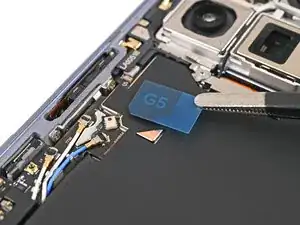
    • Remove the blue liner from the G5 sticker.

  171. teXEwQRGAcXEc5la
    • Reconnect the base battery press connector.

  172. jINlWMSv3Ex3sUtL
    jINlWMSv3Ex3sUtL
    1IMXxroUt3n26XhS
    C3YemfFQqoKU4Ss6
    • Use tweezers to slide the left edge of the vibrator into its clip and rest it in its cutout in the frame.

  173. uAJKNaXWCY1OfCWH
    uAJKNaXWCY1OfCWH
    qmPjjSM3H5DMDeAW
    • Use a Torx Plus 3IP driver to install the three 3.2 mm‑long screw securing the vibrator.

  174. wIZAieW16tE5EEOi
    wIZAieW16tE5EEOi
    FGZpXmXlfB4PUepT
    OcL1r3hO3P55eRp3
    • Use a spudger and tweezers to remove the old back cover adhesive from the frame.

  175. GHOY3AuyoSC5FvNP
    • Use isopropyl alcohol (>90%) and a coffee filter or a microfiber cloth to remove any adhesive residue.

  176. xOXl25YCMQDuQqSS
    xOXl25YCMQDuQqSS
    E6GyBJY3UaueYAqJ
    • Repeat the previous two steps to remove the residue from the back cover.

  177. Oey2PpLendgWyNxq
    Oey2PpLendgWyNxq
    rQEDumOq5WqEYScJ
    • Before removing any liners, check if the back cover adhesive matches the frame.

    • The clear liner should face the frame.

  178. 4A2AYBXfNt2kIqDx
    4A2AYBXfNt2kIqDx
    KJnDkqCVemjRhrKD
    • Peel away the bottom half of the new adhesive strip from its clear liner and keep it folded before continuing.

  179. LuR4roKKAiOROk5r
    LuR4roKKAiOROk5r
    A1qHR1hBAIajStpX
    • Be careful during this step, as it's easy to stick the adhesive in the wrong spot. Take your time and work slowly.

    • Align the bottom half of the adhesive over the frame, using the corners as reference points.

    • Place the adhesive on the frame.

  180. bNXqsKbC2mDAYPE4
    bNXqsKbC2mDAYPE4
    sAqtOCUPxekII2vB
    2kENSDN5Mwb4AUpw
    • Use the flat end of a spudger, or your fingers, to press down the bottom edge of the adhesive and adhere it to the frame.

  181. odWVH5jnWZXWQct6
    odWVH5jnWZXWQct6
    wqLfpCTZO3EUsZ2W
    3SasbCOWwLMJu1av
    • While peeling away the rest of the clear liner, slowly lay the rest of the adhesive over the perimeter of the phone.

  182. KUTN1F2iAHrKClss
    KUTN1F2iAHrKClss
    2VAFIBwGUrEFZwdW
    • Use the flat end of a spudger, or your fingers, to press down the rest of the adhesive and adhere it to the frame.

  183. 2bE2bR5XlExwRrS1
    2bE2bR5XlExwRrS1
    HGMEmTEFRyOBwQBG
    • Use a spudger to pry up the segmented tab on the bottom right corner of the large blue liner.

  184. SJomJfwgW1FYrQ2T
    SJomJfwgW1FYrQ2T
    BOWLKhkfDVyDZJh5
    M1ATZ2cHlLJUUEIM
    • Lift the tab and peel off the large blue liner to expose the secondary liner.

    • If any of the adhesive starts to peel up with the liner, gently lay it back on the frame and use the flat end of a spudger to secure it.

  185. rm56uGxol5liwR1a
    rm56uGxol5liwR1a
    iCySXwZO14QbXCDm
    • While holding the back cover or propping it up, reconnect the back cover cable.

  186. 1pBXyksXOLuWvgsq
    1pBXyksXOLuWvgsq
    UohfgMD6qmZWmFJD
    yQAJBymuGOMmJ2ah
    • Place the top bracket into its spot in the frame.

  187. ANl1gHKSwOWNEYma
    ANl1gHKSwOWNEYma
    gFkMpDkJ6exMGUwN
    • Use a spudger or your finger to push the bracket upwards and slide its clip under the top edge of the frame.

  188. HEEXlP6vv2VaA4Lp
    HEEXlP6vv2VaA4Lp
    TPIyDTUqNb1UAwje
    • Use a Torx Plus 3IP driver to install the three 3.0 mm‑long screws securing the top bracket.

  189. eeaHXQiAlIkLupyQ
    eeaHXQiAlIkLupyQ
    3WxWs5KE3AUQMjWY
    • Separate one of the secondary liner's pull tabs at the top right corner.

  190. f4HtbpCItATGZmLK
    f4HtbpCItATGZmLK
    I5sHlssegDcUnwfx
    • Peel the liner from the right and bottom edge of the frame.

  191. AM3dGajPFZp1m1tQ
    AM3dGajPFZp1m1tQ
    1LpMISCenEnKMARE
    K3MlWTSYvZNFTEr2
    • While holding the back cover over the frame, peel the liner from the left and top edge of the frame and expose the adhesive.

  192. QumQo4fvNw41pskC
    QumQo4fvNw41pskC
    NWxJjOGecftZEIyM
    JrmDEUZcfM5xHXXQ
    • Align the back cover over the frame and press it into place.

  193. 1rlsPJsVRGG63VmK
    1rlsPJsVRGG63VmK
    MwZUWWSmZsxBPsNd
    • Press along the perimeter of the back cover to adhere it to the frame.

    • Optionally, you can use a hair dryer or heat gun to lightly heat the edges of the back cover and create a stronger bond.

    • Let the phone sit a few hours for the adhesive to cure.

Conclusão

Congratulations on completing your repair!

Calibrate your newly installed batteries after completing this guide.

Take your e-waste to an R2 or e-Stewards certified recycler.

Repair didn’t go as planned? Try some basic troubleshooting, or ask our Google Pixel 10 Pro Fold Answers Community for help.

Alex Diaz-Kokaisl

Membro desde: 16/01/22

227430 Reputação

0 comentários