Introdução
This repair guide was authored by the iFixit staff and hasn’t been endorsed by Google. Learn more about our repair guides here.
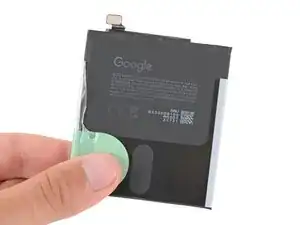
Follow this guide to replace a dead or worn‑out battery in your Google Pixel 10 Pro.
All smartphone batteries have limited lifespans. If your phone doesn't hold a charge or dies unexpectedly, it might be time to replace the battery.
If your battery is swollen, take appropriate precautions.
You'll need replacement back glass adhesive to complete this repair.
Note: Any repair can compromise the water resistance of your phone. Retaining water resistance after the repair depends on how accurately the new adhesives are applied and how clean the surfaces are.
Ferramentas


-
-
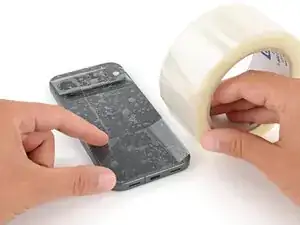
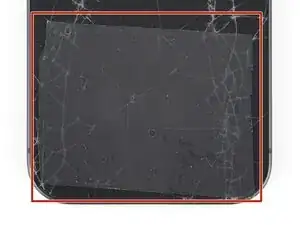
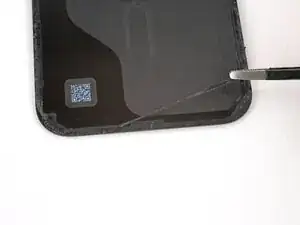
Apply strips of packing tape to the cracked glass until it's completely covered—this will help keep the glass contained and allow the suction cup to stick.
-
Make sure there's a single strip (not overlapping) of tape across the bottom edge, big enough for a suction cup to fit on.
-
-
-
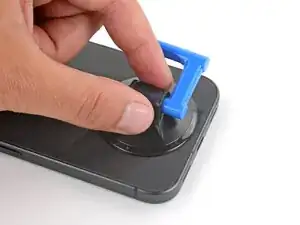
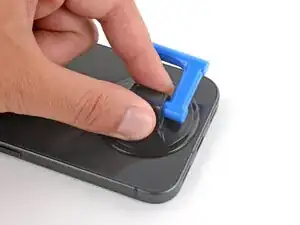
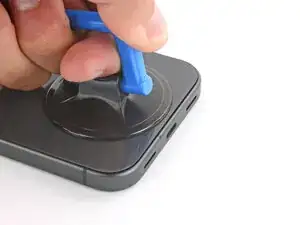
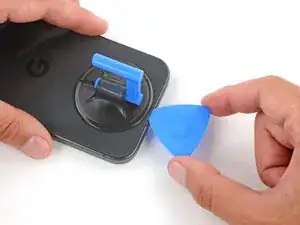
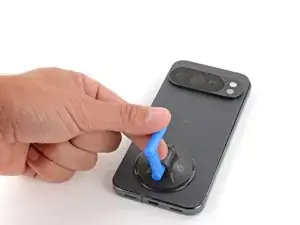
Apply a suction handle to the center of the back glass's bottom edge, as close to the edge as possible.
-
-
-
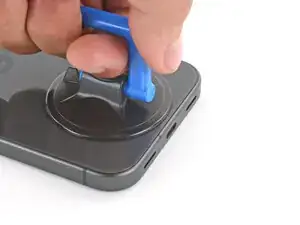
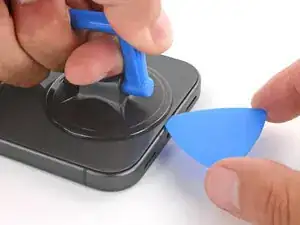
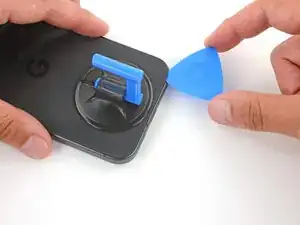
Pull up on the suction handle with strong, steady force until a gap forms between the back glass and frame.
-
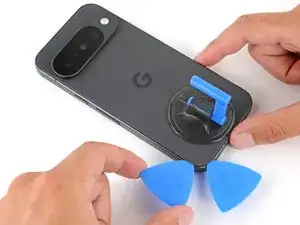
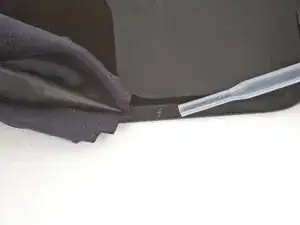
Insert the tip of an opening pick into the gap.
-
-
-
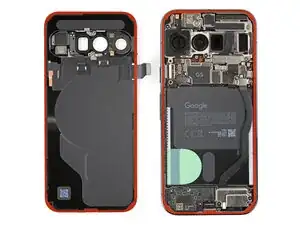
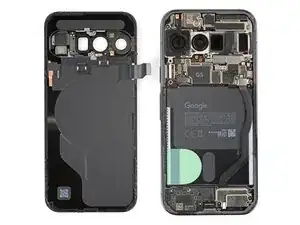
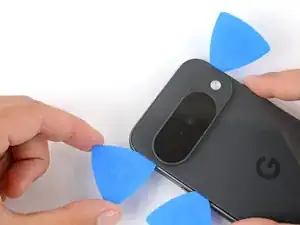
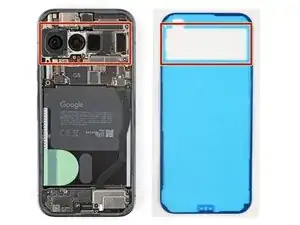
The back glass is secured with adhesive around the perimeter of the frame. Use this picture as a reference while you separate the adhesive.
-
-
-
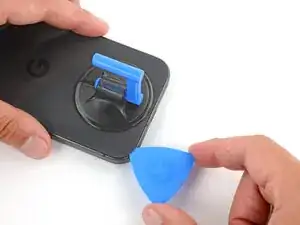
Slide the opening pick along the bottom edge to separate the adhesive.
-
Leave the pick inserted under the bottom left corner to prevent the adhesive from re‑sealing.
-
-
-
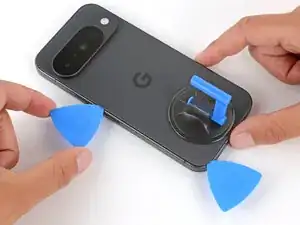
Insert a second pick under the bottom left corner and slide it up the left edge, stopping at the power button.
-
Leave the pick inserted to prevent the adhesive from re‑sealing.
-
-
-
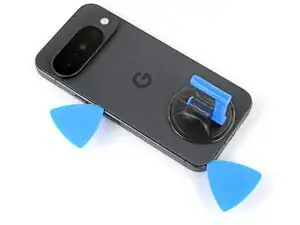
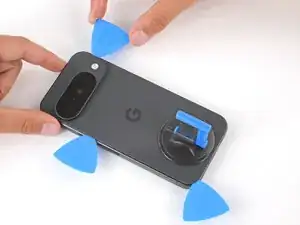
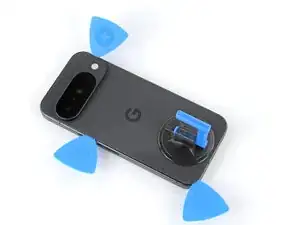
Insert a third pick under the bottom right corner of the back glass and slide it up the right edge.
-
Leave the pick inserted under the top right corner.
-
-
-
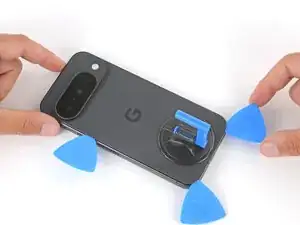
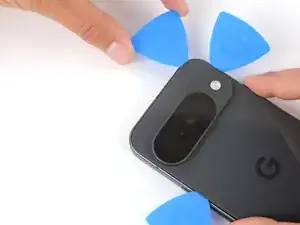
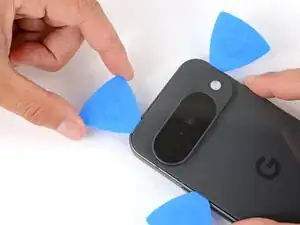
Insert a fourth pick under the top right corner.
-
Slide the pick along the top edge and slightly around the top left corner, stopping at the bottom of the camera bump.
-
-
-
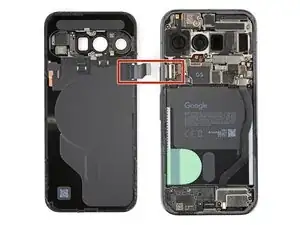
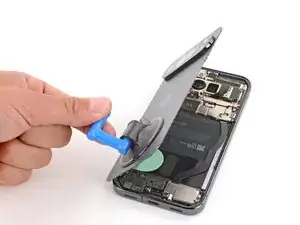
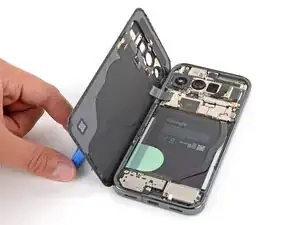
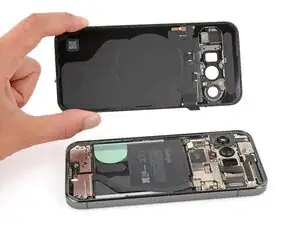
Flip the back glass over the left side of the phone and use the suction handle (or a sturdy object) to prop it up.
-
-
-
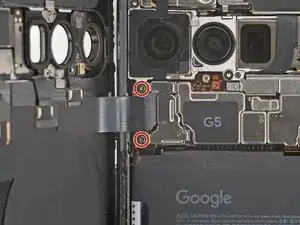
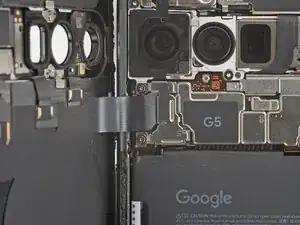
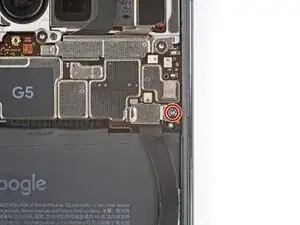
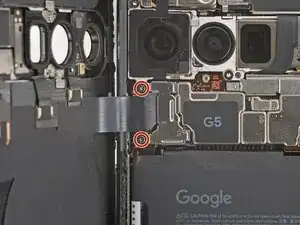
Use a Torx Plus 3IP screwdriver to remove the two 5.8 mm‑long screws securing the back glass connector bracket.
-
-
-
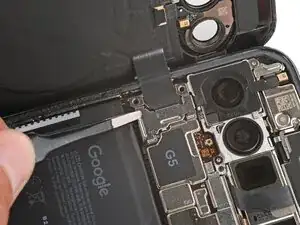
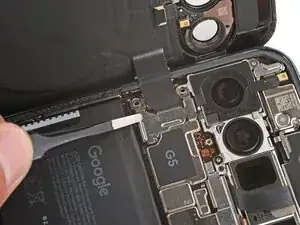
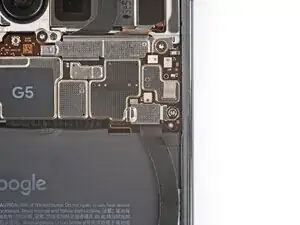
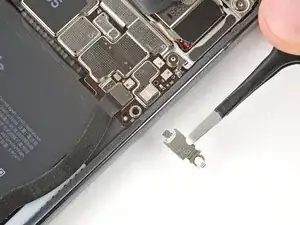
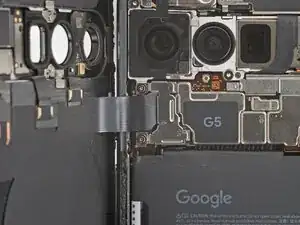
Use tweezers to slide the cover towards the center of the phone to unhook the tabs and remove it.
-
-
-
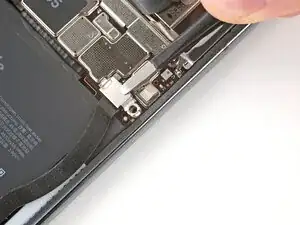
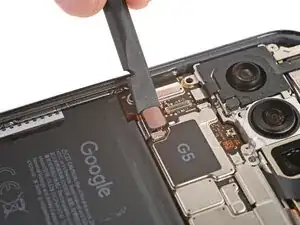
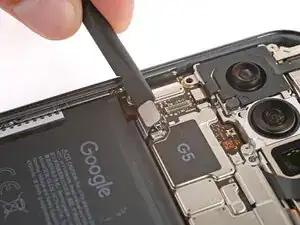
Use the point of a spudger to pry up and disconnect the battery and back glass press connectors.
-
-
-
Use a Torx Plus 3IP screwdriver to remove the 5.8 mm‑long screw securing the upper interconnect cable cover.
-
-
-
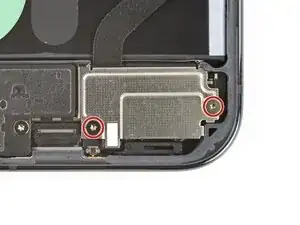
Use a Torx Plus 3IP screwdriver to remove the two 5.0 mm‑long screws securing the lower interconnect cover.
-
-
-
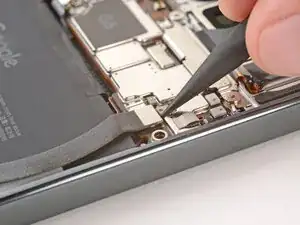
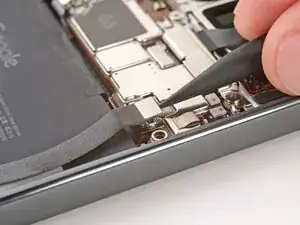
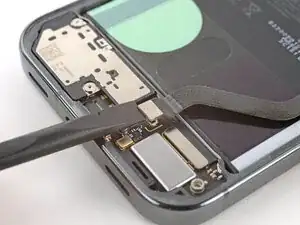
Use the point of a spudger to pry up and disconnect the interconnect cable press connector from the motherboard.
-
-
-
Use a spudger to pry up and disconnect the interconnect cable press connector from the daughterboard.
-
-
-
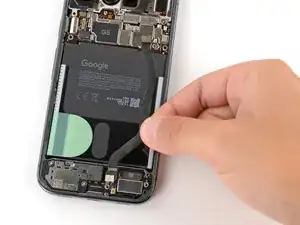
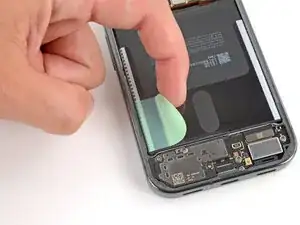
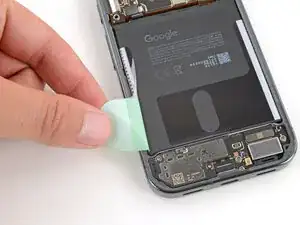
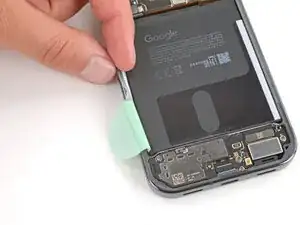
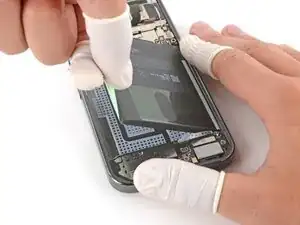
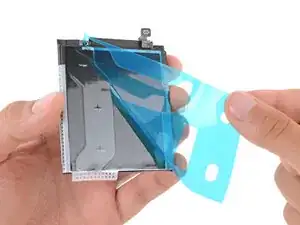
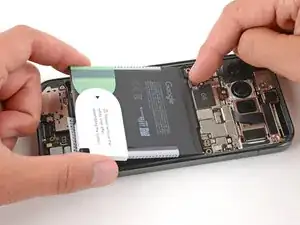
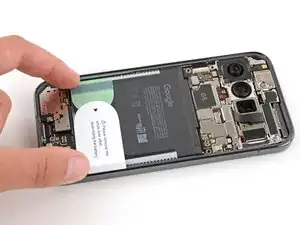
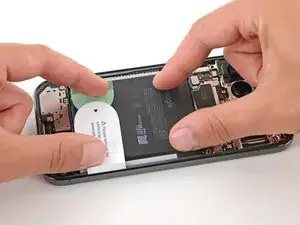
Use your fingers to peel up the entire battery tab on the left side of the battery, including the skinny strip running along the side.
-
-
-
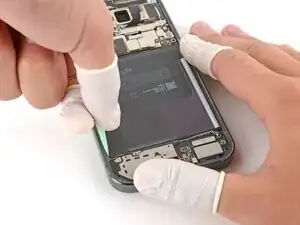
Wear finger stalls to help get a solid grip on the battery pull tabs and frame in the next step.
-
-
-
Secure the right side of your phone with one hand, and use your free hand to grip the battery pull tab.
-
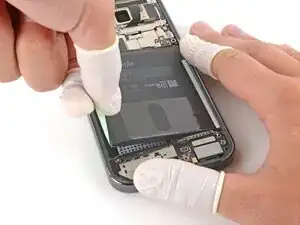
Pull straight up on the tab and apply constant, steady force until the adhesive separates.
-
-
-
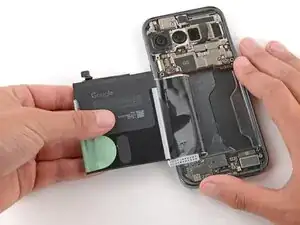
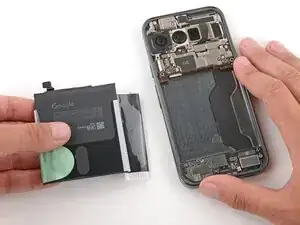
Grip the battery and slowly pull it away from your phone to peel the plastic sleeve out of the recess.
-
Remove the battery.
-
-
-
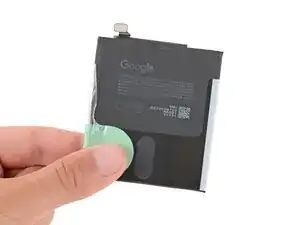
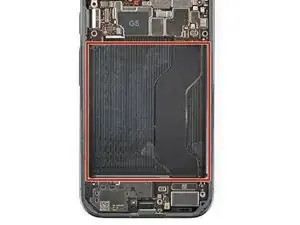
Before installing a new battery, check the recess for leftover bits of plastic, as well as adhesive residue from the battery sleeve.
-
Remove any bits of plastic from the old battery sleeve.
-
Use one or two drops high‑concentration (>90%) isopropyl alcohol and a microfiber or lint‑free cloth to clean up any adhesive residue.
-
Allow the alcohol to dry completely before continuing.
-
-
-
Hold the battery above its recess and use your finger to push down and reconnect the battery press connector.
-
Lay the battery into its recess and press down firmly to secure it.
-
-
-
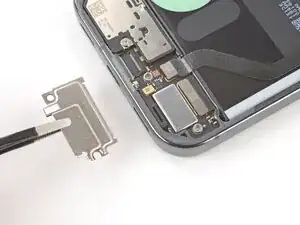
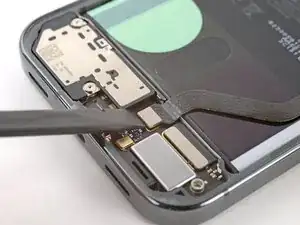
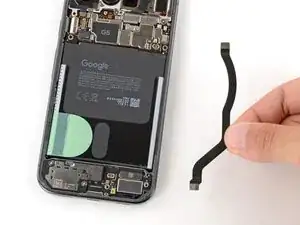
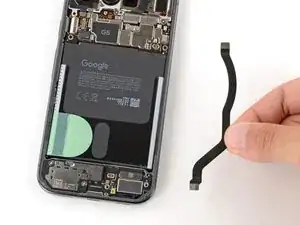
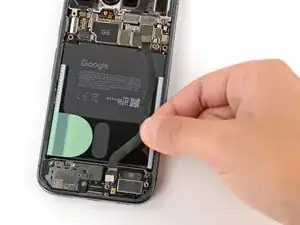
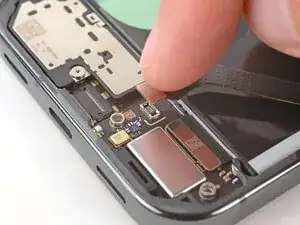
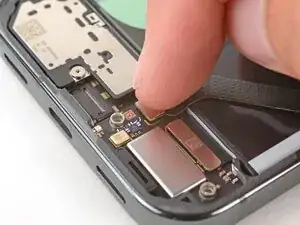
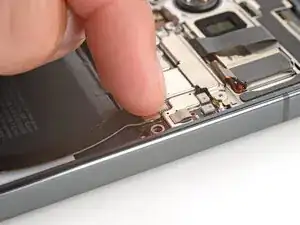
Lay the interconnect cable back in place, making sure the connectors line up with their sockets.
-
-
-
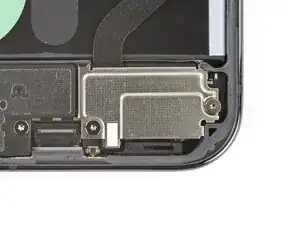
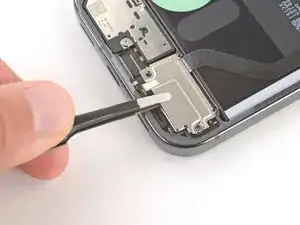
Put the lower interconnect cable cover back into place, sliding the tabs on the top corners under their hooks.
-
-
-
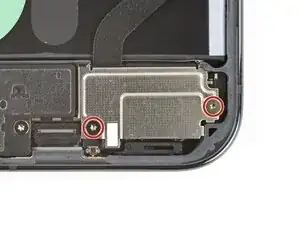
Use a Torx Plus 3IP screwdriver to install the two 5.0 mm‑long screws securing the lower interconnect cable cover.
-
-
-
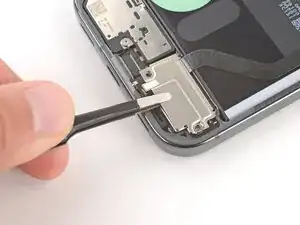
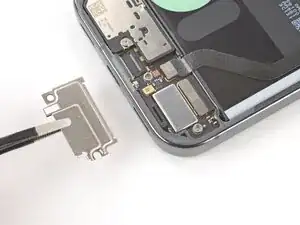
Put the upper interconnect cable cover back into place, sliding the tab on the left side into its slot.
-
-
-
Use a Torx Plus 3IP screwdriver to install the 5.8 mm‑long screw securing the upper interconnect cable cover.
-
-
-
Before installing new adhesive, all the old adhesive and its residue must be completely removed from the frame.
-
-
-
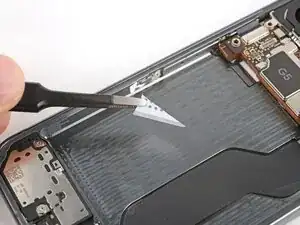
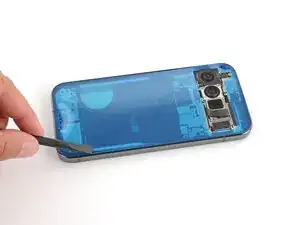
Use the point of a spudger to remove all the old screen adhesive from the frame. Try to "roll" the adhesive onto itself so it balls up, making it easier to remove.
-
If you're having trouble removing smaller chunks, apply a single drop of high‑concentration (>90%) isopropyl alcohol and scrape them up with your spudger.
-
-
-
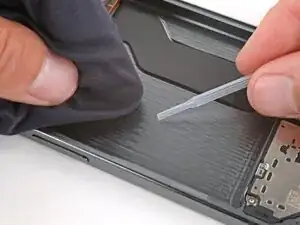
Wrap a microfiber or lint‑free cloth around a spudger.
-
Use the spudger and high‑concentration (>90%) isopropyl alcohol to clean up all the remaining adhesive residue from the frame, applying more drops of alcohol as necessary.
-
Let the alcohol dry completely before continuing.
-
-
-
If you're reinstalling your original back glass, repeat the procedures in the previous two steps on the back glass to clean it.
-
-
-
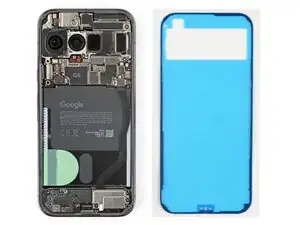
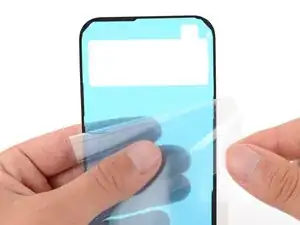
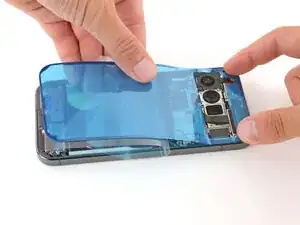
Hold the adhesive above the frame to find its orientation. Use the rear camera cutout in the liner to help visualize how it will lay in the frame.
-
-
-
Peel down the top half of the large, clear liner to expose the adhesive—don't fully remove the liner yet.
-
-
-
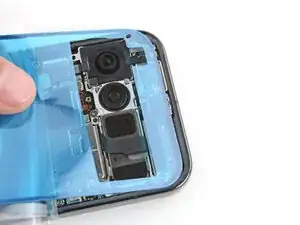
With the larger, clear liner folded towards the bottom of the phone, lay the exposed top edge of the adhesive onto the frame.
-
Once the top edge is properly aligned, gently press down on the top corners to secure the adhesive.
-
-
-
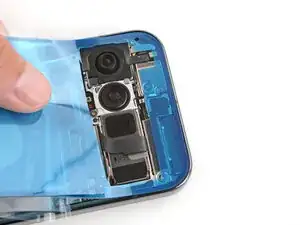
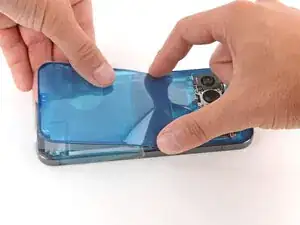
Slowly lay the rest of the adhesive onto the frame, pressing it into place and peeling away the larger liner as you go.
-
-
-
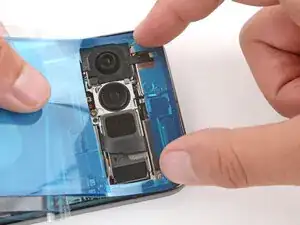
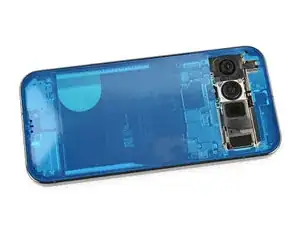
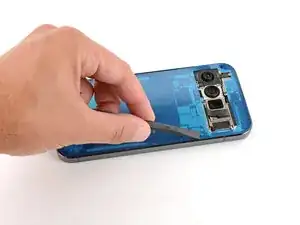
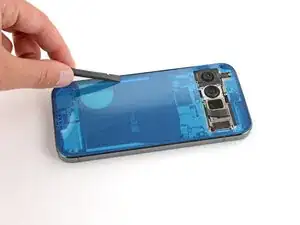
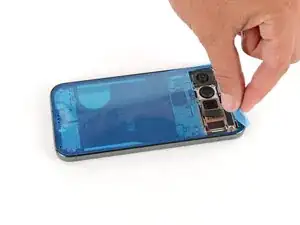
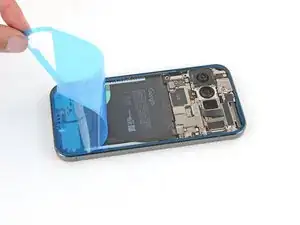
Slowly peel up and remove the large colored liner, gripping it from the cutout near the top edge.
-
-
-
Remove all liners from the underside of the back glass, paying special attention to the front camera cutouts and bottom edge.
-
-
-
Apply a suction handle to the back glass and prop it up on the left side of your phone, so the cable is near its connector.
-
-
-
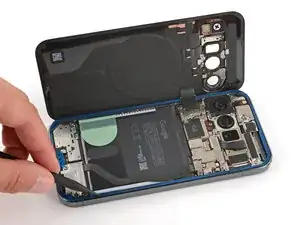
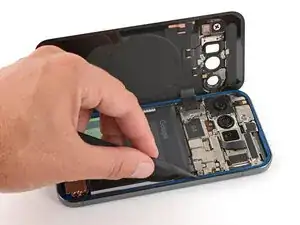
Flip the back glass onto the frame and press it firmly into place.
-
Hold your phone up and squeeze firmly around the perimeter to strengthen the bond.
-


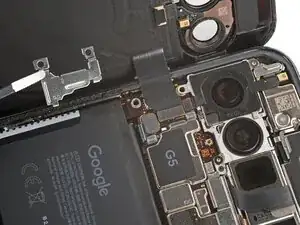
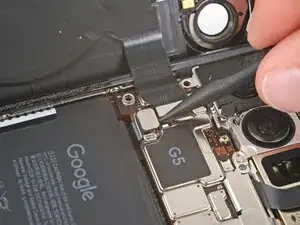
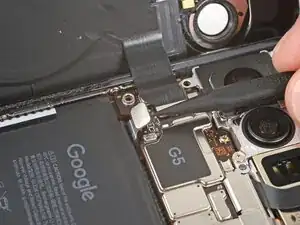
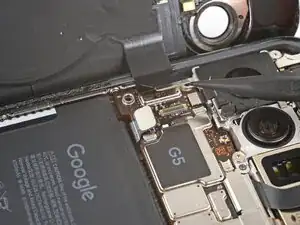

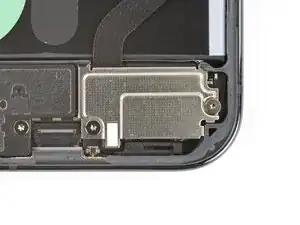
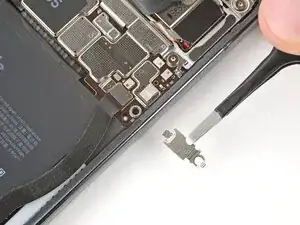
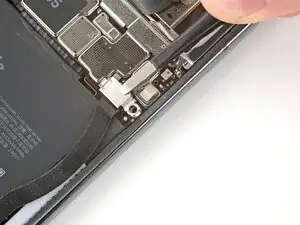
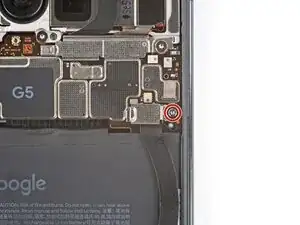
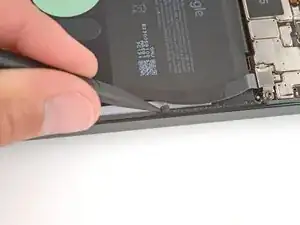
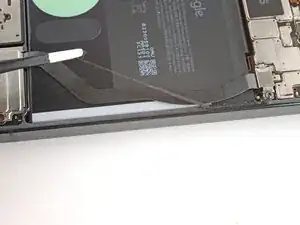
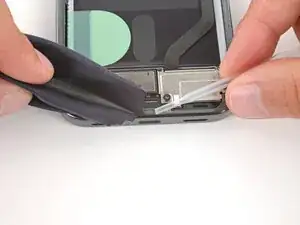
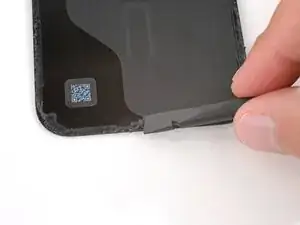
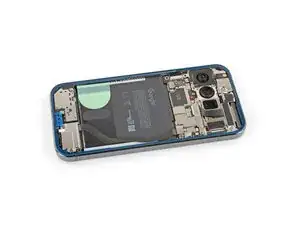
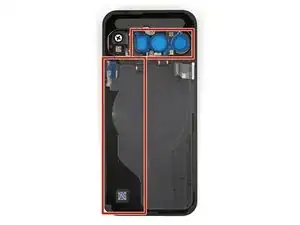
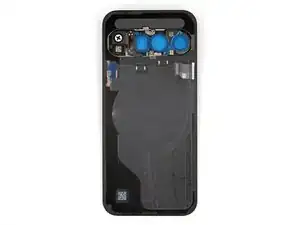
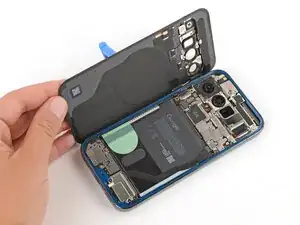
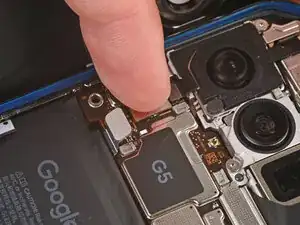
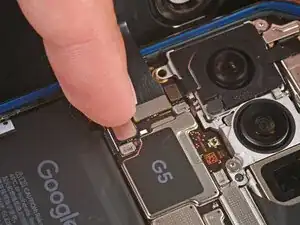
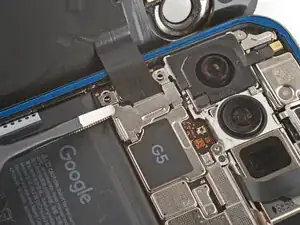
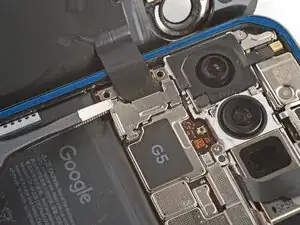
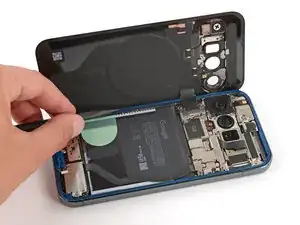
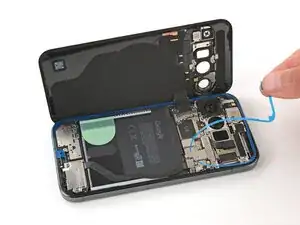
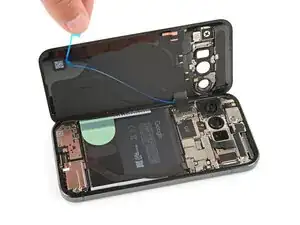
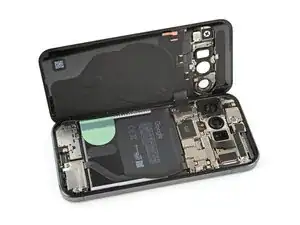
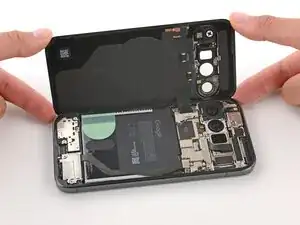
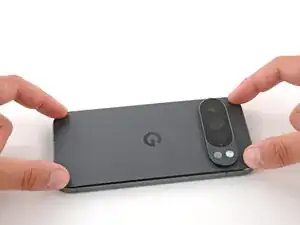
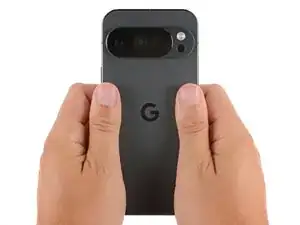
Congratulations on completing your repair!
For optimal performance, calibrate your newly installed battery after completing this guide.
To run a diagnostics test with the built-in Pixel Diagnostic tool, click here.
Take your e-waste to an R2 or e-Stewards certified recycler.
Repair didn’t go as planned? Try some basic troubleshooting, or ask our Answers community for help.
