Introdução

This repair guide was authored by the iFixit staff and hasn’t been endorsed by Google. Learn more about our repair guides here.

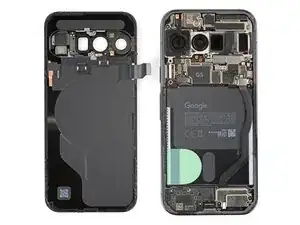
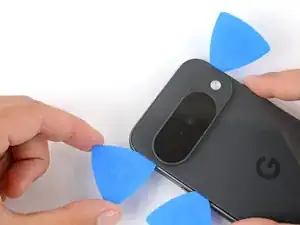
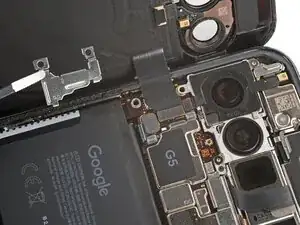
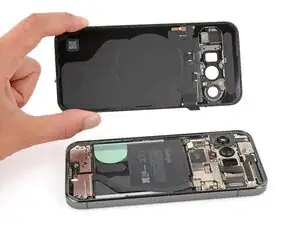
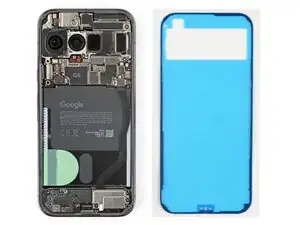
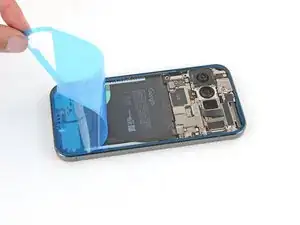
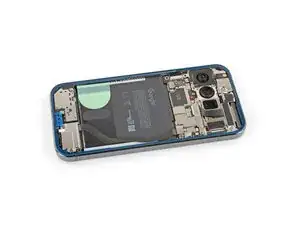
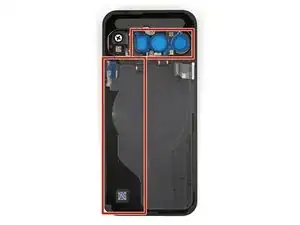
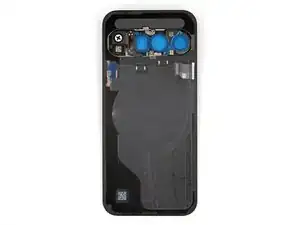
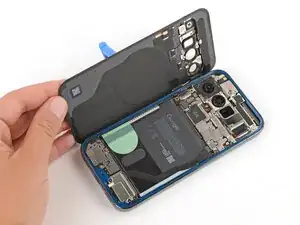
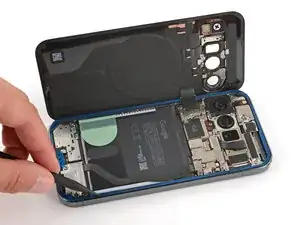
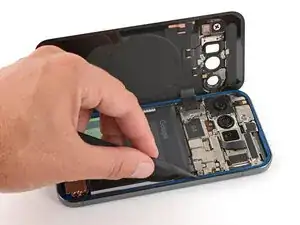
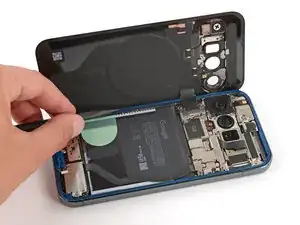
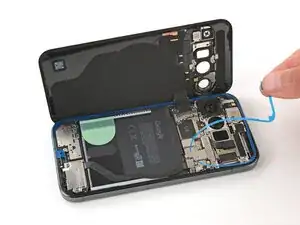
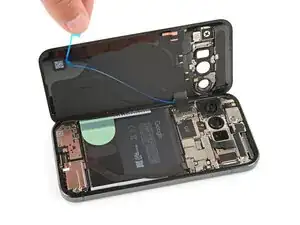
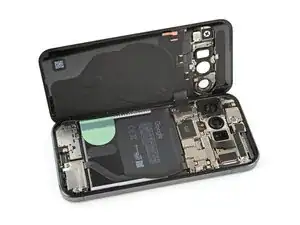
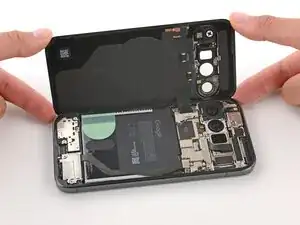
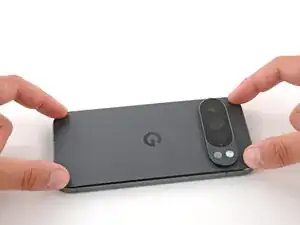
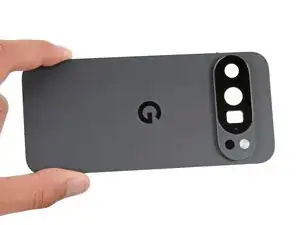
Follow this guide to replace a broken or cracked back glass on your Google Pixel 10 Pro.

If your back cover is bulging out, it may be a swollen battery. If you suspect it might be, take appropriate precautions.

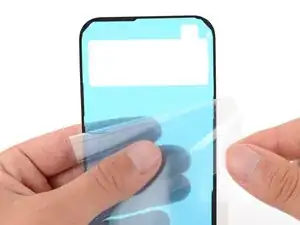
You'll need replacement back glass adhesive to complete this repair.

Note: Any repair can compromise the water resistance of your phone. Retaining water resistance after the repair depends on how accurately the new adhesives are applied and how clean the surfaces are.

  1. KfF631MWyOVITN1h
    KfF631MWyOVITN1h
    hZHiOHQ3mCjSMlFY
    • Let your Pixel's battery drain below 25% before starting this repair. A charged lithium‑ion battery may catch fire if damaged.

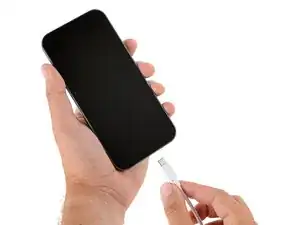
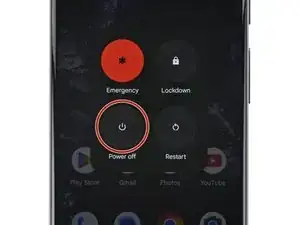
    • Unplug all cables and completely power down your phone.

  2. ZNXPUEtFRKbvLN53
    ZNXPUEtFRKbvLN53
    bIUoEdobn22IoVVJ
    lp2IWQ6SPMwIlNGV
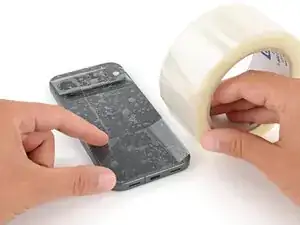
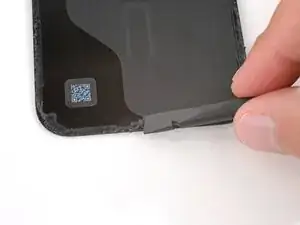
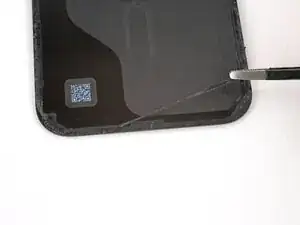
    • Glass shards can complicate disassembly—or worse, cause injury. If your phone's back glass is cracked, follow this step.

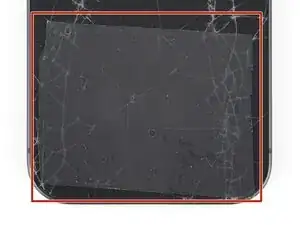
    • Apply strips of packing tape to the cracked glass until it's completely covered—this will help keep the glass contained and allow the suction cup to stick.

    • Make sure there's a single strip (not overlapping) of tape across the bottom edge, big enough for a suction cup to fit on.

    • Only cover the glass itself—don't stick any tape to the frame.

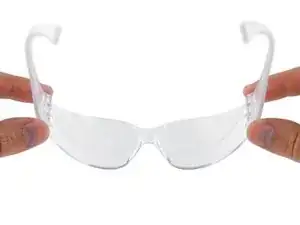
    • Consider wearing safety glasses to protect your eyes from any glass shaken free during the repair.

  3. Eor1433CTheLSBZu
    • Adhesive secures the back glass to the frame. Heating the glass softens the adhesive, making it easier to separate.

    • Heat an iOpener and lay it on the bottom edge of the back glass for two minutes.

    • Alternatively, you can use a hair dryer or heat gun to heat the back glass.

    • Improper use of a heat gun can destroy the display and/or battery—follow the linked instructions carefully.

  4. oLOKuCYcPeWQ2HGJ
    oLOKuCYcPeWQ2HGJ
    Ef2Ow1P1cZeQqOHX
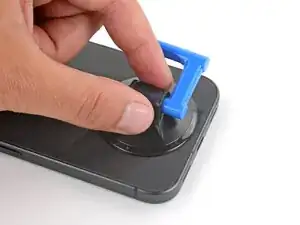
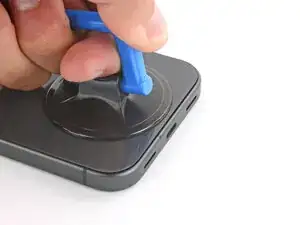
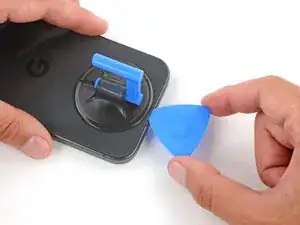
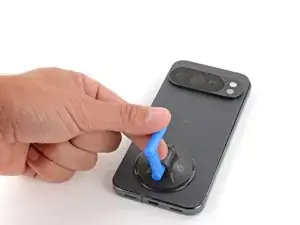
    • Apply a suction handle to the center of the back glass's bottom edge, as close to the edge as possible.

  5. qfQgMUNTkDvCKkEB
    qfQgMUNTkDvCKkEB
    6Vk1HxfKOk35NVfT
    fYFvvubfr5ObFtFc
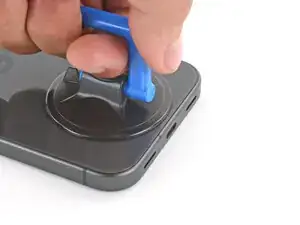
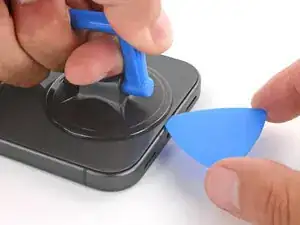
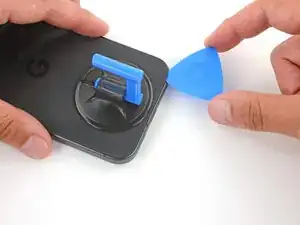
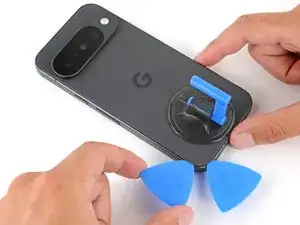
    • Pull up on the suction handle with strong, steady force until a gap forms between the back glass and frame.

    • Insert the tip of an opening pick into the gap.

  6. 4IAJrAwKR5gJqeAF
    4IAJrAwKR5gJqeAF
    L5F1ZqcpqKQXsCry
    GbdbXLWHZflYDIn1
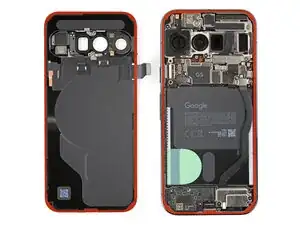
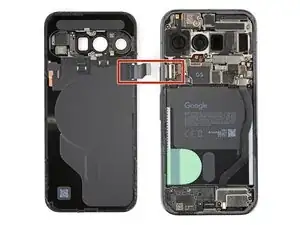
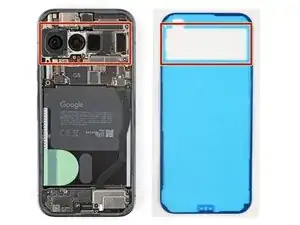
    • The back glass is secured with adhesive around the perimeter of the frame. Use this picture as a reference while you separate the adhesive.

    • A cable connects the back glass near the power button. Don't insert your pick here to avoid damaging the cable.

  7. xOxQKvfXJZbTsSvL
    xOxQKvfXJZbTsSvL
    mS5KC1TZUx5HoLNa
    2dvDqK3qdAVjqCRN
    • If the back glass feels stuck at any point during the next few steps, apply heat to the area and try again.

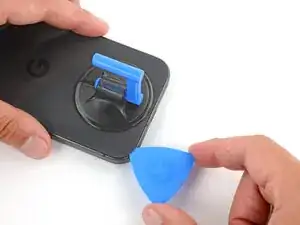
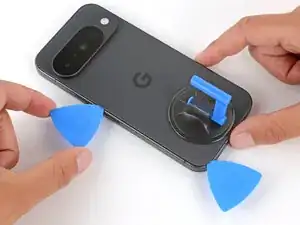
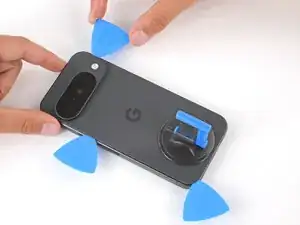
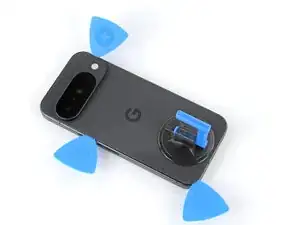
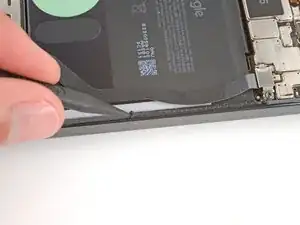
    • Slide the opening pick along the bottom edge to separate the adhesive.

    • Leave the pick inserted under the bottom left corner to prevent the adhesive from re‑sealing.

  8. kqEtcokQfPmuDLHi
    kqEtcokQfPmuDLHi
    OfoPwYwYZO6OUAlL
    AdDZbSgrOrhmS2QU
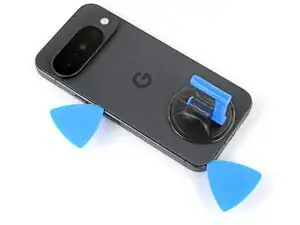
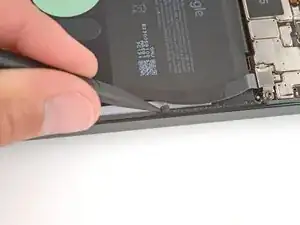
    • Insert a second pick under the bottom left corner and slide it up the left edge, stopping at the power button.

    • Leave the pick inserted to prevent the adhesive from re‑sealing.

  9. lQBDVDcom6xFHpZy
    lQBDVDcom6xFHpZy
    5BJPUUEVNFjTpc12
    gnLxKX5ChyWOEjjV
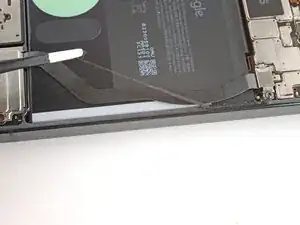
    • Insert a third pick under the bottom right corner of the back glass and slide it up the right edge.

    • Leave the pick inserted under the top right corner.

  10. paYcth1wkKEWk6Zr
    paYcth1wkKEWk6Zr
    TT4CTACoKJTfk4oH
    yeL1BLssphGKgnAk
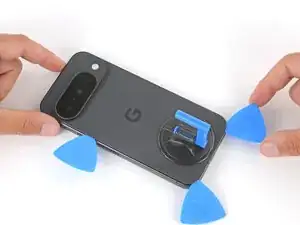
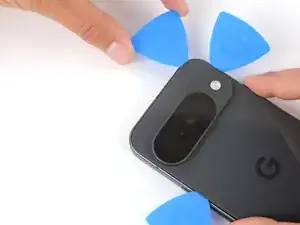
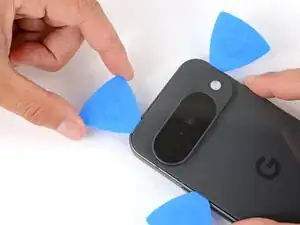
    • Insert a fourth pick under the top right corner.

    • Slide the pick along the top edge and slightly around the top left corner, stopping at the bottom of the camera bump.

    • Don't try to fully remove the back glass yet, as it's still connected by a ribbon cable.

  11. aGbKFGwBKrocfDrT
    aGbKFGwBKrocfDrT
    bAYfX5TB4CUZKyEj
    avgOsTXUndUTTXCG
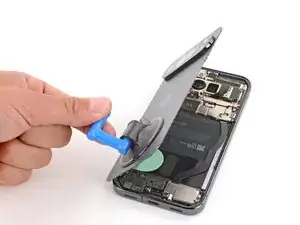
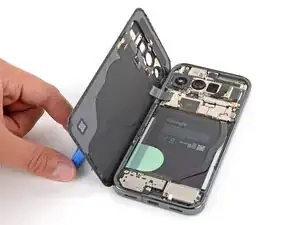
    • Flip the back glass over the left side of the phone and use the suction handle (or a sturdy object) to prop it up.

    • If the back glass still feels stuck, go back around the perimeter with an opening pick and separate any remaining adhesive.

  12. hdUChPdtYvMD462A
    hdUChPdtYvMD462A
    EH1Y5nRXOoCNOPHw
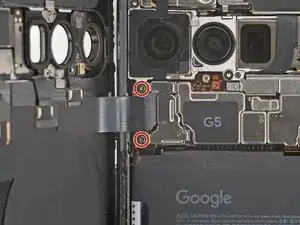
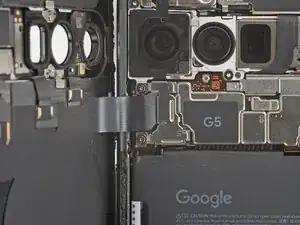
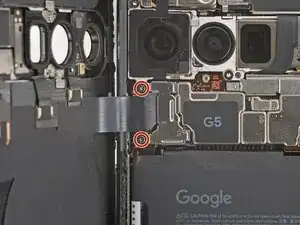
    • Use a Torx Plus 3IP screwdriver to remove the two 5.8 mm‑long screws securing the back glass connector bracket.

  13. ZDKxNYJTMdlHaXrl
    ZDKxNYJTMdlHaXrl
    SSrIt4WYcEOJg3ON
    PEQGnL4d6jEvMirZ
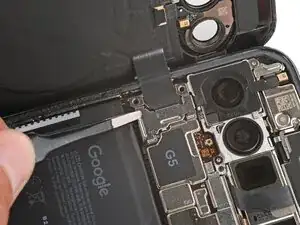
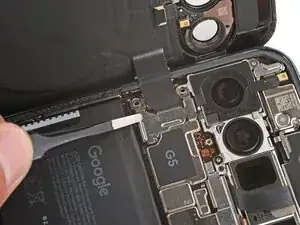
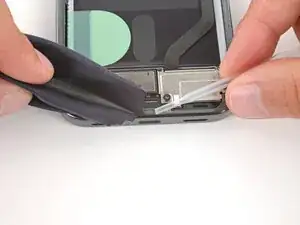
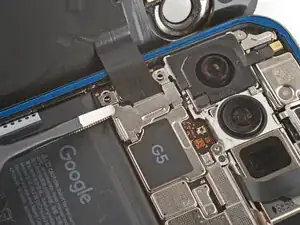
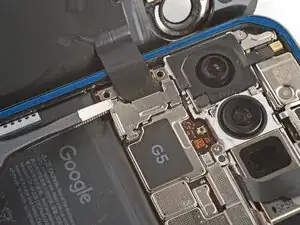
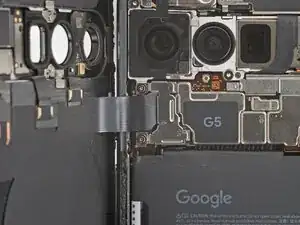
    • Use tweezers to slide the cover towards the center of the phone to unhook the tabs and remove it.

    • Be careful not to damage the battery or rear cameras.

  14. yRLc2DyDtl5qcpdq
    yRLc2DyDtl5qcpdq
    UYdTbQbsAtXhaXbM
    TdUtviwo1Ff3S5Uq
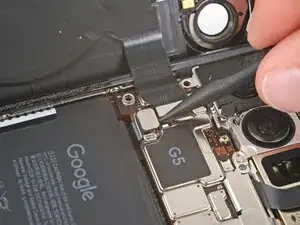
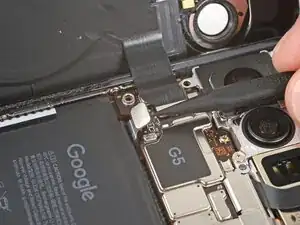
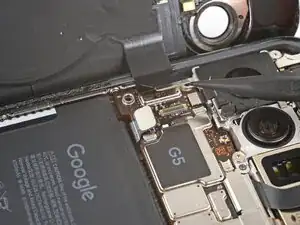
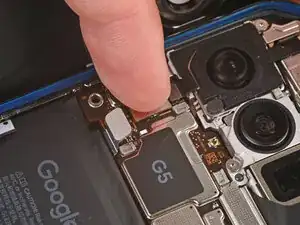
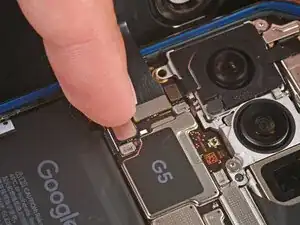
    • Use the point of a spudger to pry up and disconnect the battery and back glass press connectors.

  15. pcFUCoo4Q5ljQplH
    • Remove the back glass.

  16. MLUuPcWD6VusMhTU
    • Congratulations on completing disassembly! The remaining steps will show how to reassemble your phone.

  17. IUBkdv2YHVK52HKc
    IUBkdv2YHVK52HKc
    onCDKkxuqjdNAQSb
    • Before installing new adhesive, all the old adhesive and its residue must be completely removed from the frame.

    • Take your time during the next two steps. A clean frame allows replacement adhesive to lay totally flat, ensuring a better seal for your back glass.

  18. GUi1aYLatgsbbPLM
    GUi1aYLatgsbbPLM
    MNtTAoEF1qDoLEhV
    3bgSPeWyleJRpOyK
    • Removing all the old adhesive can be very tricky and time‑consuming.

    • When removing the back glass adhesive during this step, be very careful not to damage the battery or any of the fragile components near the perimeter of the frame.

    • Use the point of a spudger to remove all the old screen adhesive from the frame. Try to "roll" the adhesive onto itself so it balls up, making it easier to remove.

    • If you can ball up a big enough chunk, use tweezers to slowly pull the adhesive the opposite way you were scraping with your spudger.

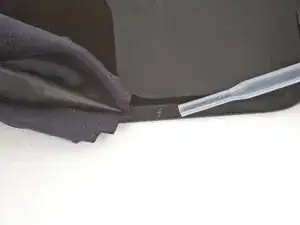
    • If you're having trouble removing smaller chunks, apply a single drop of high‑concentration (>90%) isopropyl alcohol and scrape them up with your spudger.

  19. XY2RgCtoVRPliWoZ
    • Wrap a microfiber or lint‑free cloth around a spudger.

    • Use the spudger and high‑concentration (>90%) isopropyl alcohol to clean up all the remaining adhesive residue from the frame, applying more drops of alcohol as necessary.

    • Let the alcohol dry completely before continuing.

  20. Dw3HgZjCVo6suXX5
    Dw3HgZjCVo6suXX5
    irGXL1615MXeGFau
    xIrigXEMOuaLQDk4
    • If you're reinstalling your original back glass, repeat the procedures in the previous two steps on the back glass to clean it.

  21. 2RbAcitjIkodNHj6
    2RbAcitjIkodNHj6
    Qkc1IFMHSGZcu4dU
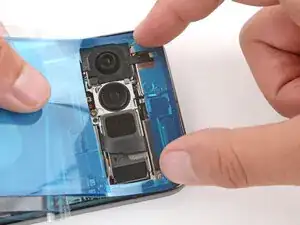
    • Before applying the back glass adhesive, make sure you know how it will sit on the frame. If you apply the adhesive incorrectly, you'll need to restart with new adhesive.

    • Hold the adhesive above the frame to find its orientation. Use the rear camera cutout in the liner to help visualize how it will lay in the frame.

  22. EmLPVfcawCCYteVP
    • Peel down the top half of the large, clear liner to expose the adhesive—don't fully remove the liner yet.

  23. CdNYIGurSIrFxgW2
    CdNYIGurSIrFxgW2
    yQtvZNlMlQaHfSkM
    KJSY34B2P5qXZHLX
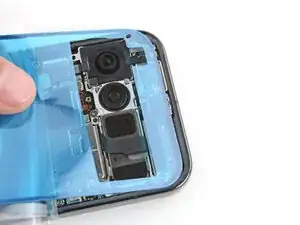
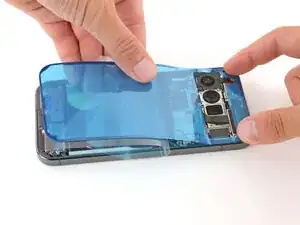
    • Take your time aligning the adhesive with the frame—it's very sticky and can't be moved after you apply it.

    • With the larger, clear liner folded towards the bottom of the phone, lay the exposed top edge of the adhesive onto the frame.

    • Use the lip of the frame to help align the adhesive.

    • Once the top edge is properly aligned, gently press down on the top corners to secure the adhesive.

  24. gepgsf3FHZPjy1uX
    gepgsf3FHZPjy1uX
    sZIxJIHJjDbHeuZ2
    eUucvNGuAMrWHlJj
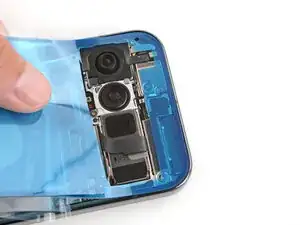
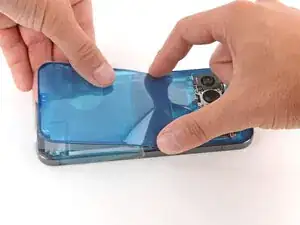
    • Slowly lay the rest of the adhesive onto the frame, pressing it into place and peeling away the larger liner as you go.

  25. 2UeEqKSVIUxEaRka
    2UeEqKSVIUxEaRka
    NZswXK6qYs1iKBfe
    fBvEWCCTabuMp2K5
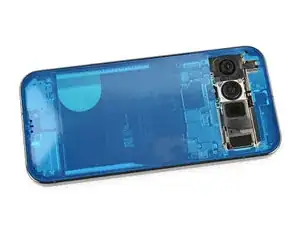
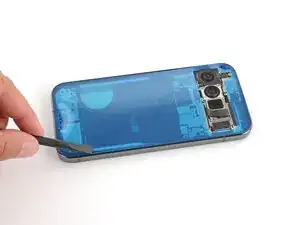
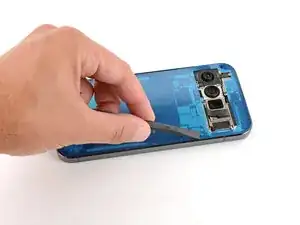
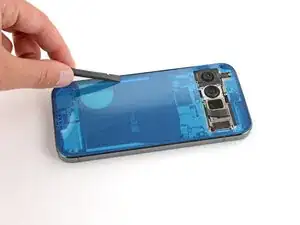
    • Use a spudger to press down firmly on the adhesive to secure it to the frame.

  26. O65pMgrJikDInsqW
    O65pMgrJikDInsqW
    vKTNsKH65I1blXFC
    sSGTD1T5NWKm1jo4
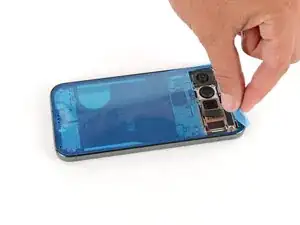
    • Slowly peel up and remove the large colored liner, gripping it from the cutout near the top edge.

    • If the adhesive starts to peel up with the liner, check that you’ve pushed all of it into place with your spudger. If it continues to peel up, hold it down with the point of your spudger as you go.

  27. fH1gPYQJOJO5xMPN
    fH1gPYQJOJO5xMPN
    TxJ1rR5TiXQpcRq1
    • If you're installing a new back glass, your replacement will have various protective liners and pieces of tape on the underside that must be removed. Your part may have different pieces in different locations, so make sure to check carefully!

    • Remove all liners from the underside of the back glass, paying special attention to the front camera cutouts and bottom edge.

    • Usually, you can identify the liners by their pull tabs.

  28. wZZVM15sNTqHnRld
    • Apply a suction handle to the back glass and prop it up on the left side of your phone, so the cable is near its connector.

    • Alternatively, you can use a sturdy object (such as a stack of books) to prop up the back glass.

  29. V5PMUpFDaccEkDTW
    V5PMUpFDaccEkDTW
    hBFpxDenVMlWW6v5
    • Use your finger to press down and connect the back glass and battery press connectors.

    • For wider connectors like the back glass one, first press down on one of the short sides until it clicks into place, then repeat on the other side. Don't press down in the middle. If the connector is misaligned, the pins can bend and cause permanent damage.

  30. kTKJ6RZ3AmYnvByh
    kTKJ6RZ3AmYnvByh
    GKfVjEuHBRFNIEXs
    • Put the back glass connector cover back into place so the tabs hook into the slots.

  31. 1cYMYYkkT6HYRaNR
    1cYMYYkkT6HYRaNR
    PjyNlGeJVPtSWrHx
    • Use a Torx Plus 3IP screwdriver to install the two 5.8 mm‑long screws securing the cover.

  32. kiUjlw5BCGwgSGvH
    kiUjlw5BCGwgSGvH
    vv4dJ22mCnUEhrlC
    WtXXLaxScWOHSN6T
    • Use a spudger to press down firmly on the adhesive to secure it to the frame.

    • This is a good point to power on your device and test all functions before sealing it up. If you have trouble, try some basic troubleshooting. Be sure to power back down completely before you continue working.

  33. 2YjpI5wEmIDPcBTZ
    2YjpI5wEmIDPcBTZ
    vrVrigOYe3uQaWKL
    I5bSvpRkKgNGyZ5C
    • Remove the remaining liners from the back glass adhesive.

    • If the adhesive starts to peel up with the liner, check that you’ve pushed all of it into place with your spudger. If it continues to peel up, hold it down with the point of your spudger as you go.

  34. QjGV1Ns1PlhmJyh6
    QjGV1Ns1PlhmJyh6
    bqhwlu3BEZPOtlIf
    OGJaSKLoOVUUTHlB
    • Flip the back glass onto the frame and press it firmly into place.

    • Hold your phone up and squeeze firmly around the perimeter to strengthen the bond.

    • For an even stronger bond, you can stack books on the back glass or use screen vise clamps.

Conclusão

Congratulations on completing your repair!

To run a diagnostics test with the built-in Pixel Diagnostic tool, click here.

Take your e-waste to an R2 or e-Stewards certified recycler.

Repair didn’t go as planned? Try some basic troubleshooting, or ask our Answers community for help.

Spencer Day

Membro desde: 14/09/22

165254 Reputação

0 comentários