Introdução

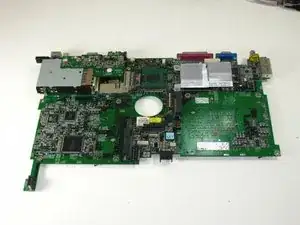
removal of the system board

  1. nikUTaQ6OUsGduvU
    • Flip the laptop over.

    • Slide the battery release tab to the right to open the battery cover.

  2. jiNftuGkye63pDDh
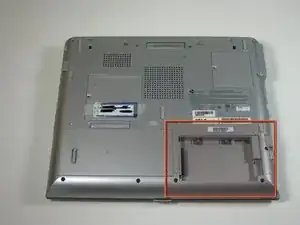
    • Remove the battery cover using the tab on the right side.

    • Lift and remove the battery.

  3. OHYJ2BBKqRLknmBh
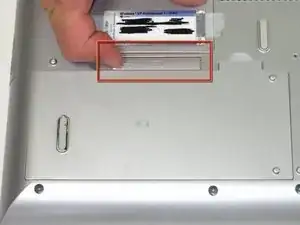
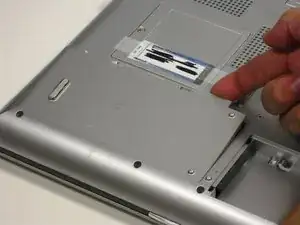
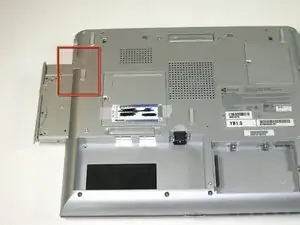
    • Slide the release and push the button to eject the drive.

    • Remove the drive.

    • When reinserting the drives, put them in the original slot to avoid interface conflicts.

  4. xER1Kwvf3kFeLJhX
    • Unscrew 1 captive screw holding hard drive cover on.

    • Slide hard drive to the right and remove.

    • For detailed pictures and info view Gateway Support

  5. pShVZxdiqvaOuLDa
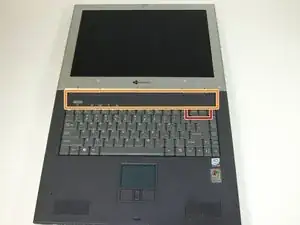
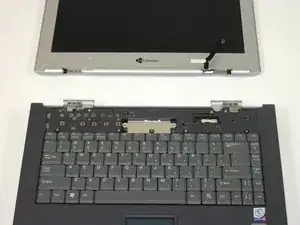
    • Insert the spudger between the "sysrq" and "ins" keys.

    • Gently pry free the power button panel above the keyboard, from the right and moving to the left.

  6. wksnqx2eTNHXSdrB
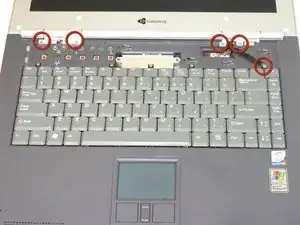
    • Remove the five screws with a Phillips #0 screwdriver.

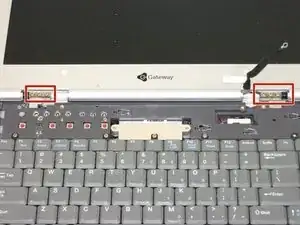
    • The LCD hinge covers are held in place by four screws. One screw is for grounding the LCD.

    • Lift the hinge covers along the outer edges with the spudger until they are released.

  7. vVieMiKAUxUFvNnF
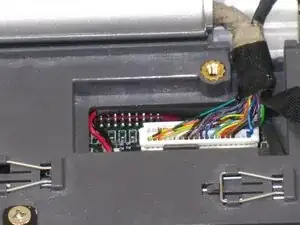
    • Gently unplug the LCD from the system board.

  8. FsdnXrjfEbvjO3vA
    • Using the Phillips #0 screwdriver, remove six screws that hold the LCD to the hinge.

  9. vILgjWVDNNSIkqsK
    • Check if any cables are still connected before pulling out the LCD.

    • Remove the cable by gently pulling it out while holding down the LCD.

  10. wH4JGHGfLa6p2lfy
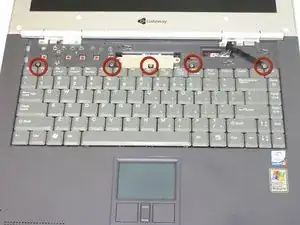
    • Remove the five screws holding the keyboard in place.

  11. ehCgaQVbUhqvuncT
    ehCgaQVbUhqvuncT
    NoIcm25K1bPPwJjQ
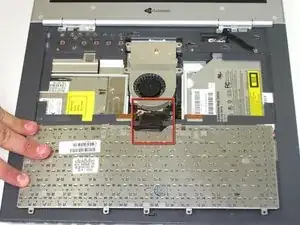
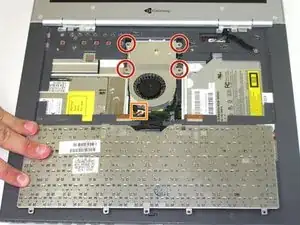
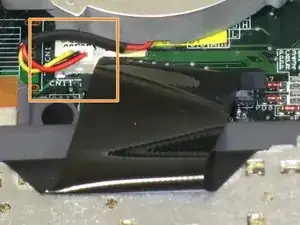
    • Possible device damage: When lifting the keyboard out, do not lift the keyboard up. Only fold back along the space bar edge.

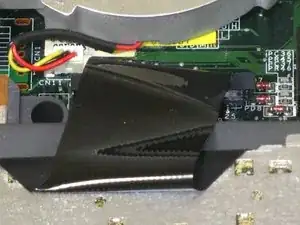
    • Possible device damage: Do not pull the black cable by the ribbon section. Only pull it from the connector itself.

    • Follow the black ribbon cable and gently pull straight up.

  12. GJUuONADFHCpdict
    GJUuONADFHCpdict
    AZYGUAFxnKyCJwfG
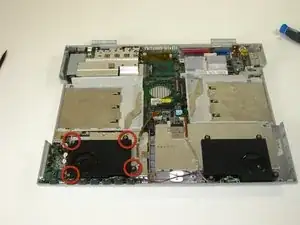
    • Unscrew the four captive screws.

    • Unplug the fan from the system and pull it out. This should slide forward before coming free.

  13. K2uYuwCqLiyOSaio
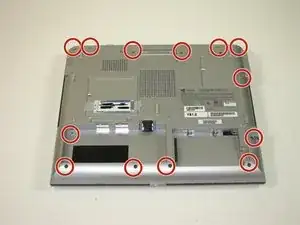
    • Use a Phillips #0 screwdriver to remove the thirteen screws from the bottom of the computer.

  14. 66DSAIVi3nIeKIvH
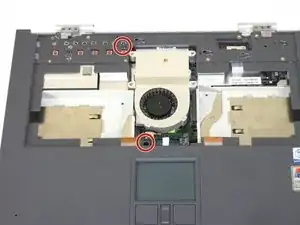
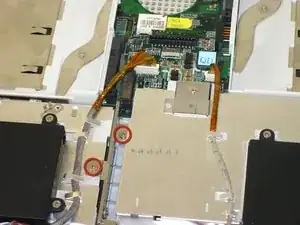
    • Remove the two indicated screws.

  15. iUOsdIAYCeAURHQ6
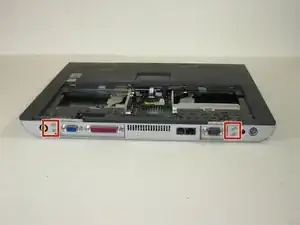
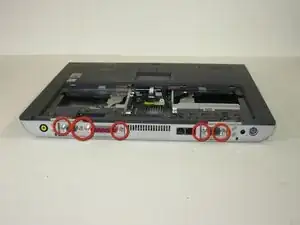
    • Remove the four screws from the back of the case.

  16. Z1RjFwCUDva1qwom
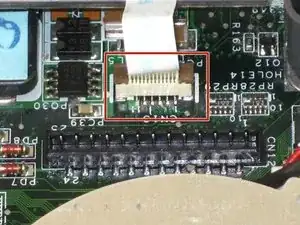
    • Potential for device damage: Failure to properly do this step will damage your mouse pad ribbon.

    • Lift the plug holding the mouse ribbon about 1/16 inch or until it stops

    • Remove the ribbon.

  17. GS5PGhDxnFtTf6TL
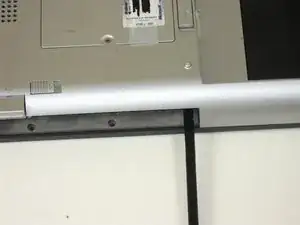
    • Insert your spudger between the upper and lower case at the drive bay closest to the battery.

    • Carefully go around the entire case, unseating all plastic clips holding the upper and lower cases together.

  18. MURFZOhFRF3SPbfO
    • Lift the upper case about 1/4 inch.

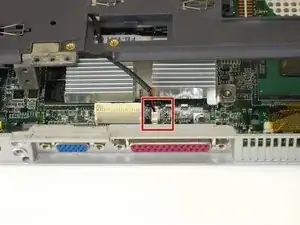
    • Unplug the last connecting wire and remove the upper case.

  19. GMSYuSnhpMqJHM3W
    GMSYuSnhpMqJHM3W
    kjZECwjyAjn5SYSN
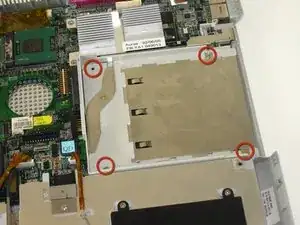
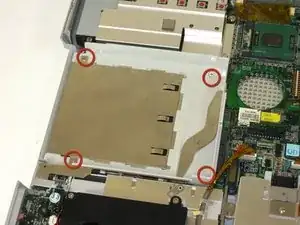
    • Remove eight screws from drive bays.

  20. scoyFSOVOM4RGfYL
    • Remove six 5mm hex nuts from back of laptop.

  21. xYy12FKIMHSfbIkA
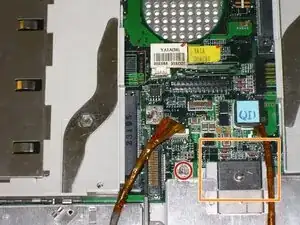
    • Remove screw.

    • Slide metal clip into battery bay.

  22. O41YXDUPOd2nb5Xn
    • Remove two screws.

    • Hard drive extension should lift out from system board.

  23. DXQoKkbAlg5vAM2n
    • Remove four screws holding left speaker to ease access to connectors and external sound board.

  24. sudO3hqvZyGvkXEj
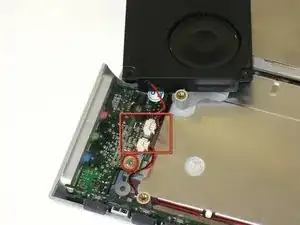
    • Remove screw and unplug speakers from external sound board.

    • Lift external soundboard away from system board and remove.

  25. egi3wox3F31wpJmC
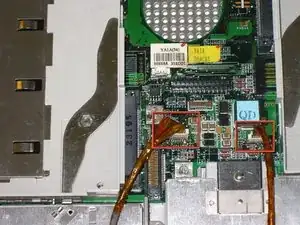
    • Unplug audio DJ

    • Unplug System status light board

    • Starting on the right side of case gently lift and slide system board till it comes free of lower case.

Conclusão

To reassemble your device, follow these instructions in reverse order.
Elizabeth Mazer

Membro desde: 15/10/10

78 Reputação

0 comentários