Introdução

  1. iKdw6vVukt66bEjU
    iKdw6vVukt66bEjU
    d4xOsSpicdTb4ElM
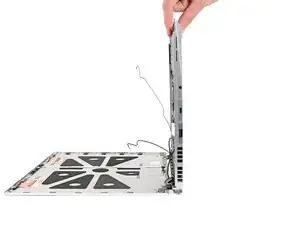
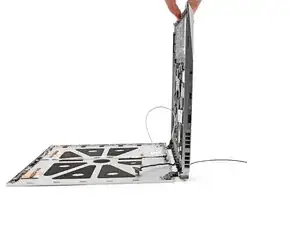
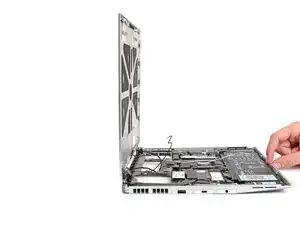
    • Tilt the laptop backwards and let it rest on its Top Cover.

  2. 2CqrvkuhcaDiVXhR
    2CqrvkuhcaDiVXhR
    n1MPBPHYTSdnWaWo
    i32p1sMKiyUhJ4cw
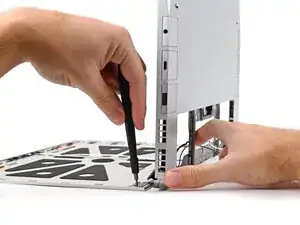
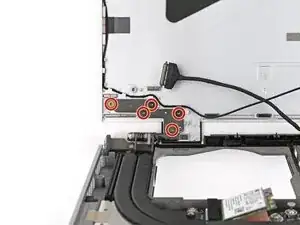
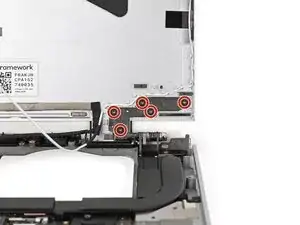
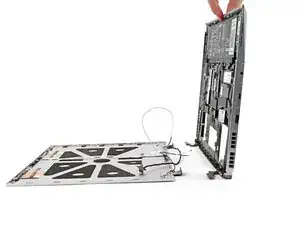
    • While supporting the Bottom Cover with one hand, use your Framework Screwdriver to remove the five 2.4 mm‑long screws on each hinge connected to the Top Cover (10 total).

  3. AjOtwZavOITDxTX6
    AjOtwZavOITDxTX6
    nFKYCLBwQBE1upKG
    • Lift the Bottom Cover from the Top Cover and remove it.

  4. SnNJHPPtCqnGEbsP
    SnNJHPPtCqnGEbsP
    gWhRdP5HCbcrcX3X
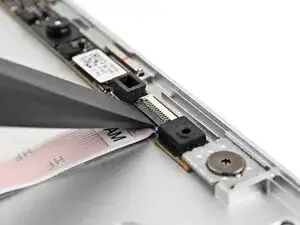
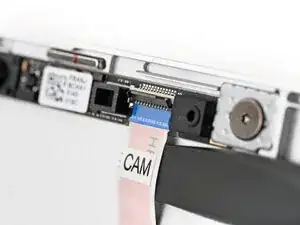
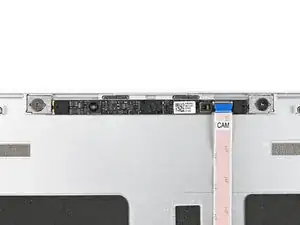
    • Use the flat end of your Framework Screwdriver, or a clean fingernail, to lift up the locking tab on the webcam ZIF connector.

  5. eSuY5QrlX3ma5Zxb
    eSuY5QrlX3ma5Zxb
    XpSRqAgWLLAgyWm4
    GQcMPYKRHNFnFNPS
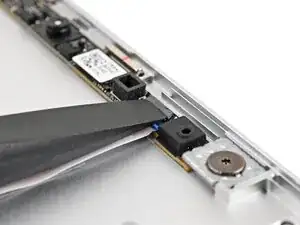
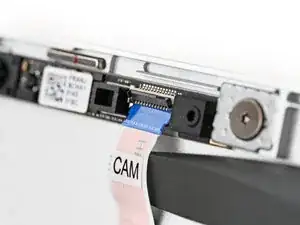
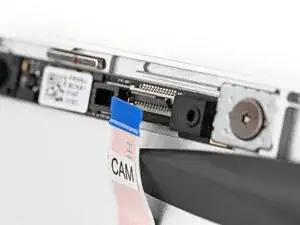
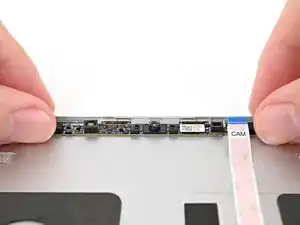
    • Slide the flat end of your Framework Screwdriver under the webcam cable, near the ZIF connector, and twist to slide the connector out of its socket.

    • Alternatively, you can use your fingers to slide out the cable.

  6. JvOQKBpTqwIH2pF1
    JvOQKBpTqwIH2pF1
    ELWFNf4PGHkEWZEB
    GbwNILK2qRB4qhQG
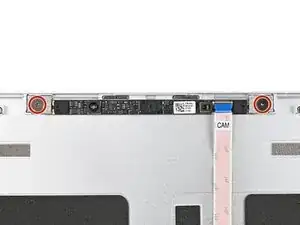
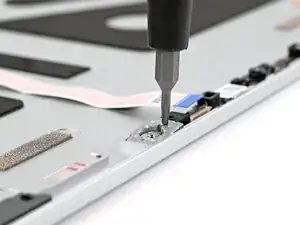
    • Use your Framework Screwdriver to remove the two 2.0 mm‑long T5 Torx screws securing the webcam.

    • The washers underneath the screws are magnetic. If they come off with the screws, you can skip the next step.

  7. xKJ6p2Tfud2X1m1t
    xKJ6p2Tfud2X1m1t
    eimHRWccScY4ZCKQ
    GR3UUwcJqQIEJ5Hh
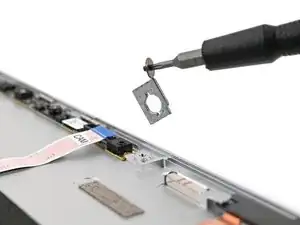
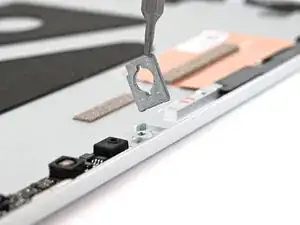
    • Use the magnetic tip of your Framework Screwdriver to pull the two washers off the Top Cover.

  8. UtrGDcPyMGZIbouT
    UtrGDcPyMGZIbouT
    BtLCG6J1iAq4rPyc
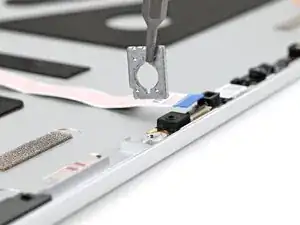
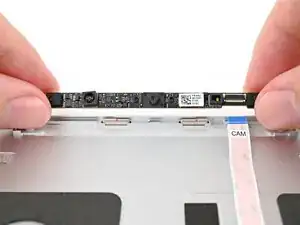
    • Use your fingers to lift the webcam out of the Top Cover and remove it.

Conclusão

To reassemble your device, follow these instructions in reverse order.

Alex Diaz-Kokaisl

Membro desde: 16/01/22

227430 Reputação

0 comentários