Introdução

Follow this guide to replace the secondary SSD in your Framework Laptop 16.

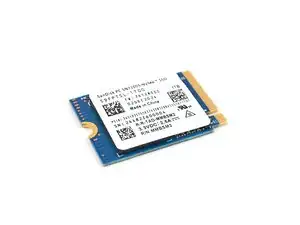
Your Framework Laptop uses SSDs (Solid State Drive) for storage. The secondary storage supports an M.2 2230 NVMe SSD.

  1. FyZqYQXlGGSUVdfO
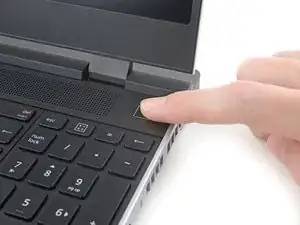
    • Unplug all cables and fully shut down your laptop.

  2. bpMHQhFddpbbE5c4
    bpMHQhFddpbbE5c4
    G1ZKNGUFENLOYu3K
    mOP6TMapXCANPZFK
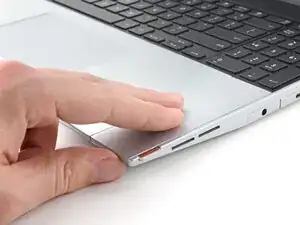
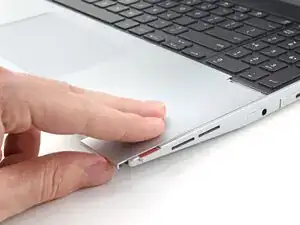
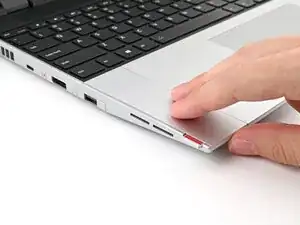
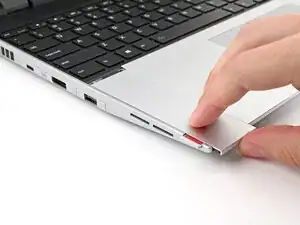
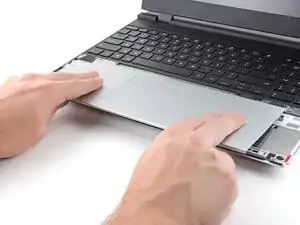
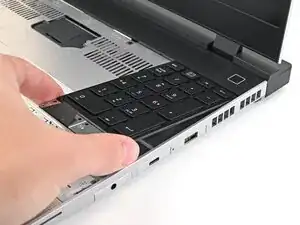
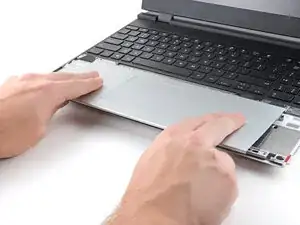
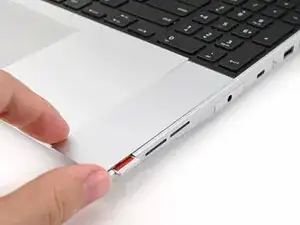
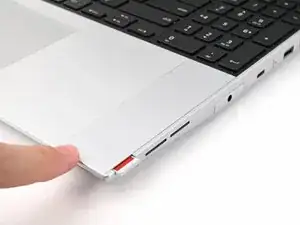
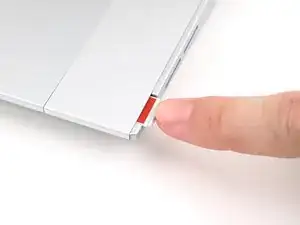
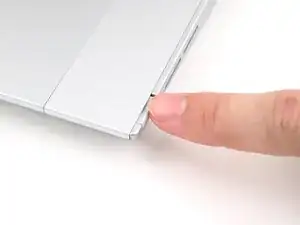
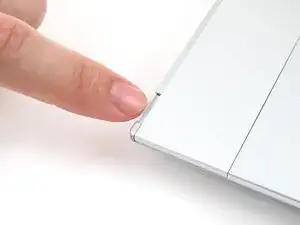
    • Use your fingers to slide the Touchpad Spacer toward the bottom edge of the laptop and unclip it.

    • If you're having trouble, check if the corresponding Input Module latch is properly unlocked.

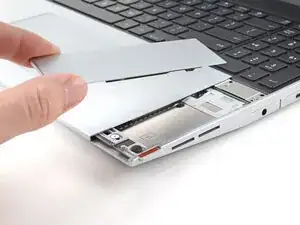
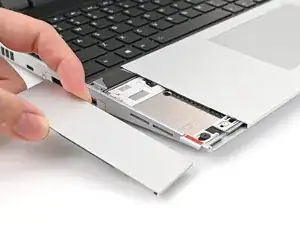
    • Lift the Touchpad Spacer off the laptop and remove it.

  3. oEqip25KTEF2gXZt
    oEqip25KTEF2gXZt
    teuRGEDSLRjVVpId
    mbydNVpAcqSPltCM
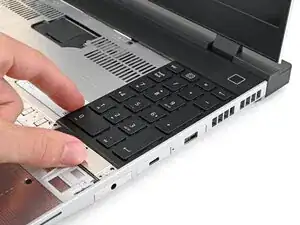
    • Repeat the same procedure for the other touchpad spacer.

  4. wpTjqyCvB2wHlNbJ
    wpTjqyCvB2wHlNbJ
    IsFbHVdd3uX4gPbf
    teReJWIbcCJhn3OH
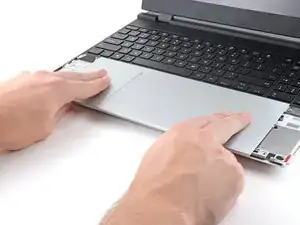
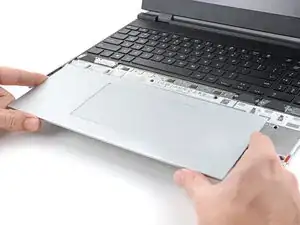
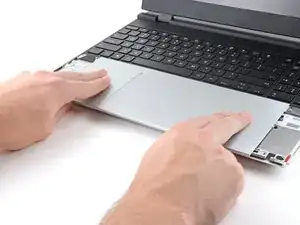
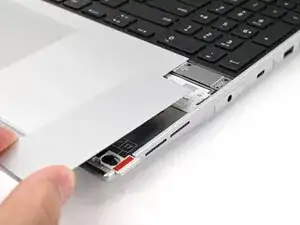
    • Use your fingers to slide the Touchpad Module toward the bottom edge of the laptop and disconnect it.

    • If you're having trouble, check if the Input Module latches are properly unlocked.

    • Lift the Touchpad Module and remove it.

  5. WXjcPFl2MgDiX2PZ
    WXjcPFl2MgDiX2PZ
    PojU1s2ZQqyfYBvO
    YlWkflmfJPHDuZov
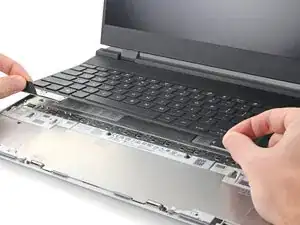
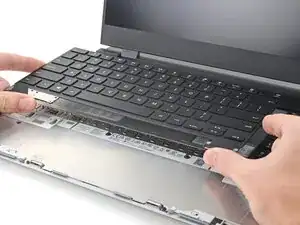
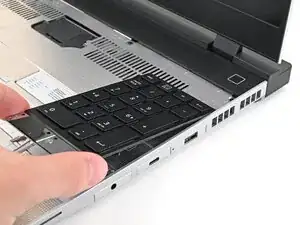
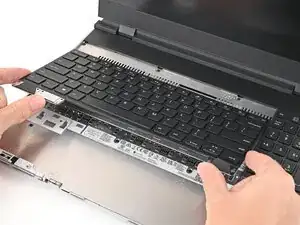
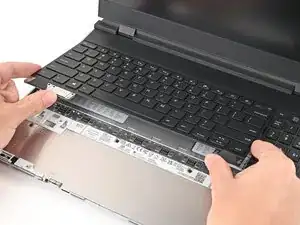
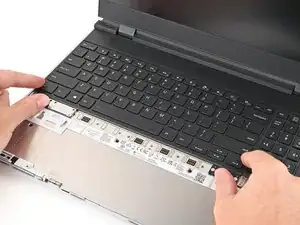
    • The keyboard is held in place with strong magnets. Apply gradually increasing force to avoid having the keyboard violently eject.

    • Grip the two pull tabs along the bottom of the keyboard and lift until its magnets release.

    • Remove the keyboard.

  6. hesMM66MFJtTfvCZ
    hesMM66MFJtTfvCZ
    3ZJ4rrrJTvR22eiV
    WesxvpHZwQSNZ3fK
    • Your Input Module(s) might be different, but the procedure to remove them is the same.

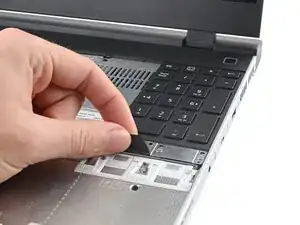
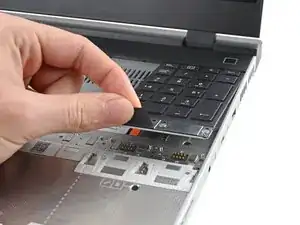
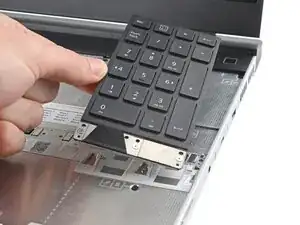
    • Grip the pull tab at the bottom of the Input Module and lift until its magnets release.

    • Remove the Input Module.

    • Repeat for any remaining Input Modules.

  7. SRhXtXWpl3DPYYAS
    SRhXtXWpl3DPYYAS
    55XONtqi1PZJQADv
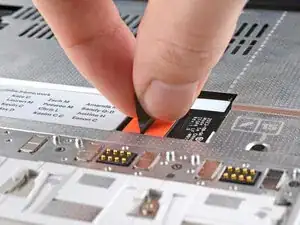
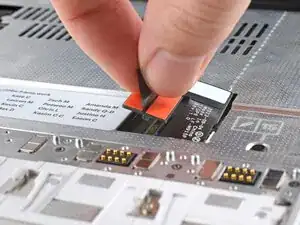
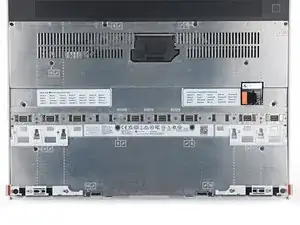
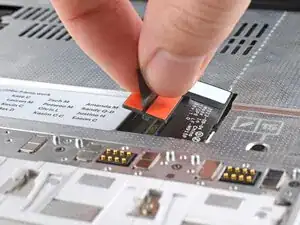
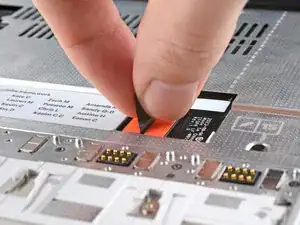
    • Grip the black pull tab on the Mid Plate cable press connector.

    • Lift up to disconnect the Mid Plate cable.

  8. aJoO4s4sLmUA5SSt
    aJoO4s4sLmUA5SSt
    EkZ2H5vKL2LW6Els
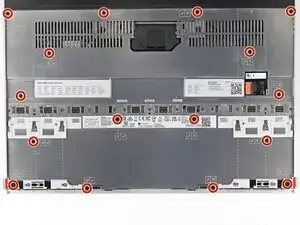
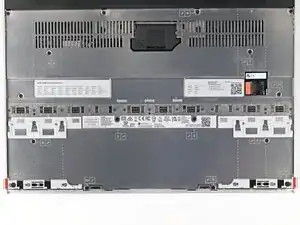
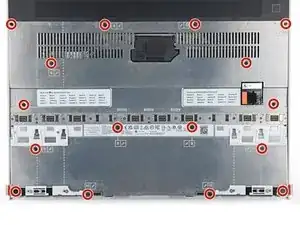
    • The Mid Plate screws are ordered from 2–17 (number 1 is the press connector). You don't have to follow the order, but you can use it to help keep track of the screws you've loosened.

    • Use your Framework Screwdriver to loosen the 16 captive T5 Torx screws securing the Mid Plate.

  9. VFMpNOrkg5EiKwlo
    VFMpNOrkg5EiKwlo
    VMfwxIagCZvb511j
    ZQ1ZDWKwVKQrjDYL
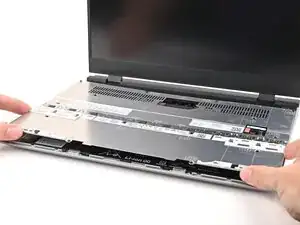
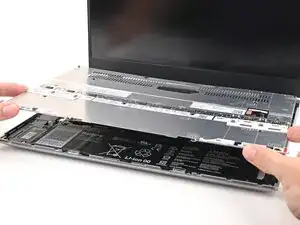
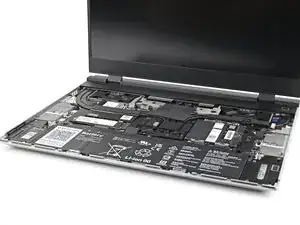
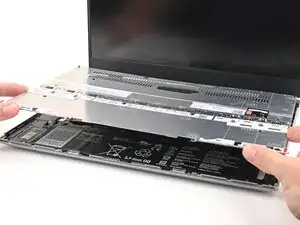
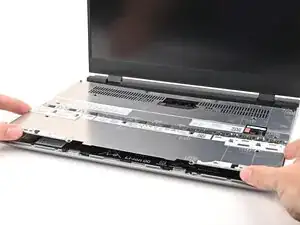
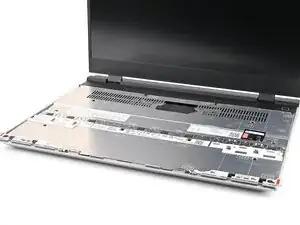
    • Use your fingers to lift the Mid Plate off the laptop and remove it.

  10. ZWtkYJt6hZsLnXSv
    ZWtkYJt6hZsLnXSv
    nkLBGlDwTTTshnWO
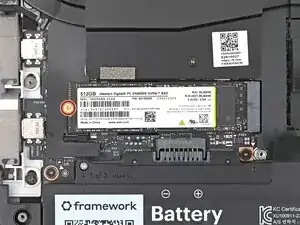
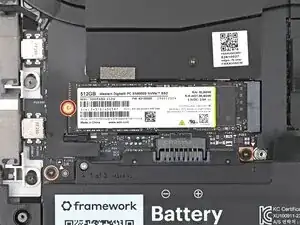
    • Use your Framework Screwdriver to remove the 2 mm‑long T5 Torx screw securing the SSD.

    • The SSD might pop up at a shallow angle when you remove the screw.

  11. fBglwHIawfiZCiD1
    fBglwHIawfiZCiD1
    TefZLVntyHNNMsJS
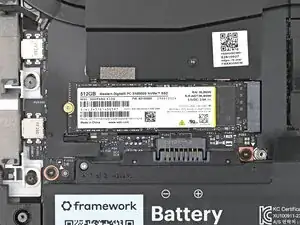
    • Grip the end of the SSD with the screw hole and slide it out of its socket.

    • Remove the SSD.

  12. tkbbrKwLtkcZX1oE
    tkbbrKwLtkcZX1oE
    ZUST1oa3lkIiLyxF
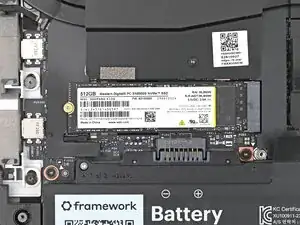
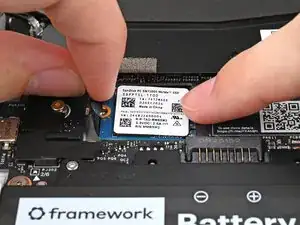
    • Use your Framework Screwdriver to remove the 2 mm‑long T5 Torx screw securing the secondary SSD.

  13. X3ELOvSOOVrM3ONa
    X3ELOvSOOVrM3ONa
    IhjZFOmGZh5UT2rj
    eLCdIuWiLvyKUSWf
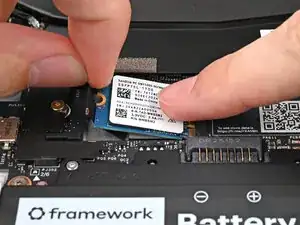
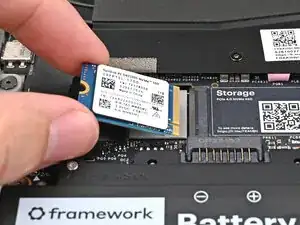
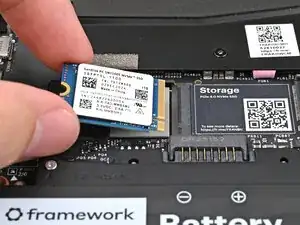
    • While pulling up on the black tab underneath the SSD, use your finger to slide the SSD out of its socket.

    • Avoid touching the gold contacts. Only press on the top label or the edges of the SSD.

    • The thermal pad under the SSD can vary in color—yours may be gray, orange, or pink.

  14. yAqjOcYW4FxBfQJa
    • Congratulations on completing disassembly! The remaining steps will show how to reassemble your Framework Laptop.

  15. AMyGBhmpXrECREPH
    AMyGBhmpXrECREPH
    qwlURFu3UVaUFUaX
    pZxQ6k1r1wsUABm6
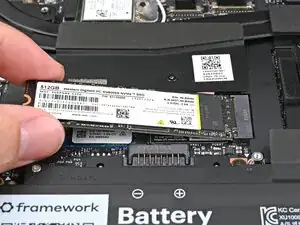
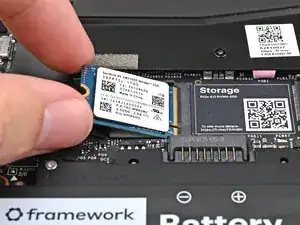
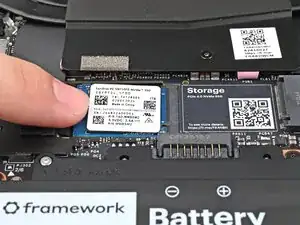
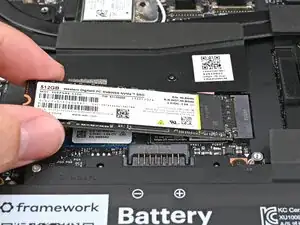
    • Hold the SSD by its edges. Don't touch the gold contacts with your fingers. If you do, wipe the contacts with a clean, lint-free cloth to remove any finger oils.

    • Align the SSD's gold contacts with its socket.

    • Insert the SSD partially into the socket at a shallow angle. You should still be able to see most of the gold contacts.

    • Press the SSD flat to the Mainboard.

  16. c4bCFjvBlXYQPH2s
    c4bCFjvBlXYQPH2s
    kGIFDZr3jbJRIrcs
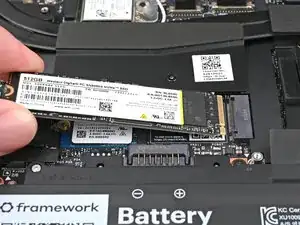
    • While keeping the SSD flat to the Mainboard, push it into its socket until its golden contacts are completely covered.

  17. OJbVTJQBI6xPFaXU
    OJbVTJQBI6xPFaXU
    rTUnpl1jcyUvMwdr
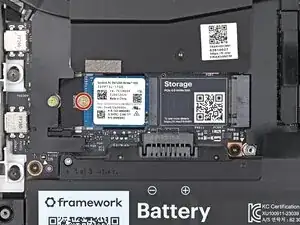
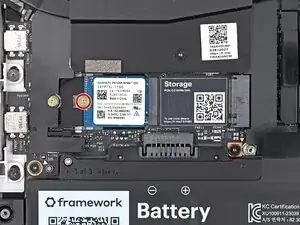
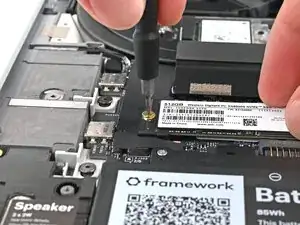
    • Use your Framework Screwdriver to install the 2 mm‑long T5 Torx screw securing the SSD.

  18. wUmSPDJlfR4MhFZe
    wUmSPDJlfR4MhFZe
    GqmiVX6pUjupKn4R
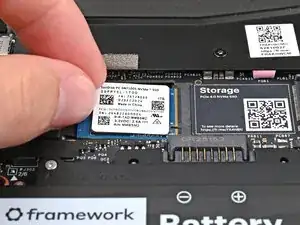
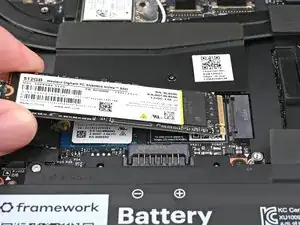
    • Hold the SSD by its edges. Don't touch the gold contacts with your fingers. If you do, wipe the contacts with a clean, lint-free cloth to remove any finger oils.

    • Insert the SSD into the socket at a shallow angle. The gold contacts should mostly be covered by the socket.

    • The SSD fits into the socket in one orientation. If it doesn't feel like it fits, try flipping the module.

  19. STUKPnXjcLMhI2FT
    STUKPnXjcLMhI2FT
    6EhU2gUZCAFuHvpF
    CdhVsTR35sJRxMQ2
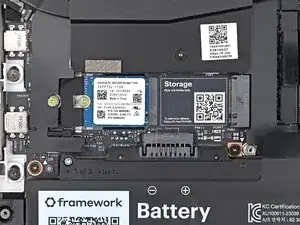
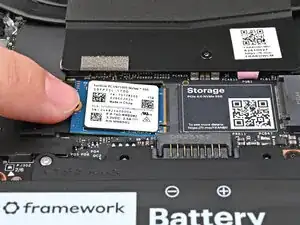
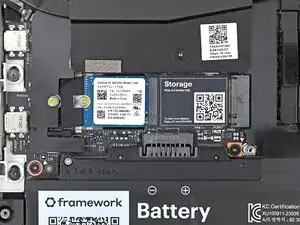
    • While holding the SSD flat to the Mainboard, use your Framework Screwdriver to install the 2 mm‑long T5 Torx screw securing the SSD.

  20. WNXCOLdJxWygeIlt
    WNXCOLdJxWygeIlt
    KDQ5biLCZamuGX4Z
    NtmyYbY1tlXxr6YA
    • Place the Mid Plate on the laptop, making sure it sits evenly on its alignment pegs.

  21. pqZIeK5rgaKTBWl4
    pqZIeK5rgaKTBWl4
    4spVx1SupfNvWdAX
    • Use your Framework Screwdriver to tighten the 16 captive T5 Torx screws in order (starting with 2) to secure the Mid Plate evenly.

  22. SHR1O2N1YLLv6ryr
    SHR1O2N1YLLv6ryr
    NTicb3BsOPOSLmwn
    • Align the Mid Plate cable press connector over its socket and press down to connect it.

  23. JyccFC2cavJAQkw2
    JyccFC2cavJAQkw2
    UBPFtlfVJwD5MG4C
    qDoJmL3yEaNiGyLv
    • Your Input Module(s) might be different, but the procedure to remove them is the same.

    • Align the top edge of the Input Module with the top edge of the laptop.

    • Lay the Input Module on the laptop and let the magnets pull the keyboard into place

    • Make sure the Input Module is seated properly on its alignment pegs and sits flush with the edges of the laptop.

    • Repeat for any remaining Input Modules.

  24. 2oPYqKStliPhyMNB
    2oPYqKStliPhyMNB
    Sa6jykktBZSuiFBK
    mSXYbDZf6nqTloeB
    • Align the top edge of the keyboard with the top edge of the laptop.

    • Lay the keyboard on the laptop and let the magnets pull the keyboard into place

    • Make sure the keyboard is seated properly on its alignment pegs and sits flush with the edges of the laptop.

  25. txabwTJGUoQxRsfP
    txabwTJGUoQxRsfP
    oHknFQArjUvTUTFW
    • Place the Touchpad Module flat on its cutout so its clips are properly aligned.

    • Press the Touchpad Module down and slide it into place so it lines up evenly with the bottom edge of the laptop.

  26. YtqHYbylGARTxNWj
    YtqHYbylGARTxNWj
    cn3jxBl4L54daGYU
    lDt3Lk11ppl6IDoJ
    • Place the Touchpad Spacer over its spot on the laptop with the bottom edge overhanging slightly.

    • Slide the Touchpad Spacer towards the top of the laptop to secure it.

    • Repeat the same procedure for the other Touchpad Spacer.

  27. tiRuQKtLf5CEeB1o
    tiRuQKtLf5CEeB1o
    KIADBeXsLRFTqWIS
    IkUHVd6uW3V4NXVd
    • Push the Input Module latches back into place to lock them.

Conclusão

You finished fixing your Framework Laptop!

Take your e-waste to an R2 or e-Stewards certified recycler.

If you need help, contact Framework support.

Alex Diaz-Kokaisl

Membro desde: 16/01/22

227430 Reputação

0 comentários