Introdução

  1. osXBMw3xgKIVZZMF
    osXBMw3xgKIVZZMF
    yNCh5cBXXNgLPKBO
    SOn5pPMFBTbcl21Q
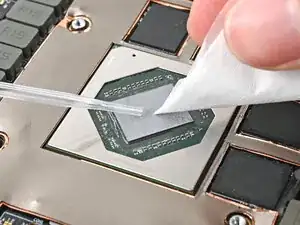
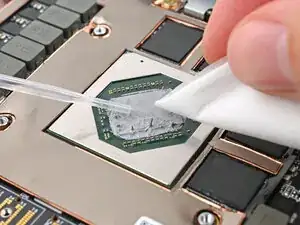
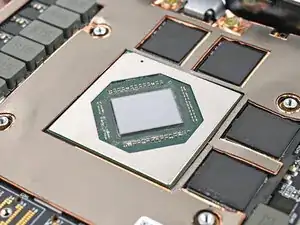
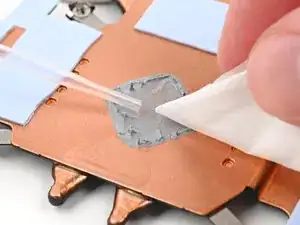
    • Your Graphics Module will have either a thermal pad or thermal paste. Follow the procedure normally to remove either compound.

    • Use a few drops of high concentration (>90%) isopropyl alcohol and a lint-free cloth to wipe away the thermal compound residue.

  2. KeC6sbANniCNhVjv
    KeC6sbANniCNhVjv
    hBNLgZ6gAqGUgd1P
    AgOjNFErVDBLccQJ
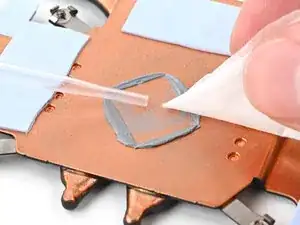
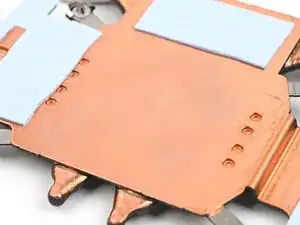
    • Repeat the previous step for the thermal compound residue on the bottom of the heatsink.

  3. Ff6UogMmgGjGEoXa
    Ff6UogMmgGjGEoXa
    5C6QqSwZG6WE2CZG
    AjVaBtg1DkWUPHAb
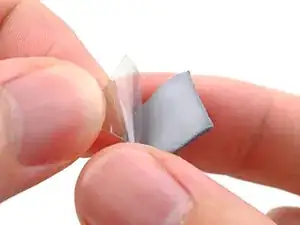
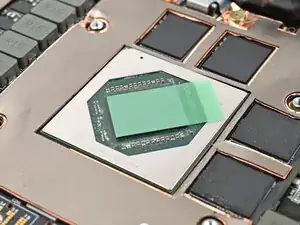
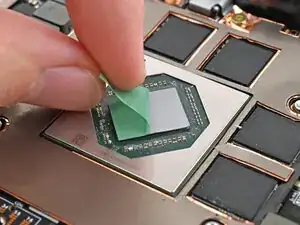
    • Peel off the clear liner from the thermal pad to expose one side of it.

    • Place the exposed side of the thermal pad over the CPU.

    • If you have trouble handling your thermal pad, you can store it in your fridge for a few minutes to make it more rigid.

  4. PZSEVXvZY2ZRkgFE
    PZSEVXvZY2ZRkgFE
    caIgjLrnPnlLpBCf
    43DFlGjgPcyQHH3p
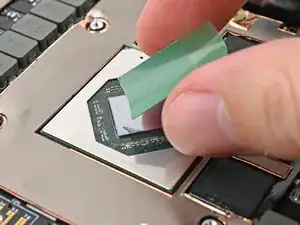
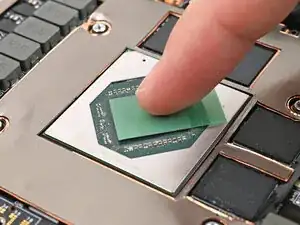
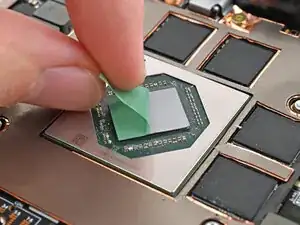
    • Use your finger to lightly press the thermal pad to the GPU and bond it.

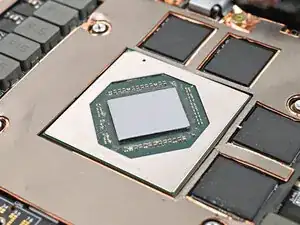
    • Remove the green liner from the thermal pad to expose its top side.

  5. LN43xyqhYQEpuKAw
    LN43xyqhYQEpuKAw
    dOPLEVLE1LKK363W
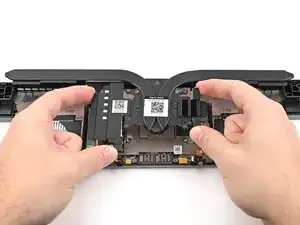
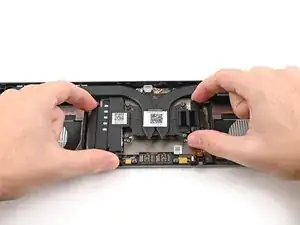
    • Align your heatsink over the CPU and place it straight down onto the Mainboard.

    • The thermal pad needs to go through a few thermal cycles before it gets to full performance.

  6. kdlWXSIOCOBaS1KB
    kdlWXSIOCOBaS1KB
    JA1wNANPdQXPUkiN
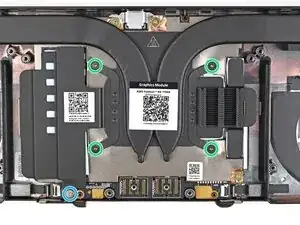
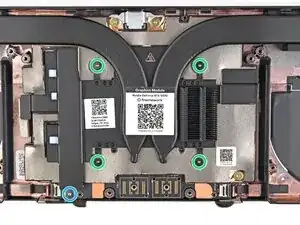
    • The screw configuration will look different depending on your Graphics Module, but the procedure is the same.

    • Use your Framework Screwdriver to tighten the captive T5 Torx screws securing the Graphics Module Heatsink:

    • Tighten the captive screws directly over the GPU in order from 4–1.

    • Tighten the captive screw at the bottom left corner of the heatsink.

  7. UdFVLINtMKJ2S1gu
    UdFVLINtMKJ2S1gu
    mu6e6TU6pYRRBBdq
    1DOhTnJjrjJKCJ1w
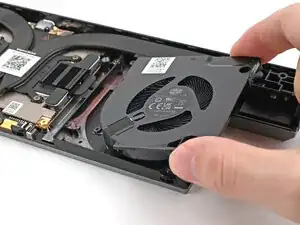
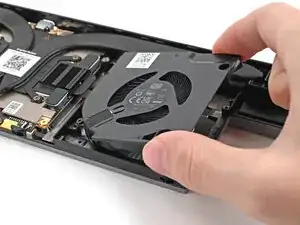
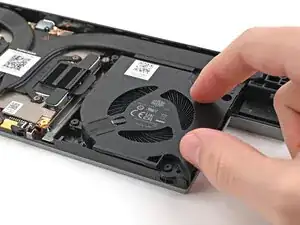
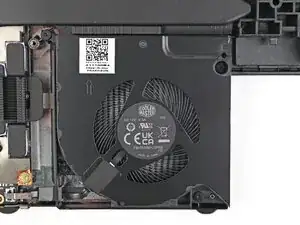
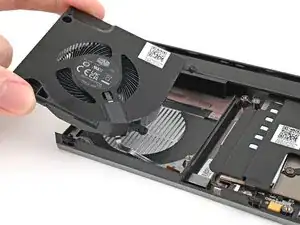
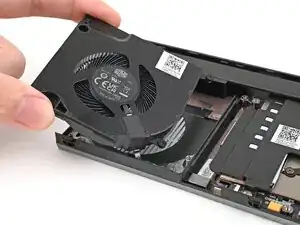
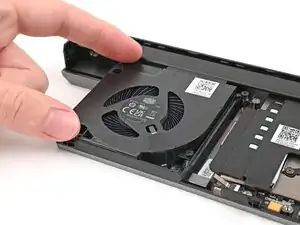
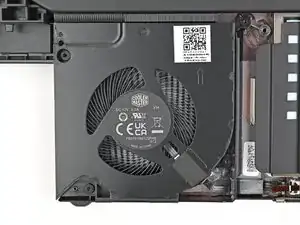
    • Place the right fan onto the Expansion Bay Shell, making sure to thread the cable through its slot.

  8. CUlHNceXcRGuRuYd
    CUlHNceXcRGuRuYd
    GQ5tAliAf6WGpody
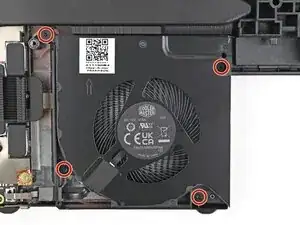
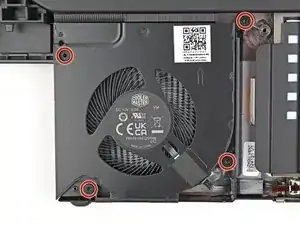
    • Use a T5 Torx screwdriver to tighten the four captive screws securing the right fan.

  9. lHopEWUj3RTDrLqo
    lHopEWUj3RTDrLqo
    6JLlFnJNvEdboJOm
    sVM5MRZJDnrRqRn6
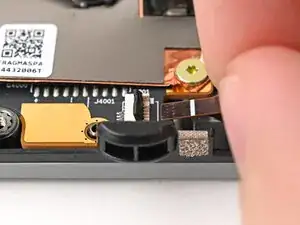
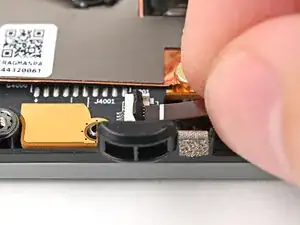
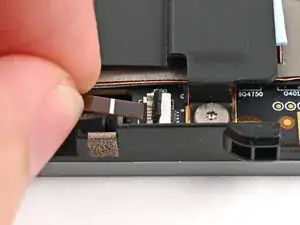
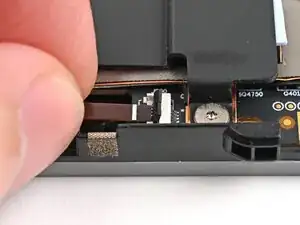
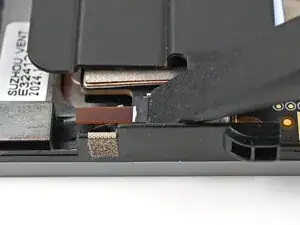
    • Use your fingers to grip the brown pull tab and slide the right fan cable straight into its socket.

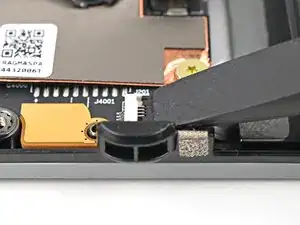
    • Use the flat end of your Framework Screwdriver, or a clean fingernail, to press down the locking tab on the fan ZIF connector.

  10. NQgFahY5OQmcVPaN
    NQgFahY5OQmcVPaN
    ZXdtSX3wmsQKQBJr
    YuYH4RvID1SZWFFd
    • Place the left fan onto the Expansion Bay Shell, making sure to thread the cable through its slot.

  11. 3fLqiSCuHMtJagP1
    3fLqiSCuHMtJagP1
    NMeSHanVtI1JJgkv
    • Use a T5 Torx screwdriver to tighten the four captive screws securing the left fan.

  12. 3Xt6vA1jvVmMthav
    3Xt6vA1jvVmMthav
    41oNLrspDQcGqW61
    QTaZF3cOwMN63BpC
    • Use your fingers to grip the brown pull tab and slide the left fan cable straight into its socket.

    • Use the flat end of your Framework Screwdriver, or a clean fingernail, to press down the locking tab on the fan ZIF connector.

  13. pSIYfFUMNe5OHfKd
    pSIYfFUMNe5OHfKd
    EDaAQrrgKBGDCvLc
    • Place the cover over its slot on the Graphics Module.

  14. JE62YCP6APwutPbg
    JE62YCP6APwutPbg
    wBENBwr4KwQsSs1M
    YkTToqAwhECKAEUL
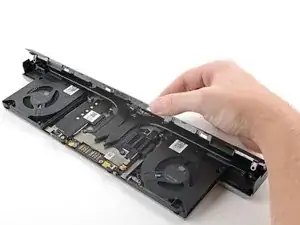
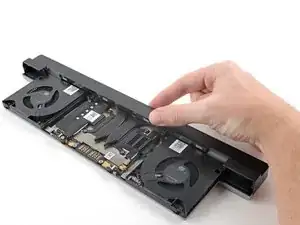
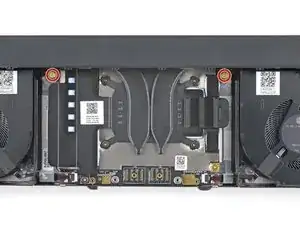
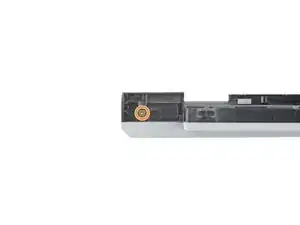
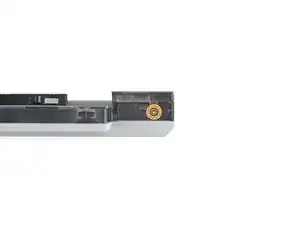
    • Use your Framework Screwdriver to install the four 3.6 mm‑long T5 Torx screws securing the Graphics Module cover:

    • Two screws on the flat surface of the module, next to the fans.

    • Two screws on the thin edge of the module, near the ends. You'll need to flip the module on its back edge to access them.

Conclusão

To reassemble your device, follow these instructions in reverse order.

Alex Diaz-Kokaisl

Membro desde: 16/01/22

227430 Reputação

0 comentários