Introdução

  1. VBbHTLV1DNAf1do2
    VBbHTLV1DNAf1do2
    ZOX4NVApgvEBKRiI
  2. PHM1CKWmrK4lemoa
    PHM1CKWmrK4lemoa
    PwgZXTpSxwu5PndZ
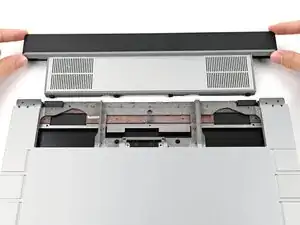
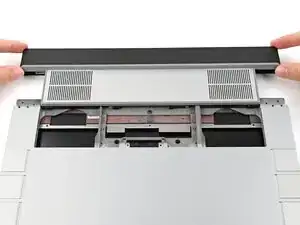
    • When installing the module, keep it level to the laptop so it doesn't buckle on the rails.

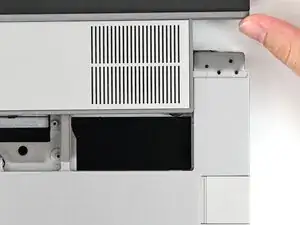
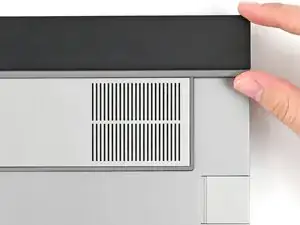
    • There should be no gaps between the laptop and the module when it's installed correctly.

  3. AStkDBskdrYqfhiA
    AStkDBskdrYqfhiA
    WMoioQJlrvXXfpK4
    A5XJcbeys6UMdNLo
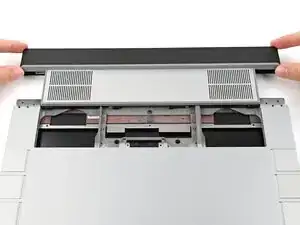
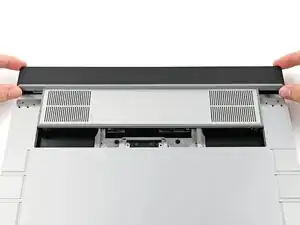
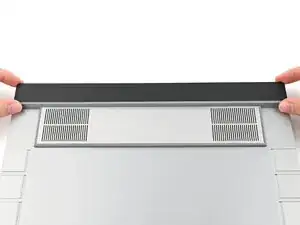
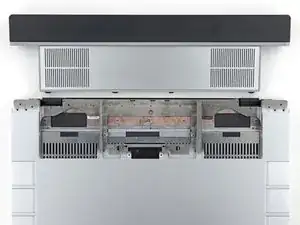
    • While keeping the module level with the laptop, slide it into its slot.

    • The module should slide in easily. If you feel any resistance, pull the module out and realign it.

    • You should hear an audible "click" when the module's clips snap into place.

  4. NsLANgBfHMLDErwZ
    NsLANgBfHMLDErwZ
    s1ITDDLLWOrZpkuk
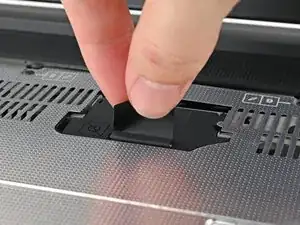
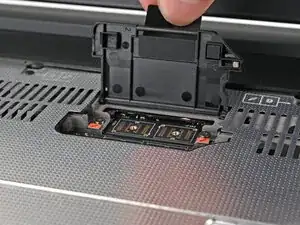
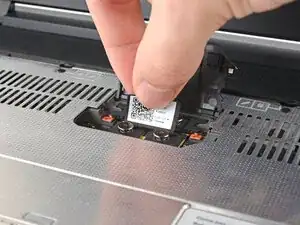
    • Flip over the laptop and open it.

    • Lift the interposer door by its black pull tab and let it rest upright.

  5. 1xM31Q5HLnOx22yi
    1xM31Q5HLnOx22yi
    K2msUAJei2QOCFTF
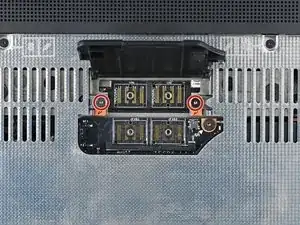
    • Use your Framework Screwdriver to tighten the two captive T5 Torx screws securing the Graphics Module.

  6. EgXNiThu5ZAp2qo1
    EgXNiThu5ZAp2qo1
    KqXx1rITOYMfOEeI
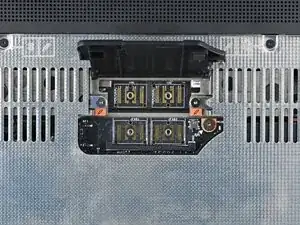
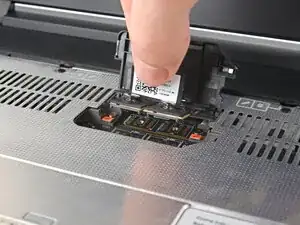
    • Place the interposer over its spot between the Mainboard and the Graphics Module.

  7. D6OTWEhxRXGNdkN3
    D6OTWEhxRXGNdkN3
    ny2MDHPvLAEQtmsl
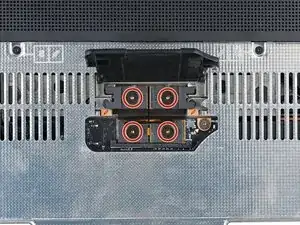
    • Use your Framework Screwdriver to tighten the four captive T5 Torx screws securing the interposer.

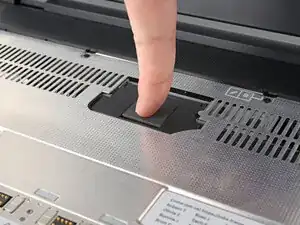
    • Close the interposer door.

Conclusão

To reassemble your device, follow these instructions in reverse order.

Repair didn’t go as planned? Try some basic troubleshooting, or ask our Answers Community for help.

Alex Diaz-Kokaisl

Membro desde: 16/01/22

227430 Reputação

0 comentários