Introdução

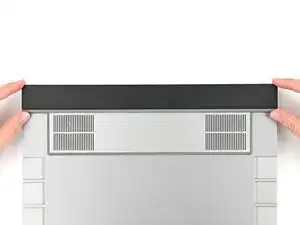
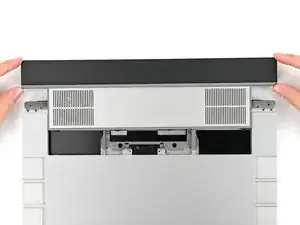
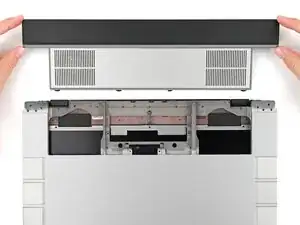
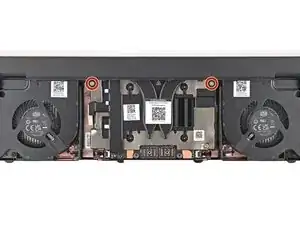
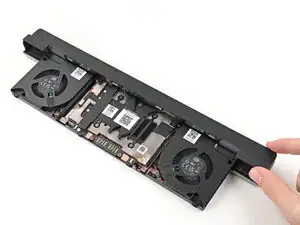
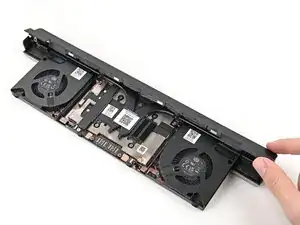
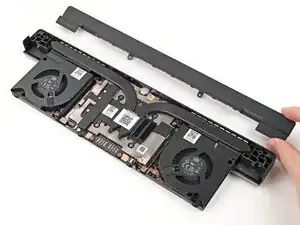
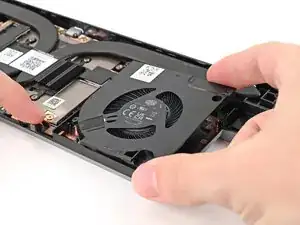
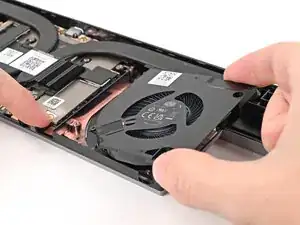
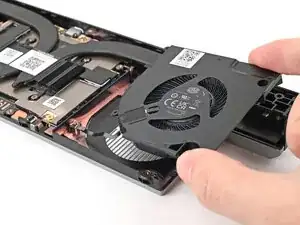
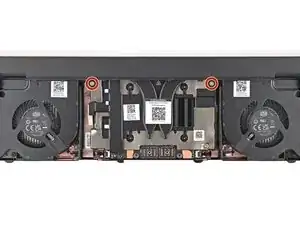
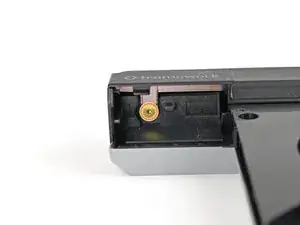
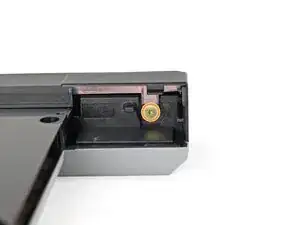
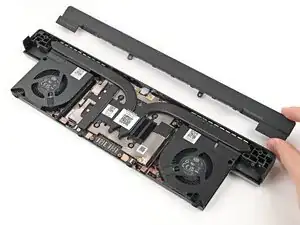
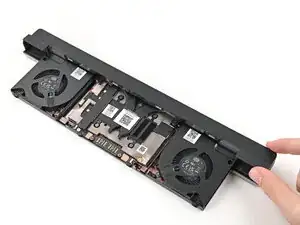
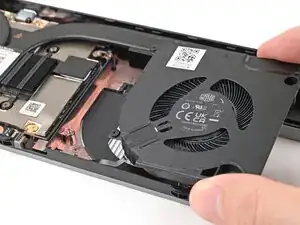
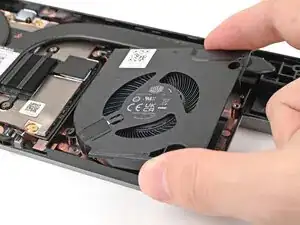
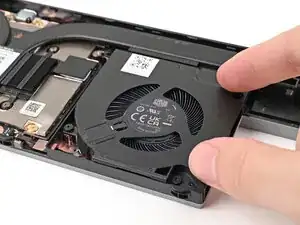
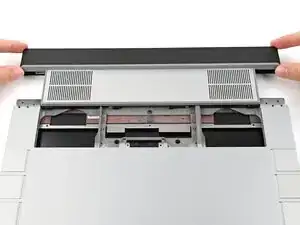
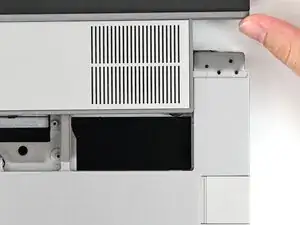
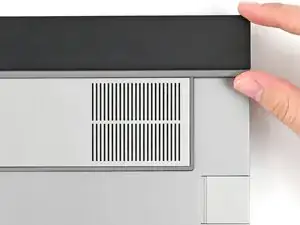
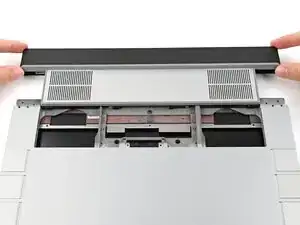
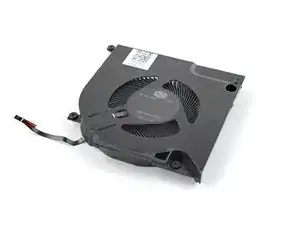
Use this guide to remove and replace one or both of the Graphics Module Fans in your Framework Laptop 16.

The guide shows replacing the right Graphics Module Fan, but the procedure is identical to replace the left fan.

  1. FyZqYQXlGGSUVdfO
    • Unplug all cables and fully shut down your laptop.

  2. KX6SbVDOSK11tpww
    KX6SbVDOSK11tpww
    xUsiPWFWSHywwlyH
    YUTaVvGIQMvEBoVL
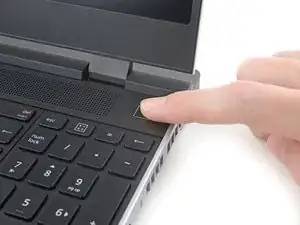
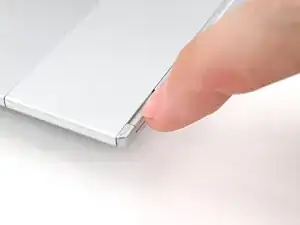
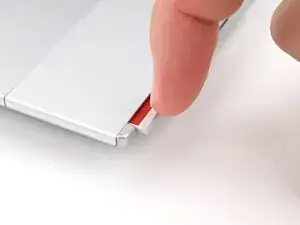
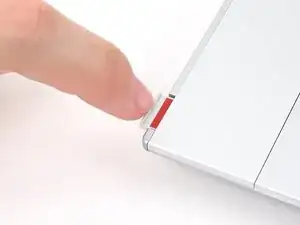
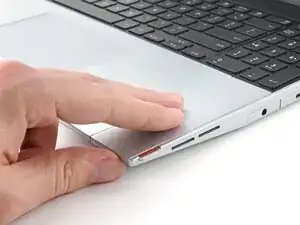
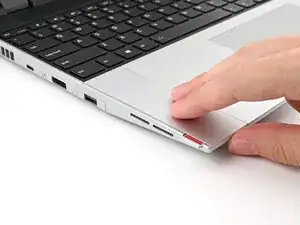
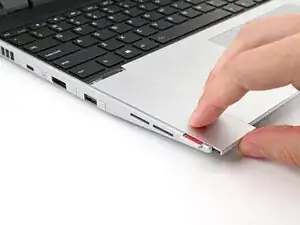
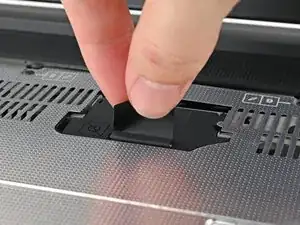
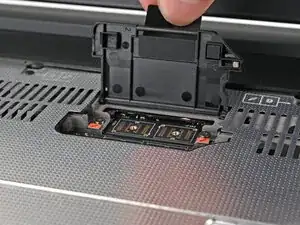
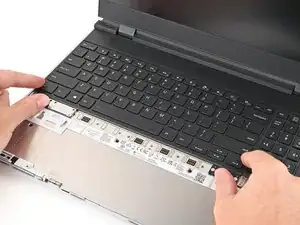
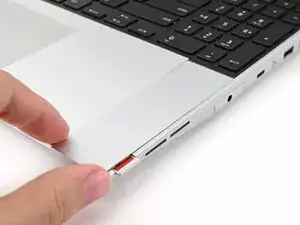
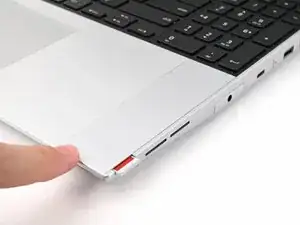
    • Use your fingernail to pull out the two Input Module latches and unlock them.

    • The latch will show red if it's unlocked.

  3. SJk2GqymsGfFPtk6
    SJk2GqymsGfFPtk6
    qYPAIGK4ZAN1UcxK
    RJPENmljQ6MIcvnN
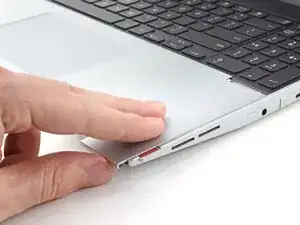
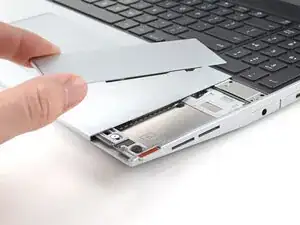
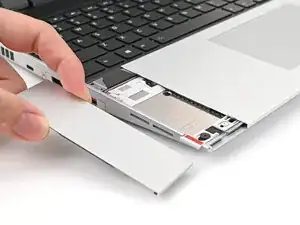
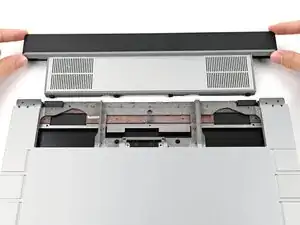
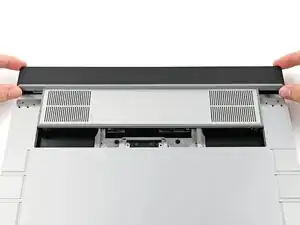
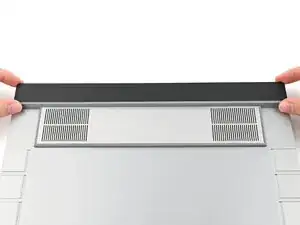
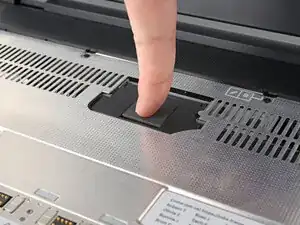
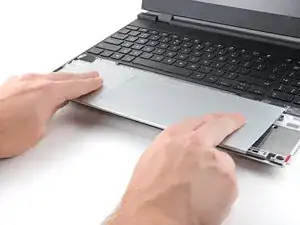
    • Use your fingers to slide the Touchpad Spacer toward the bottom edge of the laptop and unclip it.

    • If you're having trouble, check if the corresponding Input Module latch is properly unlocked.

    • Lift the Touchpad Spacer off the laptop and remove it.

  4. jNWbnEQoPE1b5FNs
    jNWbnEQoPE1b5FNs
    T4eCedmNWxtIK3E4
    qMrYphKZARGoeODv
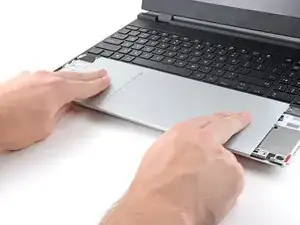
    • Repeat the same procedure for the other touchpad spacer.

  5. yYIvnKNYAZ5ZR5Cw
    yYIvnKNYAZ5ZR5Cw
    1OO4eJ2caggITR13
    fbmNJeKVP62XPULp
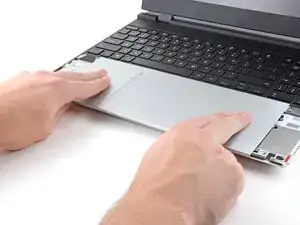
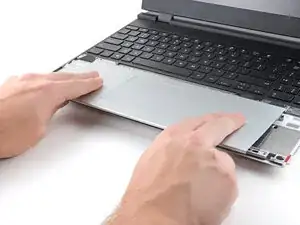
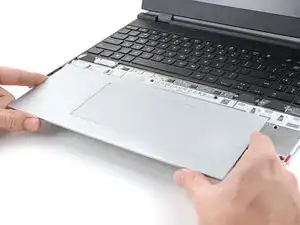
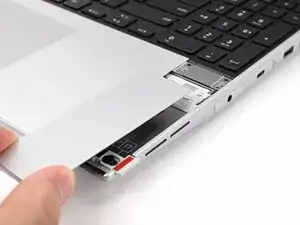
    • Use your fingers to slide the Touchpad Module toward the bottom edge of the laptop and disconnect it.

    • If you're having trouble, check if the Input Module latches are properly unlocked.

    • Lift the Touchpad Module and remove it.

  6. WXjcPFl2MgDiX2PZ
    WXjcPFl2MgDiX2PZ
    PojU1s2ZQqyfYBvO
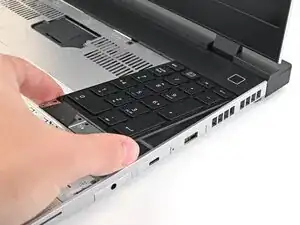
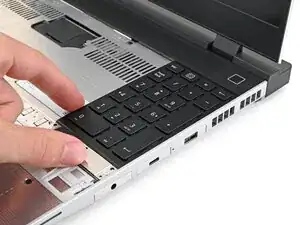
    YlWkflmfJPHDuZov
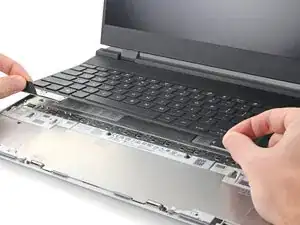
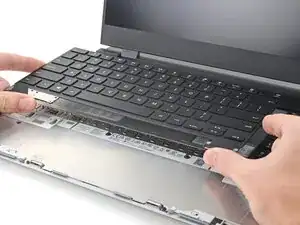
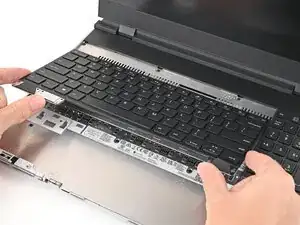
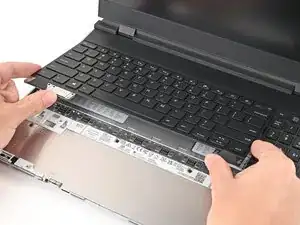
    • The keyboard is held in place with strong magnets. Apply gradually increasing force to avoid having the keyboard violently eject.

    • Grip the two pull tabs along the bottom of the keyboard and lift until its magnets release.

    • Remove the keyboard.

  7. hesMM66MFJtTfvCZ
    hesMM66MFJtTfvCZ
    3ZJ4rrrJTvR22eiV
    WesxvpHZwQSNZ3fK
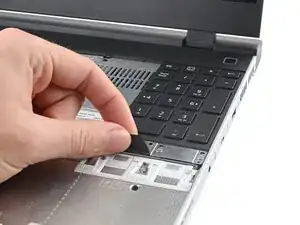
    • Your Input Module(s) might be different, but the procedure to remove them is the same.

    • Grip the pull tab at the bottom of the Input Module and lift until its magnets release.

    • Remove the Input Module.

    • Repeat for any remaining Input Modules.

  8. BHwA1RJF1lpIAq4e
    BHwA1RJF1lpIAq4e
    VkpLUbh4wtSFIZ2u
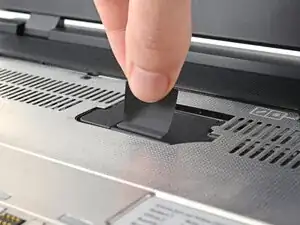
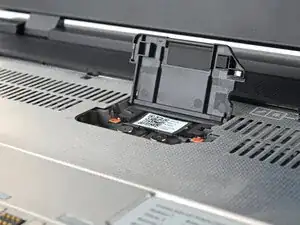
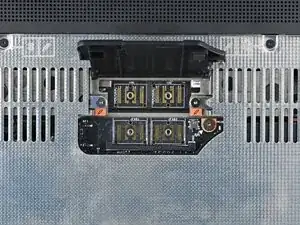
    • Lift the interposer door by its black pull tab and let it rest upright.

  9. oKdJHon6nNCIm1ii
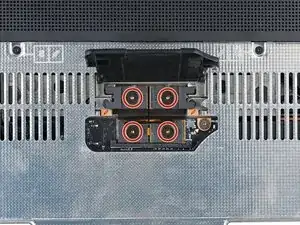
    • Use your Framework Screwdriver to loosen the four captive T5 Torx screws securing the interposer.

  10. KqXx1rITOYMfOEeI
    KqXx1rITOYMfOEeI
    EgXNiThu5ZAp2qo1
    • Lift the interposer by its pull tab and remove it.

  11. 1xM31Q5HLnOx22yi
    1xM31Q5HLnOx22yi
    BFNZQlRYjBrJIHOJ
    • Use your Framework Screwdriver to loosen the two captive T5 Torx screws securing the Graphics Module.

    • Close the interposer door before continuing.

  12. LD4vR4HCV1GgbgfH
    LD4vR4HCV1GgbgfH
    qZQIOkPbUWX5wfYK
    C2BItTmGoSeimSuN
    • Close your laptop and flip it over.

    • Slide the Graphics Module out of the laptop and remove it.

    • The module should slide out easily. If you feel any resistance, check that the screws holding it in place are fully loosened.

  13. HHU2BacjlJYse4VO
    HHU2BacjlJYse4VO
    NEe2fbSpyKglHbyu
    psuQYmj1TryvL3xt
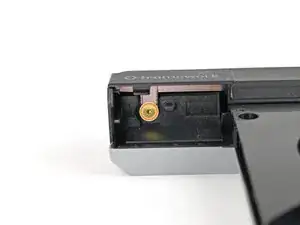
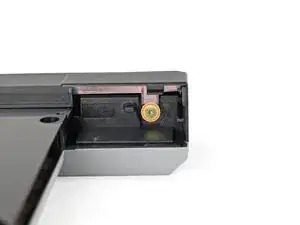
    • Use your Framework Screwdriver to remove the four 3.6 mm‑long T5 Torx screws securing the Graphics Module cover:

    • Two screws on the flat surface of the module, next to the fans.

    • Two screws on the thin edge of the module, near the ends. You'll need to flip the module on its back edge to access them.

  14. mYi1RFyAeaXHgswK
    mYi1RFyAeaXHgswK
    hSEEgZXQLjCWhsaE
    BbhrBxql2bvDpUsv
    • Use your fingers to lift the cover off the Graphics Module and remove it.

  15. uJEpNbJB6ICNNp5n
    uJEpNbJB6ICNNp5n
    SeE6GKnP1HtYpXts
    X4hvUeVOLVhVhfxB
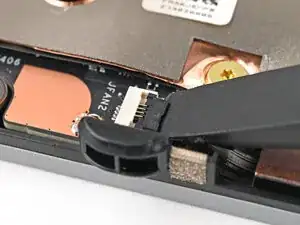
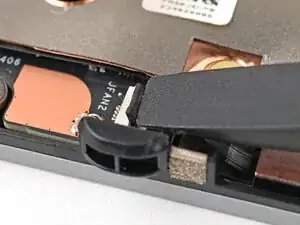
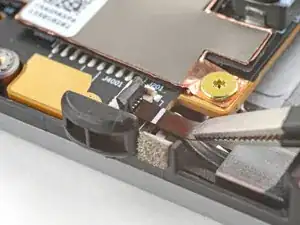
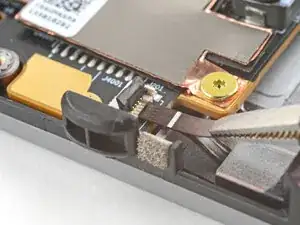
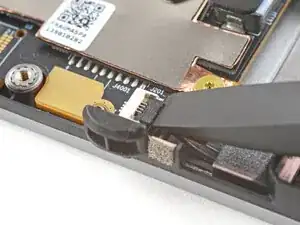
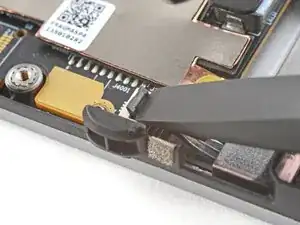
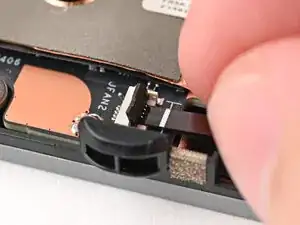
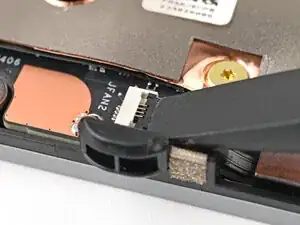
    • Use the flat end of a spudger, or a clean fingernail, to lift up and release the locking tab on the fan ZIF connector.

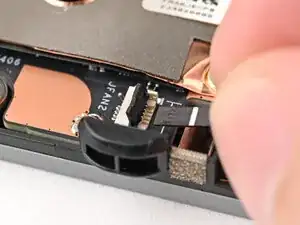
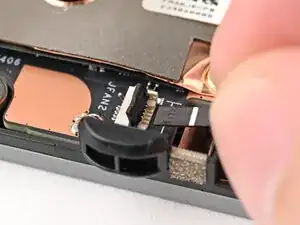
    • Use your fingers to grip the brown pull tab and slide the fan cable straight out of its socket.

  16. pTQxSYbGnqUHZGZe
    pTQxSYbGnqUHZGZe
    AVrWQrFhOWO5iMn4
    • Use tweezers, or your fingers, to grip the brown pull tab and slide the fan cable straight out of its socket.

  17. thQKWvdkTv6MCmLJ
    thQKWvdkTv6MCmLJ
    L2BdTf5Yssme4Elk
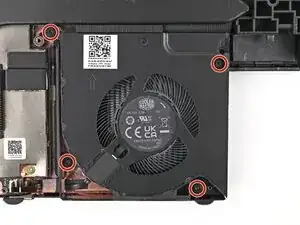
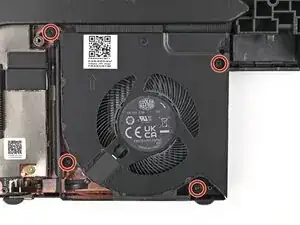
    • Use a T5 Torx screwdriver to loosen the four captive screws securing the fan.

  18. jFGJFy3cvZskCtBR
    jFGJFy3cvZskCtBR
    UPBW45sOfGeTgyWX
    Pb4hoSUntUwrbSsx
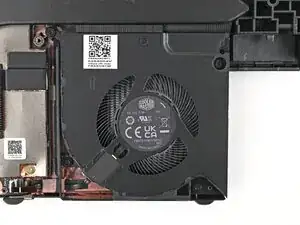
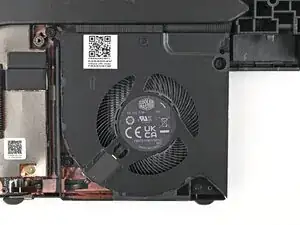
    • Use one hand to press the fan cable flat to the module.

    • Use your other hand to pull the fan out of its housing, making sure to thread the cable though its slot.

    • Remove the fan.

  19. yAqjOcYW4FxBfQJa
    • Congratulations on completing disassembly! The remaining steps will show how to reassemble your Framework Laptop.

  20. BF1eHgw25XgIjOPI
    BF1eHgw25XgIjOPI
    YCBapu4mBkMXvUMp
    u6TqC3uDfBp2GqwU
    • Use your Framework Screwdriver to install the four 3.6 mm‑long T5 Torx screws securing the Graphics Module cover:

    • Two screws on the flat surface of the module, next to the fans.

    • Two screws on the thin edge of the module, near the ends. You'll need to flip the module on its back edge to access them.

  21. xG4oNYTo15kvANEx
    xG4oNYTo15kvANEx
    gfGOnCGjJDQxwret
    • Place the cover over its slot on the Graphics Module.

  22. Aon1NRnngbBoxMgc
    Aon1NRnngbBoxMgc
    5iO3bQchkIZg1Xox
    • Use the flat end of a spudger, or a clean fingernail, to lift up and release the locking tab on the fan ZIF connector.

  23. 1eMyS6kyNpMuvPYg
    1eMyS6kyNpMuvPYg
    TgNpFu3tJGkYBvty
    AGQEJUNX2amJEafG
    • Use your fingers to grip the brown pull tab and slide the fan cable straight into its socket.

    • Use the flat end of your Framework Screwdriver, or a clean fingernail, to press down the locking tab on the fan ZIF connector.

  24. btrJqkYWYLmJFYiu
    btrJqkYWYLmJFYiu
    pQ14GGVtrXCrTgNF
    • Use a T5 Torx screwdriver to tighten the four captive screws securing the fan.

  25. 2bKHL5oyClTWXNTI
    2bKHL5oyClTWXNTI
    IU5CkwFSviTMMaUJ
    ACPcsXCEpk2CIADk
    • Place the fan onto the Expansion Bay Shell, making sure to thread the cable through its slot.

  26. VBbHTLV1DNAf1do2
    VBbHTLV1DNAf1do2
    ZOX4NVApgvEBKRiI
  27. PHM1CKWmrK4lemoa
    PHM1CKWmrK4lemoa
    PwgZXTpSxwu5PndZ
    • When installing the module, keep it level to the laptop so it doesn't buckle on the rails.

    • There should be no gaps between the laptop and the module when it's installed correctly.

  28. AStkDBskdrYqfhiA
    AStkDBskdrYqfhiA
    WMoioQJlrvXXfpK4
    A5XJcbeys6UMdNLo
    • While keeping the module level with the laptop, slide it into its slot.

    • The module should slide in easily. If you feel any resistance, pull the module out and realign it.

    • You should hear an audible "click" when the module's clips snap into place.

  29. NsLANgBfHMLDErwZ
    NsLANgBfHMLDErwZ
    s1ITDDLLWOrZpkuk
    • Flip over the laptop and open it.

    • Lift the interposer door by its black pull tab and let it rest upright.

  30. 1xM31Q5HLnOx22yi
    1xM31Q5HLnOx22yi
    K2msUAJei2QOCFTF
    • Use your Framework Screwdriver to tighten the two captive T5 Torx screws securing the Graphics Module.

  31. EgXNiThu5ZAp2qo1
    EgXNiThu5ZAp2qo1
    KqXx1rITOYMfOEeI
    • Place the interposer over its spot between the Mainboard and the Graphics Module.

  32. D6OTWEhxRXGNdkN3
    D6OTWEhxRXGNdkN3
    ny2MDHPvLAEQtmsl
    • Use your Framework Screwdriver to tighten the four captive T5 Torx screws securing the interposer.

    • Close the interposer door.

  33. BBO4XYB3ysWZvs56
    BBO4XYB3ysWZvs56
    peNFvFksKctgPMfK
    E1SBrYRbex1ZjN32
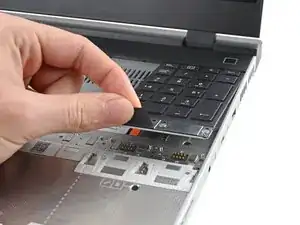
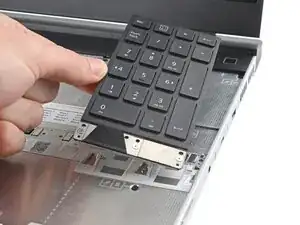
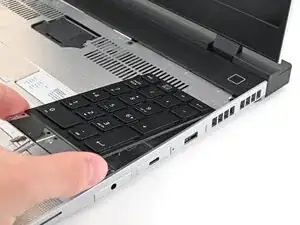
    • The numpad is held in place with strong magnets. Apply gradually increasing force to avoid having the numpad violently eject.

    • Grip the pull tab at the bottom of the numpad.

    • Lift the pull tab until the numpad magnets release.

    • Remove the numpad.

    • During reassembly, make sure the numpad is seated properly on its alignment pegs and sits flush with the edges of the laptop.

  34. 2oPYqKStliPhyMNB
    2oPYqKStliPhyMNB
    Sa6jykktBZSuiFBK
    mSXYbDZf6nqTloeB
    • Align the top edge of the keyboard with the top edge of the laptop.

    • Lay the keyboard on the laptop and let the magnets pull the keyboard into place

    • Make sure the keyboard is seated properly on its alignment pegs and sits flush with the edges of the laptop.

  35. OGgC5a1tSqgNY2QF
    OGgC5a1tSqgNY2QF
    5m5NiQxMvTWjIbjQ
    • Place the Touchpad Module flat on its cutout so its clips are properly aligned.

    • Press the Touchpad Module down and slide it into place so it lines up evenly with the bottom edge of the laptop.

  36. nrQTspaoMXJKTnok
    nrQTspaoMXJKTnok
    rRqoTulPIcQVVcbP
    hH5fa2iJ4qxAPZjs
    • Place the Touchpad Spacer over its spot on the laptop with the bottom edge overhanging slightly.

    • Slide the Touchpad Spacer towards the top of the laptop to secure it.

    • Repeat the same procedure for the other Touchpad Spacer.

Conclusão

You finished fixing your Framework Laptop!

Take your e-waste to an R2 or e-Stewards certified recycler.

If you need help, contact Framework support.

Alex Diaz-Kokaisl

Membro desde: 16/01/22

227430 Reputação

0 comentários