Introdução

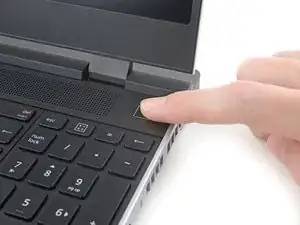
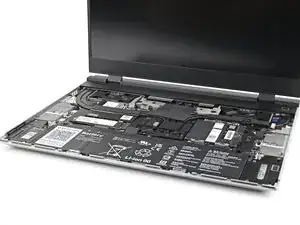
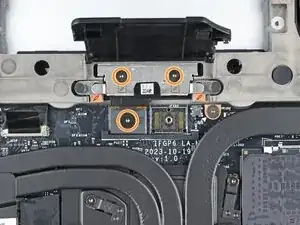
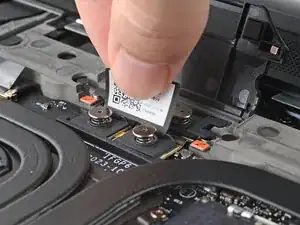
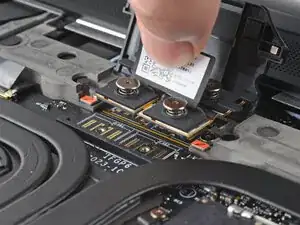
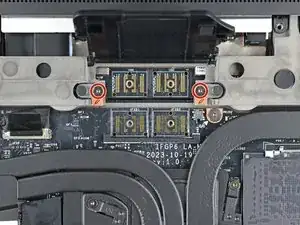
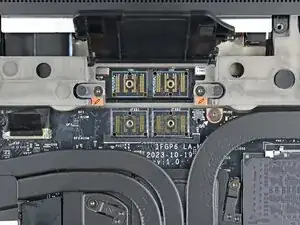
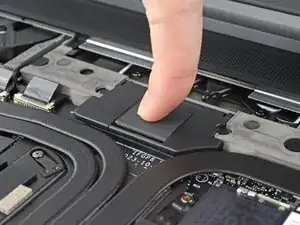
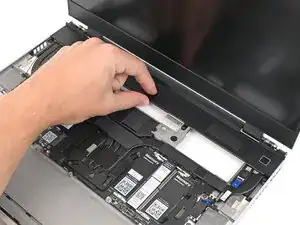
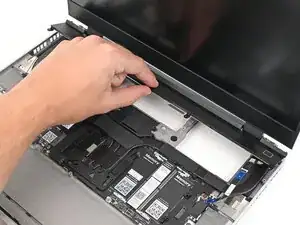
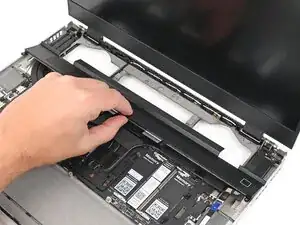
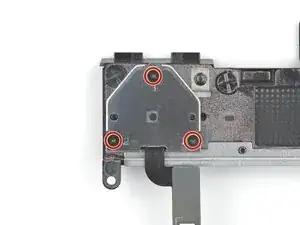
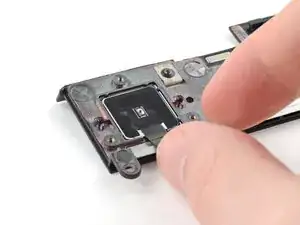
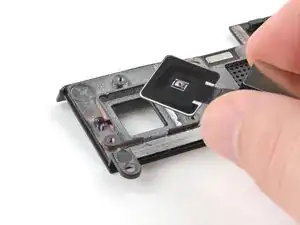
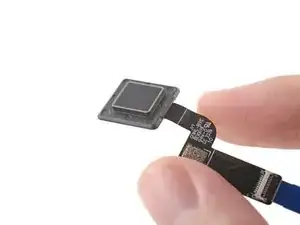
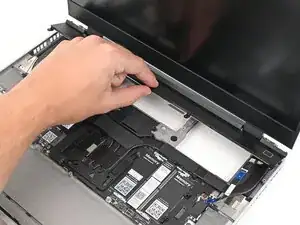
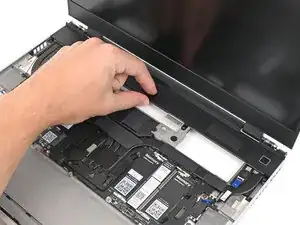
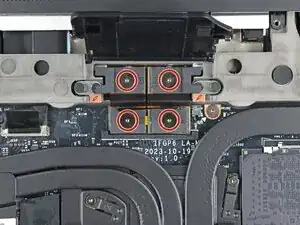
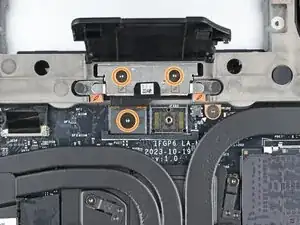
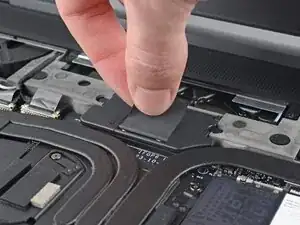
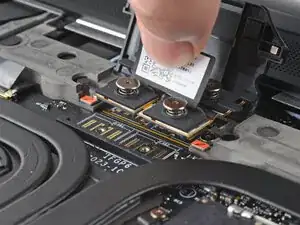
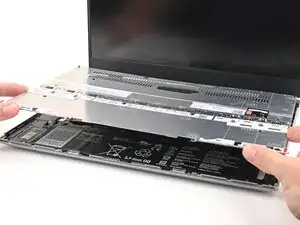
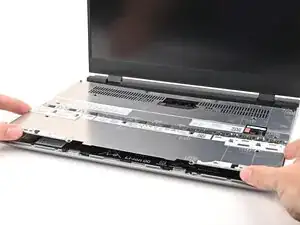
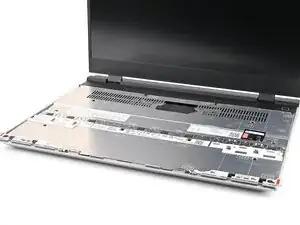
Use this guide to remove and replace the fingerprint reader in your Framework Laptop 16.

  1. FyZqYQXlGGSUVdfO
    • Unplug all cables and fully shut down your laptop.

  2. KX6SbVDOSK11tpww
    KX6SbVDOSK11tpww
    xUsiPWFWSHywwlyH
    YUTaVvGIQMvEBoVL
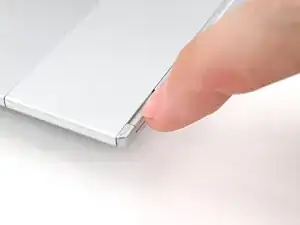
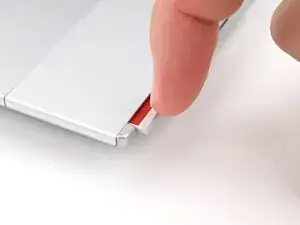
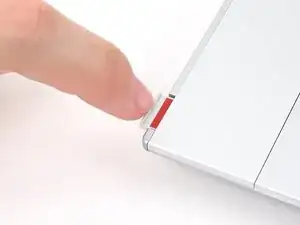
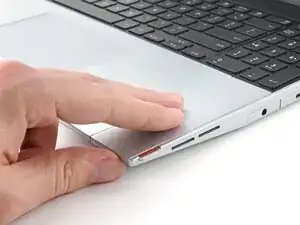
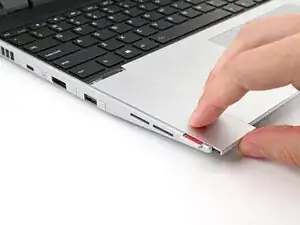
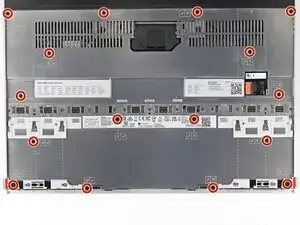
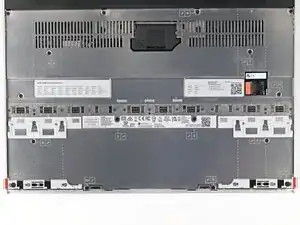
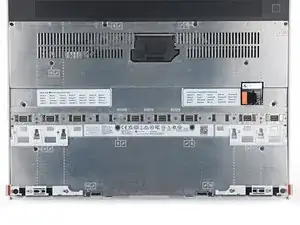
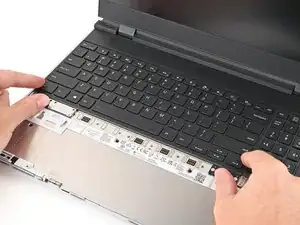
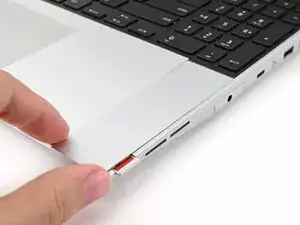
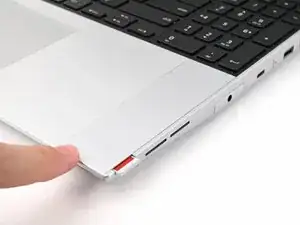
    • Use your fingernail to pull out the two Input Module latches and unlock them.

    • The latch will show red if it's unlocked.

  3. SJk2GqymsGfFPtk6
    SJk2GqymsGfFPtk6
    qYPAIGK4ZAN1UcxK
    RJPENmljQ6MIcvnN
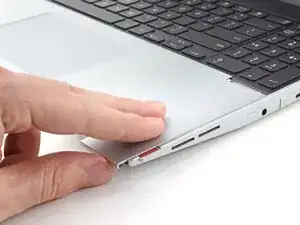
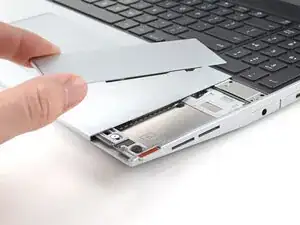
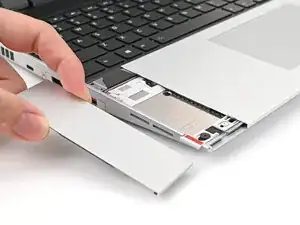
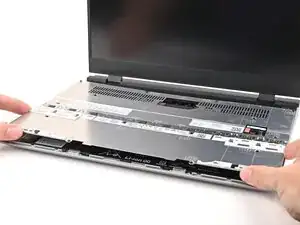
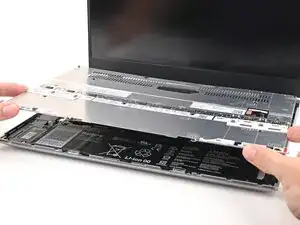
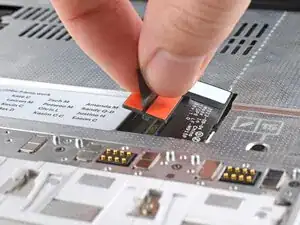
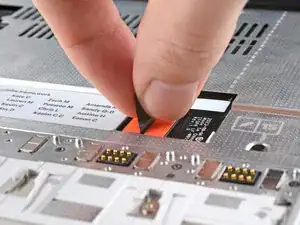
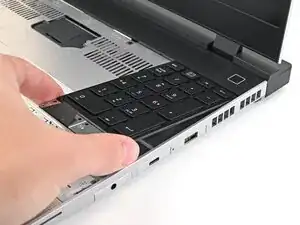
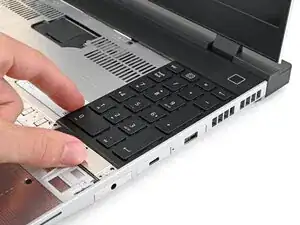
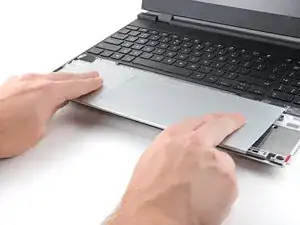
    • Use your fingers to slide the Touchpad Spacer toward the bottom edge of the laptop and unclip it.

    • If you're having trouble, check if the corresponding Input Module latch is properly unlocked.

    • Lift the Touchpad Spacer off the laptop and remove it.

  4. jNWbnEQoPE1b5FNs
    jNWbnEQoPE1b5FNs
    T4eCedmNWxtIK3E4
    qMrYphKZARGoeODv
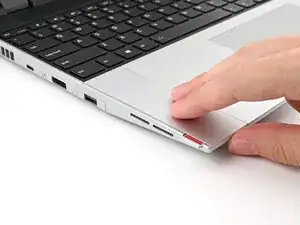
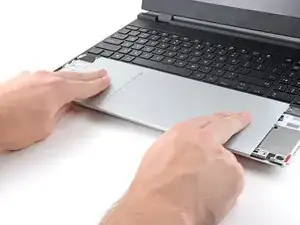
    • Repeat the same procedure for the other touchpad spacer.

  5. yYIvnKNYAZ5ZR5Cw
    yYIvnKNYAZ5ZR5Cw
    1OO4eJ2caggITR13
    fbmNJeKVP62XPULp
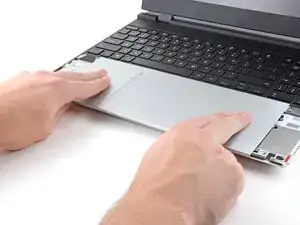
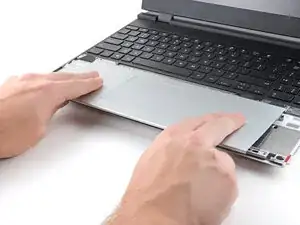
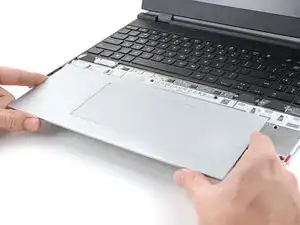
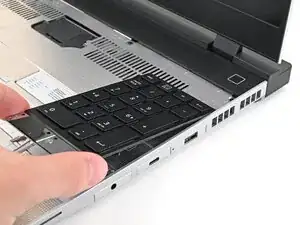
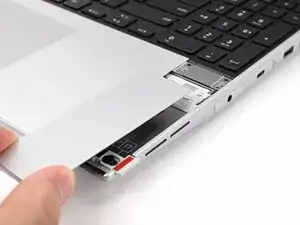
    • Use your fingers to slide the Touchpad Module toward the bottom edge of the laptop and disconnect it.

    • If you're having trouble, check if the Input Module latches are properly unlocked.

    • Lift the Touchpad Module and remove it.

  6. WXjcPFl2MgDiX2PZ
    WXjcPFl2MgDiX2PZ
    PojU1s2ZQqyfYBvO
    YlWkflmfJPHDuZov
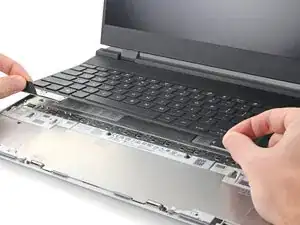
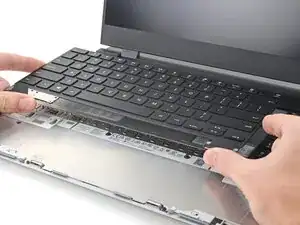
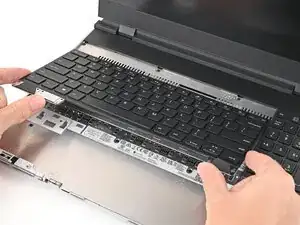
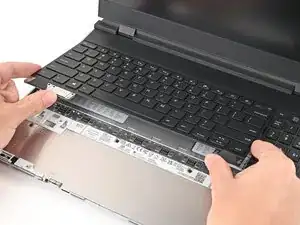
    • The keyboard is held in place with strong magnets. Apply gradually increasing force to avoid having the keyboard violently eject.

    • Grip the two pull tabs along the bottom of the keyboard and lift until its magnets release.

    • Remove the keyboard.

  7. hesMM66MFJtTfvCZ
    hesMM66MFJtTfvCZ
    3ZJ4rrrJTvR22eiV
    WesxvpHZwQSNZ3fK
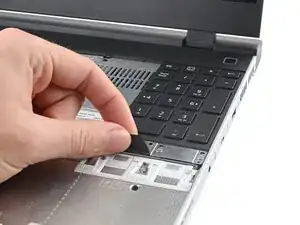
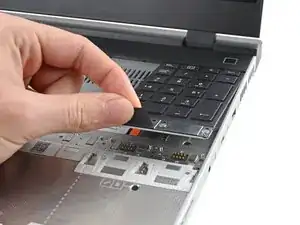
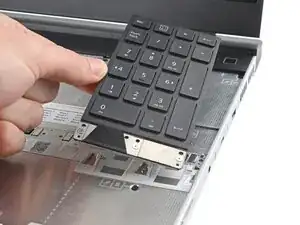
    • Your Input Module(s) might be different, but the procedure to remove them is the same.

    • Grip the pull tab at the bottom of the Input Module and lift until its magnets release.

    • Remove the Input Module.

    • Repeat for any remaining Input Modules.

  8. SRhXtXWpl3DPYYAS
    SRhXtXWpl3DPYYAS
    55XONtqi1PZJQADv
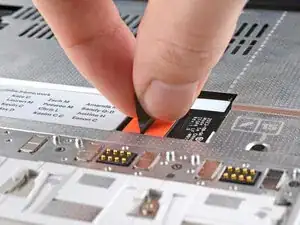
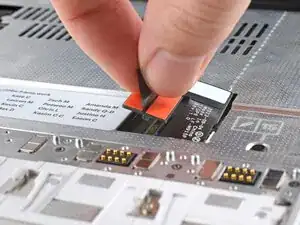
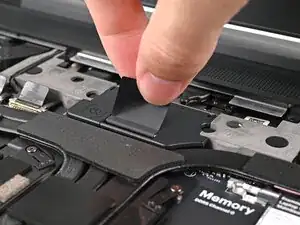
    • Grip the black pull tab on the Mid Plate cable press connector.

    • Lift up to disconnect the Mid Plate cable.

  9. aJoO4s4sLmUA5SSt
    aJoO4s4sLmUA5SSt
    EkZ2H5vKL2LW6Els
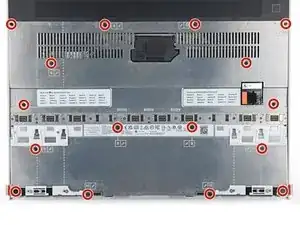
    • The Mid Plate screws are ordered from 2–17 (number 1 is the press connector). You don't have to follow the order, but you can use it to help keep track of the screws you've loosened.

    • Use your Framework Screwdriver to loosen the 16 captive T5 Torx screws securing the Mid Plate.

  10. VFMpNOrkg5EiKwlo
    VFMpNOrkg5EiKwlo
    VMfwxIagCZvb511j
    ZQ1ZDWKwVKQrjDYL
    • Use your fingers to lift the Mid Plate off the laptop and remove it.

  11. lRVXxLICEGdocSrI
    lRVXxLICEGdocSrI
    JCgtidXYDtu1PaVO
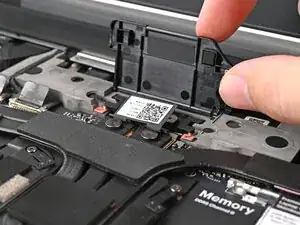
    • Lift the interposer door by its black pull tab and let it rest upright.

  12. QUSO5HwTLuMIAlVF
    QUSO5HwTLuMIAlVF
    UqPaLZBxyUeWB3Xm
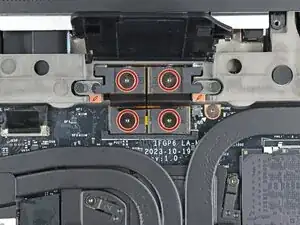
    • If you have the Graphics Module installed, your interposer will have four screws. If you have the Expansion Bay Shell installed, you'll have three screws instead.

    • If you have the Graphics Module, use your Framework Screwdriver to loosen the four captive T5 Torx screws securing the interposer.

    • If you have the Expansion Bay Shell, use your Framework Screwdriver to loosen the three captive T5 Torx screws securing the interposer.

  13. RRTnHiOVf2SmbBIL
    RRTnHiOVf2SmbBIL
    Xd5pXwSgLBOLaLnx
    • Lift the interposer by its pull tab and remove it.

  14. vDRVlx6RISCSiUcm
    vDRVlx6RISCSiUcm
    nrTLBFYiR4YNSALf
    dLPk65iSypbKMwLt
    • Use your Framework Screwdriver to loosen the two captive T5 Torx screws securing the module in the Expansion Bay.

    • Close the interposer door before continuing.

  15. EV6hxOxWhSeLhJgx
    EV6hxOxWhSeLhJgx
    OvgJqGPQnSC15AdL
    wQBqnhWGprulkl1l
    • Close your laptop and flip it over.

    • Slide the Expansion Bay Module out of the laptop and remove it.

    • The module should slide out easily. If you feel any resistance, check if the screws holding it in place are fully loosened.

    • Flip your laptop and reopen it.

  16. MBIEZmQ4ohlCsjYA
    MBIEZmQ4ohlCsjYA
    BwFJOVuiGGKCDS5x
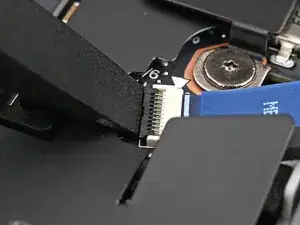
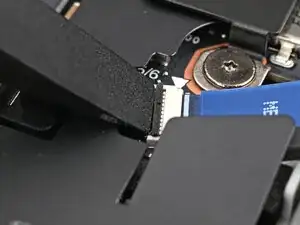
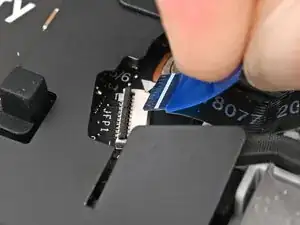
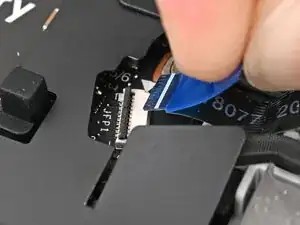
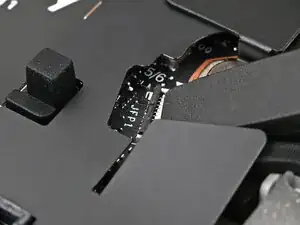
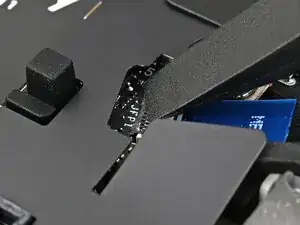
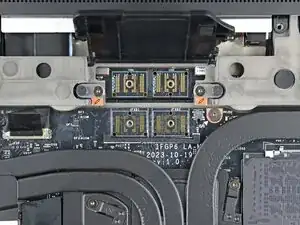
    • Use the flat end of your Framework Screwdriver, or a clean fingernail, to lift up the locking tab on the fingerprint reader ZIF connector next to the memory.

  17. FBMuVHkomoZUpPH1
    FBMuVHkomoZUpPH1
    oA3hLlmRmdfb1PwC
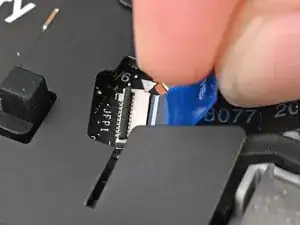
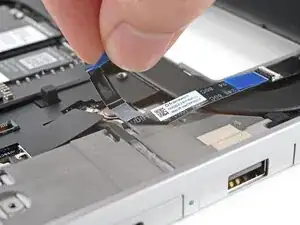
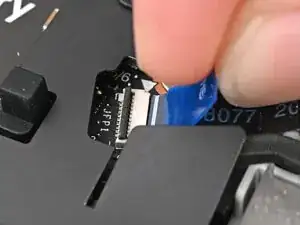
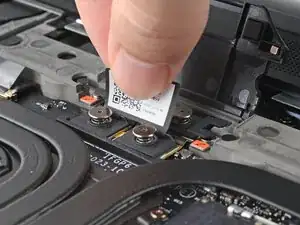
    • Use your fingers to grip the blue pull tab and slide the fingerprint reader cable straight out of its socket.

  18. nowIhewWYuAZsuLu
    nowIhewWYuAZsuLu
    KgMLYOAU4q4335DG
    YUb1K4hcBP1DskVV
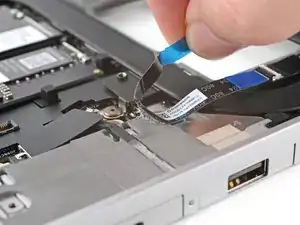
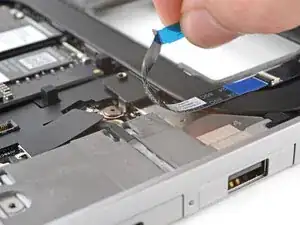
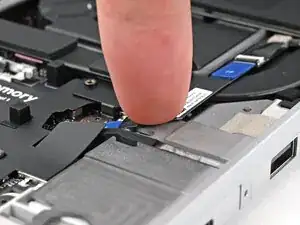
    • The fingerprint reader cable is lightly adhered to the laptop's frame.

    • Use your fingers to peel the fingerprint reader cable away from the frame and separate the adhesive.

  19. 6VCdAUGj2cWHTdXf
    6VCdAUGj2cWHTdXf
    lFHDp6VISWM6ZWjE
    1jCaqMk5c5uFaCrb
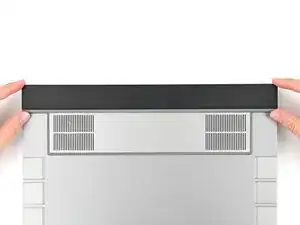
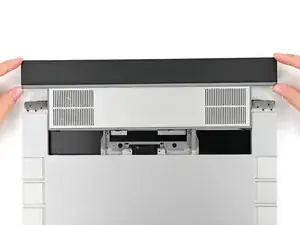
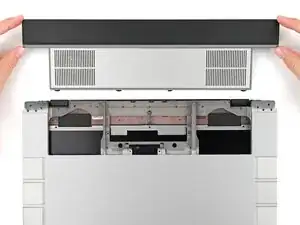
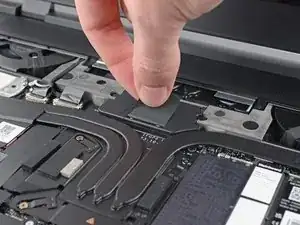
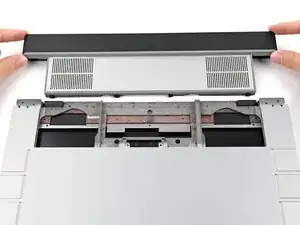
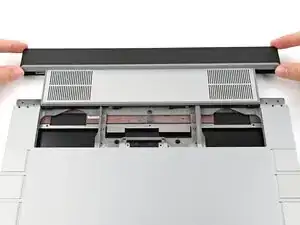
    • The ventilation plate is held in place with magnets.

    • Lift the bottom of the ventilation plate and pull it away from the laptop until the magnets release.

    • Remove the ventilation plate.

  20. yhbS1LqdqJHUFVXe
    yhbS1LqdqJHUFVXe
    HZuhH6VoPDvd5lfy
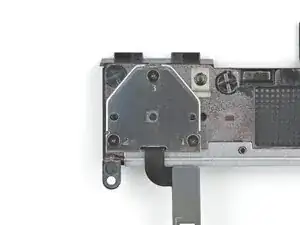
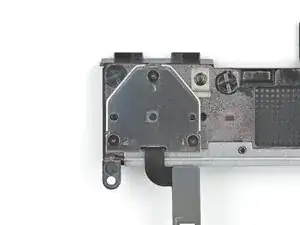
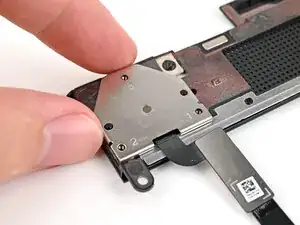
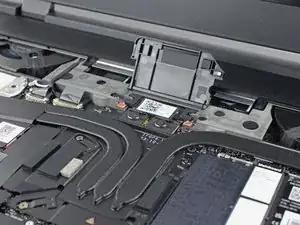
    • The fingerprint reader cover screws are marked 1–3. You don't need to follow this order, but you can use it to help keep track of the screws you've removed.

    • Use your Framework Screwdriver to remove the three 2.0 mm‑long Phillips screws securing the fingerprint reader cover.

  21. FFfGMlkKiLjcP4TV
    FFfGMlkKiLjcP4TV
    aKXt1l1WCTjf5dg3
    ULMJjpThuVBYgUkW
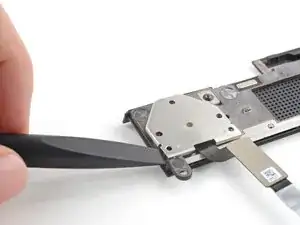
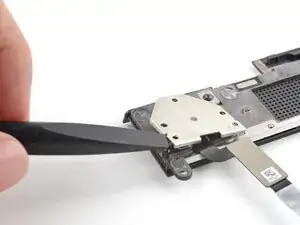
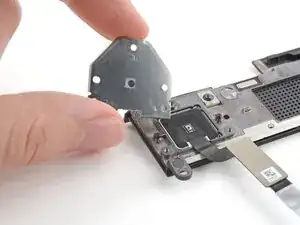
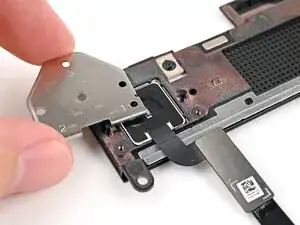
    • Use the flat end of your Framework Screwdriver to lift the fingerprint reader cover and remove it.

  22. LSW2jSLQD6JsgbH2
    LSW2jSLQD6JsgbH2
    LjNXxkjfQI2WHy4V
    qtXIBVLTJY3skrYB
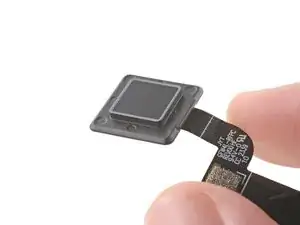
    • Lift the fingerprint reader out of its slot in the ventilation plate and remove it.

  23. yAqjOcYW4FxBfQJa
    • Congratulations on completing disassembly! The remaining steps will show how to reassemble your Framework Laptop.

  24. yhbS1LqdqJHUFVXe
    yhbS1LqdqJHUFVXe
    P6xG4YYHWHdiSAAr
    • Use your Framework Screwdriver to install the three 2.0 mm‑long Phillips screws securing the fingerprint reader cover.

  25. X6AgALIMRsjRoHWk
    X6AgALIMRsjRoHWk
    3AaxnNvTJlnU6H1B
    • Place the fingerprint reader cover over the back of the reader.

  26. LjNXxkjfQI2WHy4V
    LjNXxkjfQI2WHy4V
    LSW2jSLQD6JsgbH2
    • Place the fingerprint reader into its slot in the ventilation plate.

  27. J3irymcQVyspoqPB
    J3irymcQVyspoqPB
    vpxgM1U2oeJSnEv6
    • Lay the ventilation plate along the top edge of the laptop and let its magnets pull into place.

  28. gwEvWqFlhXauVOcq
    gwEvWqFlhXauVOcq
    xKFssJdsSsvPZGjR
    • Use your fingers to grip the blue pull tab and slide the fingerprint reader cable straight into its socket.

  29. YyhVDEW2sHFYkZPg
    YyhVDEW2sHFYkZPg
    F4kMTvJw6MoYEOGa
    • Use the flat end of your Framework Screwdriver, or a clean fingernail, to press down the locking tab on the fingerprint reader ZIF connector.

  30. hqoukOlBlYcSXgNJ
    • Press the fingerprint reader cable to the frame to re-adhere it.

  31. YPDWdpOxdFAqThNw
    YPDWdpOxdFAqThNw
    4WGwAwjGwkx5HfPL
    • Close the interposer door.

  32. 1uOUECOFI5DgNkT1
    1uOUECOFI5DgNkT1
    MDnfnN4Kbc3BVytc
    QIYI5bfaG4BABOMY
    • If you have the Graphics Module installed, your interposer will have four screws. If you have the Expansion Bay Shell installed, you'll have three screws instead.

    • If you have the Graphics Module, use your Framework Screwdriver to tighten the four captive T5 Torx screws securing the interposer.

    • If you have the Expansion Bay Shell, use your Framework Screwdriver to tighten the three captive T5 Torx screws securing the interposer.

    • Close the interposer door.

  33. XRFliQnLmIASWZoT
    XRFliQnLmIASWZoT
    4aKZ5YUfYYwMJnA3
    • Place the interposer over its spot between the Mainboard and the module.

    • Depending on if you're installing a Graphics Module or the Expansion Bay Shell, the interposer should be oriented so either rubber grommets or metal tabs cover the Expansion Bay screws.

  34. vDRVlx6RISCSiUcm
    vDRVlx6RISCSiUcm
    XN3g1sFD65EmNgXE
    • Use your Framework Screwdriver to tighten the two captive T5 Torx screws securing the Expansion Bay Module.

  35. fBJ2bmmBascXHxYK
    fBJ2bmmBascXHxYK
    bSDEVdYXNbEIByCp
  36. WNXCOLdJxWygeIlt
    WNXCOLdJxWygeIlt
    KDQ5biLCZamuGX4Z
    NtmyYbY1tlXxr6YA
    • Place the Mid Plate on the laptop, making sure it sits evenly on its alignment pegs.

  37. pqZIeK5rgaKTBWl4
    pqZIeK5rgaKTBWl4
    4spVx1SupfNvWdAX
    • Use your Framework Screwdriver to tighten the 16 captive T5 Torx screws in order (starting with 2) to secure the Mid Plate evenly.

  38. SHR1O2N1YLLv6ryr
    SHR1O2N1YLLv6ryr
    NTicb3BsOPOSLmwn
    • Align the Mid Plate cable press connector over its socket and press down to connect it.

  39. JyccFC2cavJAQkw2
    JyccFC2cavJAQkw2
    UBPFtlfVJwD5MG4C
    qDoJmL3yEaNiGyLv
    • Your Input Module(s) might be different, but the procedure to remove them is the same.

    • Align the top edge of the Input Module with the top edge of the laptop.

    • Lay the Input Module on the laptop and let the magnets pull the keyboard into place

    • Make sure the Input Module is seated properly on its alignment pegs and sits flush with the edges of the laptop.

    • Repeat for any remaining Input Modules.

  40. 2oPYqKStliPhyMNB
    2oPYqKStliPhyMNB
    Sa6jykktBZSuiFBK
    mSXYbDZf6nqTloeB
    • Align the top edge of the keyboard with the top edge of the laptop.

    • Lay the keyboard on the laptop and let the magnets pull the keyboard into place

    • Make sure the keyboard is seated properly on its alignment pegs and sits flush with the edges of the laptop.

  41. OGgC5a1tSqgNY2QF
    OGgC5a1tSqgNY2QF
    5m5NiQxMvTWjIbjQ
    • Place the Touchpad Module flat on its cutout so its clips are properly aligned.

    • Press the Touchpad Module down and slide it into place so it lines up evenly with the bottom edge of the laptop.

  42. nrQTspaoMXJKTnok
    nrQTspaoMXJKTnok
    rRqoTulPIcQVVcbP
    hH5fa2iJ4qxAPZjs
    • Place the Touchpad Spacer over its spot on the laptop with the bottom edge overhanging slightly.

    • Slide the Touchpad Spacer towards the top of the laptop to secure it.

    • Repeat the same procedure for the other Touchpad Spacer.

Conclusão

You finished fixing your Framework Laptop!

Take your e-waste to an R2 or e-Stewards certified recycler.

If you need help, contact Framework support.

Alex Diaz-Kokaisl

Membro desde: 16/01/22

227430 Reputação

0 comentários