Introdução

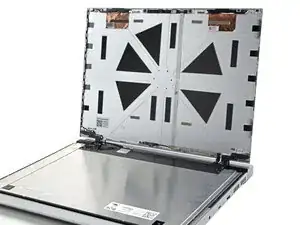
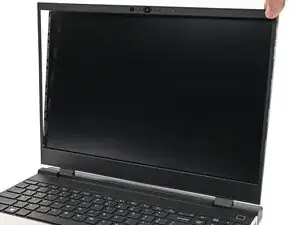
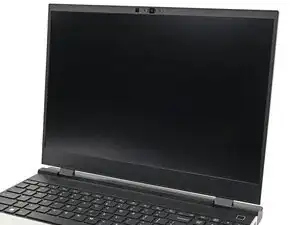
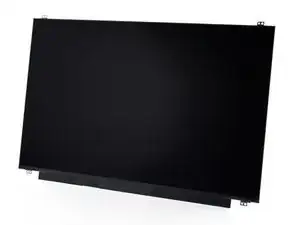
Use this guide to remove and replace the display in your Framework Laptop 16.

  1. FyZqYQXlGGSUVdfO
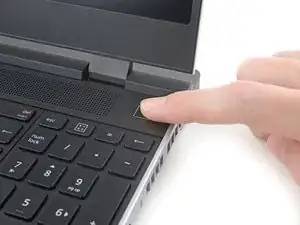
    • Unplug all cables and fully shut down your laptop.

  2. K2wmiAutFGkWwKCS
    K2wmiAutFGkWwKCS
    TO2GDLYVR2XRAmmi
    oOyrUBubcfVEpjaP
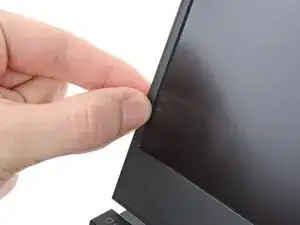
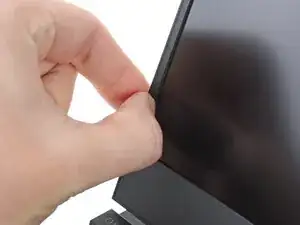
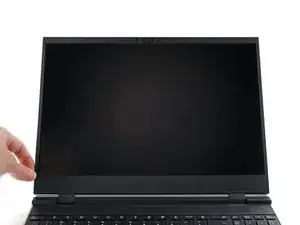
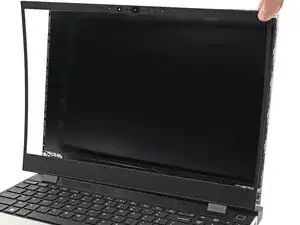
    • The bezel is secured with magnets.

    • Slide your fingernail under the inside edge of either bottom corner of the bezel.

    • Pull the bezel away from the screen to release the first few magnets.

  3. LXKfs1vvVxx2TyYV
    LXKfs1vvVxx2TyYV
    jFv66UlfoSIpvCYb
    YSNyOLKkaaGhVwke
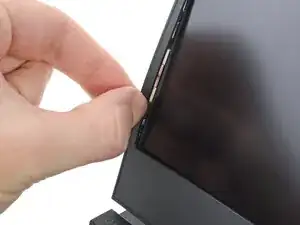
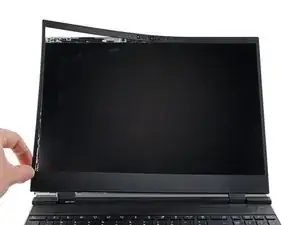
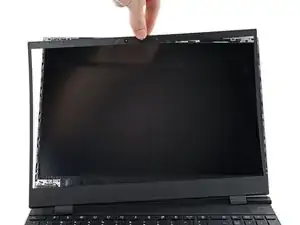
    • Lift the bezel around the perimeter of the screen until all of its magnets are released.

    • Remove the bezel.

  4. MrtTG1baFao3RwAy
    MrtTG1baFao3RwAy
    OZqOaHhJNdGem5aA
    CaxZ6WNtKfppNcVq
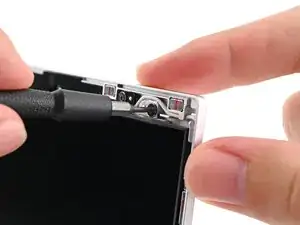
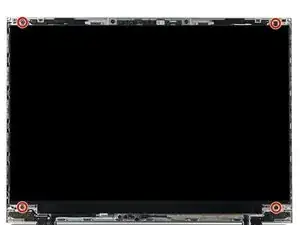
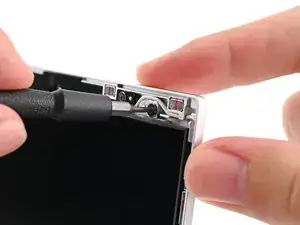
    • While supporting the display with one hand, use your Framework Screwdriver to remove the four 2.4 mm‑long T5 Torx screws securing the display.

  5. KfZp2YvwUQGACjE1
    KfZp2YvwUQGACjE1
    J1nSHSHgJnIHEjWu
    CW12NgPHwfQ1Dksd
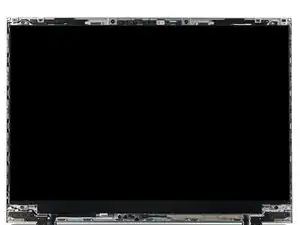
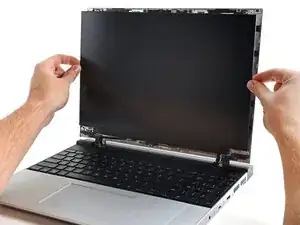
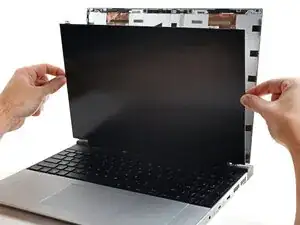
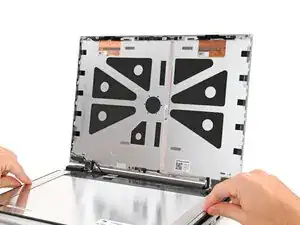
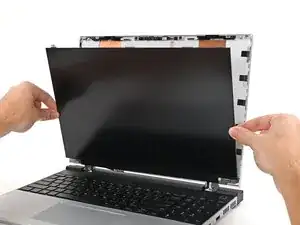
    • Grab the display and pull it straight off the Top Cover to free it from its alignment pegs.

    • Don't pull the display too far from the Top Cover, as it's still attached by a cable.

    • Flip the front of the display down and rest it on the keyboard.

  6. DtkEDSpkoFxZXek4
    DtkEDSpkoFxZXek4
    GLEQcRdXJgkM3v3t
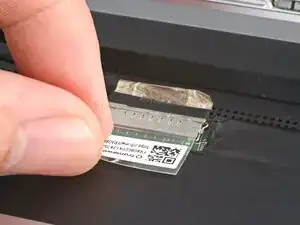
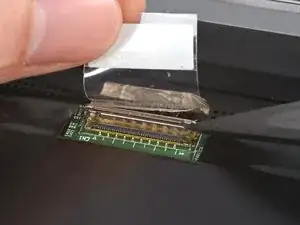
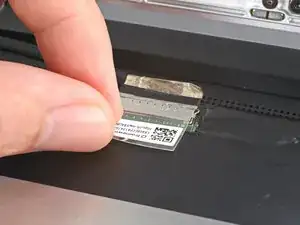
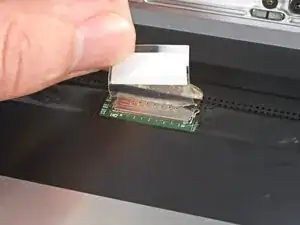
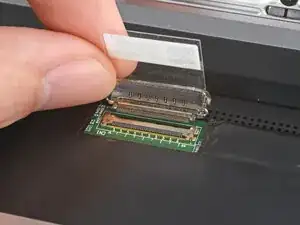
    • Use your fingers to flip up the plastic tab and access the connector underneath.

  7. blSwvyuY2pN1YsR3
    blSwvyuY2pN1YsR3
    WRSE5EFTLtxhoqTZ
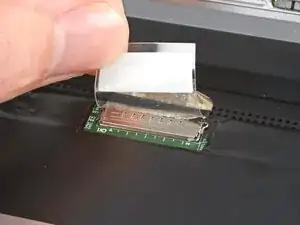
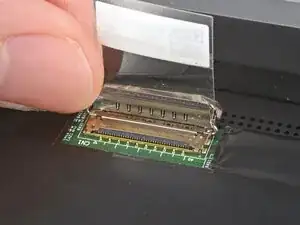
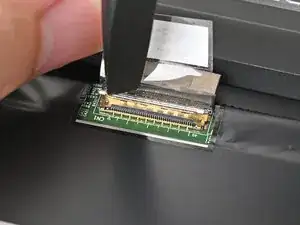
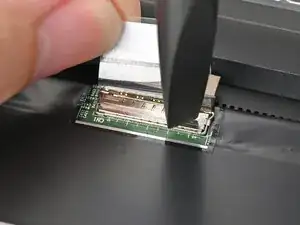
    • Use the flat end of your Framework Screwdriver to lift up the metal locking tab over the eDP cable connector.

  8. XqJHlYZfRROtN2lb
    XqJHlYZfRROtN2lb
    6CmkNrcQHOSZWYQe
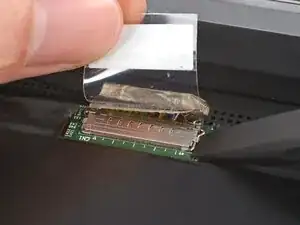
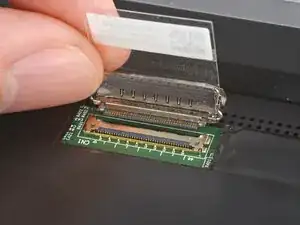
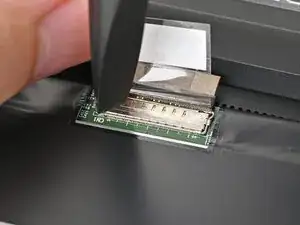
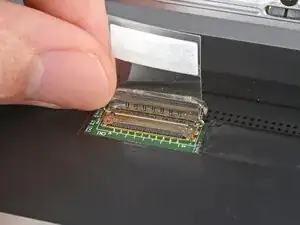
    • Grip the eDP cable where it meets the connector head.

    • Slide the connector straight out of its socket to disconnect it.

  9. yAqjOcYW4FxBfQJa
    • Congratulations on completing disassembly! The remaining steps will show how to reassemble your Framework Laptop.

  10. BrxJTVW1sVejcbI3
    BrxJTVW1sVejcbI3
    OZqOaHhJNdGem5aA
    CaxZ6WNtKfppNcVq
    • While supporting the display with one hand, use your Framework Screwdriver to install the four 2.4 mm‑long T5 Torx screws securing the display.

  11. QYEBKD4AUN4HYcXL
    QYEBKD4AUN4HYcXL
    YfaAGPK2yskBMIQm
    eWolcZxZxjUn5UG1
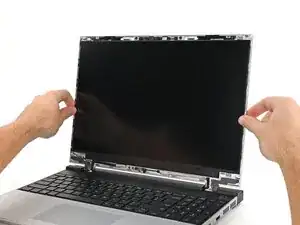
    • Align the display with its alignment pegs and place it on the Top Cover.

  12. EchDZGTgt2HnJB2D
    EchDZGTgt2HnJB2D
    WY1vaEEe21VLfmf4
    • Use your fingers to flip up the plastic tab and access the connector underneath.

  13. dHOJ1WoeG3lPcUnn
    dHOJ1WoeG3lPcUnn
    YJqPasASlLIcTAOZ
    EyZLEwBZJcooVZrM
    • Push the metal locking tab down over the eDP cable connector until it snaps into place.

  14. nCGD5wjcNCRYLkYJ
    nCGD5wjcNCRYLkYJ
    Snn1em1guSdAN4uw
    • Grip the eDP cable where it meets the connector head.

    • Slide the eDP cable connector straight into its socket.

  15. JDQK2uXCwuJVKH5H
    JDQK2uXCwuJVKH5H
    hmjVPFlFBKLho3nH
    GHq4dG5fehTabiD1
    • Align the bezel over the perimeter of the display and let the magnets pull the bezel into place.

    • The bezel should "snap" into place. If it doesn't, realign it and make sure it sits flush with the display.

Conclusão

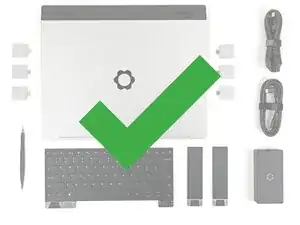
You finished fixing your Framework Laptop!

Take your e-waste to an R2 or e-Stewards certified recycler.

If you need help, contact Framework support.

Alex Diaz-Kokaisl

Membro desde: 16/01/22

227430 Reputação

0 comentários