Introdução

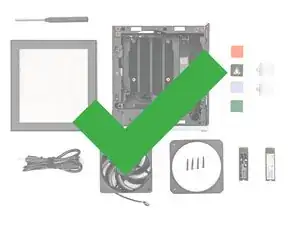
Follow this guide to remove and replace the Wi-Fi Module in your Framework Desktop.

  1. bCnmRpDo2L1muYA5
    bCnmRpDo2L1muYA5
    PkjmE66QFWiGyJPD
    rXfwXpgdDlUm4VSA
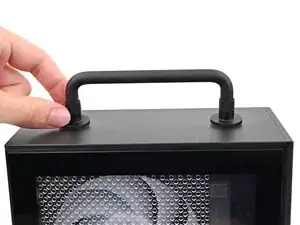
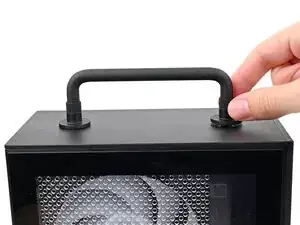
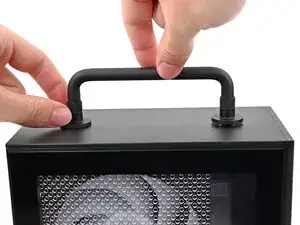
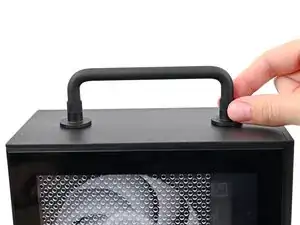
    • If you installed the Handle on your Desktop, follow this step. Otherwise, skip it.

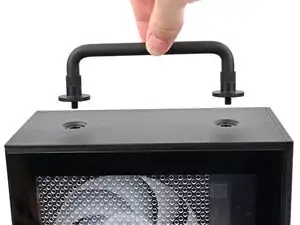
    • Rotate the Handle's screw threads counterclockwise on both sides until it comes free.

    • Remove the Handle.

  2. 25uSW5yTweC4DhJH
    25uSW5yTweC4DhJH
    NLSHNAcGIfXySxVC
    uIxWPNWJJEnVnIum
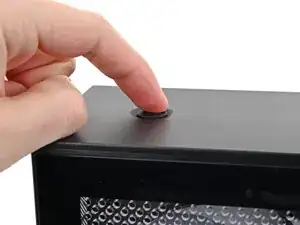
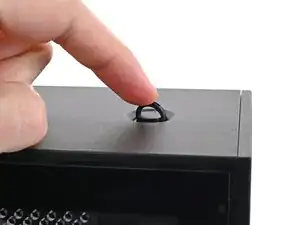
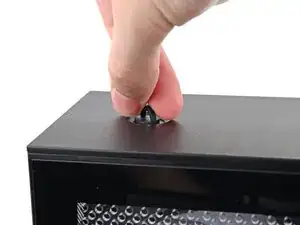
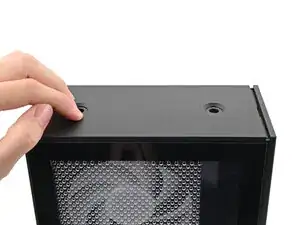
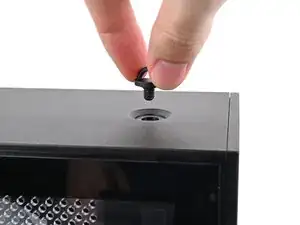
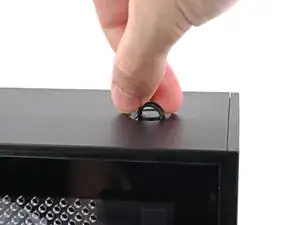
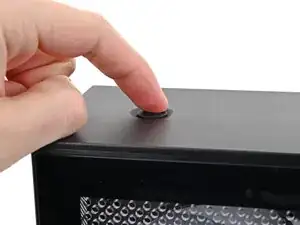
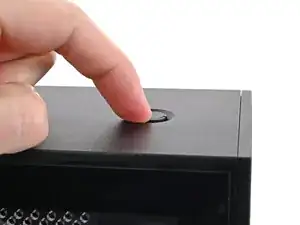
    • Use your finger to lift up the two D-rings on the Top Panel screws.

  3. BeKqSvRJr2nX2qFK
    BeKqSvRJr2nX2qFK
    odGLjCiIdEQeE2bh
    IDSwwb3LHUUaXukA
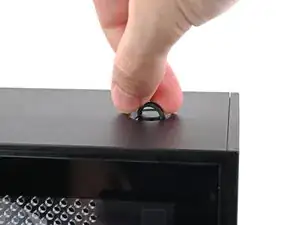
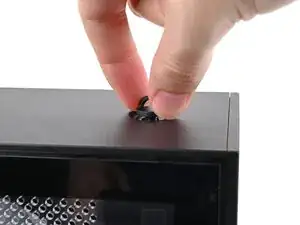
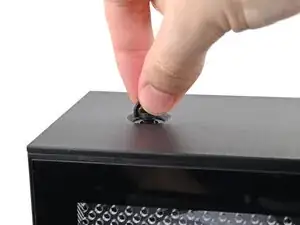
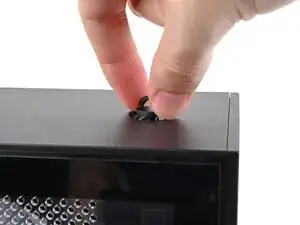
    • Use your fingers to twist the screw counter-clockwise and loosen it.

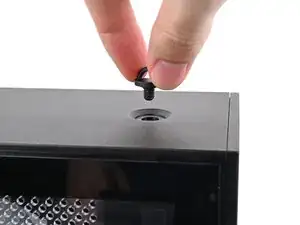
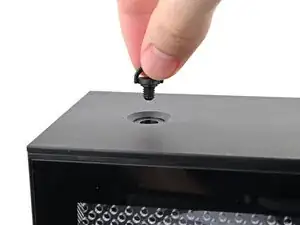
    • Remove the Top Panel screw.

  4. 4RopBQ6BtjnY1WrK
    4RopBQ6BtjnY1WrK
    ktjYiQLsGJUndqrb
    J4lBDyCSGfYoWxD4
    • Repeat the same procedure for the other Top Panel screw.

  5. jTMMgoIeaomUVn3V
    jTMMgoIeaomUVn3V
    k25EnLrWVNWIYJKF
    l1bqihYbxPsKZm41
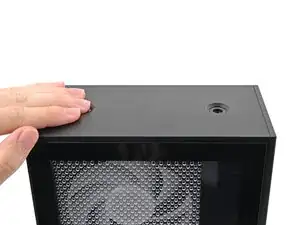
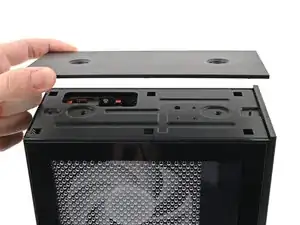
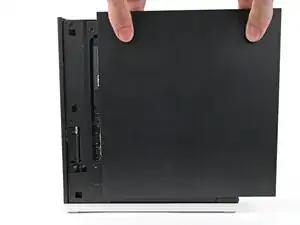
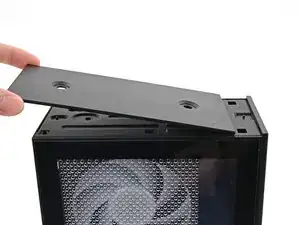
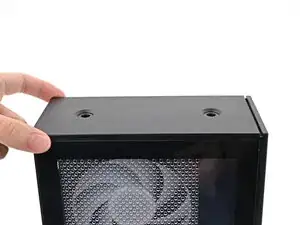
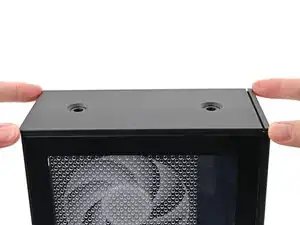
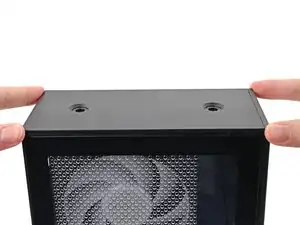
    • Slide the Top Panel towards the rear of the computer to release the clips securing it to the chassis.

    • If you're having a hard time gripping the Top Panel, use the screw holes to get a better handhold.

    • Lift the Top Panel off the chassis and remove it.

  6. rkXSYAJCdhtCNXhZ
    rkXSYAJCdhtCNXhZ
    e6AsUPXtYASKPw1e
    SkhCtMLhOvYUompE
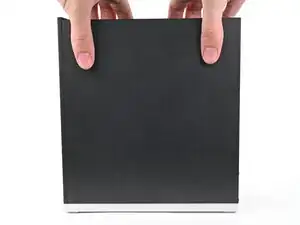
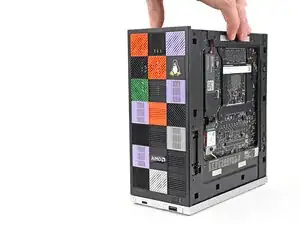
    • Use your fingers to grip the top of the Right Panel and slide it upward to release its clips.

    • Remove the Right Panel.

  7. toBivN2wtDheIxWT
    toBivN2wtDheIxWT
    qRIDDy1HGoQNxXcd
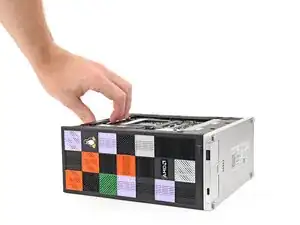
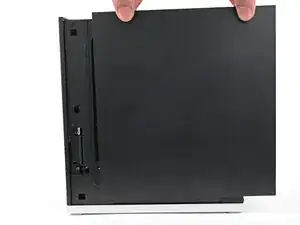
    • Lay the left side of the Desktop on your work surface so the underside of the Mainboard is facing upward.

  8. 4Qtd5dohLbTiUXHl
    4Qtd5dohLbTiUXHl
    JdxO6AR565hV3QNw
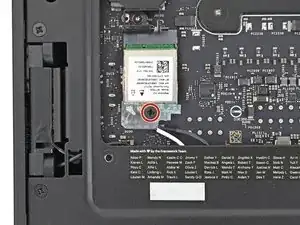
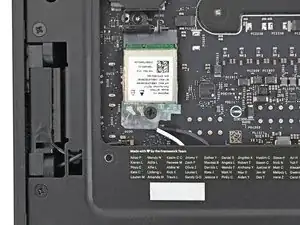
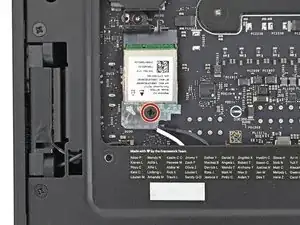
    • Use your Framework Desktop Screwdriver to remove the 7.0 mm‑long Phillips screw securing the Wi-Fi module.

  9. xbKC6iLfnGXCViJO
    xbKC6iLfnGXCViJO
    rGNhLwRJ5oYJRLN6
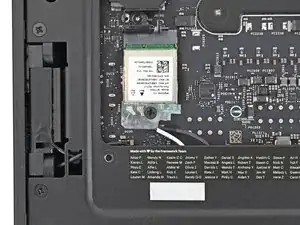
    • Use your fingers to slide the Wi-Fi module cover straight off the bottom of the module.

    • Remove the cover.

  10. h6slnLPOMAVuPjiV
    h6slnLPOMAVuPjiV
    1bsoA4iVgC3qCTVt
    YyBNvIrgDQaeGysJ
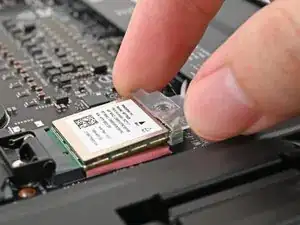
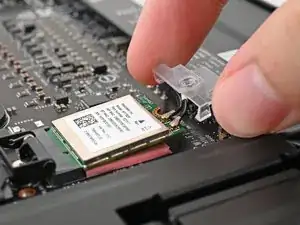
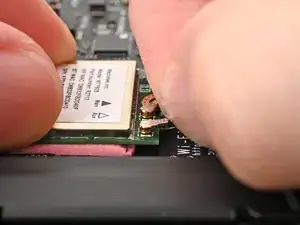
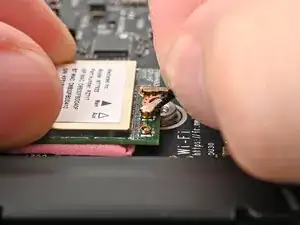
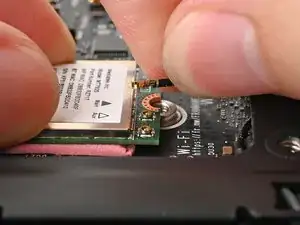
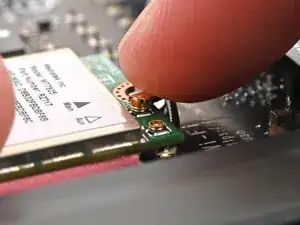
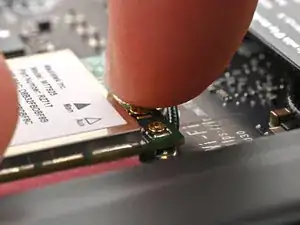
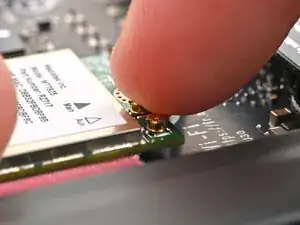
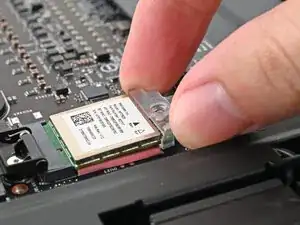
    • The Wi-Fi module has two delicate coaxial cable connectors. Follow this step carefully to avoid damaging them.

    • Press and hold the Wi-Fi module down with your fingers.

    • Use your fingers to grip the white antenna cable, as close to the metal head as possible.

    • If you have angled tweezers, slide one arm of a pair of tweezers under the antenna connector, as close to the metal head as possible.

    • Gently lift the connector straight up to disconnect the white antenna cable.

    • Repeat the procedure with the black antenna cable.

  11. FNMSifApUiyKl6Qf
    FNMSifApUiyKl6Qf
    5UNPJViGGriEFSlC
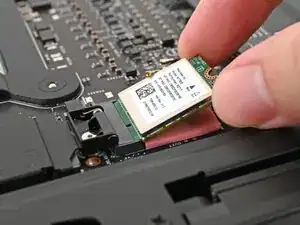
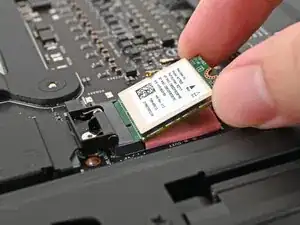
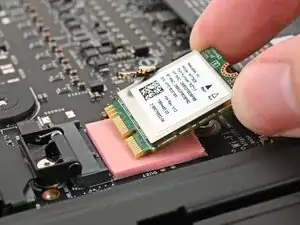
    • Grip the Wi-Fi module by its edges and pull it straight out of its socket.

    • Remove the Wi-Fi module.

  12. O46xDZ6XWnMOeZgT
    • Congratulations on completing disassembly! The remaining steps will show how to reassemble your Framework Desktop.

  13. EtSaUuSaQH5iY2yw
    EtSaUuSaQH5iY2yw
    5nXpBBEoOKrrrvIu
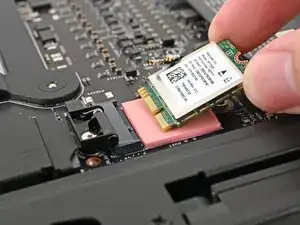
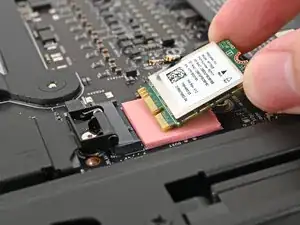
    • Hold the Wi-Fi module by its edges. Don't touch the gold contacts with your fingers. If you do, wipe the contacts with a clean, lint-free cloth to remove any finger oils.

    • Align the Wi-Fi module's gold contacts and notch with the socket on the Mainboard.

    • Insert the Wi-Fi module into the socket at a shallow angle. The gold contacts should mostly be covered by the socket.

    • The Wi-Fi module fits into the socket in one orientation. If it doesn't fit, try flipping the module.

  14. TVTPGjIOvlmnrDDW
    TVTPGjIOvlmnrDDW
    cQJlt3M4CeUFXLjq
    qPWf53uyfeeSoMDQ
    • Hold the Wi-Fi module down with your fingers.

    • Position the black antenna cable connector over the left Wi-Fi module's coaxial socket.

    • Tweezers can help position the connector.

    • Use your finger to press the connector into place. You should feel a faint click, and the cable will stay attached to the socket by itself.

    • These connectors are very delicate! If the connector doesn't feel like it's clicking in place, reposition the connector and try again.

    • Repeat the procedure with the white antenna cable.

  15. wvwFcTBUVaKYFVg1
    wvwFcTBUVaKYFVg1
    Dp2gVGTuW5ddcTTe
    PIR1B6cYBYLfkNKO
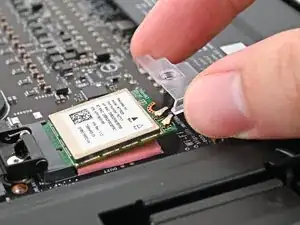
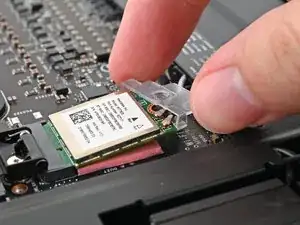
    • Hook the Wi-Fi bracket over the corner of the Wi-Fi module opposite the antenna cables.

    • Rotate the bracket over the Wi-Fi module, making sure the screw hole isn't being obstructed by the antenna cables.

  16. dE3IQW6pmAydq4sh
    dE3IQW6pmAydq4sh
    JSGyVuE1KSSTKYWF
    • Use your Framework Desktop Screwdriver to install the screw securing the Wi-Fi module.

  17. wfXAR5uJnyAn2DEN
    wfXAR5uJnyAn2DEN
    lkHrckItbKPCTlxf
    X65qrjSPhMMhJDV1
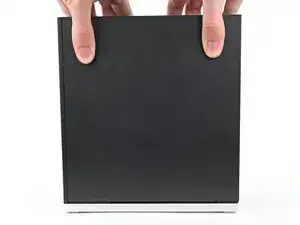
    • Slide the Right Panel onto the right edge of the chassis, from top to bottom, and press it flat to ensure its clips are slotted into place.

    • There should be a small gap between the bottom of the Right Panel and the silver base.

    • Push the Right Panel towards the base of the computer to engage the clips.

  18. iIGHoTNwTjk6CsYT
    iIGHoTNwTjk6CsYT
    2bSMInO1IvGGlGdY
    V2XKH5ItaYfTBjxB
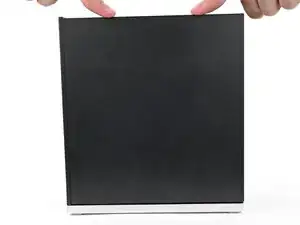
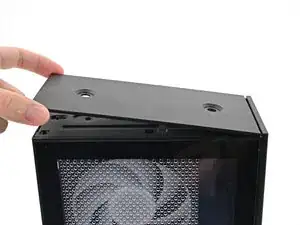
    • Orient the Top Panel so its arrow is pointing towards the rear of the computer.

    • While holding the Top Panel at a slight downward angle, slide it across the top of the chassis (from rear to front) until you feel its clips catch.

    • There should be a small gap between the Top Panel and the front of the Desktop.

    • Lay the Top Panel flat on the chassis to align the remaining clips.

  19. 5jqYIJjCMYTIluBK
    5jqYIJjCMYTIluBK
    1HnNsOxjfWH3CW2A
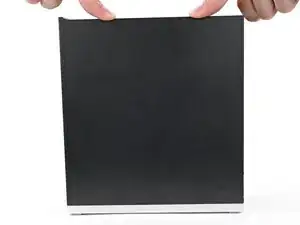
    • While securing the computer with one hand, use the other hand to slide the Top Panel towards the front of the computer to close the gap and engage the clips.

  20. wMSbHEseVBHs4sQl
    wMSbHEseVBHs4sQl
    RUiXT1LIuwYW1mgA
    • If you're installing the Handle on your Desktop, follow this step. Otherwise, skip it.

    • Place the Handle over the Top Panel screw holes.

    • While holding the Handle in place, twist the screw threads on both sides clockwise until they're snug on the Top Panel.

  21. QvoH6OkAy6SluuRN
    QvoH6OkAy6SluuRN
    E5MbWITINqhggrhU
    sJHXRSaGVTAJTLGA
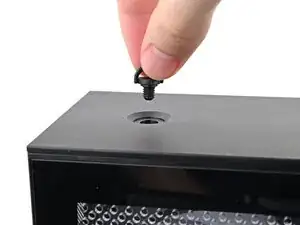
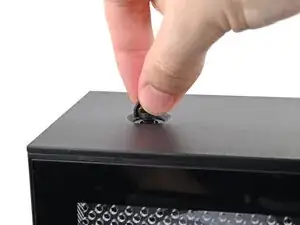
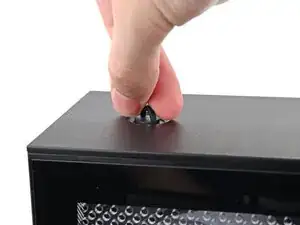
    • Insert the top panel screw into its hole and twist clockwise until it feels snug.

  22. omEEwgWEsLJVJGtZ
    omEEwgWEsLJVJGtZ
    yT2GekLdu6iCeSiv
    sehBCxDWubPcnoTn
    • Repeat the same procedure for the other top panel screw.

  23. 6dIq2aLI3wcuuFRc
    6dIq2aLI3wcuuFRc
    QFF5xZUlxcXQmRow
    svPrkAZgMdvGMFrS
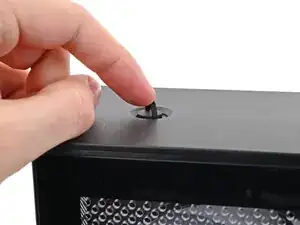
    • Use your finger to close the two D-rings on the top panel screws.

Conclusão

You finished fixing your Framework Desktop!

Take your e-waste to an R2 or e-Stewards certified recycler.

If you need help, contact Framework support.

Alex Diaz-Kokaisl

Membro desde: 16/01/22

227430 Reputação

0 comentários