Introdução

  1. G5VoiWHeSgOSxLGK
    G5VoiWHeSgOSxLGK
    mByMX1tyki2LILSK
    nPuWEUJRkpvveyFk
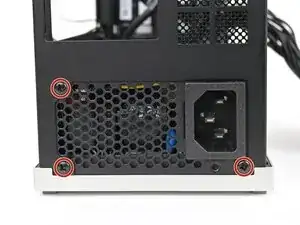
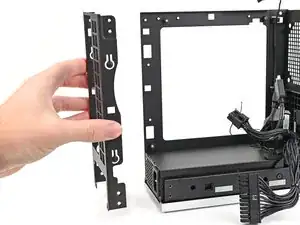
    • Use your Framework Desktop Screwdriver to remove the three 5.9 mm‑long Phillips screws securing the power supply.

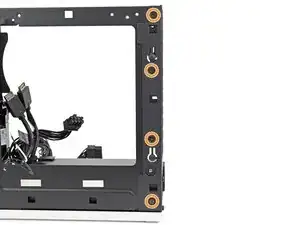
    • Optionally, you can remove the six 4.0 mm‑long screws securing the rear plate to make removing the power supply easier.

    • If you don't remove the rear plate screws, skip the next step.

  2. vQlW25kQ2GHt2cek
    vQlW25kQ2GHt2cek
    HeUtyNl1GlKrh4F1
    • Pull the rear plate off the back of the Desktop and remove it.

  3. yIW1XHUxvV3ALJlF
    yIW1XHUxvV3ALJlF
    p3UnDMGJ2CRMISfa
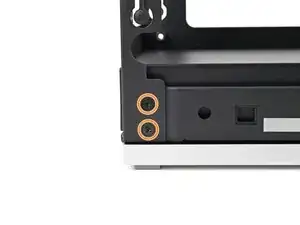
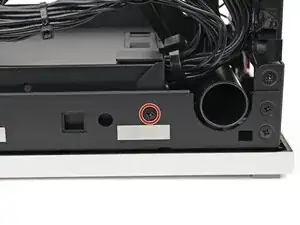
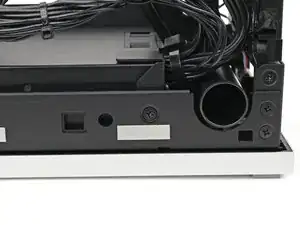
    • Use your Framework Desktop Screwdriver to remove the 4.0 mm‑long Phillips screw securing the power supply.

  4. dxfraDdhgBVTJiEL
    dxfraDdhgBVTJiEL
    TynqHWYONLLAcOUA
    MpeLtieObj2CGHsN
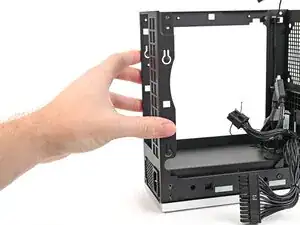
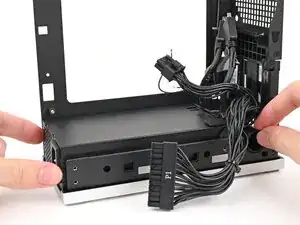
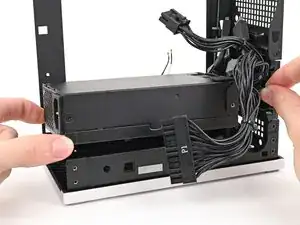
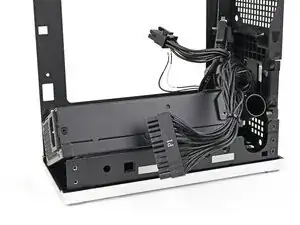
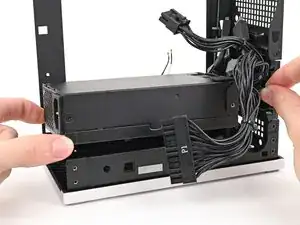
    • Lift the power supply out of its slot and let it rest on the left side of the Desktop.

  5. 1xeNkYWuFXWb5nOB
    1xeNkYWuFXWb5nOB
    Lqa3MTRl6IQJxdYf
    HkbDvLOPfZDJYPjO
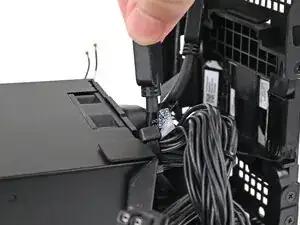
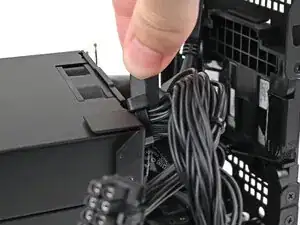
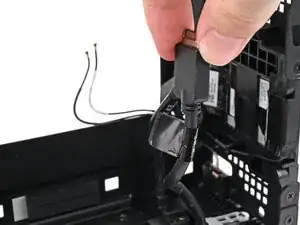
    • Push the right Expansion Card cable through the gap between the power supply and its duct.

    • The gap is very small and might require some force to thread the cable through.

    • Remove the power supply.

Conclusão

To reassemble your device, follow these instructions in reverse order.

Alex Diaz-Kokaisl

Membro desde: 16/01/22

227430 Reputação

0 comentários