Introdução

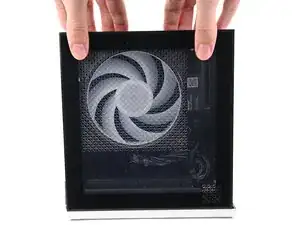
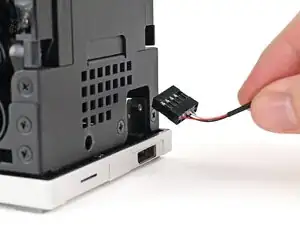
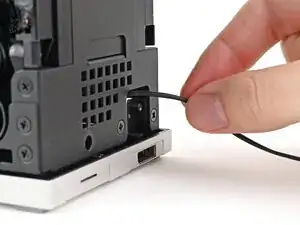
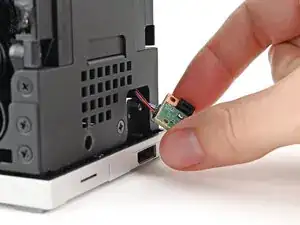
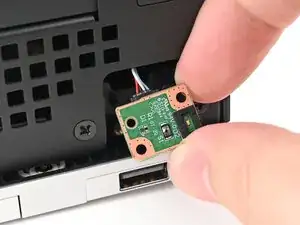
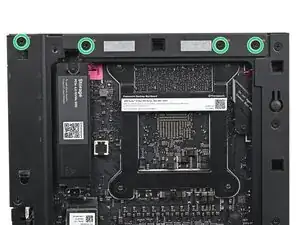
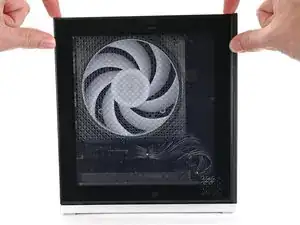
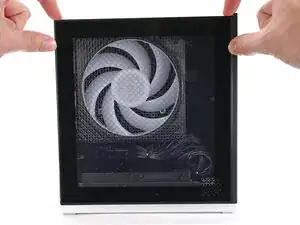
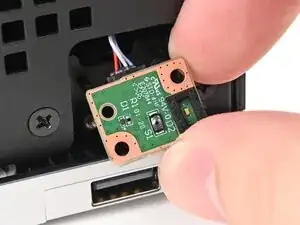
Follow this guide to remove and replace the Power Button Board in your Framework Desktop.

  1. lfElLtU4CB6IDDsK
    lfElLtU4CB6IDDsK
    UmBHkTIJqRq6IPe1
    xeOTgRHDgxuq2Q15
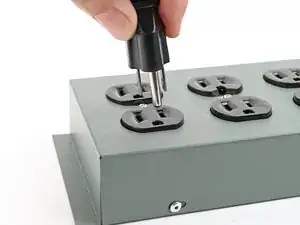
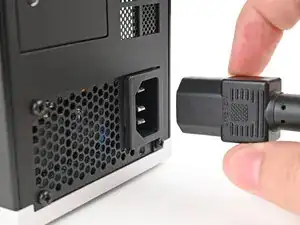
    • Before you begin repairs, shut down your Desktop from the operating system and unplug it.

    • Wait one minute before continuing to allow your Desktop to fully power down.

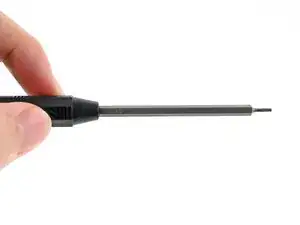
    • Make sure your Framework Desktop Screwdriver has the T5 Torx bit (labeled as T5) facing outwards. If it's not, pull the bit out and flip it.

  2. XLTfeld1KUdjWOKV
    XLTfeld1KUdjWOKV
    W3VjNdQ4KsjDPN3e
    xqnJp46bmuCf5pno
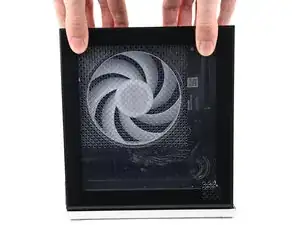
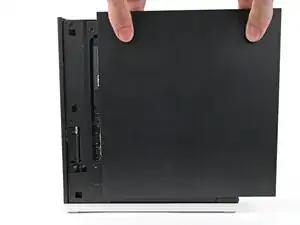
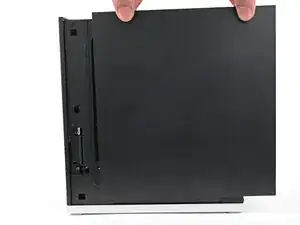
    • Use your fingers to grip the top of the Left Panel and slide it upward to release its clips.

    • Remove the Left Panel.

  3. rkXSYAJCdhtCNXhZ
    rkXSYAJCdhtCNXhZ
    e6AsUPXtYASKPw1e
    SkhCtMLhOvYUompE
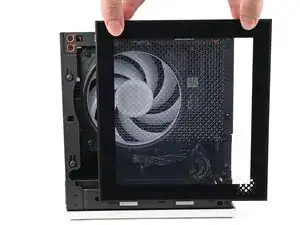
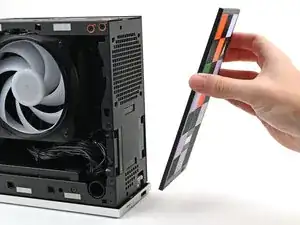
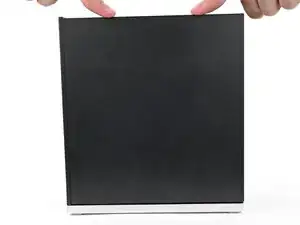
    • Use your fingers to grip the top of the Right Panel and slide it upward to release its clips.

    • Remove the Right Panel.

  4. q2n2cUuArfPUmHWe
    q2n2cUuArfPUmHWe
    Lk4HYbKfJADaMdwV
    QcOhvFUrOJFAMqyG
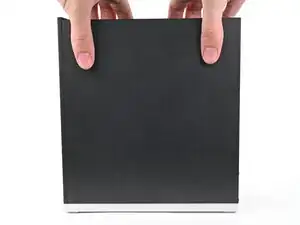
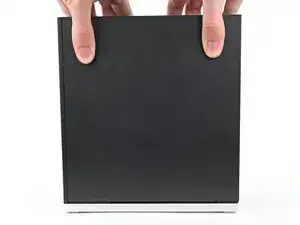
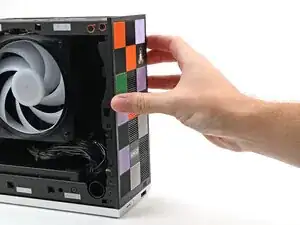
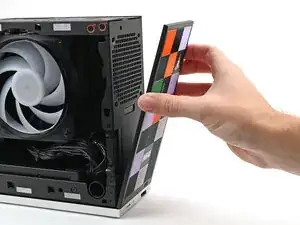
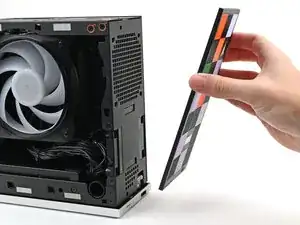
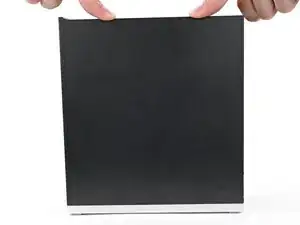
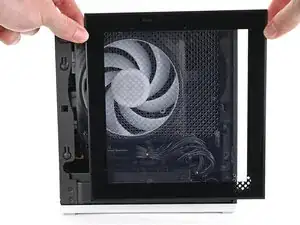
    • Use your fingers to pull the Front Panel off the magnets securing it to the chassis.

  5. KHTwAfBVGhWW3Dwm
    KHTwAfBVGhWW3Dwm
    WFpBVRITjssP66SF
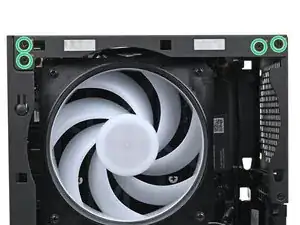
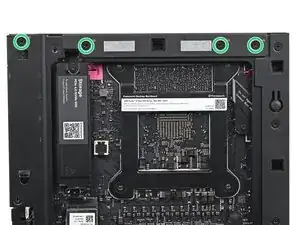
    • While holding the Desktop steady, use your Framework Desktop Screwdriver to remove the eight 4.0 mm‑long Phillips screws securing the top plate.

  6. LuCcXEuaQClKsABW
    LuCcXEuaQClKsABW
    euI4PluTKeGGsZTZ
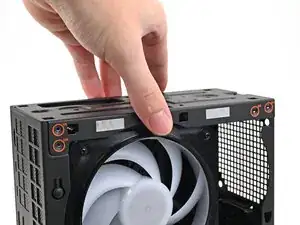
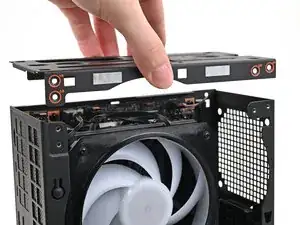
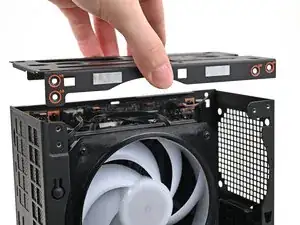
    • Lift the top plate off the Desktop and remove it.

  7. TyYkNV2ZthyMIFqv
    TyYkNV2ZthyMIFqv
    gDgkLVDMvJHCxJXO
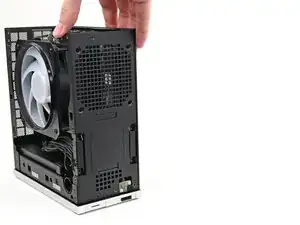
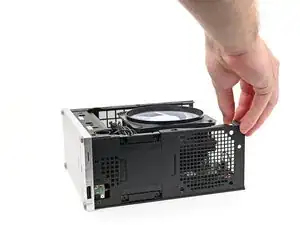
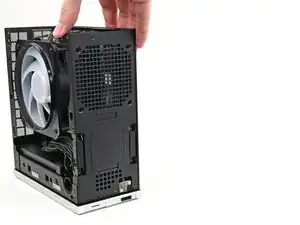
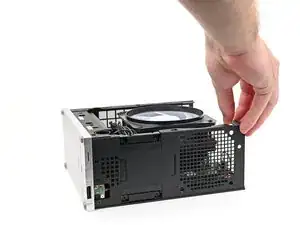
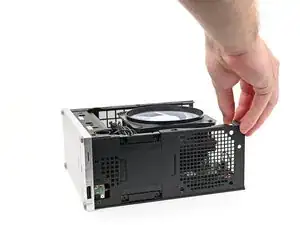
    • Rotate the Desktop onto its right side so the Mainboard is facing upward.

  8. HdUuWg3uAHDqigtn
    HdUuWg3uAHDqigtn
    omBInFrDL1rEwdrV
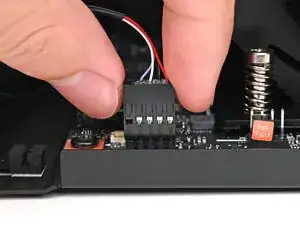
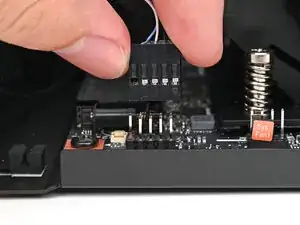
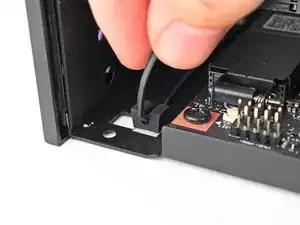
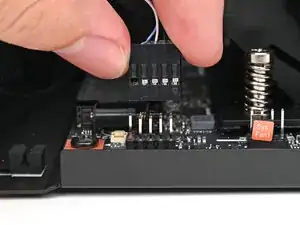
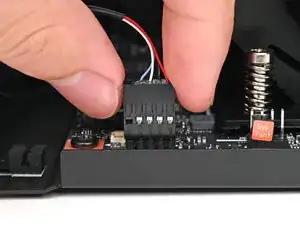
    • Use your fingers to lift the power button cable connector off its nine‑pronged socket on the Mainboard.

  9. MJOSfIs4ZowuWic2
    MJOSfIs4ZowuWic2
    VmaYFbftDQlJWhgw
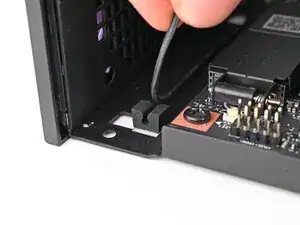
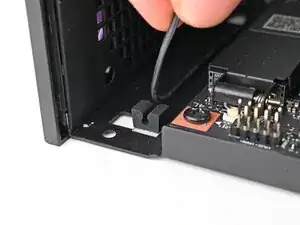
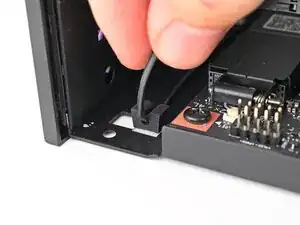
    • Pull the power button cable out of its rubber clips in the chassis.

  10. LAl1irfBINHUWFE2
    LAl1irfBINHUWFE2
    lHlm65Rg6oYWKRjL
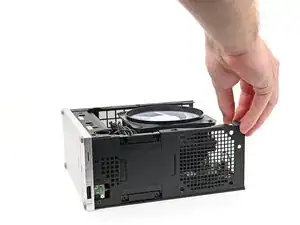
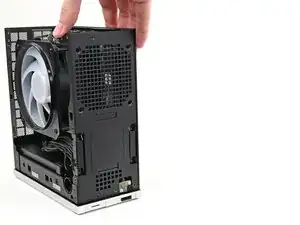
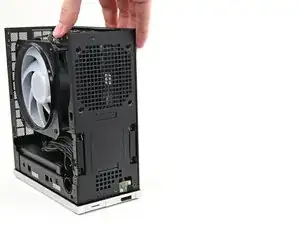
    • Rotate the Desktop so it sits upright.

  11. MclnQ2yNBxv3bXiA
    MclnQ2yNBxv3bXiA
    4ZKEseFhgfhYIvcT
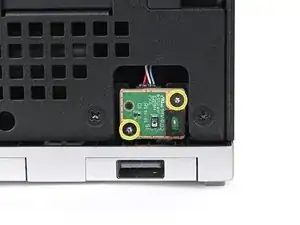
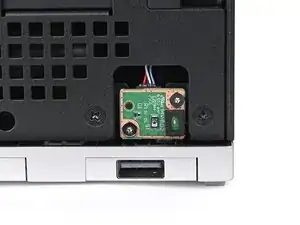
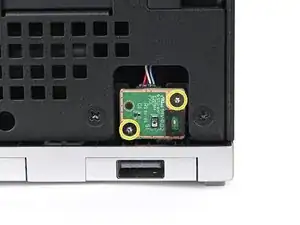
    • Use your Framework Desktop Screwdriver to remove the two 4.5 mm‑long screws securing the Power Button Board.

  12. oHrMP1MXTuIi423n
    oHrMP1MXTuIi423n
    QADdcv4X5v1WIKXV
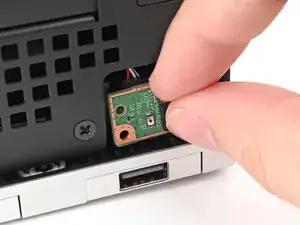
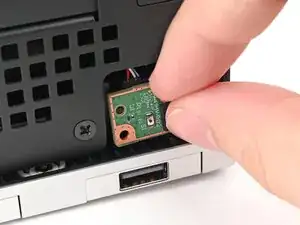
    • Use your finger to pull the Power Button Board off its alignment peg.

  13. sQ1lBSna62PWc2N2
    sQ1lBSna62PWc2N2
    LhIbwU5osaibXLx3
    KFNVijKuf1odKJAt
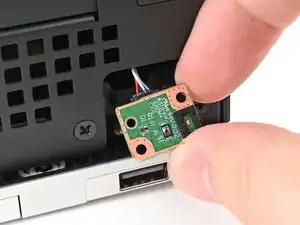
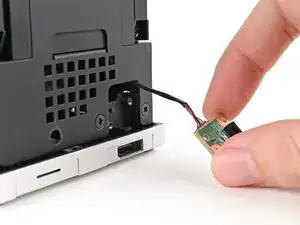
    • Pull the Power Button Board away from the Desktop, threading its cable through the chassis.

  14. O46xDZ6XWnMOeZgT
    • Congratulations on completing disassembly! The remaining steps will show how to reassemble your Framework Desktop.

  15. 1OK2ElW3FAHvP2pV
    1OK2ElW3FAHvP2pV
    KIdK4SOKasi5INhk
    doOCAMIBlxoWbvQZ
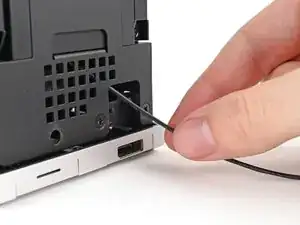
    • Insert the Power Button Board cable into the slot in the Desktop.

    • Grip the cable from the top of the Desktop and thread it through the chassis.

  16. DoABJrq1aZkbvqJo
    DoABJrq1aZkbvqJo
    aaHeINXqBVNRGStB
    • Place the board into its slot in the Desktop so the alignment peg is threaded through its hole in the board.

  17. npGqTkZFFGxxYQGp
    npGqTkZFFGxxYQGp
    1hxHSCZbUlYRTSew
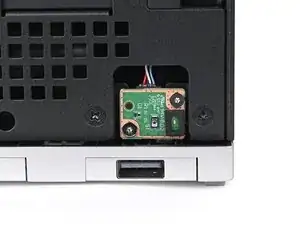
    • Use your Framework Desktop Screwdriver to install the two 4.5 mm‑long screws securing the Power Button Board.

  18. sPVYBcR5fMLWdjeX
    sPVYBcR5fMLWdjeX
    QJjxf2CHVIeJt3Xb
    • Rotate the Desktop onto its right side so the Mainboard is facing upward.

  19. fFSv3LDA4Aq3EgEk
    fFSv3LDA4Aq3EgEk
    DWBsrBNrMoWbtKcA
    • Press the power button cable into its rubber clips in the chassis.

  20. hqImuhdVIPnv1lOP
    hqImuhdVIPnv1lOP
    cr6SKUL6NI2fOBvx
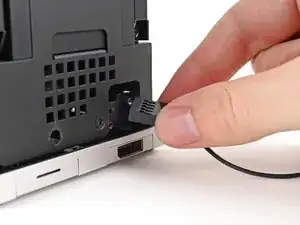
    • Slide the power button cable over the nine-pronged connector on the Mainboard.

  21. RBxX1VbQMksvENOW
    RBxX1VbQMksvENOW
    TyeiZ2RkHLtKrGGs
    • Rotate the Desktop so it sits upright.

  22. OIQGSqXNekb6UPA3
    OIQGSqXNekb6UPA3
    WoIWmZaJ5HNoBhWC
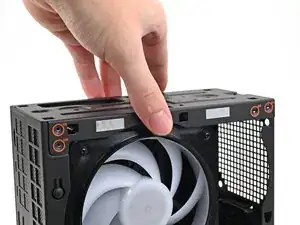
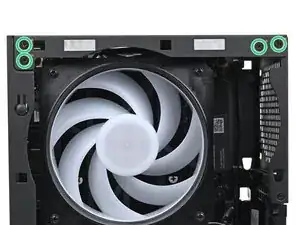
    • Place the top plate on top of the Desktop, making sure it slots into the chassis so the orange circles are visible.

  23. Lc4L151BTBQMI6TZ
    Lc4L151BTBQMI6TZ
    VkOcZRVhgnXcfoS6
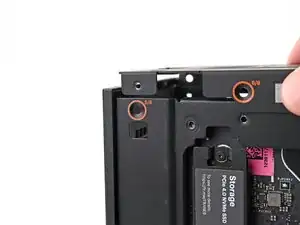
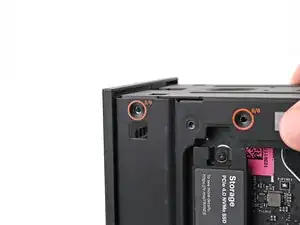
    • Make sure the matching screw hole on the top plate labeled "5/8" is slotted on the inside of the Chassis so that the orange circle is visible.

  24. X2R3CBNkaVJGrV1E
    X2R3CBNkaVJGrV1E
    Ah1JUwvrkGPktqg4
    • While holding the Desktop steady, use your Framework Desktop Screwdriver to install the eight 4.0 mm‑long Phillips screws securing the top plate.

  25. ZODRRaNn1cpHr1ij
    ZODRRaNn1cpHr1ij
    tYQil3CHPTsh2cSb
    d3wsEgc2QsGRhCMT
    • Lay the bottom of the Front Panel on the small, protruding lip in the silver base to align its tabs.

    • Press the Front Panel flat to the chassis and let it align to the magnets.

  26. wfXAR5uJnyAn2DEN
    wfXAR5uJnyAn2DEN
    lkHrckItbKPCTlxf
    X65qrjSPhMMhJDV1
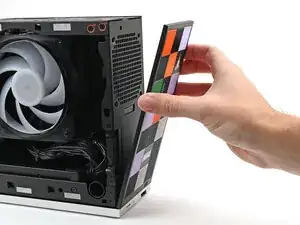
    • Slide the Right Panel onto the right edge of the chassis, from top to bottom, and press it flat to ensure its clips are slotted into place.

    • There should be a small gap between the bottom of the Right Panel and the silver base.

    • Push the Right Panel towards the base of the computer to engage the clips.

  27. goRkkAxLhNUigiCU
    goRkkAxLhNUigiCU
    eA5rRNWKIMJseyOy
    ZvgNCU23cJQjlA6l
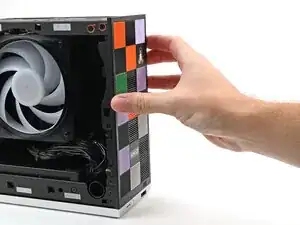
    • Slide the Left Panel onto the left edge of the chassis and press it flat to ensure its clips are slotted into place.

    • There should be a small gap between the bottom of the Left Panel and the silver base.

    • Push the Left Panel towards the base of the computer to close the gap and engage the clips.

Conclusão

You finished fixing your Framework Desktop!

Take your e-waste to an R2 or e-Stewards certified recycler.

If you need help, contact Framework support.

Alex Diaz-Kokaisl

Membro desde: 16/01/22

227430 Reputação

0 comentários