Introdução

  1. IkKGZsIUwkmGw1fq
    IkKGZsIUwkmGw1fq
    RiY1w5f4QutkQZmS
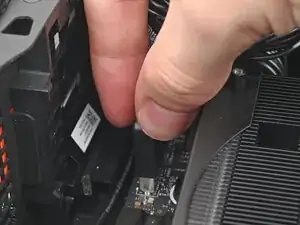
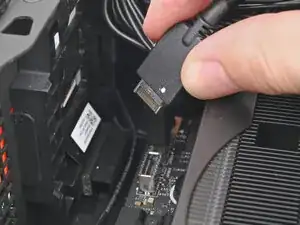
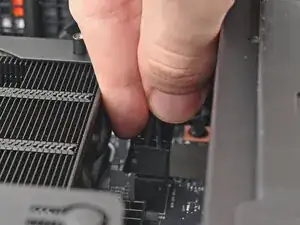
    • Pull the top Expansion Card connector straight out of its socket in the Mainboard to disconnect it.

  2. jDKtVhSVxSQIqPlA
    jDKtVhSVxSQIqPlA
    1GptQTd2QPkJOFCb
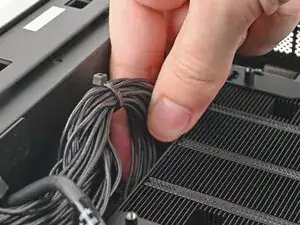
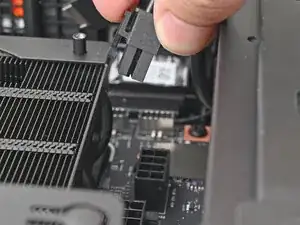
    • While squeezing the clip on the main power cable, pull it straight up and out of its socket to disconnect it.

  3. CPB6NlTZsjwca5RJ
    CPB6NlTZsjwca5RJ
    v1M2UQmutjdnMCDN
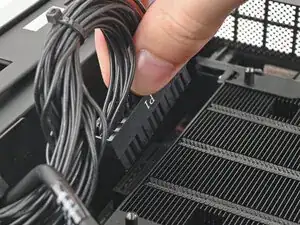
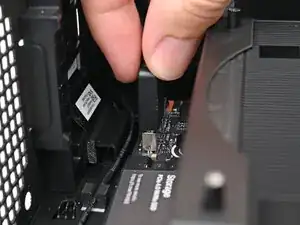
    • While squeezing the clip on the CPU power cable, pull it straight up and out of its socket to disconnect it.

  4. hnHsZUdQsAHGjdis
    hnHsZUdQsAHGjdis
    iJVLhQhIEXKSYWMv
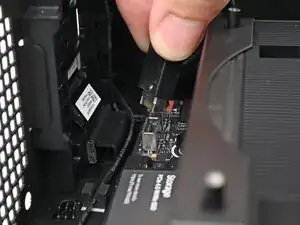
    • Pull the bottom Expansion Card connector straight out of its socket in the Mainboard to disconnect it.

  5. JyuRpCIYt5n21SEU
    JyuRpCIYt5n21SEU
    WNx4Y4v22eItDSaF
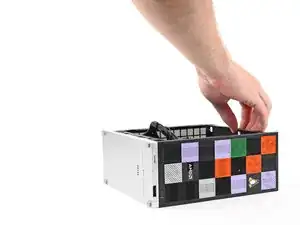
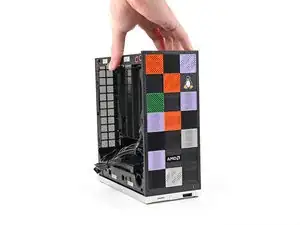
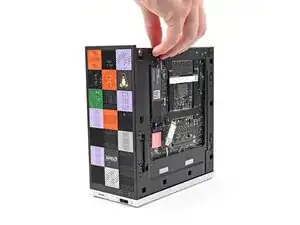
    • Lift the Desktop so it stands upright on your work surface.

  6. pWOAB2YbnIJVqwcb
    pWOAB2YbnIJVqwcb
    wbgDEFUWog6rZbRg
    36ksgPABSkJdVaFh
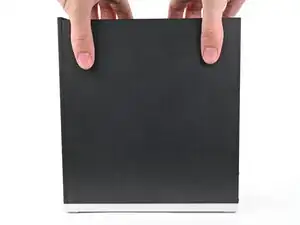
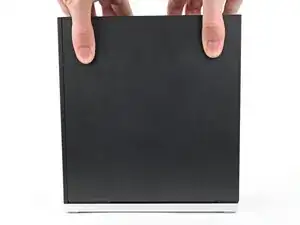
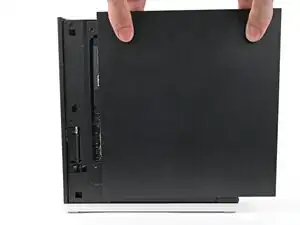
    • Use your fingers to grip the top of the Right Panel and slide it upward to release its clips.

    • Remove the Right Panel.

  7. PrMSMvP1u6Mldhvp
    PrMSMvP1u6Mldhvp
    FQo4GHGDCcDEYg6g
    OPHvQkt5DjEFKrDI
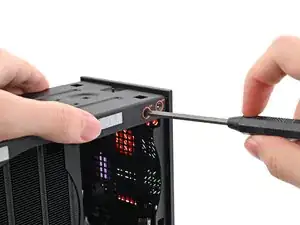
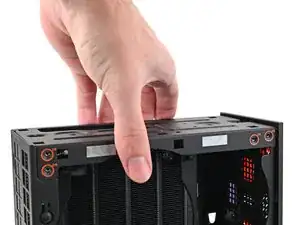
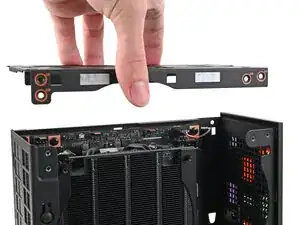
    • While holding the Desktop steady, use your Framework Desktop Screwdriver to remove the eight 4.0 mm‑long Phillips screws securing the top plate.

  8. k4DvEjHP23jFmvFa
    k4DvEjHP23jFmvFa
    OwJIJIPVTLfoOPGT
    • Lift the top plate off the Desktop and remove it.

  9. PeLKWCCQSDSRJAlW
    PeLKWCCQSDSRJAlW
    GbQesSQgRrMNghEW
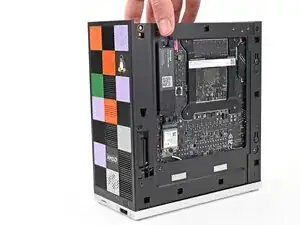
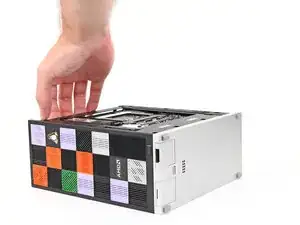
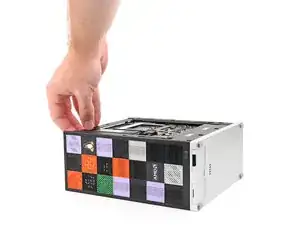
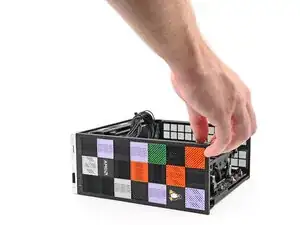
    • Lay the left side of the Desktop on your work surface so the underside of the Mainboard is facing upward.

  10. hePF1ACppGWUva1P
    hePF1ACppGWUva1P
    1yw3ZPJtWp2yeQ55
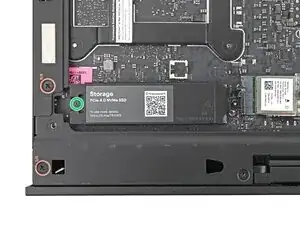
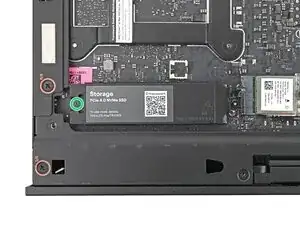
    • If you have secondary storage installed, follow the next two steps. Otherwise, skip here.

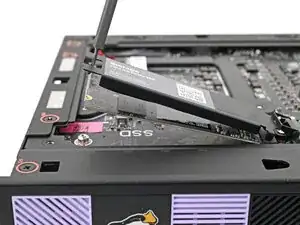
    • Use your Framework Desktop Screwdriver to loosen the captive T5 Torx screw securing the SSD.

    • The SSD and its heat spreader will pop up to an angle when its screw is fully loosened.

  11. YcYmtRIBOVydZaWP
    YcYmtRIBOVydZaWP
    PLBaGq4UNPtLwEY3
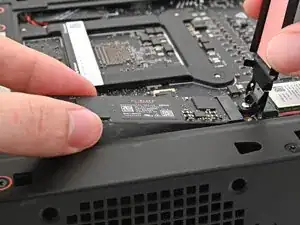
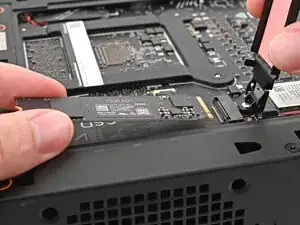
    • While holding the heat spreader upright, grab the SSD by its edges and pull it out of its socket.

    • Remove the SSD.

  12. EyXajbjWVZUwmdhP
    • Use your Framework Desktop Screwdriver to tighten the captive T5 Torx screw securing the heat spreader.

  13. EgGBrYNZ2Ht3bq1q
    EgGBrYNZ2Ht3bq1q
    6fUqfEsGrVue1TaZ
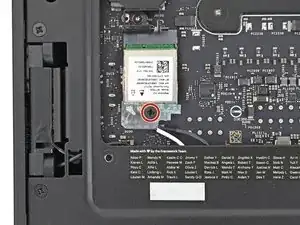
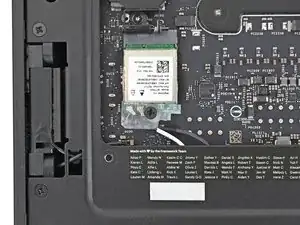
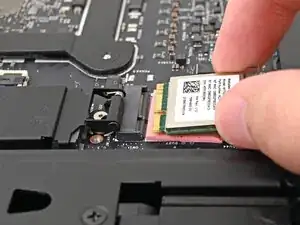
    • Use your Framework Desktop Screwdriver to remove the 7.0 mm‑long Phillips screw securing the Wi-Fi module.

  14. wRAwaOXpdGGo6EXP
    wRAwaOXpdGGo6EXP
    bQUXqR6M2oAPSeXf
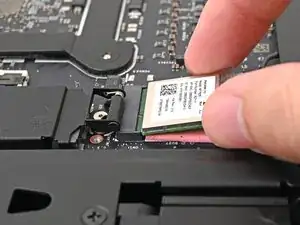
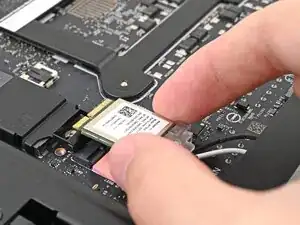
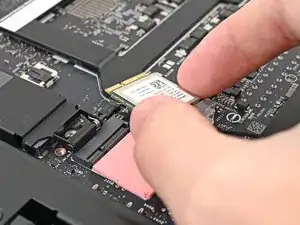
    • Grip the Wi-Fi module by its edges and pull it straight out of its socket.

  15. wvIAJGNTwYXwCdkQ
    wvIAJGNTwYXwCdkQ
    FwaTQf2WNLGE2qVv
    EfFkWJjMfnP2D2YJ
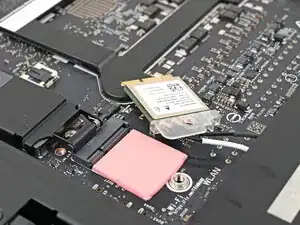
    • Move the Wi-Fi module towards the center of the Mainboard to keep it out of the way.

  16. WSdrZwnGbNfjK4mS
    WSdrZwnGbNfjK4mS
    fngMUTUadbAmpjxS
    qV2dogPSy2uA5FbD
    • Rotate the Desktop onto its right side so the Mainboard is facing upward.

  17. kBWMJTAkvpjkUDV6
    kBWMJTAkvpjkUDV6
    GvYTKjeiYfVOtF6x
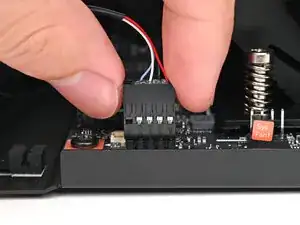
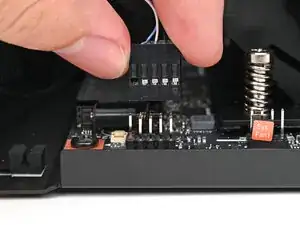
    • Use your fingers to lift the power button cable connector off its nine‑pronged socket on the Mainboard.

  18. xYETUKIPEOXWaIuF
    xYETUKIPEOXWaIuF
    mfaUgpwjtBWIdBFy
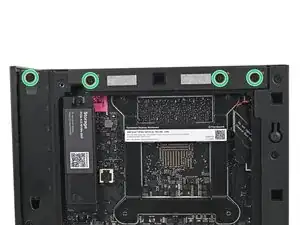
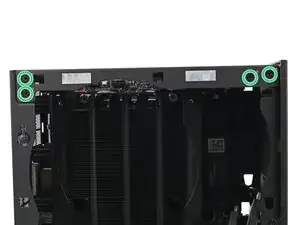
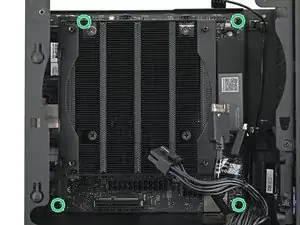
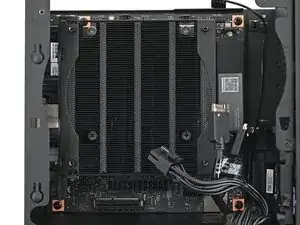
    • Use your Framework Desktop Screwdriver to remove the four 8.2 mm‑long Phillips screws securing the Mainboard.

  19. dOCBVUgPdic5IGdg
    dOCBVUgPdic5IGdg
    MDEHItExOHMrOrEx
    y4pCAp1RVTG2BHhA
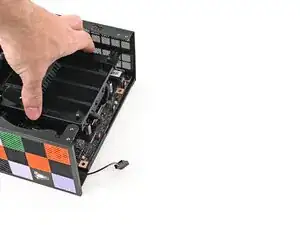
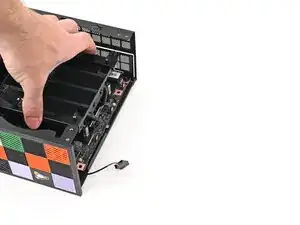
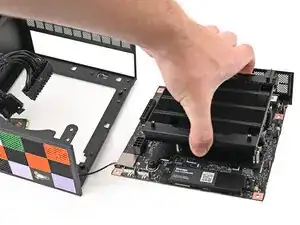
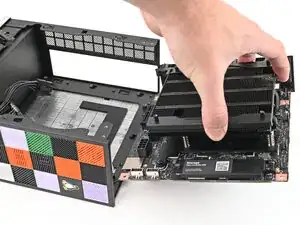
    • Grab the Mainboard by its heatsink and pull it towards the front of the Desktop to slide it out of the rear port cutout.

    • Slide the Mainboard towards the top of the Desktop to remove it from the chassis.

Conclusão

To reassemble your device, follow these instructions in reverse order.

Alex Diaz-Kokaisl

Membro desde: 16/01/22

227430 Reputação

0 comentários