Introdução

  1. 1pbDabnBlybxpxfR
    1pbDabnBlybxpxfR
    XGDnmYLkE611OU5f
    Ldf4MADkyZ4lYUWn
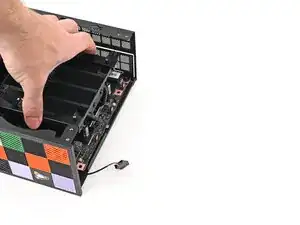
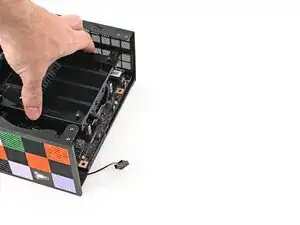
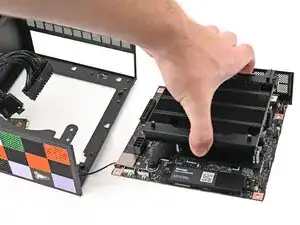
    • Grab the Mainboard by its heatsink and slide it into the chassis.

    • Align the rear ports with its cutout and the screw posts with the screw holes on the Mainboard.

    • You'll feel the Mainboard rest onto the screw posts when it's aligned properly.

    • Make sure no cables are trapped underneath the Mainboard before continuing.

  2. 6QT2ViU5b4DyOSPh
    6QT2ViU5b4DyOSPh
    GYESwKSXPtaUdCsk
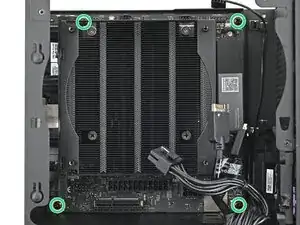
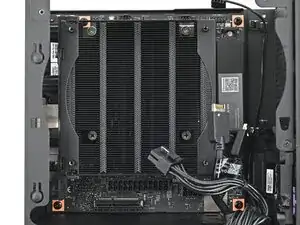
    • Use your Framework Desktop Screwdriver to install the four 8.2 mm‑long Phillips screws securing the Mainboard.

  3. KKGSWfXbGxwis55s
    KKGSWfXbGxwis55s
    hh5DFeYu1pPbSNh2
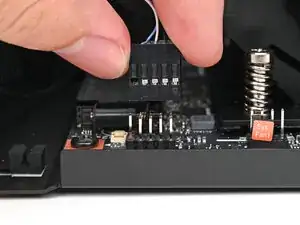
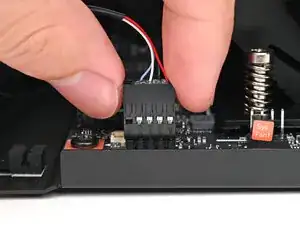
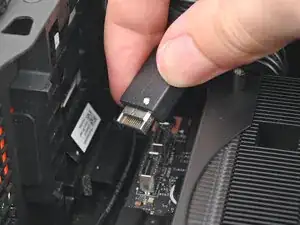
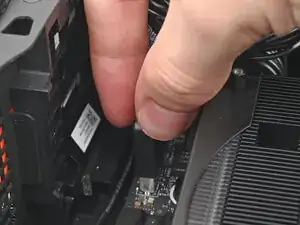
    • Slide the power button cable over the nine-pronged connector on the Mainboard.

  4. ToRDBnSEvmKlRFQX
    ToRDBnSEvmKlRFQX
    Y6eeDNETENl5TvKI
    • Rotate the Desktop onto its left side so the underside of the Mainboard is facing upward.

  5. rBNQpOwhokKgiOnM
    rBNQpOwhokKgiOnM
    jpfXdqEyLRUxeVgW
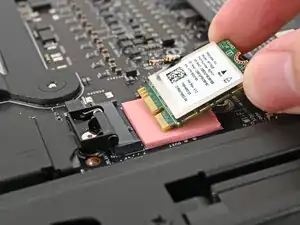
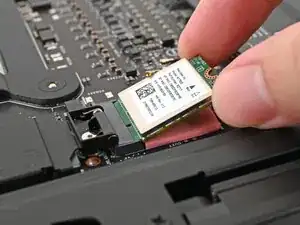
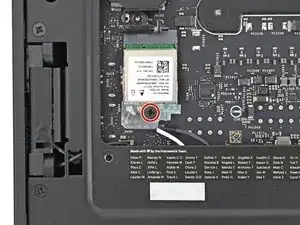
    • Hold the Wi-Fi module by its edges. Don't touch the gold contacts with your fingers. If you do, wipe the contacts with a clean, lint-free cloth to remove any finger oils.

    • Align the Wi-Fi module's gold contacts and notch with the socket on the Mainboard.

    • Insert the Wi-Fi module into the socket at a shallow angle. The gold contacts should mostly be covered by the socket.

    • The Wi-Fi module fits into the socket in one orientation. If it doesn't fit, try flipping the module.

  6. ExRvaYJxwJXYdCHv
    ExRvaYJxwJXYdCHv
    WTBDIMuxbEDeIock
    nTPdXPoBKEOsdWTf
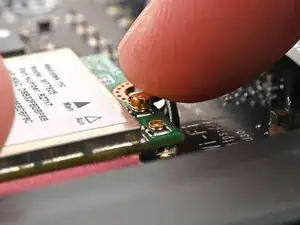
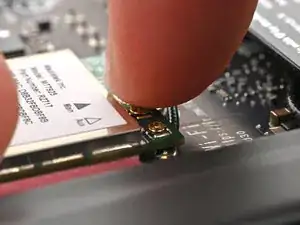
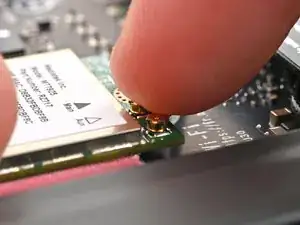
    • Hold the Wi-Fi module down with your fingers.

    • Position the black antenna cable connector over the left Wi-Fi module's coaxial socket.

    • Tweezers can help position the connector.

    • Use your finger to press the connector into place. You should feel a faint click, and the cable will stay attached to the socket by itself.

    • These connectors are very delicate! If the connector doesn't feel like it's clicking in place, reposition the connector and try again.

    • Repeat the procedure with the white antenna cable.

  7. GlIPQUIxutUhOnWU
    GlIPQUIxutUhOnWU
    IGUBlRNHSdUOhu1s
    Xmb5xxeeVaGML35q
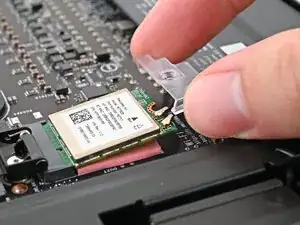
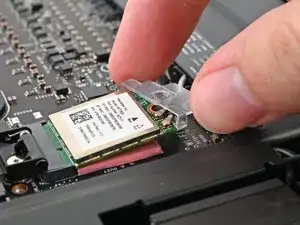
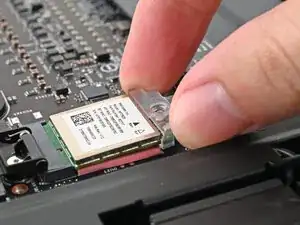
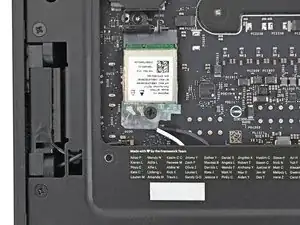
    • Hook the Wi-Fi bracket over the corner of the Wi-Fi module opposite the antenna cables.

    • Rotate the bracket over the Wi-Fi module, making sure the screw hole isn't being obstructed by the antenna cables.

  8. dq5P24ICgQLROhlh
    dq5P24ICgQLROhlh
    sNjMCEjFw3MLQGZk
    • Use your Framework Desktop Screwdriver to install the 7.0 mm‑long Phillips screw securing the Wi-Fi module.

  9. HSTZqtf6lHnAUqCI
    HSTZqtf6lHnAUqCI
    iPQSPICPHP2RV2Xo
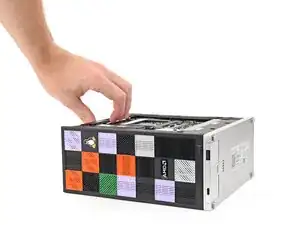
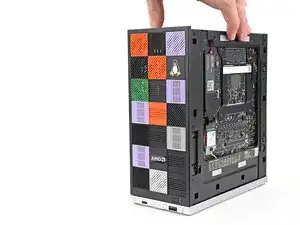
    • Rotate the Desktop so it sits upright on your work surface.

  10. RWGihWLmmycq33wQ
    RWGihWLmmycq33wQ
    jJ65ruZpe2BB1LD5
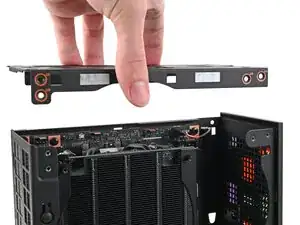
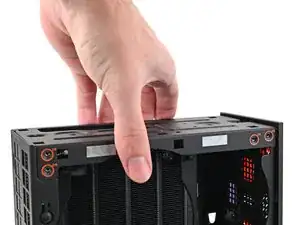
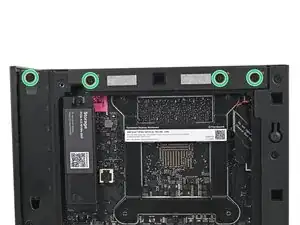
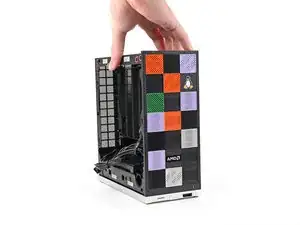
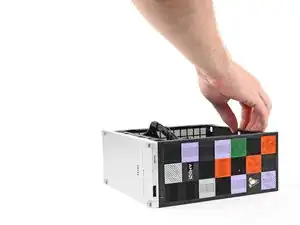
    • Place the top plate on top of the Desktop, making sure it slots into the chassis so the orange circles are visible.

  11. BBGrAcOycIPbPWpF
    BBGrAcOycIPbPWpF
    GIFOsosxKDJSSHQL
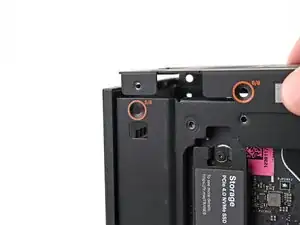
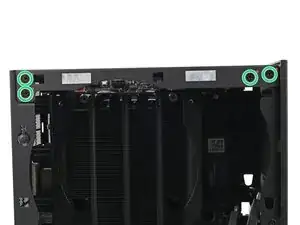
    • Make sure the matching screw hole on the top plate labeled "5/8" is slotted on the inside of the Chassis so that the orange circle is visible.

  12. MqBMBfqDDIa1SbgP
    MqBMBfqDDIa1SbgP
    TwAqhdodLT2mvRgu
    eP3AxDCYJItFGEDL
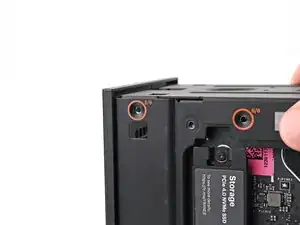
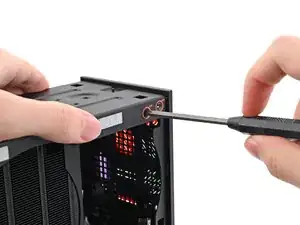
    • While holding the Desktop steady, use your Framework Desktop Screwdriver to install the eight 4.0 mm‑long Phillips screws securing the top plate.

  13. cekEOKTmLVTb3AXS
    cekEOKTmLVTb3AXS
    6OZTh1U1DaDZekaI
    5RSShLlsZbr3KyUD
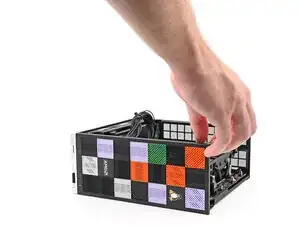
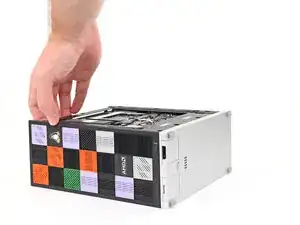
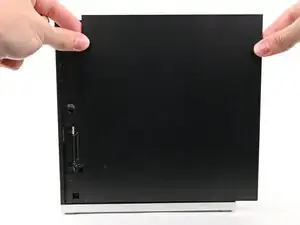
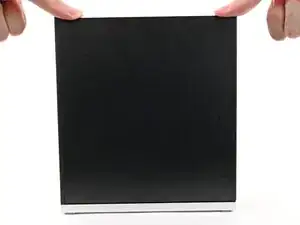
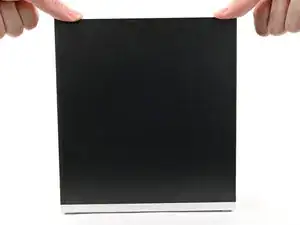
    • Slide the Right Panel onto the right edge of the chassis, from top to bottom, and press it flat to ensure its clips are slotted into place.

    • There should be a small gap between the bottom of the Right Panel and the silver base.

    • Push the Right Panel towards the base of the computer to engage the clips.

  14. VYU3PPKs6NEt4Fxq
    VYU3PPKs6NEt4Fxq
    sIpKM3HNPARJLf4p
    • Lay the right side of the Desktop on your work surface so the Mainboard is facing upward.

  15. XWRyWAtrmTVrnPi1
    XWRyWAtrmTVrnPi1
    C4AbXmtMAJKCZKgZ
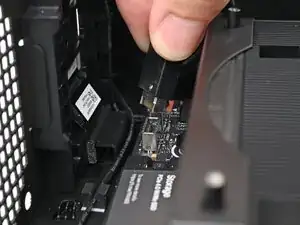
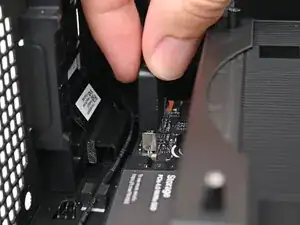
    • Slide the bottom Expansion Card cable into its socket on the Mainboard.

  16. RQgsNyGxwXdWeLQK
    RQgsNyGxwXdWeLQK
    qFGTO1HfoIhUI14t
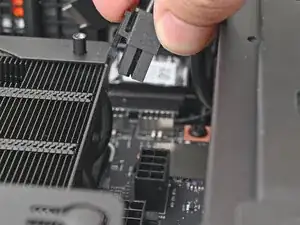
    • Orient the CPU power supply cable so its clip is facing the heatsink.

    • Slide the cable into its socket on the Mainboard until you feel it click into place.

  17. ZDSImuhlL1stEJqN
    ZDSImuhlL1stEJqN
    g3QZgdngSLpUBXAO
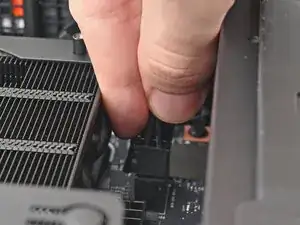
    • Orient the main power supply cable so its clip is facing away from the heatsink.

    • Slide the cable into its socket on the Mainboard until you feel it click into place.

  18. ueOi4nSZINPOVDfL
    ueOi4nSZINPOVDfL
    LMgPWlDlpPUK2aX1
    • Slide the top Expansion Card cable into its socket on the Mainboard.

Conclusão

To reassemble your device, follow these instructions in reverse order.

Alex Diaz-Kokaisl

Membro desde: 16/01/22

227430 Reputação

0 comentários