Introdução

  1. IAYWGCWarabcCRGb
    IAYWGCWarabcCRGb
    l2OLQttZkPPDDU44
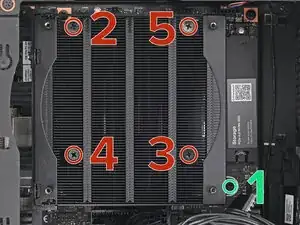
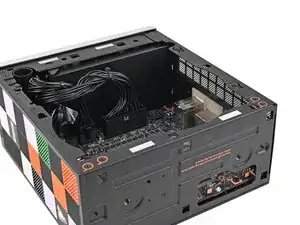
    • Use your Framework Desktop Screwdriver to loosen the final captive Phillips screw jutting out under the Primary Storage.

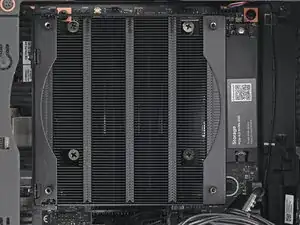
    • Use your Framework Desktop Screwdriver to loosen the four captive Phillips screws securing the heatsink in an "X" pattern starting with the top left screw.

    • Only loosen the screws a few turns at a time to avoid applying uneven pressure to the APU.

    • In order: top left → bottom right → bottom left → top right

  2. r3IFRj5ZUBayilL6
    r3IFRj5ZUBayilL6
    xjnE6fc6Zq5GgCbP
    Qed1Vb5wSHOXkPL1
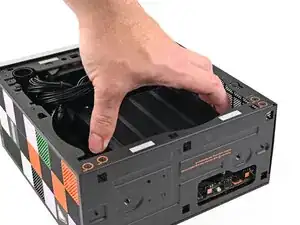
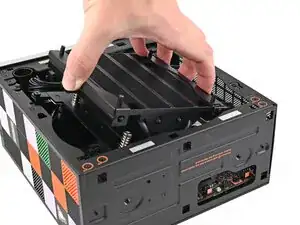
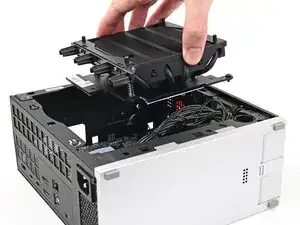
    • Lift the heatsink and tilt it up towards the front of the Desktop to navigate it out of the chassis.

    • Only grab the heatsink by its left and right edges (the edges facing the back I/O ports and the Primary SSD). If you grab the other edges, you risk bending the heatsink fins.

    • Remove the heatsink.

  3. WOlu2k25NBIgChsJ
    WOlu2k25NBIgChsJ
    QLnexYQkPEpdZWjk
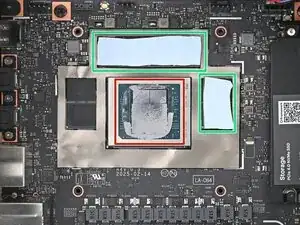
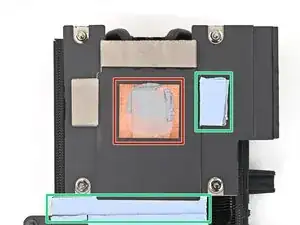
    • There are two types of thermal pads in the Desktop:

    • One thin, grey pad covering the back of the APU

    • Four thicker, blue pads covering the memory and power management

    • Upon removing the heatsink, the thicker pads will stick to either the bottom of the heatsink or to the Mainboard. Since replacement heatsinks come with pre-installed thermal pads, you just need to clean off the pads that remain on the Mainboard.

    • Follow the next two steps to remove the thermal pads remaining on the Mainboard.

  4. hMYL2gPUDHXiQwFY
    hMYL2gPUDHXiQwFY
    Ddc2BMuf3eZAxjOR
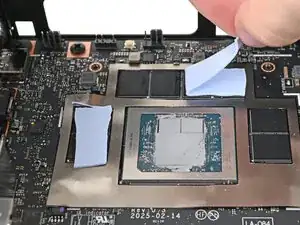
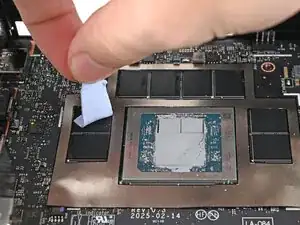
    • Use your fingers to peel off the thermal pads from the memory and power management.

  5. 3rZGY3kVCHh52B2q
    3rZGY3kVCHh52B2q
    bcupfRZnvFOiZQUC
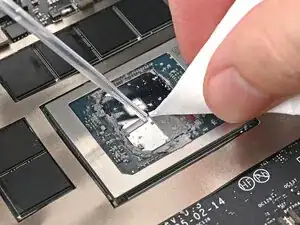
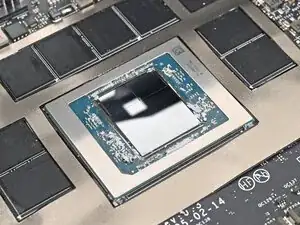
    • Apply a few drops of isopropyl alcohol (>90%) to the APU and use a coffee filter or a lint-free cloth to wipe away any residue.

Conclusão

To reassemble your device, follow these instructions in reverse order.

Alex Diaz-Kokaisl

Membro desde: 16/01/22

227430 Reputação

0 comentários