Introdução
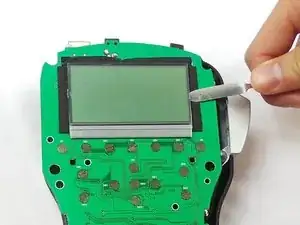
Dymo LabelManager 280 is an electronic label maker with a screen that previews the text before printing.
Please refer to the dymo and ifixit troubleshoot page before confirming the screen must be replaced.
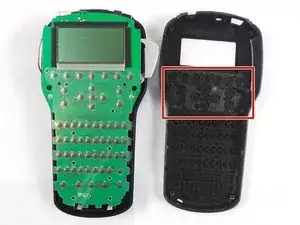
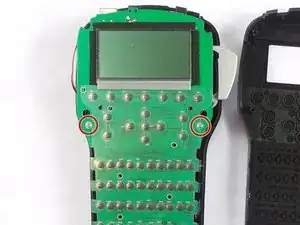
The screen may need to be removed if the screen display is blank or damaged. This guide will help how to safely remove the display on the Dymo LabelManager 280.
Ferramentas


-
-
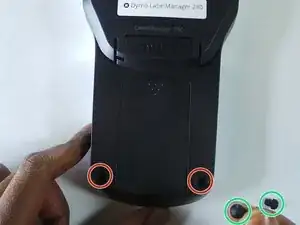
Remove the two rubber feets
-
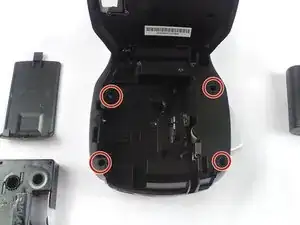
Remove the 6 screws in the indicated places. These particular screws are 2mm x 8mm Phillips #0 head
-
-
-
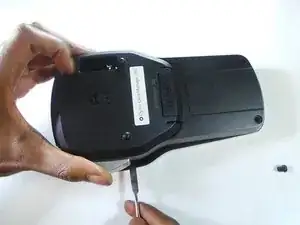
Use the spudger to take apart the device by insterting it as shown in the picture and twisting it. This should be done all around the device to ensure the two parts split correctly.
-
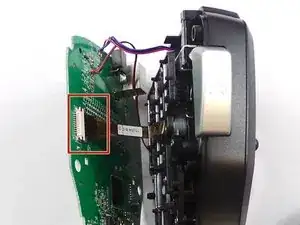
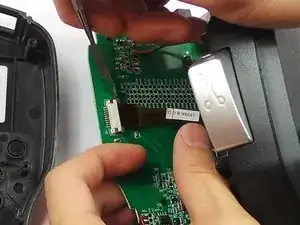
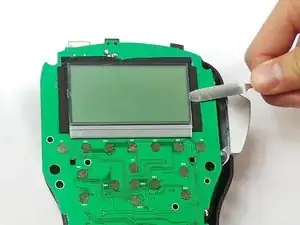
To reassemble your device, follow these instructions in reverse order.

Um comentário
Hi, thak you for the tutorial, it seems pretty simple. Do you know where to find the LCD screen, or whats the specs, maybe I can find it at AliExpress.