Introdução

If you are evaluating a hard drive, this guide will show you how to do basic tests to detect common problems. While these tests are not perfect, they will detect MOST issues.

Common drive problems include:

  • High hours (Wear and tear, increased failure risk)
  • Reallocated sectors
  • Pending reallocated sectors
  • Hidden problems

Why should used hard drives be checked?

Most failures are sudden and without warning, if not known in advance due to lack of symptoms. If the machine has problems and the issue is caught early, it will give you time to move everything and replace the drive before it fails. While SMART can only do so much, it plays a significant role since the data can be used to catch a failure before it occurs.

IMPORTANT NOTE: Some hard drives have known problems (E.g., Seagate 7.01/7200.11). In other cases (such as the WD Blue/Green drives), these aren't problematic BUT are more at risk of failure after ~5 years due to them being binned lower than say, a WD Black drive. While you can often reuse lower end drives such as the WD Blue series, they are not the best for reliability after accumulating thousands of hours over 3-5 years.

Guide notes

  • While Parted Magic can be legally redistributed under the GPL, I will not point to these downloads as I cannot verify their authenticity. The ONLY source I trust is the Parted Magic website.
    • ($17 single download w/o updates, or $49 yearly/$13 quarterly with a subscription).
  • These tests are not 100% accurate. Some problems can (and do) slip past these tests.

A word about bad sector remapping:

  • While WD and Seagate offer diagnostic tools, they WILL NOT CORRECT MAJOR FAILURES ON THE HARD DRIVE. If the issue is minor, it may be patchable, but if the drive has a lot of bad sectors, the problem will likely be unfixable, and the drive will have to be replaced. Most drives cap the spare sectors at ~100 before you lose capacity and fail SMART.
  • IMPORTANT: If you can do so before testing, back up your system's data, as it can fail during testing if something is too far gone to correct. DO NOT FIX THE DRIVE IF THERE ARE EXCESSIVELY HIGH SMART ERRORS. Back up the data, transfer the data, wipe the old drive, and replace it!
  1. T6J6J3aVU1wicSB3
    T6J6J3aVU1wicSB3
    rVDOTId4INZBxR2p
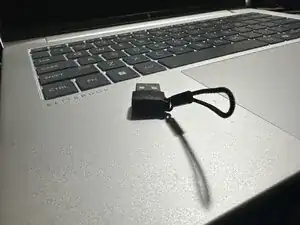
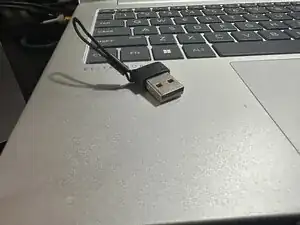
    • You can buy these USB-C to USB-A adapters commercially if you do not have a broken device like a Poly headset to pilfer one from, but they are typically only sold online. search for "USB-C to USB-A adapter" and look for one in this format.

    • This is the adapter that can be used to "make" USAP Type C USB adapters work on legacy PCs. I ripped this one off of a Poly headset at work that was being thrown out and kept it for this purpose.

    • They can be purchased here if you cannot salvage one: UGREEN USB to USB C Adapter & USB C to USB Adapter Combo 4-Pack.

  2. Y5uNSRVpZAFsAM1A
    Y5uNSRVpZAFsAM1A
    gfVTpLCXJAuRuj1y
    YdUmK3OrHiJqlHWE
    • If you are working with an SSD, this guide specifically covers SSDs: Diagnosing and Erasing SSDs (Solid State Drive) -- these require different steps to test/erase.

    • IF YOUR MACHINE SUPPORTS USB-C, FAVOR TYPE-C WHEN BUYING AN ADAPTER. USB-A enclosures are a mixed bag, but most support UAS if it is a true USB3 UASP adapter/cable. If your computer has USB-C, buy a Type-C adapter to avoid the hassle. If you do not have USB-C, look for a USB-A enclosure with true USB 3.0 or 3.1 support with UAS.

    • IMPORTANT: Adapters with 4 pins and a blue interface are "fake" USB3, and these rarely support UAS. These will have an issue, and you will probably need to buy another one. You can try, but be prepared to send it back. It must have 6 pins. If you can find a USB-C>USB-A adapter to make a USB-C one work, this bypasses a lot of this nonsense.

    • This guide assumes the boot drive has been created beforehand. If you need instructions on how to make a bootable USB, refer to this guide.

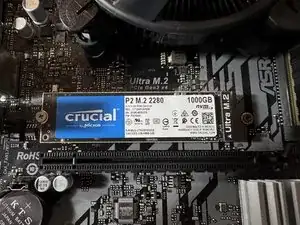
    • If you are testing an M.2 SSD (AHCI or NVMe), you will need an enclosure specially built for this. This is not shown in this guide as M.2 was not as prevalent when I wrote this guide.

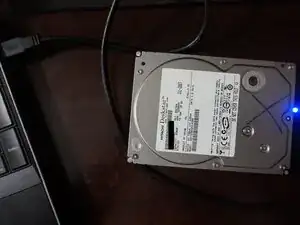
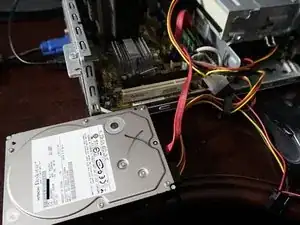
    • Connect the drive internally to your PC (SATA port or secondary M.2 slot), or to a USB drive adapter.

    • If the hard drive is not installed and you do not have a USB adapter, it can be plugged into a motherboard.

  3. MCNOMbLPidnNHlhq
    MCNOMbLPidnNHlhq
    RYiCngr2P2qDajWD
    ii1GbRK3WVT3XrWA
    • Ubuntu is not required for this step as long as the distro supports the ATA SMART access commands out of the box, such as distros like Debian.

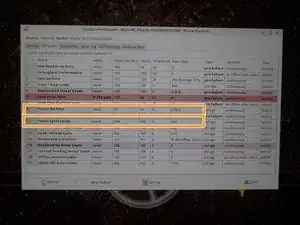
    • While high hours are not an indication of failure, the odds of a failure are much higher.

    • GSmartControl can be used in Ubuntu if you cannot read the output from Disks.

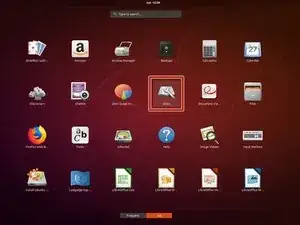
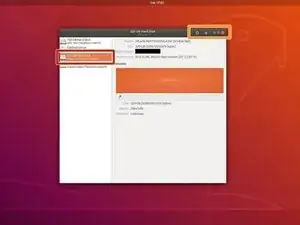
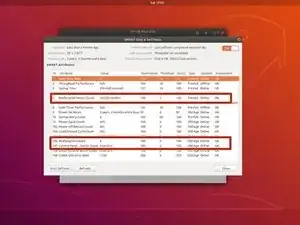
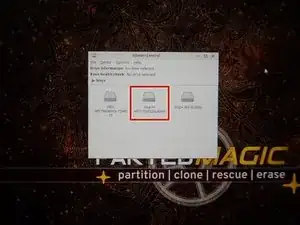
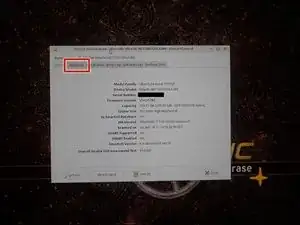
    • Boot your system into a live Ubuntu session. Locate the Disks application and select the suspicious hard drive.

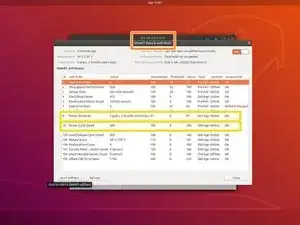
    • From the drop-down menu, select SMART Data and Self Tests. This will pull up the SMART data.

    • Locate the following SMART attributes: Power On Hours and Power Cycle Count.

  4. 2K23IseRmyoUWWyL
    2K23IseRmyoUWWyL
    yhGEuJu4FUOYY2lc
    KBRweNxrIIWQMfQ2
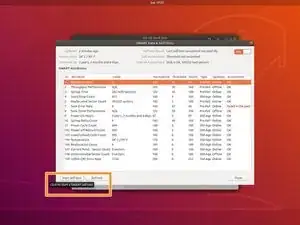
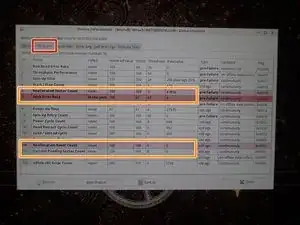
    • If the Reallocated Sector Count is highlighted with a high count, REPLACE THE DRIVE; they are prone to failure and unexpected capacity loss! While SMART Extended is better, a quick test may be sufficient.

    • Ubuntu is not required for this step as long as the distro supports the ATA SMART access commands out of the box, such as distros like Debian.

    • eMMC devices do not present SMART data. This is normal on these eMMC Non-UFS devices. UFS devices might present SMART data if it is implemented on your machine.

    • Locate the following SMART attributes: Reallocated sector count; Current pending sector count.

    • SSD data to check: Power On Hours, Power Cycle Count, Reallocated sector count and wear leveling count.

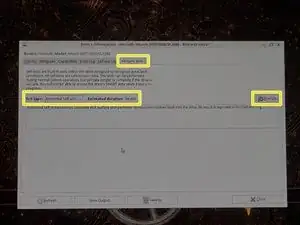
    • To run a SMART Extended Self-Test, left click Start Self-Test. Select Extended from the drop-down menu.

  5. n2WIIdVg1KEJvESx
    n2WIIdVg1KEJvESx
    t5LRn5sNHhbsfSnv
    xpLGjVjpHsHGqw2G
    • While high hours are not an indication of failure, the odds of a failure are much higher.

    • Select Disks from the desktop to open GSmartControl.

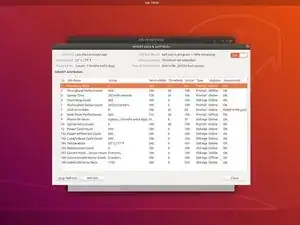
    • Select the hard disk you want to test. Click Attributes to read the SMART data.

    • Locate the following attributes: Power On Time and Power Cycle Count.

  6. qDwOXDWnoVfZkEV3
    qDwOXDWnoVfZkEV3
    X2G3CpVPFAlyCDt5
    KQ2DGmLxABEhZZRt
    • If the Reallocated Sector Count is highlighted with a high count, REPLACE THE DRIVE; they are prone to failure and unexpected capacity loss! While SMART Extended is better, a quick test may be sufficient.

    • In the Attributes tab, locate the following SMART attributes: Reallocated Sector Count; Reallocation Event Count; Current Pending Sector Count.

    • SSD data to check: Power On Hours, Power Cycle Count, Reallocated sector count and wear leveling count.

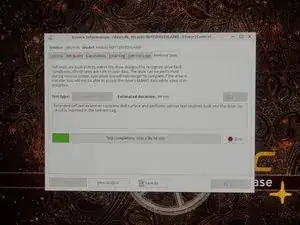
    • To test the drive, select Perform Tests. Click Test type: and select Extended Self-Test.

  7. YtLdJNyNDVJemOtv
    YtLdJNyNDVJemOtv
    WMiPmyvSnCEWUMwV
    mJBxfmKplkCYlHVB
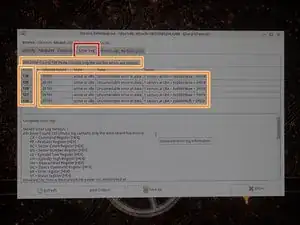
    • Use the error log and SMART data together to diagnose drive problems.

    • Check the error log for drive errors. Click the Error log tab, and review the logs.

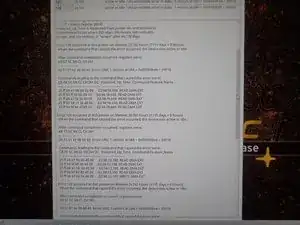
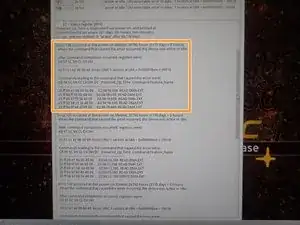
    • In the Error log, review the available errors. Read these logs if any are found.

  8. TKsJ4AvFFwaZFIhZ
    TKsJ4AvFFwaZFIhZ
    NObY6IjIYK4FUqJK
    6HDyKsROXTUjMfRI
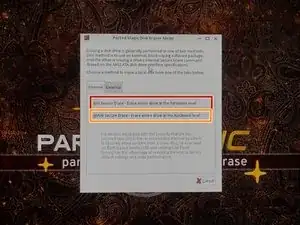
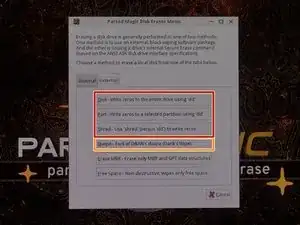
    • I have not included a proper step for this at this time, but if you are erasing an eMMC device, DO NOT USE THE TRADITIONAL OPTIONS - IT WILL NOT WORK. Use External and do a dd wipe on the eMMC module for these machines.

    • When possible, avoid using Nwipe on SSDs. This will eat into the TBW of the drive, which can cause problems on older 75TBW drives. Disk or Shred is safer for these then Nwipe.

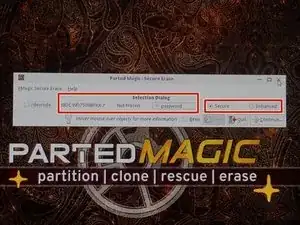
    • The options available here that will work will vary based on what is supported by the firmware on the drive.

    • CAUTION: SATA SSDs and HDDs with known firmware issues could be bricked with the ATA Secure Erase command set if the bug is severe. If you are easing a drive with known bad firmware with a high chance of bricking the SSD, select EXTERNAL for safety (at the expense of time/NAND flash wear on SSDs).

    • IF the drive does not support ATA Secure Erase (primarily older drives), you will need to select External and use Nwipe to erase it. The best middle ground in Nwipe/DBAN is "DoD Short (3 pass+blanking).

    • AHCI drives (M.2 SATA/2.5" drives/3.5" drives) When possible for security (and in the case of SSDs, reduced or mitigated drive wear), try to use the ATA Secure Erase option when possible, unless the drive has known bugs (see warning above).

    • NVMe SSD Recomendation: When possible, use NVMe secure erase. This is instant because it destroys the encryption key on these drives so the data can no longer be read and does not need to zero out the entire drive.

Nick

Membro desde: 11/11/09

100750 Reputação

0 comentários