
Introdução
This is a guide for replacing the CMOS battery on the XPS 15 9570. On this laptop, Dell made it vary difficult to access the CMOS battery, as it is on the other side of the motherboard.


-
-
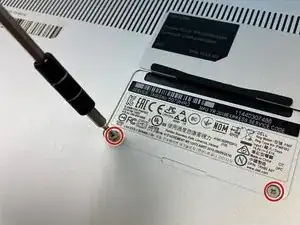
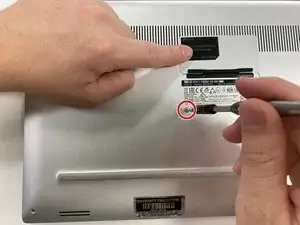
Flip open the system badge and with a Phillips #00 screwdriver, remove the two 8.5 mm screws.
-
-
-
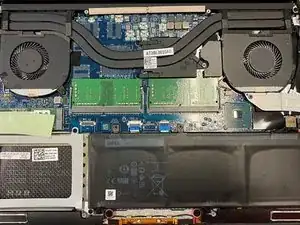
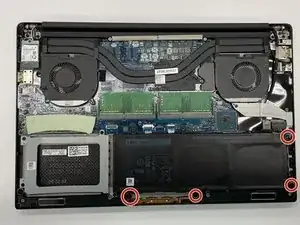
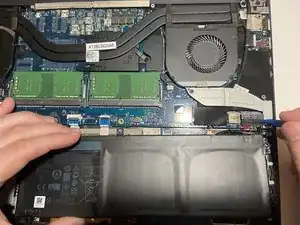
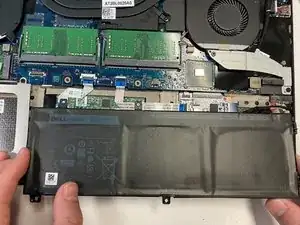
Using the Phillips #00 screwdriver, remove the four 4 mm screws holding the battery in place.
-
-
-
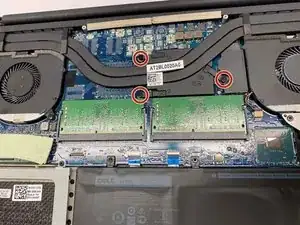
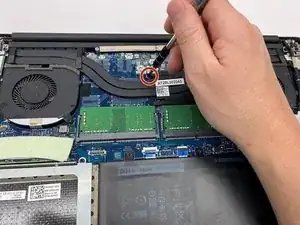
Use the Phillips #00 to remove the three (without graphics card) or four (with graphics card) 3 mm screws that connect the heat sink to the system board.
-
-
-
Lift the heat sink from the device. The thermal paste may have dried and make this handling more complicated, be careful.
-
-
-
Use the Phillips #00 screwdriver to remove the two 4 mm screws securing the grey display cable bracket.
-
-
-
Using the Phillips #00 screwdriver, remove the 4 mm screw at the back right corner of the fan.
-
-
-
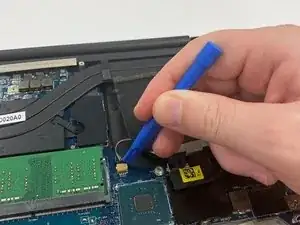
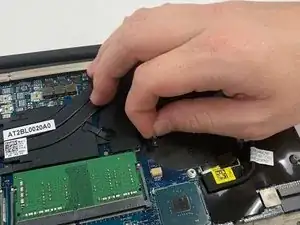
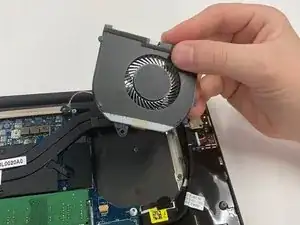
Disconnect the fan cable on the left of the fan and on the right side from the RAM, using the opening tool.
-
-
-
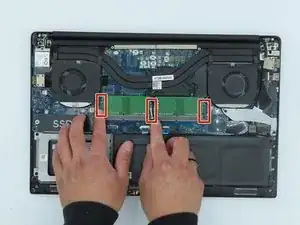
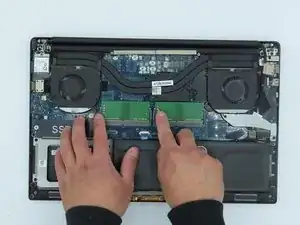
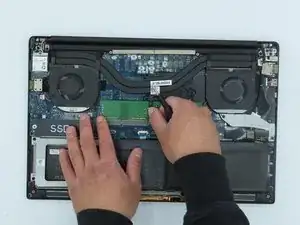
Use your fingers to pinch down the metal tabs holding the RAM in place. Do this for each tab.
-
-
-
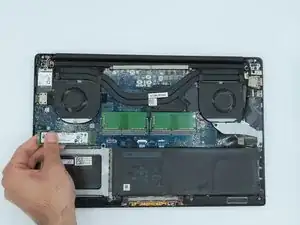
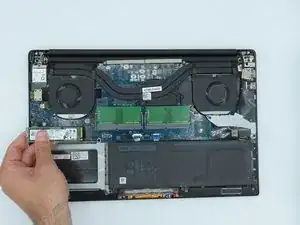
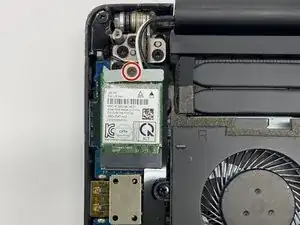
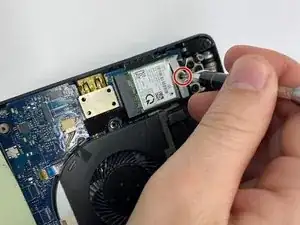
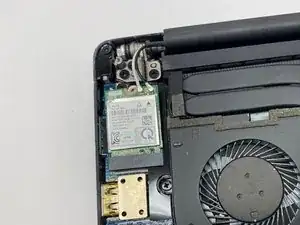
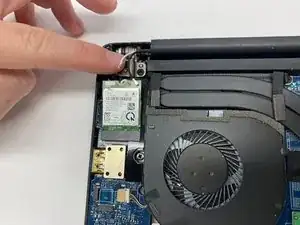
Using a Phillips #00 screwdriver, loosen the captive screw holding the wireless card bracket in place.
-
-
-
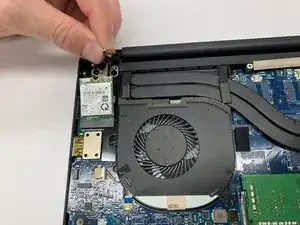
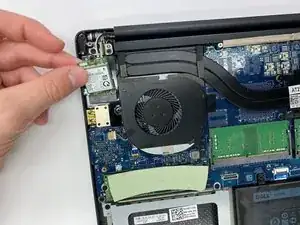
Using a spudger, disconnect the coaxial antenna cables from the Wi-Fi card by popping them gently off.
-
-
-
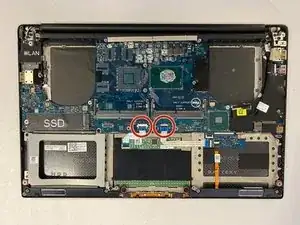
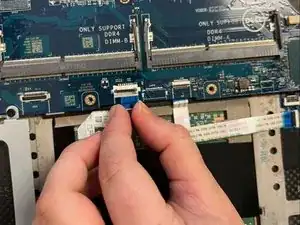
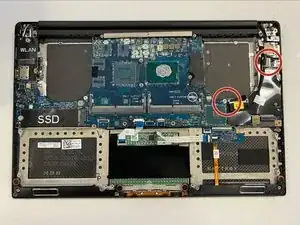
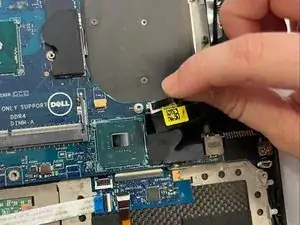
Disconnect the two motherboard cables located on the bottom of the motherboard using the opening tool.
-
-
-
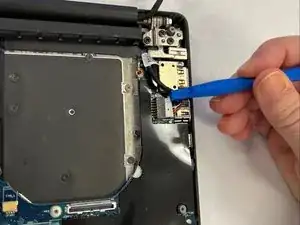
Disconnect the two motherboard cables located on the right of the motherboard using the opening tool.
-
-
-
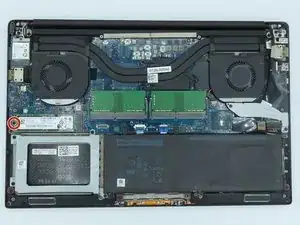
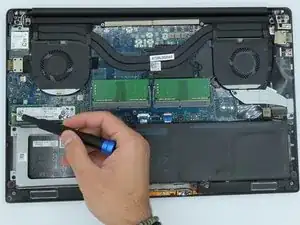
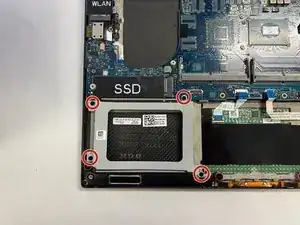
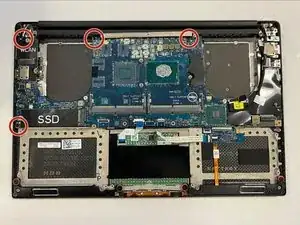
Using a Phillips #0 screwdriver, unscrew the 4 remaining 4mm screws holding the motherboard in place.
-
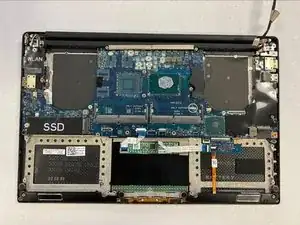
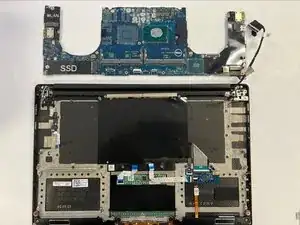
Remove the motherboard.
-
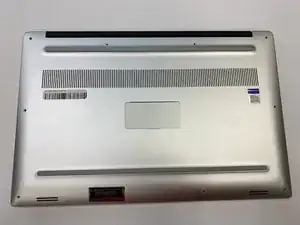
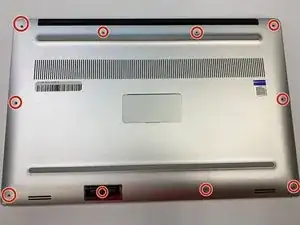
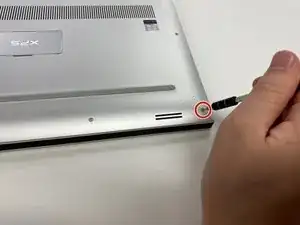
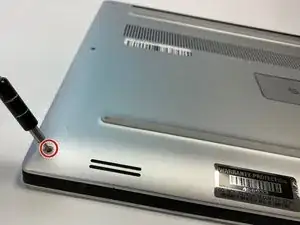
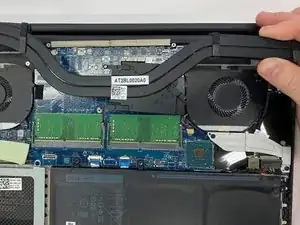
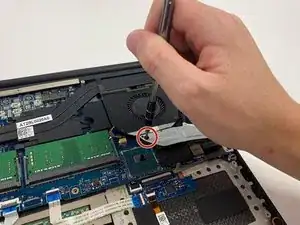
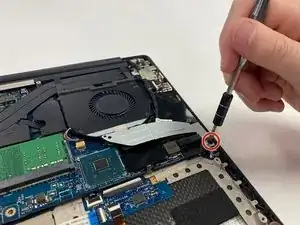
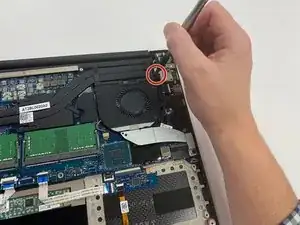
To reassemble your device, follow these instructions in reverse order.
