Introdução

How to replace a scratched, cracked, or unresponsive touchpad on a Dell XPS 15 9560 laptop.

Before using this guide, check for other possible causes of touchpad issues.

  • Trackpad Drivers: Your issue may be related to drivers. Watch this video by MDTechVideos for a fix.
  • Dust or Debris: Clean the trackpad by spraying isopropyl alcohol on a microfiber cloth. Apply medium pressure and wipe in small circles on and around the trackpad.

Before you begin this repair, power off your laptop and unplug it from the charging adapter and any peripherals, like an external display.

  1. ewqdxmkHpNACxVa4
    • Before beginning, unplug the charger and any peripheries. If possible, discharge your battery below 25%.

    • Shut the laptop down.

  2. jUKaXAtFqXsZ1xJL
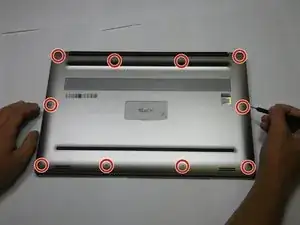
    • Remove the ten 4.0 mm screws from the back panel of the laptop using a T5 Torx screwdriver.

  3. OWsK3uFQ2DGW6vdZ
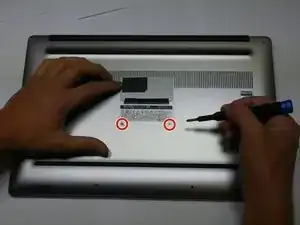
    • Remove the two 5 mm screws underneath the XPS badge door using a Phillips screwdriver

    I used PH0 screwdriver

    Gerald Dennett -

  4. Kt2Tg1sk3VDMyqZS
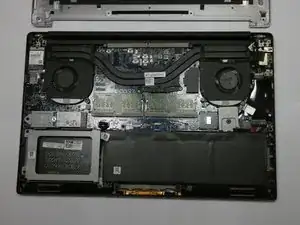
    • Use a scribe to remove the bottom base cover from the backplate.

  5. BMDNuJGST1pYSydH
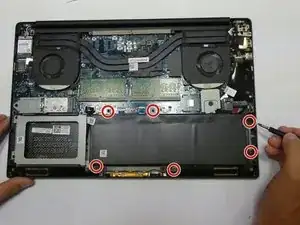
    • Using a T5 Torx screwdriver, remove the six 4.0 mm screws.

    On the Dell XPS 15 9560 that I just did a battery replacement on the battery was not held in by torx screws. It was the larger 97wh battery and was held in by 6 phillips head screws. I was able to get them out with a PH1 bit.

    Nick Hamblen -

    Seconded. In the photo the author isn't even holding a torx driver.

    Gregory Robben -

    Same, by me it was held by 8 philips screws labeled M2X4.

    Sven Oelker -

    Mine is the smaller battery, held in by four PH0 screws. The two towards the middle of the computer in the photo above are not present.

    Gerald Dennett -

  6. EIPhbwKanoubPUAV
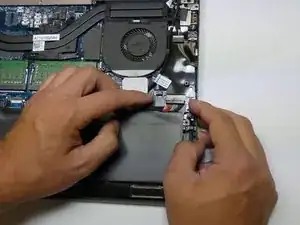
    • Use your fingernails to gently "walk" the battery connector directly out of its socket.

    How is it unplugged?

    Julie Treuner -

  7. 42vITSAgbhUs33vj
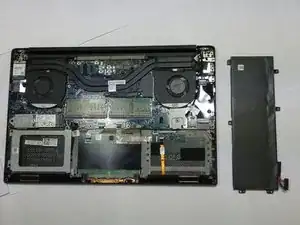
    • Remove the battery.

  8. 4XGwZrNCdcDsdWQt
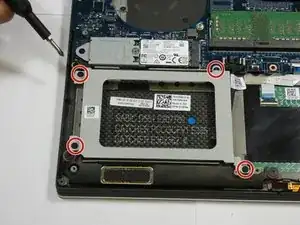
    • Using a Phillips #0 screwdriver, remove four 4.0 mm screws of the hard drive bracket.

    • Unplug the hard drive cable.

  9. FlsGFdpXFwfoekMv
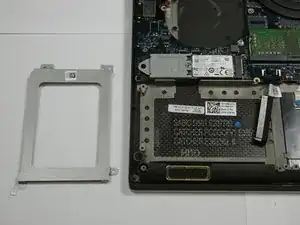
    • Remove the hard drive bracket. Then, unplug and remove the hard drive.

  10. UeHyn55RHfYyTsBl
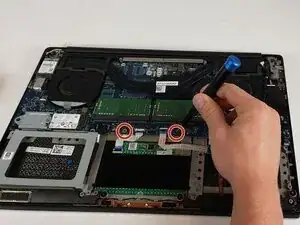
    • Remove the two 5 mm mounting screws.

  11. NWocCOiicXQpCab4
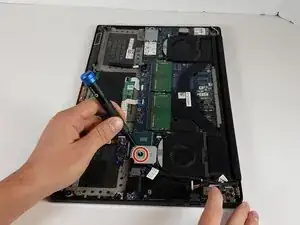
    • Use a screwdriver to remove the single 5 mm screw securing the silver plate.

  12. CJY2KgNjqYeSodwJ
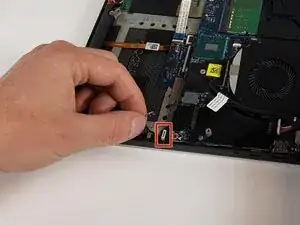
    • Use a spudger, pushing on alternating sides of the connector, to get it out of the socket.

    • It may take a lot of alternating before the connector comes out. Be patient, and don't pull on the cables.

    • To reconnect the cable, align the connector and use a spudger.

    • Don't push on the cables themselves, or you may damage the connector.

  13. WWDlCtwaUksF2mfj
    WWDlCtwaUksF2mfj
    2aUdRjAvjdGZmhXa
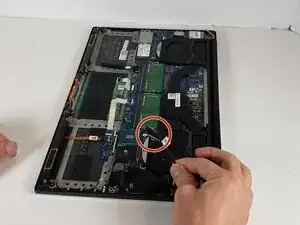
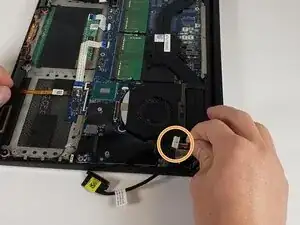
    • Unplug the black cord.

    • Unplug the cord with a white plug.

  14. v1qPxKJTQw5VElye
    v1qPxKJTQw5VElye
    YmOLb6FWy4yU6a1E
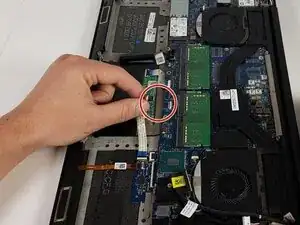
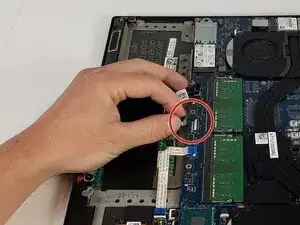
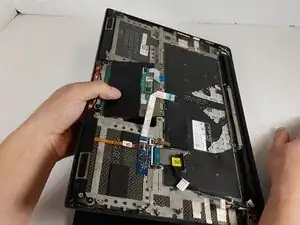
    • Disconnect the white ribbon cables, and use a spudger or your fingernail to gently lift the looped tab away from the connector. It should pop up easily.

    • Next, use the spudger or your fingernail to push the plastic tab away from the socket. It should move slightly.

    • Now, pull the white ribbon cables out.

  15. GNJWhn6SVMVsYQxm
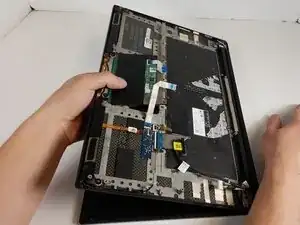
    • Lift the laptop as shown.

    • Separate the touchpad from the keyboard.

Conclusão

To reassemble your device, follow these instructions in reverse order. Take your e-waste to an R2 or e-Stewards certified recycler.

Taylor Hancock

Membro desde: 18/01/22

142 Reputação

0 comentários