Introdução
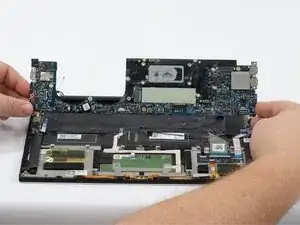
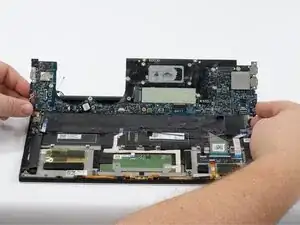
If your Dell XPS 13 7390 experiences critical hardware failures, it may be time to replace the motherboard as a whole.
Note that many components on this laptop are soldered directly into the motherboard, so further replacement may require proper soldering skills.
Before you begin this repair, power off the laptop completely and disconnect the SSD as well as the heat sink.


-
-
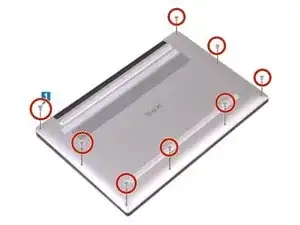
Remove the eight 3 mm screws that secure the base cover to the palm-rest assembly using a T5 Torx screwdriver.
-
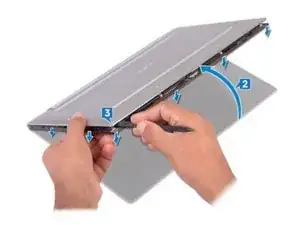
With the computer face-down, open it at an angle.
-
Using a spudger, pry the base cover from the palm-rest assembly, starting at the front left and right corners.
-
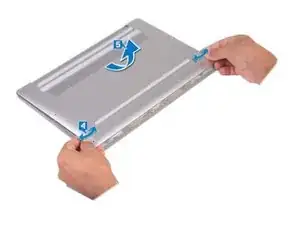
Moving the base cover from left to right, release the clips securing the base cover to the palm-rest assembly.
-
Lift the base cover from the palm-rest assembly.
-
-
-
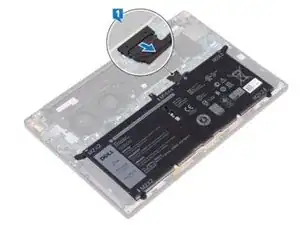
Disconnect the battery from the system board.
-
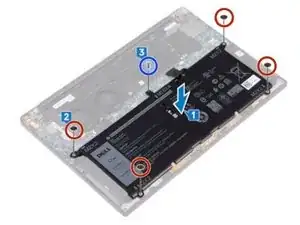
Remove the four screws (M2x2) that secure the battery to the palm-rest assembly.
-
Remove the screw (M1.6x4) that secures the battery to the palm-rest assembly.
-
Lift the battery off the palm-rest assembly.
-
Turn the computer over, open the display, and press the power button for about 5 seconds to ground the computer.
-
-
-
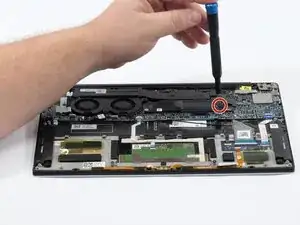
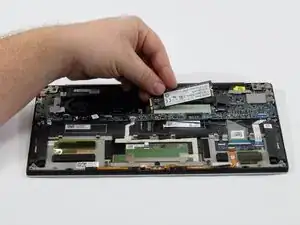
Remove the single 3 mm screw holding the SSD in place using a Phillips screwdriver.
-
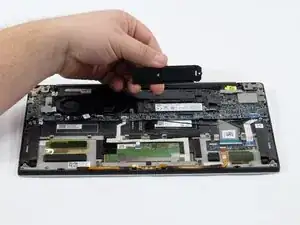
Carefully lift up the SSD cover using your fingers.
-
-
-
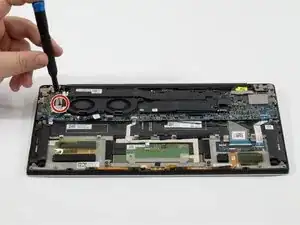
Remove the single 3 mm screw from the Wi-Fi card with a Phillips #2 screwdriver.
-
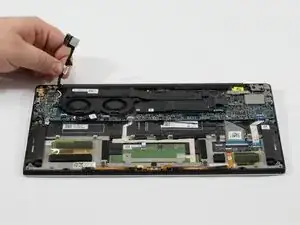
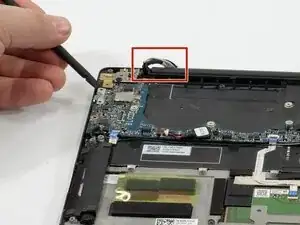
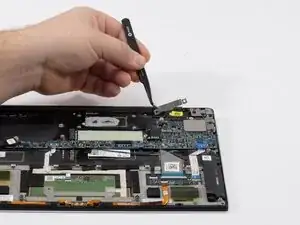
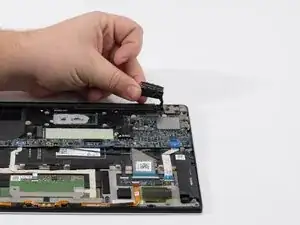
Using a pair of tweezers, gently lift the camera cable off the system board and remove the tape securing it to the cooling fans.
-
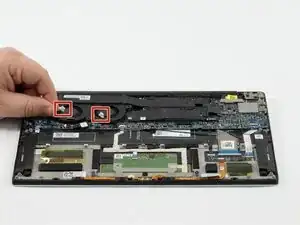
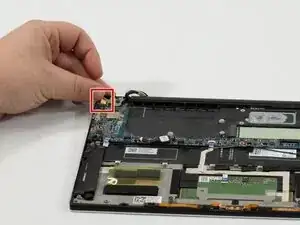
Using tweezers, lift the two antenna cables located at the bottom of the heat sink.
-
-
-
Use a plastic spudger to disconnect the right and left fan cables from the system board.
-
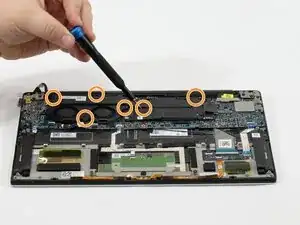
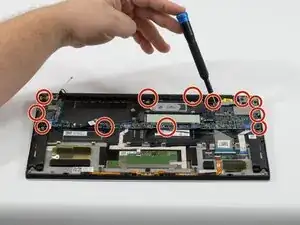
Remove the six 3 mm screws securing the fans and heat sink to the system board.
-
-
-
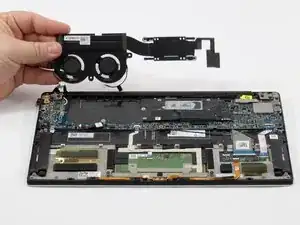
Carefully lift the entire cooling module off the system board using your fingers.
-
Place the cooling module onto a clean, safe surface.
-
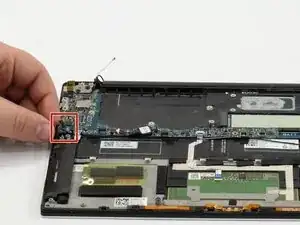
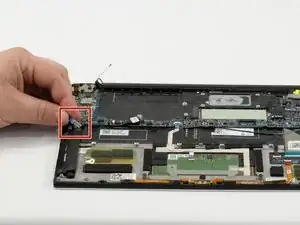
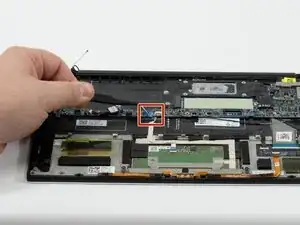
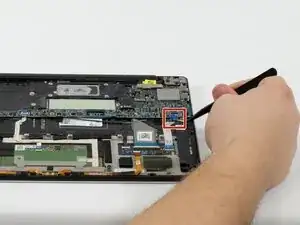
To reassemble your device, follow these instructions in reverse order.