Introdução
Ferramentas


Peças
-
-
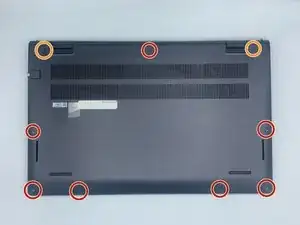
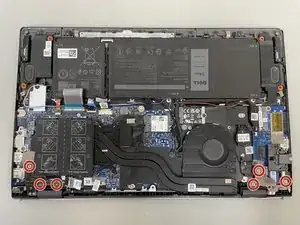
Remove the remaining (M2x4mm) screws with the screwdriver.
-
Loosen the two captive (M2x7.5mm) corner screws with the screwdriver.
-
-
-
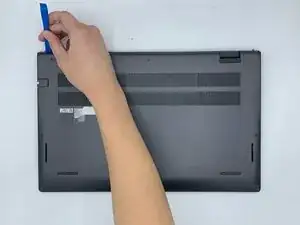
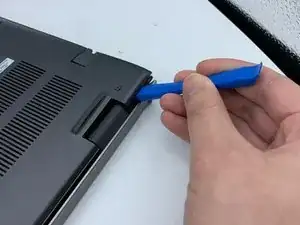
Pry open the top left corner of the cover with the opening tool.
-
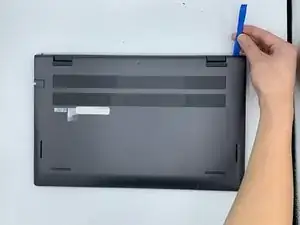
Pry open the top right corner of the cover with the opening tool.
-
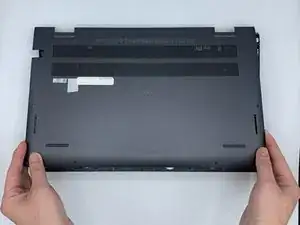
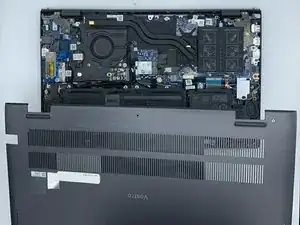
Pry the rest of the cover with the opening tool, working in a clockwise motion until it is completely loosened.
-
-
-
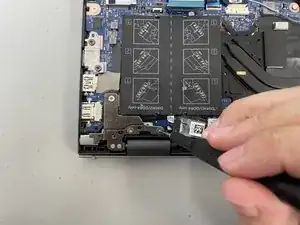
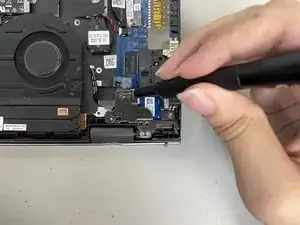
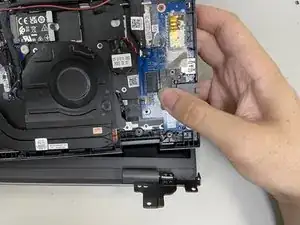
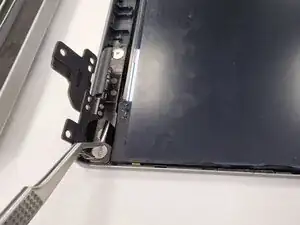
Flip up the hinge panel for the left side of the laptop.
-
Flip up the hinge panel for the right side of the laptop.
-
-
-
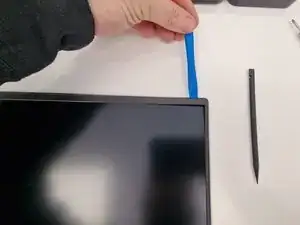
Once screen is removed gently pry away the bezel.
-
if the screen is damaged and being replaced then it can be helpful to pry from the inside against the screen but this will cause damage to the LCD.
-
-
-
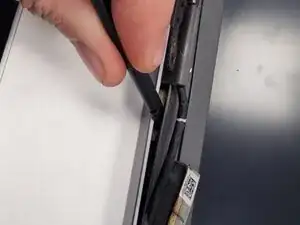
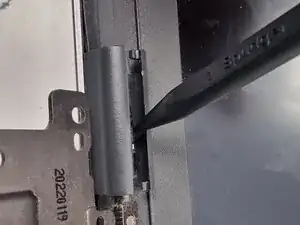
Use a Splurge or pick to separate the hinge plastics
-
Take care around the display connector as to not damage it.
-
-
-
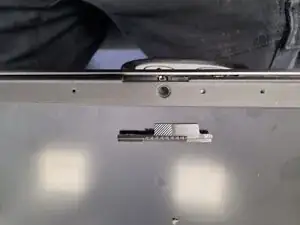
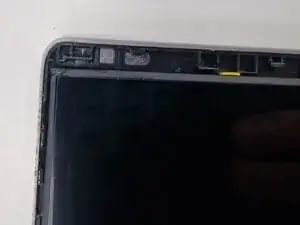
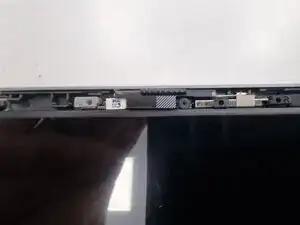
once separated the Webcam privacy cover will come loose and can be removed. Be careful not to loose it.
-
-
-
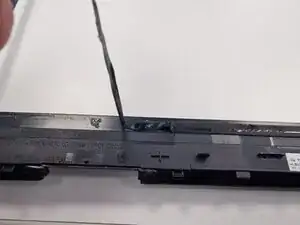
once the bezle is removed peel off any damaged or loose adicive
-
it is sometimes possible to save and reuse the addictive but often needs replacment.
-
-
-
Set the bezle to one side and attack the screen next
-
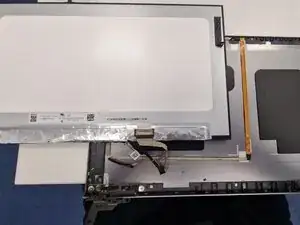
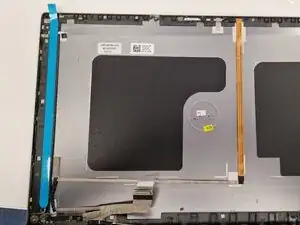
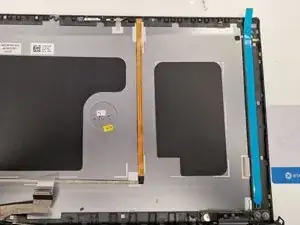
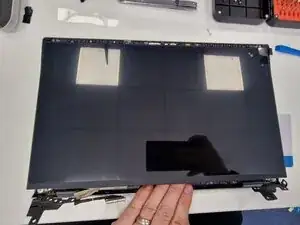
There are 2x addisive strips holding the screen in
-
Locate the pull tabs and gently pull on them to release the adicive
-
Take care not the break the strips when removing as they are fragile and screen is difficult to remove with these in place.
-
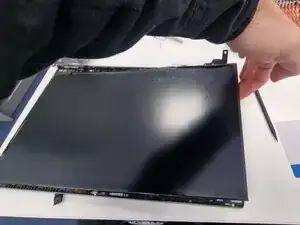
Gently lifting one side of the screen can help release any strip that couldn't be pulled out with the tabs.
-
-
-
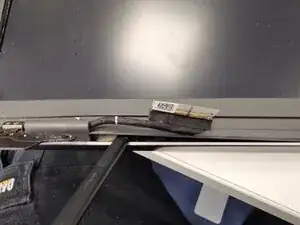
Once released from adhesive strips carefully flip the screen over and disconnect the display cable on the rear.
-
-
-
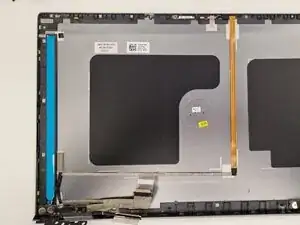
Replace the strips ensuring the new pull tabs are aligned at the bottom.
-
Some strips come supplied too long and will require trimming.
-
-
-
Connect the display cable to the new screen and ensure the cables are positioned correctly running through the hindge
-
Align the display with he top of the lid first
-
Gently lower the screen on to the new strips ensuring display cable remains in correct position.
-
-
-
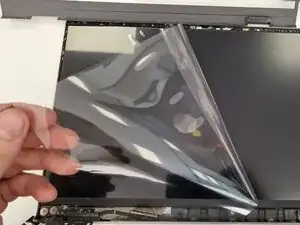
Before refitting the bezel ensure that the webcam privacy cover is refitted and any screen protectors have been removed.
-
-
-
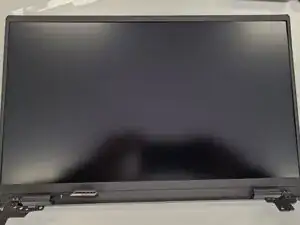
Apply new adhesive to the bezel if needed and snap it back in to location
-
Follow reverse of dissemble instructions to refit display.
-
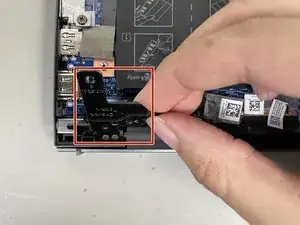
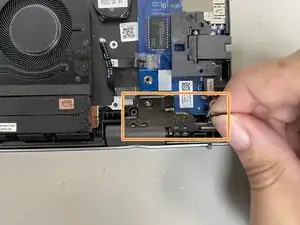
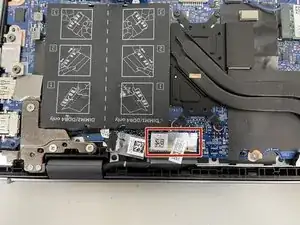
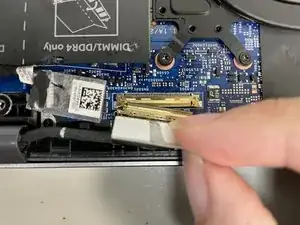
To reassemble your device, follow these instructions in reverse order. Replacing Additive Strips behind display and on Bezel
