Introdução

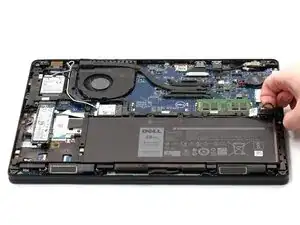
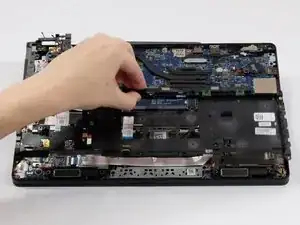
The chassis frame is a plastic frame which is used to secure components in your laptop.

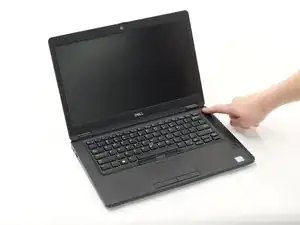
In this guide, you will learn how to disassemble your Dell Latitude 5490 laptop's chassis frame.

Disassembling the chassis frame is required to access and specific components within your laptop.

  1. tKXxQBgnu3kGv5Lk
    tKXxQBgnu3kGv5Lk
    CcJSqNMxVPPakddk
    udqIx3uoyNTOBRBj
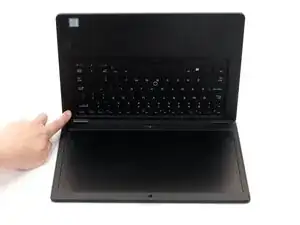
    • Power off the laptop before beginning the disassembly process.

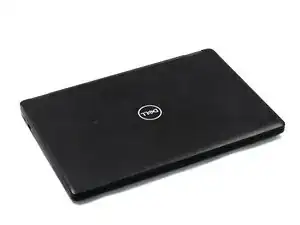
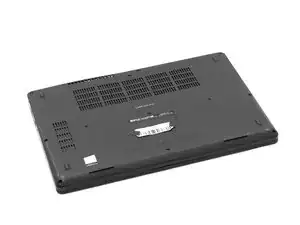
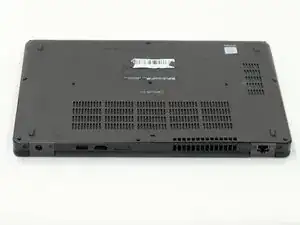
    • Close the device and flip the laptop over so the backplate is facing up.

  2. VP1ZRoqALkHPYfGB
    VP1ZRoqALkHPYfGB
    wQATXGCow1LCOLnZ
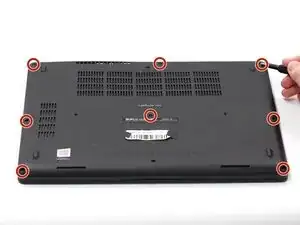
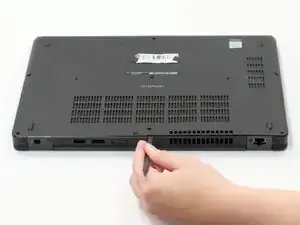
    • Using a Phillips #0 Screwdriver, loosen all eight captive screws in the backplate.

    • You do not need to fully remove the screws. Instead, unscrew them until you can easily jostle the screws.

  3. qGERMPvFWZVXB2vO
    qGERMPvFWZVXB2vO
    1iHqoEj5ZFNG5ebn
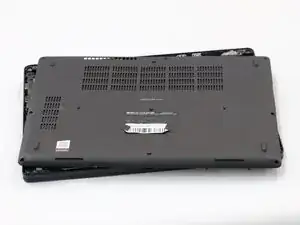
    • Using the spudger, pry the backplate from the laptop starting from external chassis (the back side of the laptop).

    • Continue prying in a clockwise direction around the backplate until it is able to be removed with just your hands.

    • Remove the backplate and put it aside for reassembly.

  4. E4xrmJQ3hW1DrHYS
    E4xrmJQ3hW1DrHYS
    3TUE2bVxgYvF1ZiM
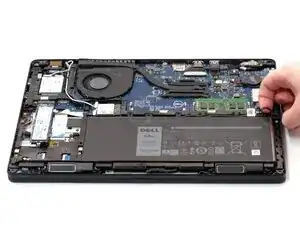
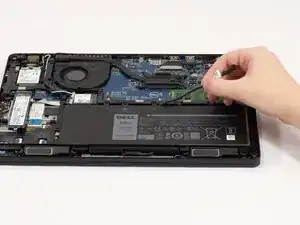
    • Using your finger, remove the battery connector using the handle found on top.

    • You do not need to remove the connector completely from the laptop. Doing so may result in damage to your computer. Instead, pull the handle so the connector is suspended above the pins.

  5. MLBHc6vNkMqROATf
    • Hold down the power button for 15 seconds to discharge the remaining electricity within the laptop.

  6. BP3uGAtivfveDOV1
    BP3uGAtivfveDOV1
    SMGNDacaWDiNaXJ6
    rJtCpgkMeKrnNMdH
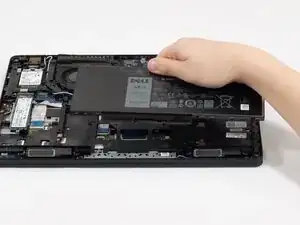
    • Carefully unroute the cable connecting the battery to the laptop.

  7. 5iaTG6aP5ScaFofA
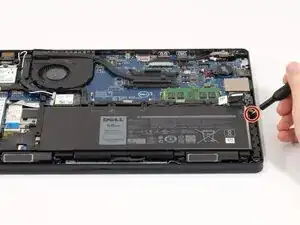
    • Remove the single marked 4 mm screw from the righthand side of the battery using a Phillips #0 screwdriver.

  8. aiqtbFZIiD3GPmZu
    aiqtbFZIiD3GPmZu
    Eox2uFTIq6HbIdW1
    THp6WUL4RwAn4AP1
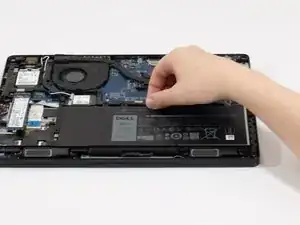
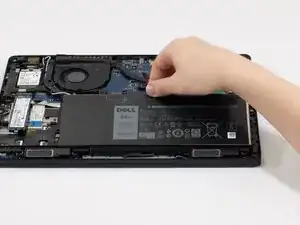
    • Gently lift the battery out of the laptop.

  9. Qvx1xZcBIGvWFohG
    Qvx1xZcBIGvWFohG
    HZdruspLhWZofjHN
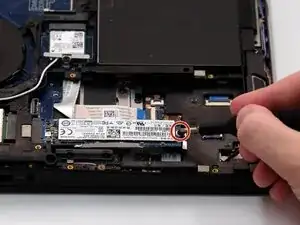
    • Remove the single 4 mm screw connecting the back of the SSD to the laptop using a Phillips #0 screwdriver.

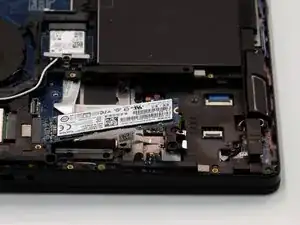
    • When the screw is removed, the SSD will be angled with an incline to one side.

  10. JwUuBIrTscliKFpV
    JwUuBIrTscliKFpV
    VAvYQAxEgZEJrx3K
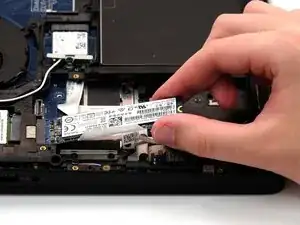
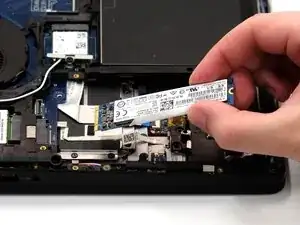
    • Carefully slide the SSD straight out from the rear side, from the end where the screw was previously secured.

    • The SSD should come out easily with no tension.

  11. qDGUl1cIHeWF12FN
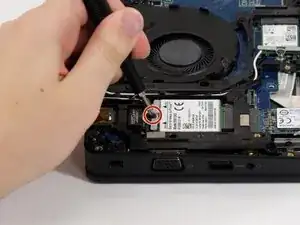
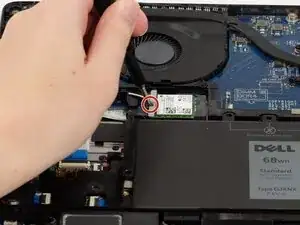
    • Remove the 4 mm screw holding the bracket above the WWAN card with a Phillips #0 screwdriver.

    • Be careful with the antenna connectors located under the bracket. They are fragile. If damaged, you will not be able to access mobile data.

  12. SvexwSBUOKvAyVKS
    SvexwSBUOKvAyVKS
    dfpUaaVWpSvPsQSb
    rG3nZTqVkV2jWTDR
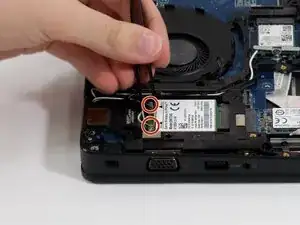
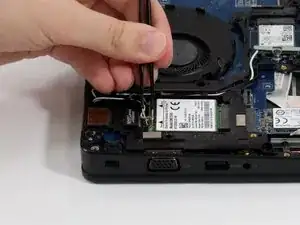
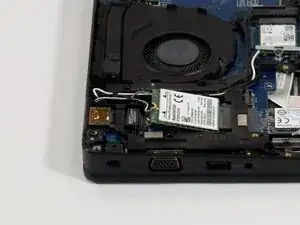
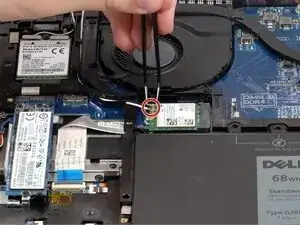
    • Carefully remove both antenna connectors. Ensure that you pull the antenna connectors straight up from the socket.

    • Using angled tweezers, hook one end of the tweezer under the connector. Set the other side at the end of the connector on the WWAN card. Keeping the tweezers flat, lightly squeeze.

    • These connectors are extremely fragile; ensure that they are aligned properly.

    • For reassembly, ensure that the antenna connectors are aligned above the sockets and press down gently. There should be a slight click. There should not be much resistance.

  13. RqDOYmU1LePiZWMS
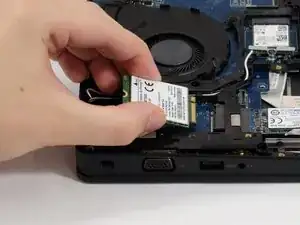
    • Carefully slide the WWAN card out from the rear side, from the end where the antennas and bracket were.

    • The WWAN card should come out easily with no tension.

  14. 4ZDEWSOD23MyQUyb
    • Remove the 4 mm screw holding the bracket above the WLAN card with a Phillips #0 screwdriver.

    • Be careful with the antenna connectors located under the bracket. They are fragile. If damaged, you will not be able to access Wi-Fi.

  15. oZHfFEZfsEXaglg5
    oZHfFEZfsEXaglg5
    X3jk4AAg16Ardum1
    Hdng3aAfQcQeUfK2
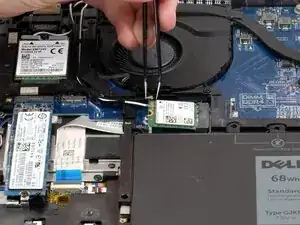
    • Carefully remove both antenna connectors. Ensure that you pull the antenna connectors straight up from the socket.

    • Using angled tweezers, hook one end of the tweezer under the connector. Set the other side at the end of the connector on the WLAN card. Keeping the tweezers flat, lightly squeeze.

    • These connectors are extremely fragile; ensure that they are aligned properly.

    • For reassembly, ensure that the antenna connectors are aligned above the sockets and press down gently. There should be a slight click. There should not be tension or resistance while doing so.

  16. smMkPk5XPfhDqfTk
    smMkPk5XPfhDqfTk
    jVQ2GoQ6HREO5UWR
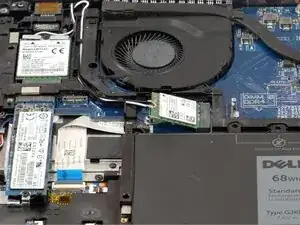
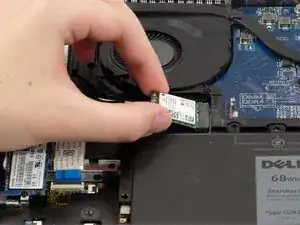
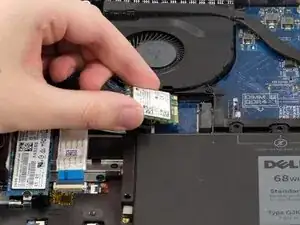
    • Carefully slide the WLAN card out from the rear side, from the end where the antennas and bracket were.

    • The WLAN card should come out easily with no tension.

  17. 3nAMUdWjGegPpSkX
    3nAMUdWjGegPpSkX
    LkQDhyyMAPW2Fbtf
    ebWpiqkkZo1xbfAI
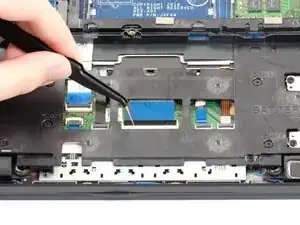
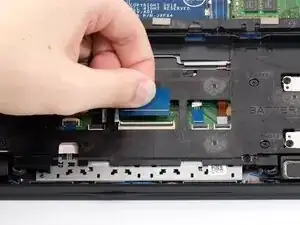
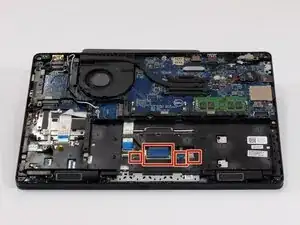
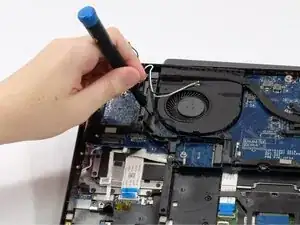
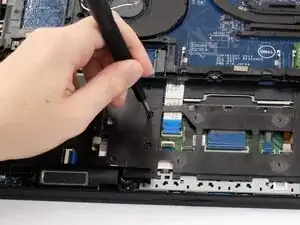
    • Using the angled tweezers, lift the small latches on the ribbon cables that are routed through the chassis. Gently remove them.

    • These cables and their connectors are extremely fragile; exercise caution when removing/inserting them.

  18. NT64Y6AGWZoJVFtG
    NT64Y6AGWZoJVFtG
    ZqrfZSRLPDRKmAmO
    Ov2ZPceepKxxHOHp
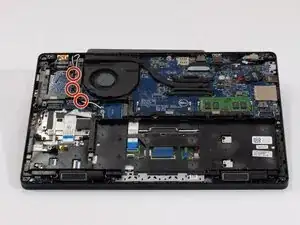
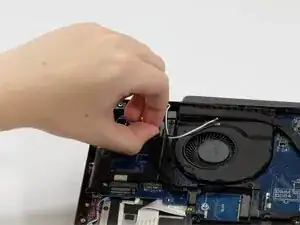
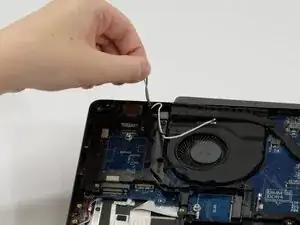
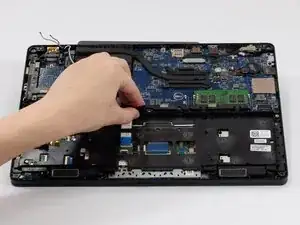
    • Unroute the WLAN and WWAN antenna cables from the chassis frame.

  19. YBCUDTUkhYn5dU5s
    YBCUDTUkhYn5dU5s
    f4SFehXYGm6LGkgc
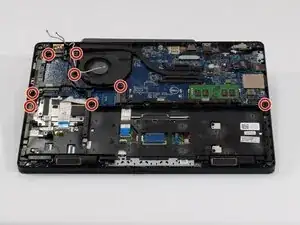
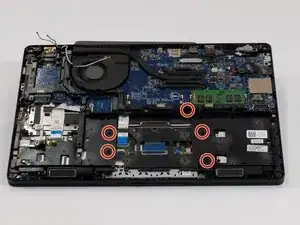
    • Using your Phillips #0 screwdriver, remove the eight 7 mm screws.

    • The screws are marked as "P1" or "M2x5" on the chassis frame.

  20. gDPZhERqwhkRnw55
    gDPZhERqwhkRnw55
    jnVNfeiDkgQW1woJ
    • Using your Phillips #0 screwdriver remove the five 4 mm screws.

    • The screws are marked as "P" or "M2x3" on the chassis frame.

  21. IYbCjtMNWpjP61hW
    IYbCjtMNWpjP61hW
    1pkyrAolWqZcmWgj
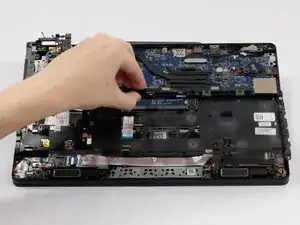
    • Gently lift the chassis frame from the device.

    • Go slowly; you'll notice if you missed any screws or cables if there is resistance while lifting.

Conclusão

To reassemble your device, follow these instructions in reverse order.

Shae Cathwulf VanCleave

Membro desde: 09/10/25

517 Reputação

0 comentários