Introdução
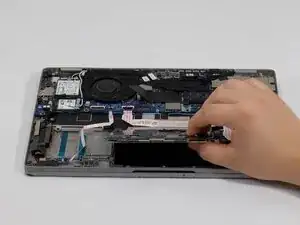
If you notice that the touchpad on your Dell Latitude 5320 2-in-1 is unresponsive, lagging, clicking inconsistently, or showing physical damage, this guide will provide a detailed step-by-step process to access the touchpad and replace it. Users are likely to replace the touchpad in their Dell Latitude 5320 2-in-1 due to issues such as cursor drift, sticky or unresponsive clicks, or worn-out components that affect usability and accuracy.
Make sure to diagnose your Dell Latitude 5320 2-in-1 correctly before continuing to take anything apart. Visit the troubleshooting pages for further guidance on determining if the touchpad is the root of the problem.
Before you begin, power off your Dell Latitude 5320 2-in-1, unplug it from the charger, and make sure the battery is fully drained.
Ferramentas


-
-
Shut down your laptop completely.
-
Unplug the laptop from any charging cables or other connected accessories.
-
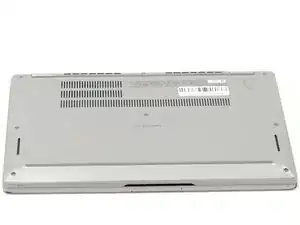
Flip the laptop over so the bottom case is facing upward.
-
-
-
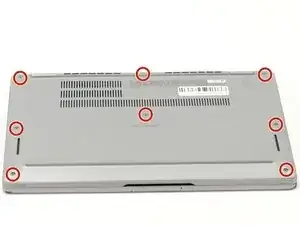
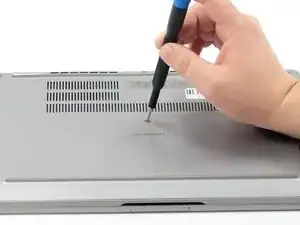
Using a Phillips #000 screwdriver, loosen the eight captive screws that secure the bottom cover.
-
-
-
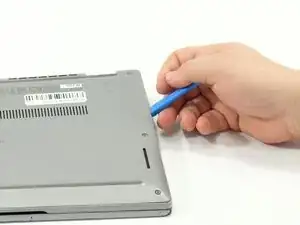
Insert an opening tool into the seam between the bottom cover and the rest of the device.
-
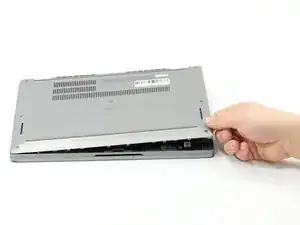
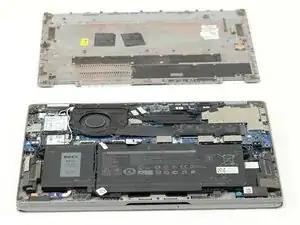
Gently work your way around the edges until the clips release. Lift the cover away and set it aside.
-
-
-
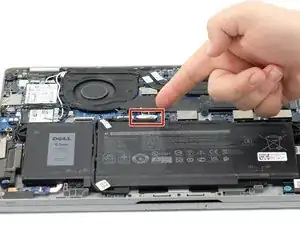
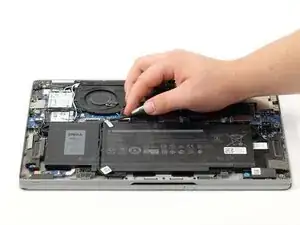
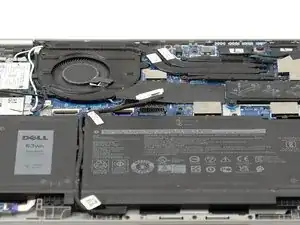
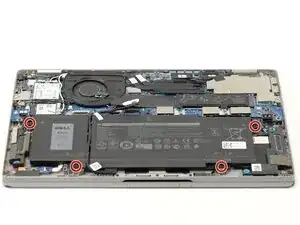
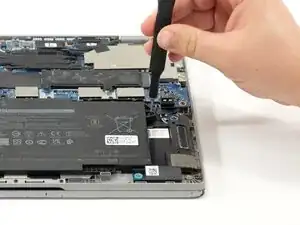
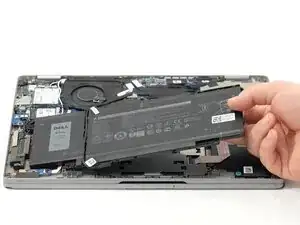
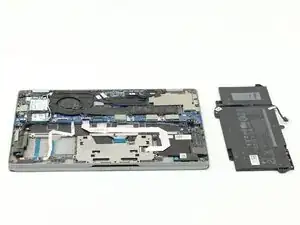
Gently lift the battery cable straight up from its socket on the motherboard to disconnect it.
-
-
-
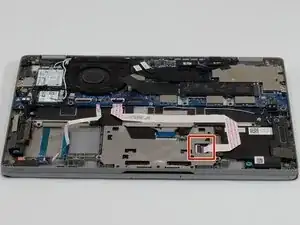
Use your fingernail to flip up the ZIF latch on the connector securing the blue ribbon cable.
-
Slide the blue ribbon cable straight out of the socket.
-
-
-
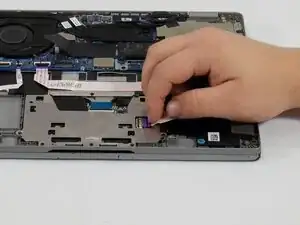
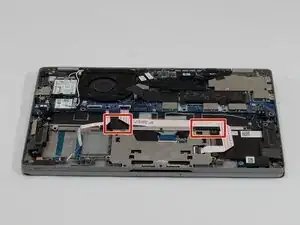
Use your fingernail to flip up the ZIF latch on the connector securing the red/brown ribbon cable.
-
Slide the red/brown ribbon cable straight out of the socket.
-
-
-
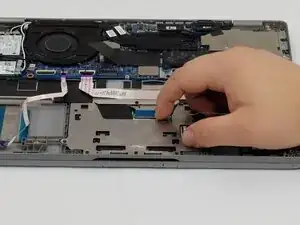
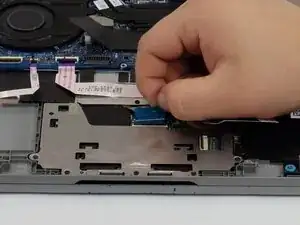
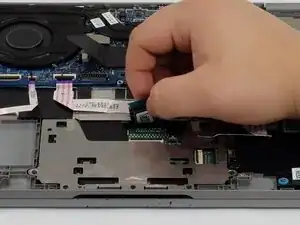
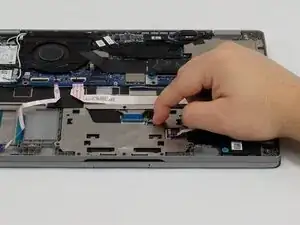
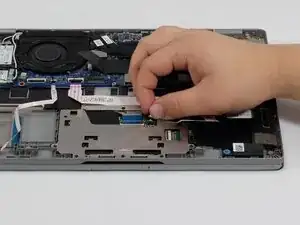
Using your fingertips, peel back the black flap to reveal all the screws.
-
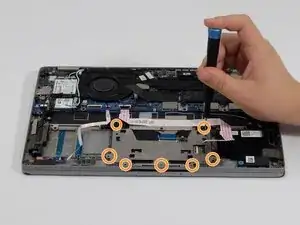
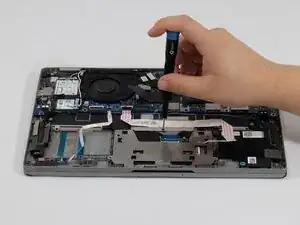
Remove all seven 2mm screws using a Phillips #000 screwdriver.
-
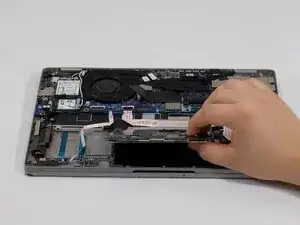
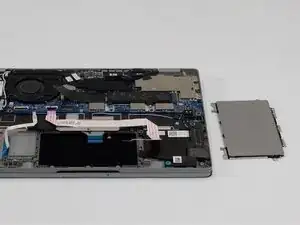
To reassemble your device, follow these instructions in reverse order.
