Introdução
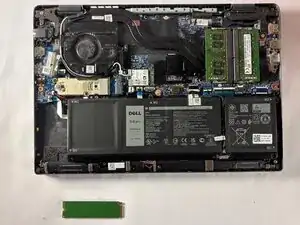
If your laptop is extremely slow to start, crashes often, or you simply need more storage, replacing the SSD can make a huge difference. The SSD holds your files, programs, and operating system. A new SSD will speed up loading times and improve responsiveness. To replace it, you will open the bottom cover, remove the mounting screw, slide out the old drive, and insert the new one. Secure it with the screw and close up the laptop. You may need to reinstall Windows as well.
Ferramentas


-
-
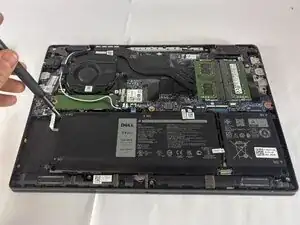
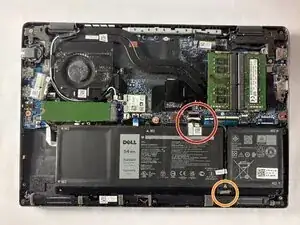
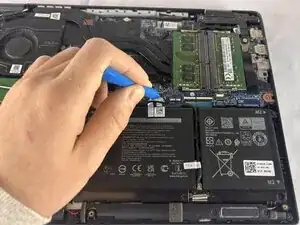
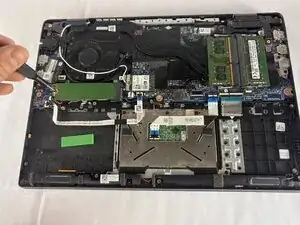
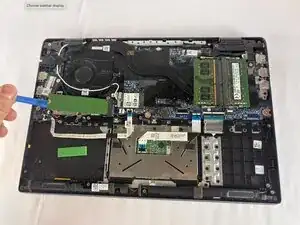
Use an opening tool to gently push the battery connector directly out of its motherboard socket.
-
Disconnect the second cable by pushing the connector toward the battery as well.
-
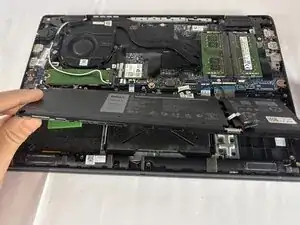
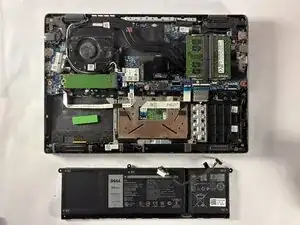
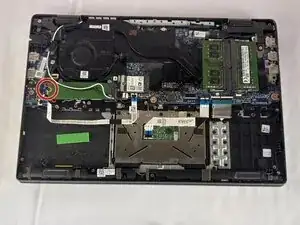
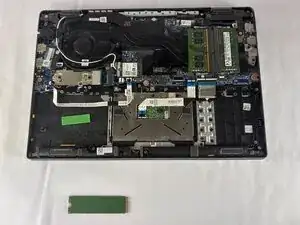
To reassemble your device, follow the above steps in reverse order.
Take your e-waste to an R2 or e-Stewards certified recycler.
Repair didn’t go as planned? Try some basic troubleshooting or ask our Answers community for help.