Introdução
A damaged or malfunctioning display may show flickering, dead pixels, cracks, or even a complete black screen. This display assembly contains the LCD, touchscreen (for touchscreen models), the hinge attachments, and the camera module. Replacing it requires disconnecting delicate cables and removing the hinge screws that secure the display to the laptop base. Before beginning this task, ensure the laptop is fully powered off, the battery is removed for safety, and you have enough space to open the screen fully while working.
Ferramentas


-
-
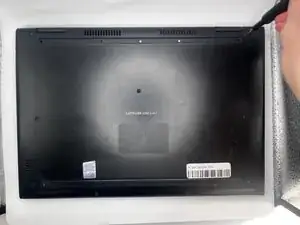
Flip the laptop over so that the bottom side is facing up. Place it on a soft, static free surface to prevent damage.
-
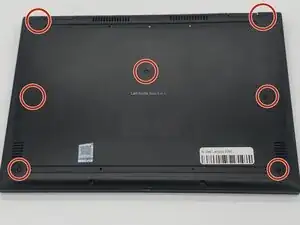
Use a Phillips #0 screwdriver to carefully remove all seven 7 mm-long screws securing the back cover.
-
-
-
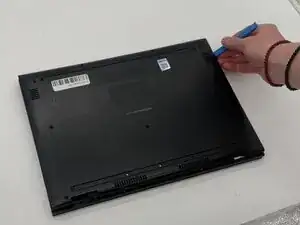
Insert an opening tool into the seam between the back cover and chassis.
-
Pry around the perimeter of the back cover until it fully releases.
-
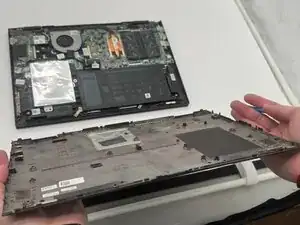
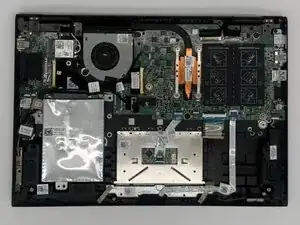
Lift off the back cover slowly and set it aside.
-
-
-
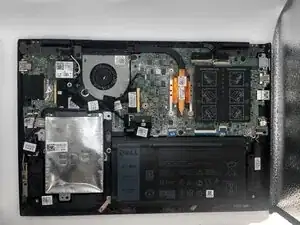
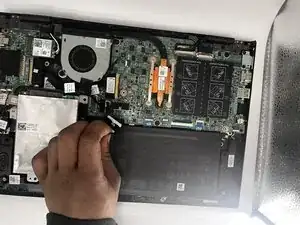
Disconnect the battery from the motherboard by gently pulling the connector straight out of its socket.
-
-
-
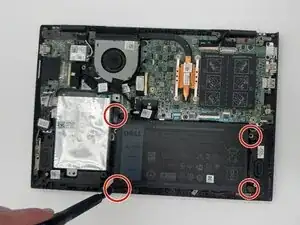
Carefully lift out the old battery from its compartment, ensuring that no cables or connectors are pulled or damaged.
-
-
-
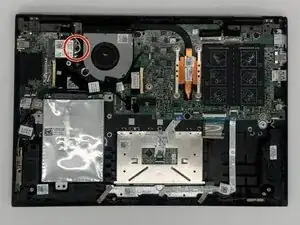
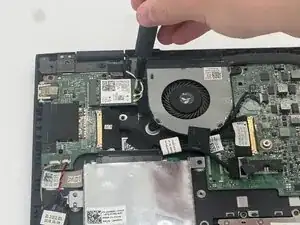
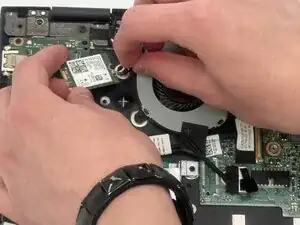
Use the pointed end of a spudger to disconnect the two coaxial cables.
-
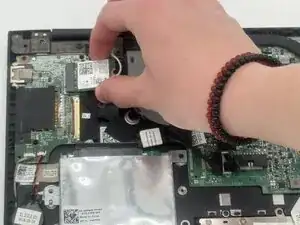
Pull the WLAN card directly out of its socket.
-
-
-
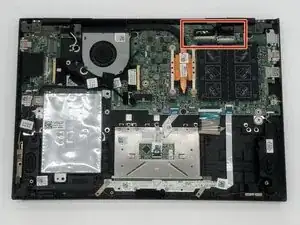
Flip up each of the two locking flaps that secure the two connectors in the upper-right corner of the board.
-
Disconnect the two connectors.
-
-
-
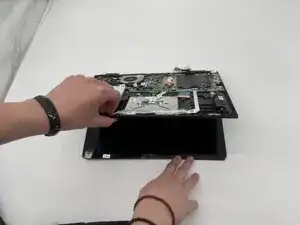
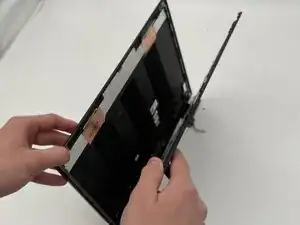
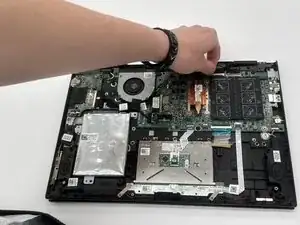
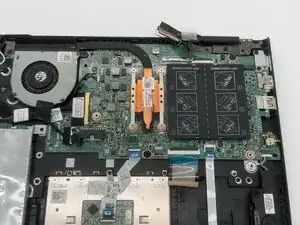
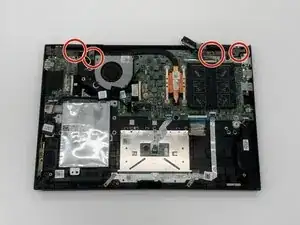
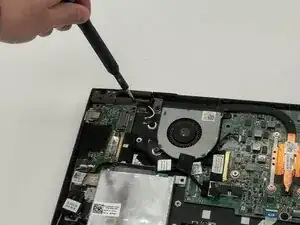
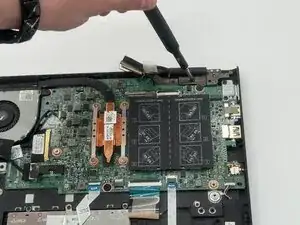
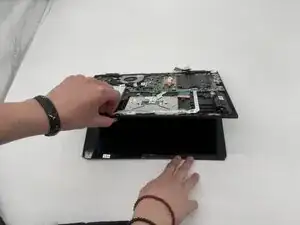
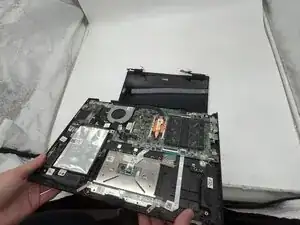
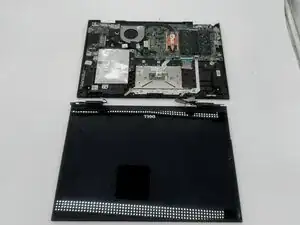
Lift the base of the laptop, keeping one hand on the screen. The display assembly should disconnect from the motherboard.
-
To reassemble your device, follow the above steps in reverse order.
Take your e-waste to an R2 or e-Stewards certified recycler.
Repair didn’t go as planned? Try some basic troubleshooting or ask our Answers community for help.