Introdução
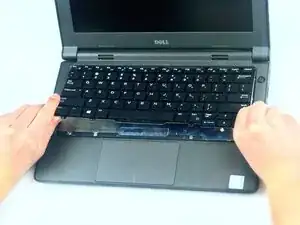
If your Dell Latitude 3150 keyboard is unresponsive, has stuck or missing keys, or is otherwise malfunctioning, it might be time for a replacement. The keyboard is one of the most frequently used components, and even minor issues can interrupt your workflow. Replacing it yourself is a cost-effective solution and can be done quickly with the right tools and careful handling.
Before starting, make sure you have a compatible keyboard designed for the Dell Latitude 3150, as an incorrect model may not fit or work properly.


-
-
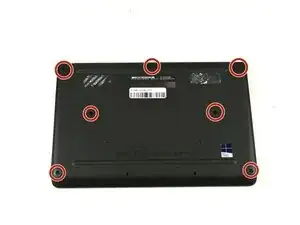
Remove the seven 5 mm screws using a Phillips #1 screwdriver.
-
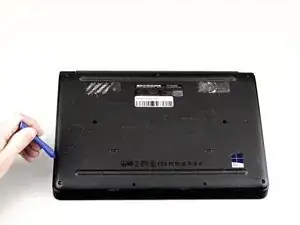
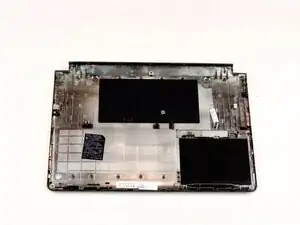
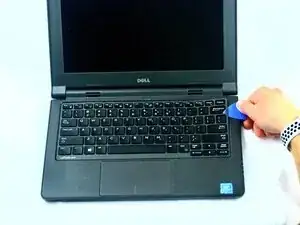
Pry the back open with a plastic opening tool, working around the edges until all the retaining clips are disengaged.
-
-
-
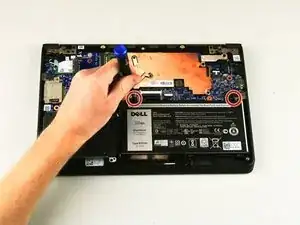
Remove the two Phillips 3 mm screws connected to the battery using a Phillips #1 screwdriver.
-
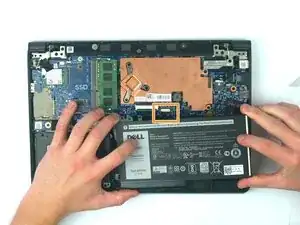
Carefully lift the battery and unplug the battery cable from the device.
-
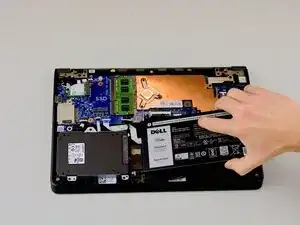
Remove the battery from the laptop.
-
-
-
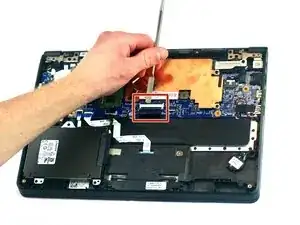
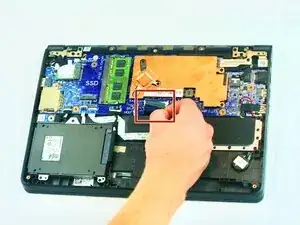
Using the metal spudger, lift the safety clip and gently disconnect the keyboard cable connector.
-
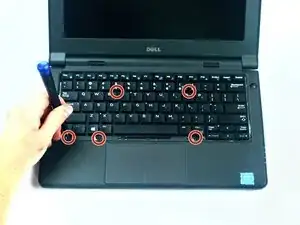
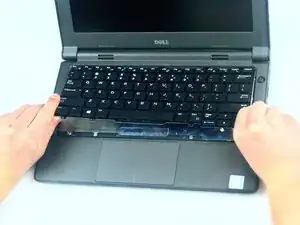
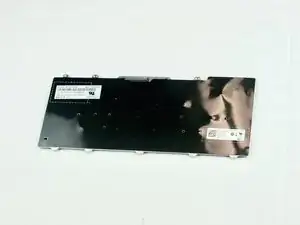
To reassemble your device, follow these instructions in reverse order.